

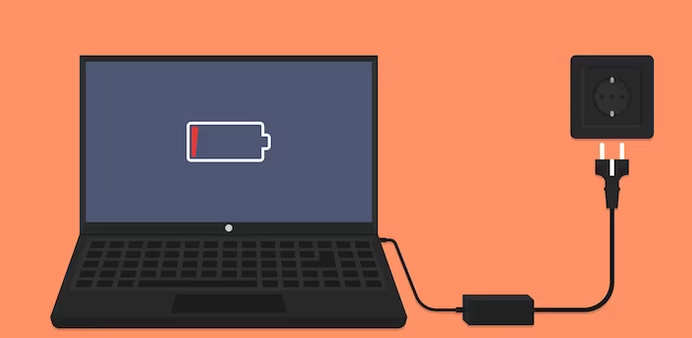
You sit down to work. You plug in your Windows running Lenovo laptop. No charging light appears. The battery stays dead. This can be frustrating, especially when you need your laptop the most and you want to complete an important task.
Well, these issues can be fixed with some easy solutions. Sometimes, a loose charger, wrong battery settings, or may be a software glitch can stop your laptop from charging. Here are the solutions you can try – before replacing the battery or charger.
Fix Lenovo Laptop Not Charging, No Light
You can try these solutions one-by-one, see if they helps.
1. Check The Charger And Cable
Start with the simple things.
- Make sure the charger is firmly connected.
- Check the wall socket.
- Look for damage on the cable or adapter.
- Use another compatible charger if possible.
2. Power Reset The Laptop
A power reset can remove temporary hardware issues.
- Turn off the laptop.
- Unplug the charger.
- Remove the battery if it is removable.
- Hold the Power button for 30 seconds.
- Reinsert the battery, connect the charger, and turn the laptop on.

3. Test Without The Battery
Remove the battery and connect only the charger.
If the laptop powers on, the battery may be faulty and needs to be replaced.
4. Check For Hardware Issues
Inspect the charging port for dust or damage. Ensure the charger matches your Lenovo model. You can also try a different power outlet, if available. If the adapter is damaged, consider to replace it.
5. Reset Power Settings
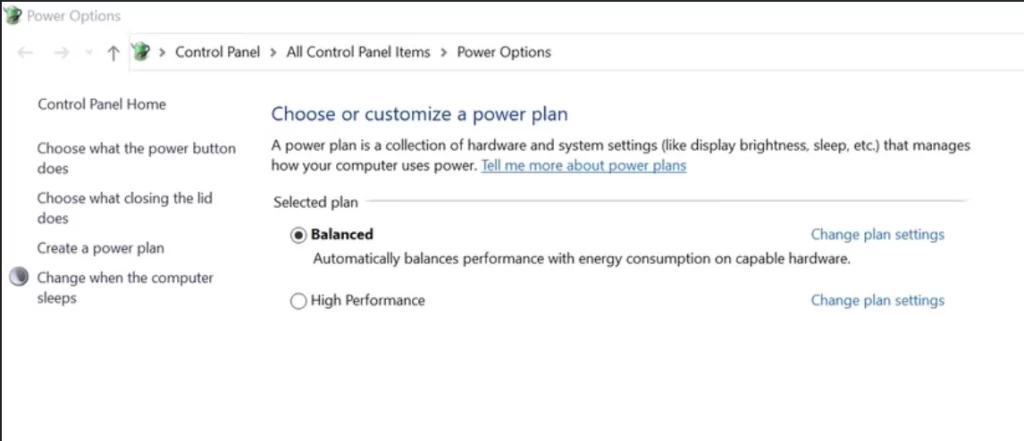
Open Control Panel > All Control Panel Items > Power Options and select the Balanced power plan. If you changed the settings recently, restore the default values.
6. Update The BIOS
Download the latest BIOS for your laptop from the Lenovo Support website. Download and install it while the charger is connected to your device.
Then you can follow the on-screen instructions carefully.
7. Check Lenovo Vantage
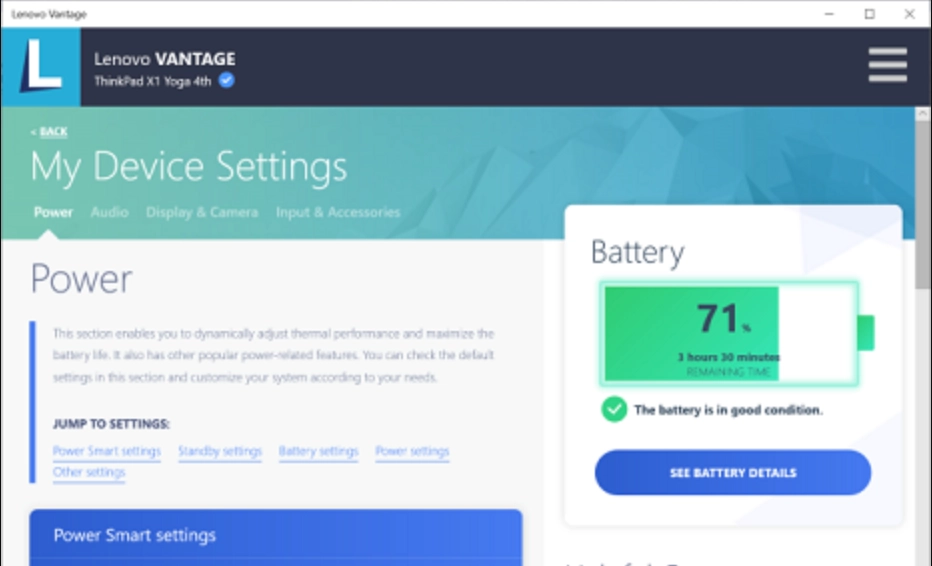
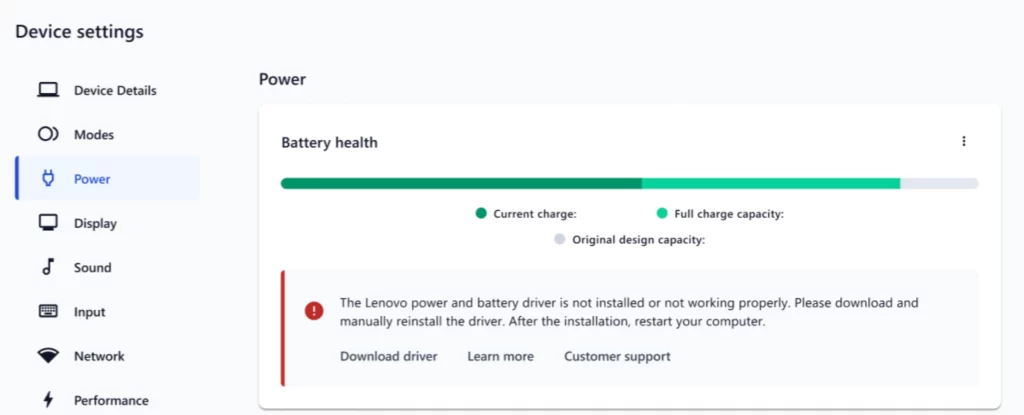
Open Lenovo Vantage and go to Device > Power > Battery. Disable Conservation Mode or Battery Charge Threshold if enabled. Then Check for updates and run the battery diagnostic.
8. Reinstall Battery Drivers
Open Device Manager, expand Batteries, uninstall the battery devices, and restart the laptop. Windows will reinstall the required drivers automatically. If you can’t get drivers via Device Manager, open Lenovo Vantage and go to Device > Power > Battery health. Click on Download driver there.
So, we hope you can now solve this problem. Drop us a comment, if this is still not resolved.

Leave a Reply