

If Windows 11 refuses to start, an USB recovery drive can save you. But many users get stuck because Windows either fails to detect the USB drive or fails to create the recovery media. In case if you’re facing this issue, try the fixes below.
Why Can’t Windows 11 Create A USB Recovery Drive?
This problem usually happens when:
- The USB drive is too small.
- The drive uses an unsupported file system.
- The USB port has connection issues.
- Existing partitions on the USB are causing conflicts.
Fix: Can’t Create USB Recovery Drive In Windows 11
Let’s give the fixes a glance:
Fix 1: Check The USB Drive Requirements
Before creating a recovery drive, make sure your USB device meets Windows requirements.
- Connect the USB drive.
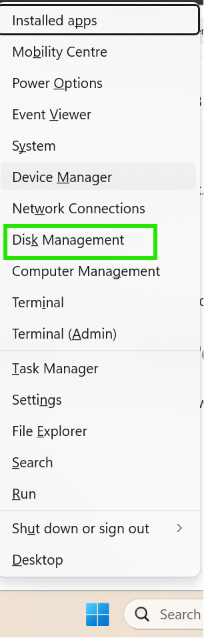
- Press Windows + X and select Disk Management.
3. Check the drive size.
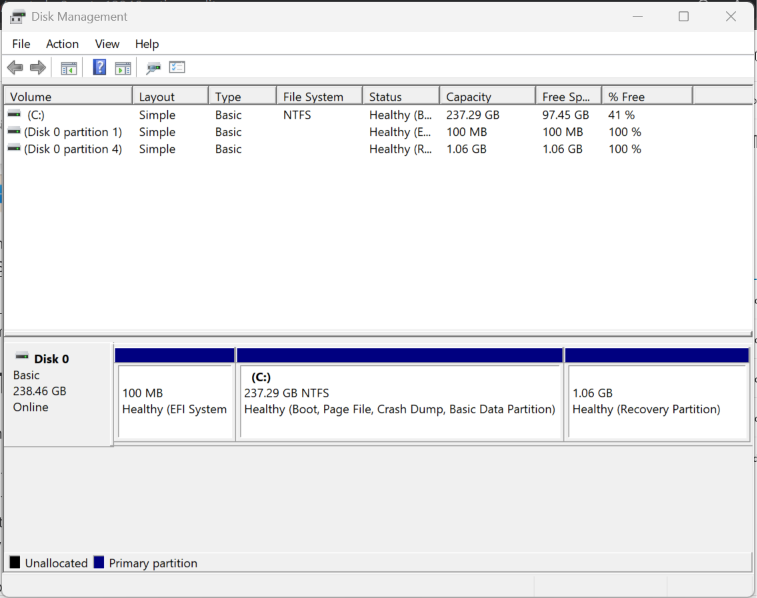
4. Use a USB drive with at least 32 GB of storage.
5. Ensure the drive is working properly.
After confirming the requirements, try creating the recovery drive again.
Fix 2: Try A Different USB Port
A faulty or incompatible USB port can prevent Windows from detecting the drive.
- Remove the USB device.
- Plug it into another USB port.
- Reopen the Recovery Drive tool.
- Check whether the USB drive appears.
You can also test the drive on another computer.
Fix 3: Create A New FAT32 Partition
Large USB drives sometimes need a fresh 32 GB FAT32 partition.
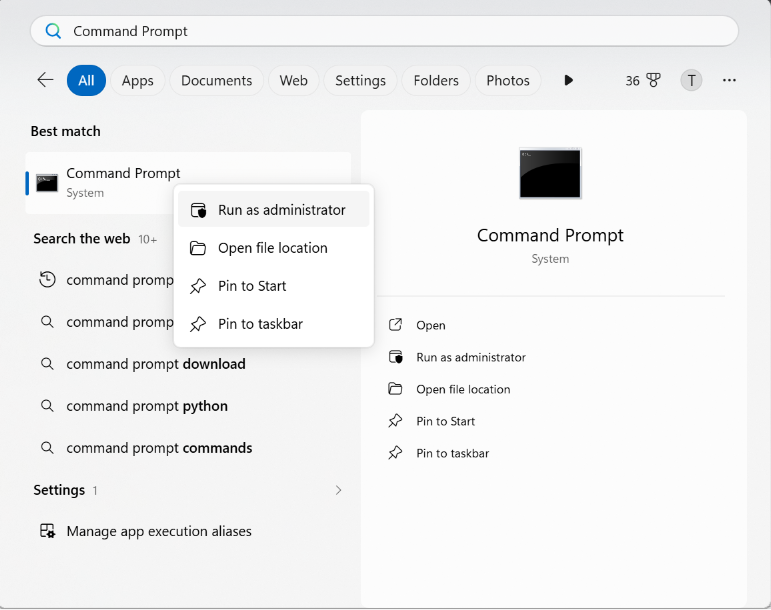
- Search for Command Prompt.
- Select Run as administrator.
3. Execute the following commands one at a time:
diskpartlist diskselect disk XReplace X with USB drive letter.
cleanconvert mbr
create partition primary size=32768format fs=fat32 quick4. Replace X with your USB drive number.
5. Close Command Prompt and retry the recovery drive creation process.
Fix 4: Use Windows Installation Media Instead
If the Recovery Drive tool still fails, you can create a bootable Windows installation USB. For this you can use the Microsoft’s Media Creation Tool available at (https://www.microsoft.com/en-us/software-download/windows11). This would be helpful to reinstall or repair Windows, especially when your PC won’t boot.
Bottomline
So if you can’t create a USB recovery drive in Windows 11 simply start by checking the USB drive size. Switching USB ports or creating a new FAT32 partition may be helpful. If these fails, you can use Windows installation media as a effective alternative solution.

Leave a Reply