

Sometimes you’re working on a Google Docs, you might need to save it as a PDF file. This article will show you some different methods to save Google Docs as a PDF file.
Why Save a Google Docs as a PDF?
PDF is one of the most widely accepted document formats due to its multiple benefits-
- Uses the correct screen layout, fonts, formatting and images
- Works on nearly all devices
- Printing is easier and more professional.
- Prevents accidental editing
- Ideal for distributing official documents.
- Works with Windows, Mac, Linux, Android and iPhone
If you’re submitting important documents, PDF is usually the preferred format.
Ways to Save a Google Docs as a PDF file
In this guide, you will learn every possible way you can convert your document to PDF, whether you’re working on Google Docs from a computer or just need to make it into a PDF. At the end of this tutorial, you’ll be familiar with the quickest and most accurate method to save a Google Docs as a PDF file while preserving formatting.
Way 1: Download the Google Docs as a PDF
The most simple, and often used, approach is to download the document as a PDF.
1. Open your document in Google Docs – “https://docs.google.com/document/create“.
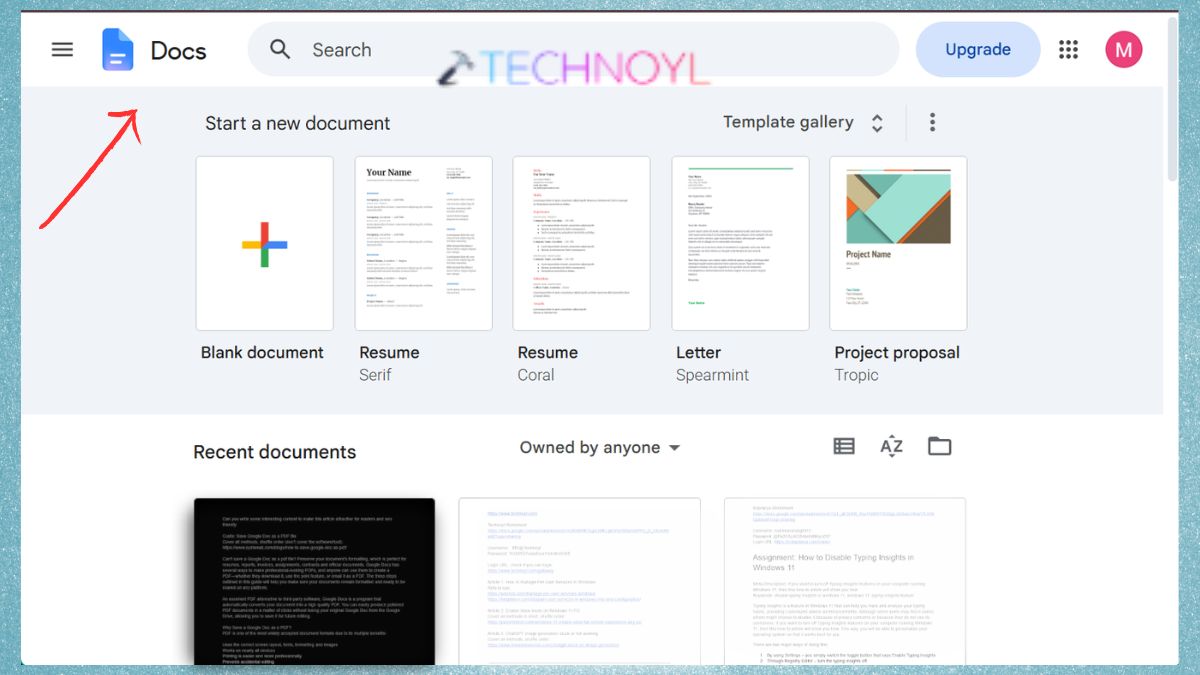
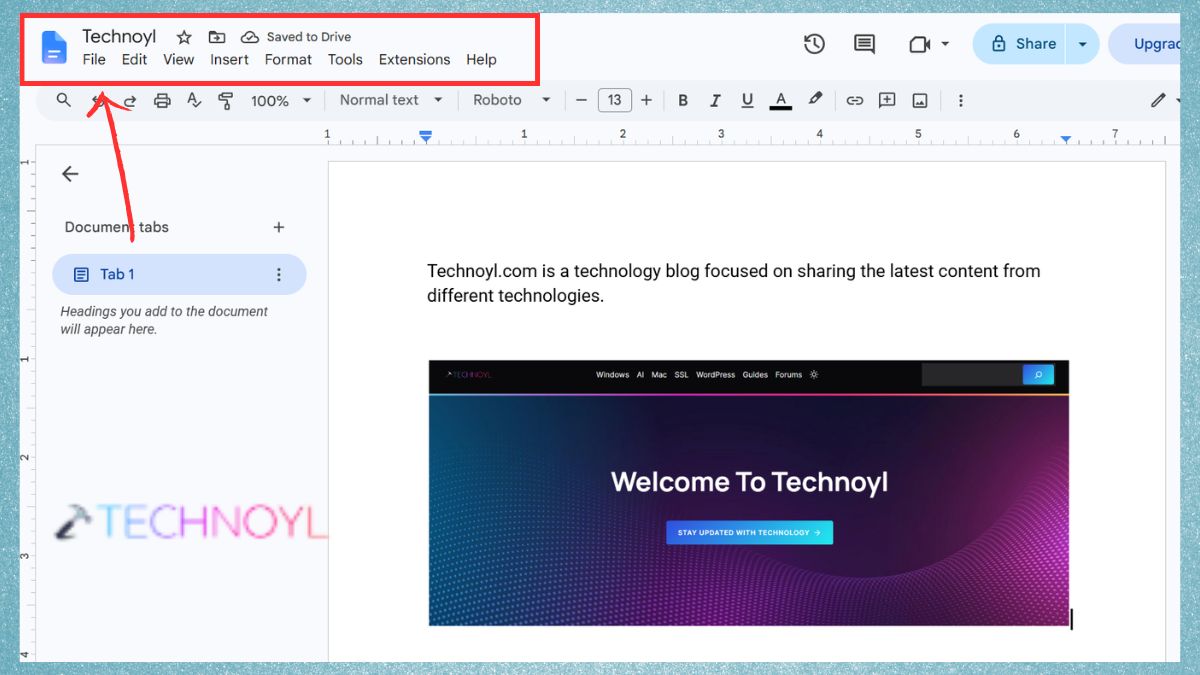
2. On the top menu, click File.
3. Select Download. Select PDF Document (.pdf).
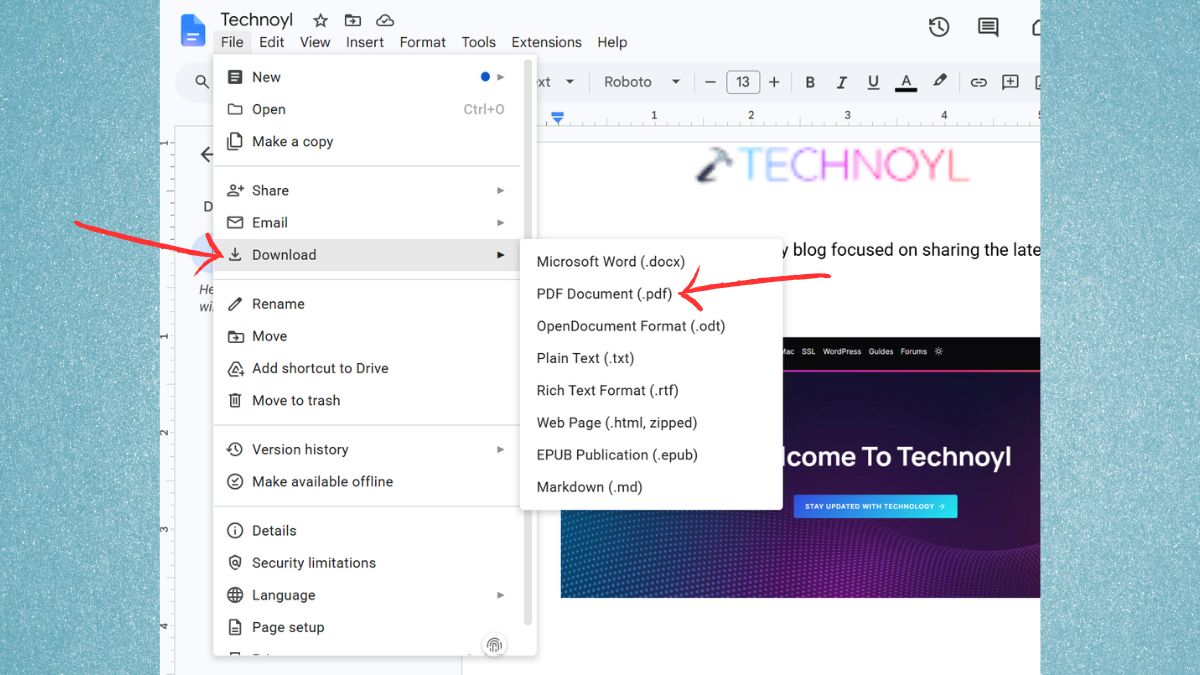
Choose the folder where you’d like to save the file or your Google document will automatically be saved as a PDF file.
Way 2: Save Google Docs as PDF Using the Print Option
The other safe method to render your document in PDF is by leveraging the Print feature. If you wish to look at your document prior to saving it, this is a useful technique.
1. Click the Google Docs link. Click File.
2. Click on the Print button or press Ctrl + P (Windows) or Cmd + P (Mac).
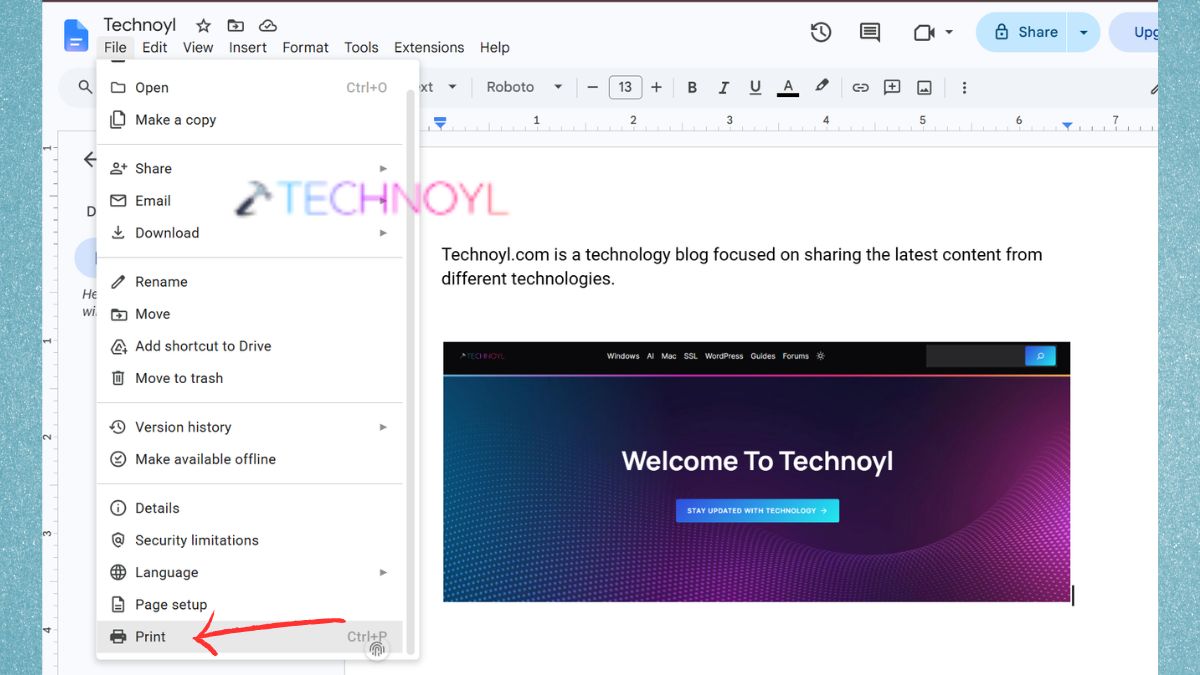
3. When it comes time to print, select Save as PDF in the Print dialog box. Click Save.
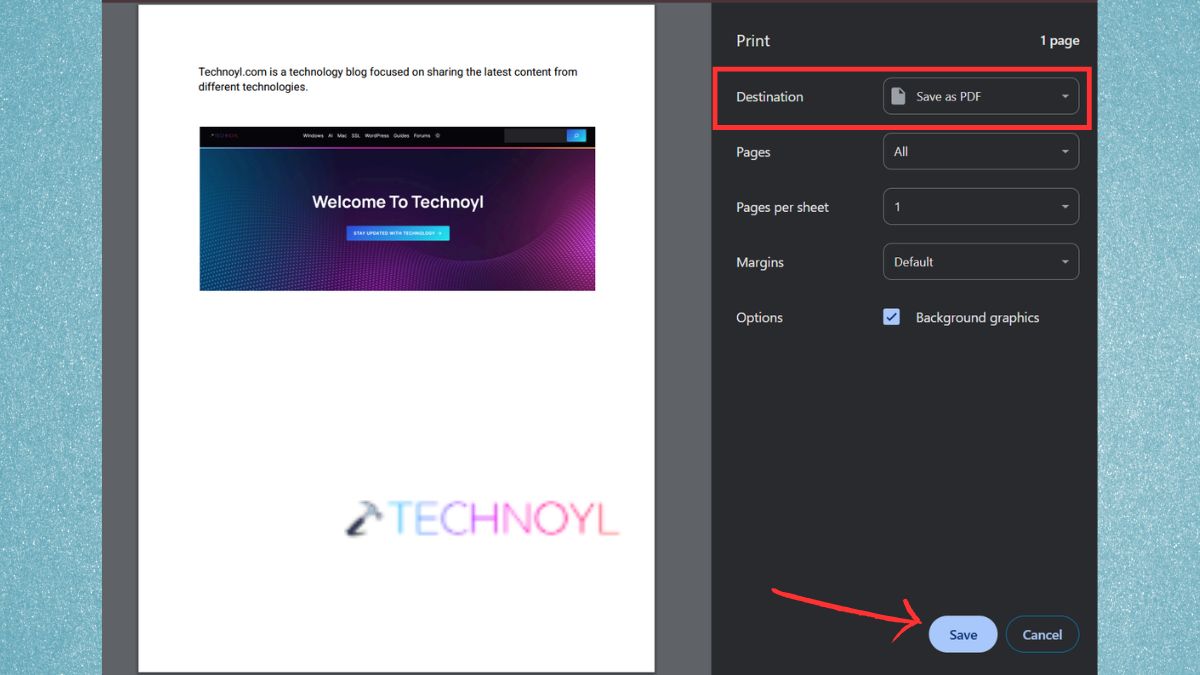
Choose the folder that you want to save the PDF in. The document will now be saved as a PDF.
Way 3: Email the Google Doc as a PDF
Attachments are also supported in Google Docs — you can send docs as a PDF without downloading them first.
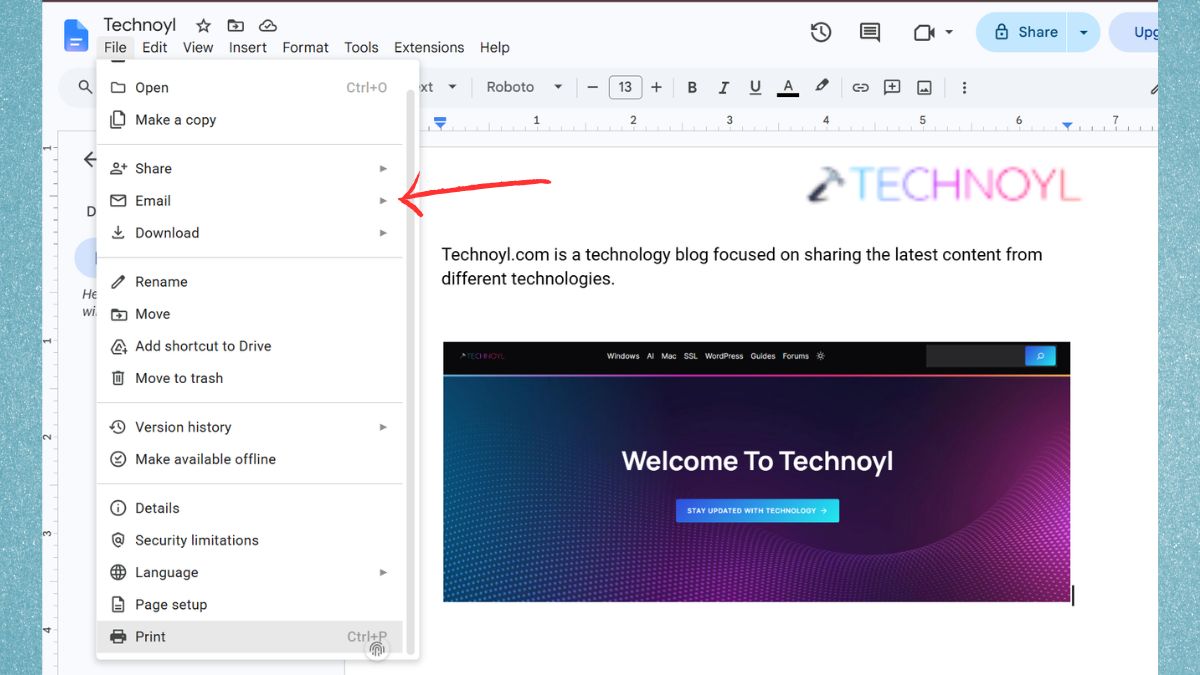
1. Open the document in Google Docs. Click File option.
2. Choose Email.
3. Select Email this file.
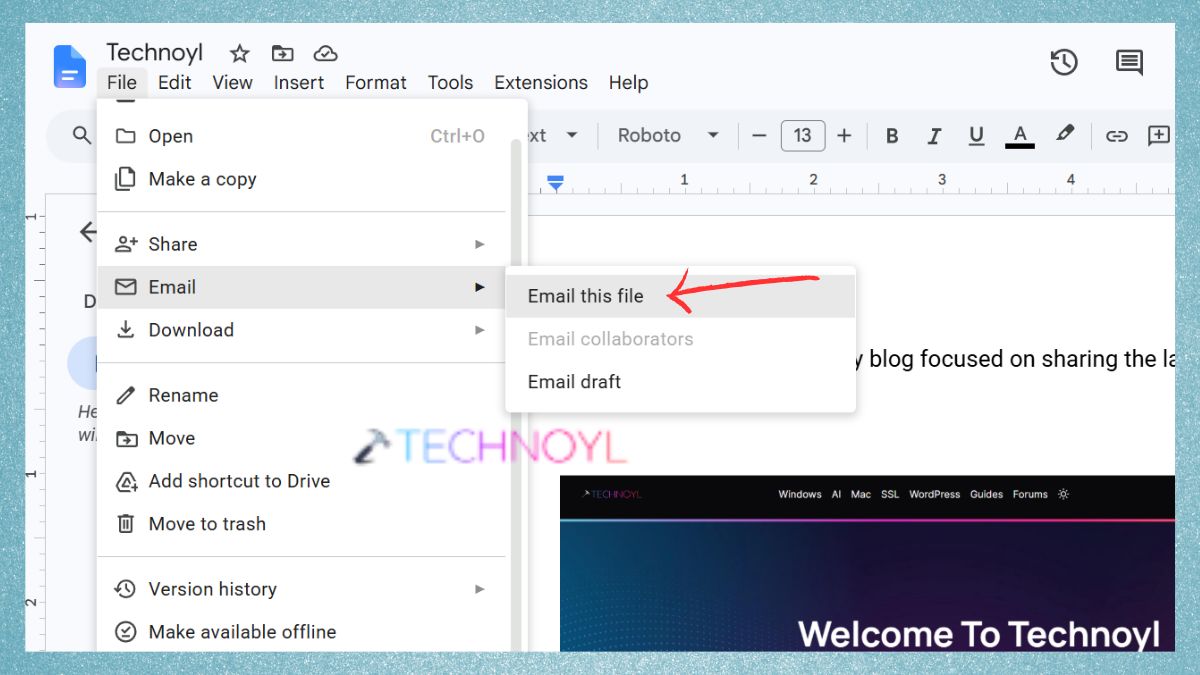
4. Type in the email address of the person to receive the gift. Select PDF in the Attach as option. Include a topic and a message (if necessary). Click Send.
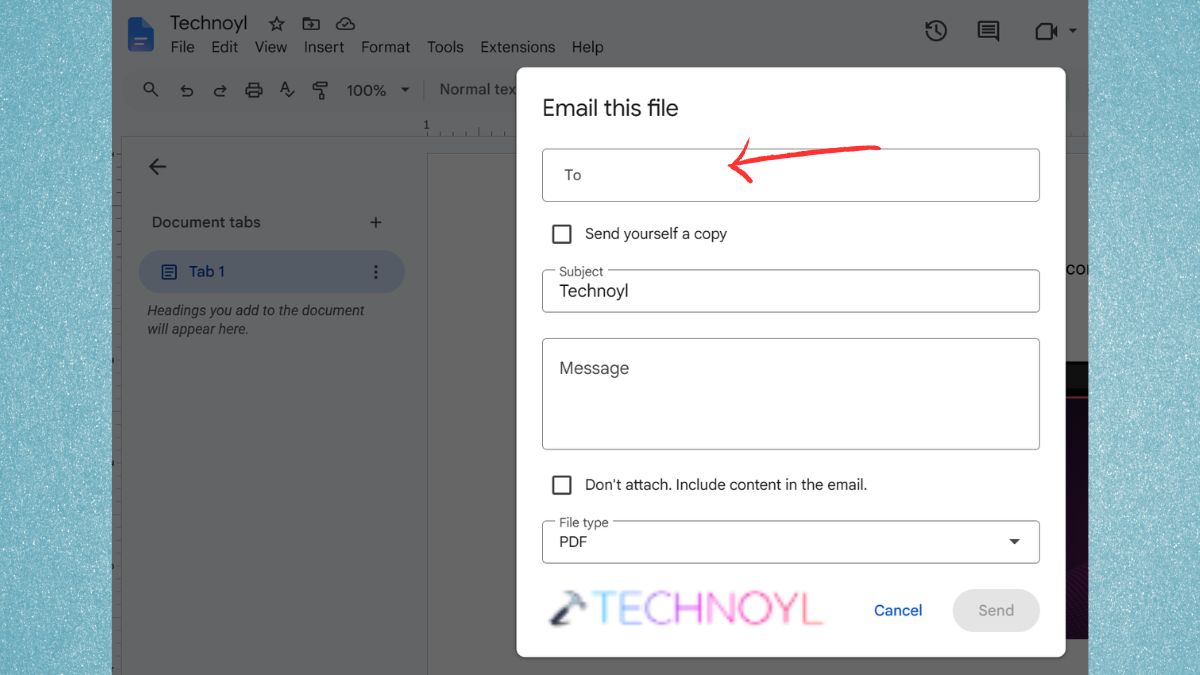
The document will be sent as a PDF attachment, which will be sent to the recipient.
Tip: When you often share Google Docs as a PDF, make it a habit to look at the PDF right after you export it. Therefore, you can detect formatting problems, missing images, or missing page breaks before you submit the file to your client, employer, or instructor.
Frequently Asked Questions (FAQs)
How do I save a Google Doc as a PDF file?
Open the document, and follow the methods given in this guide to save the PDF file to a preferred destination.
Can I convert a Google Doc to PDF without downloading it?
Yes, to send the document as a PDF attachment, click File > Email > Email this file and select PDF as the format for the attached file.
Will converting a Google Doc to PDF change its formatting?
No, in most cases, Google Docs does not save fonts, images, tables or page layout when exported to pdf. However, it’s always a good idea to preview the PDF before sharing.
Can I save Google Docs as PDF on mobile devices?
Yes, Google Docs Mobile enables you to share or export documents as PDF on both Android and iPhone.
That’s it!

Leave a Reply