


You lock your PC for a few minutes and come back to find the internet disconnected. Downloads stop. Cloud syncing pauses. Remote connections get interrupted. WiFi keeps dropping after every time you lock your computer; the fixes below can help.
Why Does WiFi Disconnect After Locking the PC?
Windows often tries to save power when the PC is idle or locked. Some WiFi adapters also have built-in power-saving features. These settings can temporarily disconnect the wireless connection.
Fix 1: Disable WiFi Adapter Power Management
This is the first fix you should try. Below are the steps:
- Press Windows + X and select Device Manager.
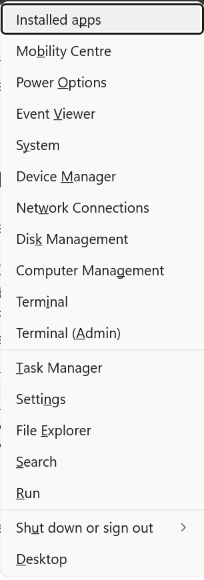
2. Expand Network adapters.
3. Right-click your WiFi adapter and choose Properties.
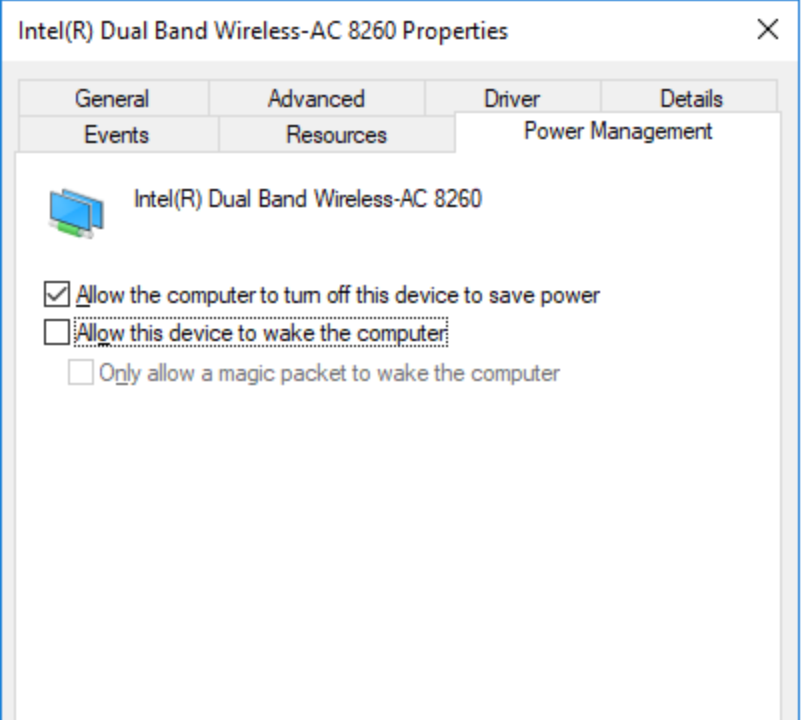
4. Open the Power Management tab.
5. Uncheck Allow the computer to turn off this device to save power.
6. Click OK.
Fix 2: Turn Off WiFi Power-Saving Features
Some wireless adapters have extra power-saving options that can cause connection drops.
- Open Device Manager.
- Right-click the WiFi adapter and select Properties.
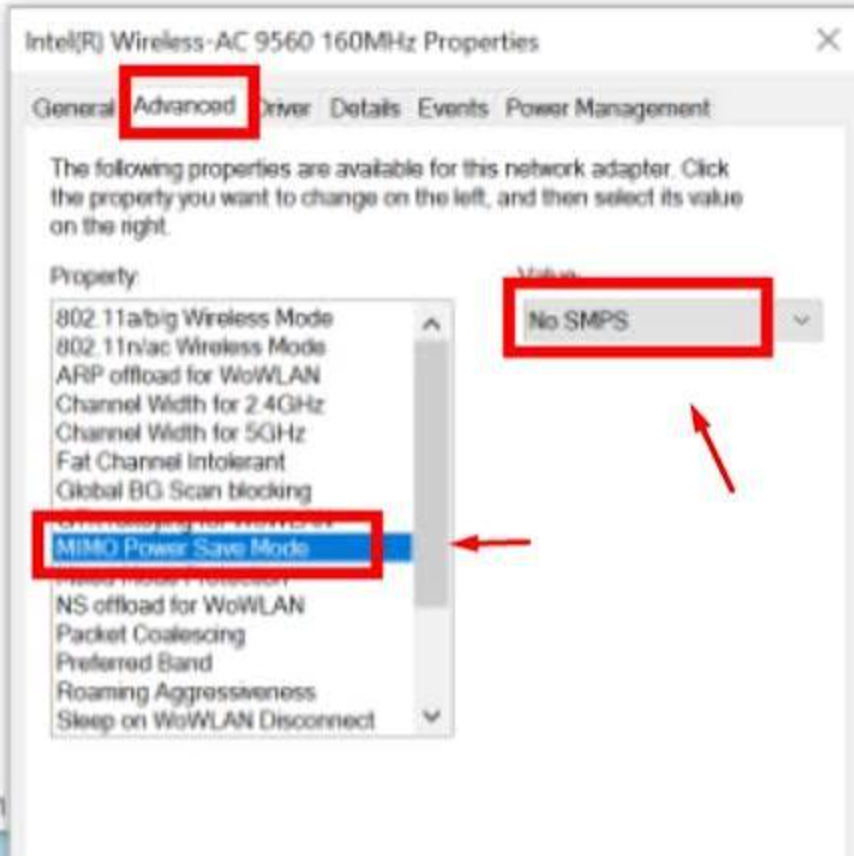
- Go to the Advanced tab.
- Disable options such as U-APSD Support.
- Set MIMO Power Save Mode to No Power Save if available.
- Click OK.
Fix 3: Disable Bluetooth Collaboration
This can help on laptops where WiFi and Bluetooth use the same wireless chip.
- Open the WiFi adapter Properties window.
- Go to the Advanced tab.
- Find Bluetooth Collaboration.
- Change it to Disabled.
- Save the changes.
Fix 4: Restart WLAN AutoConfig Automatically When WiFi Keeps Dropping After Locking
This helps Windows recover the connection faster.
- Press Windows + R, type services.msc, and press Enter.
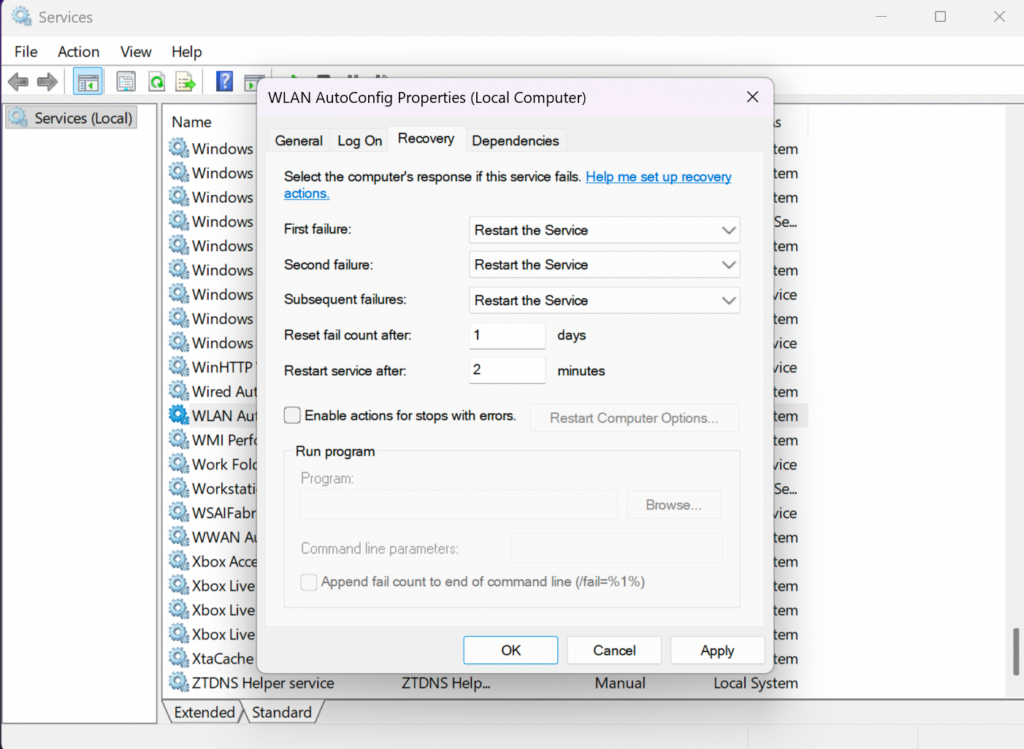
- Open WLAN AutoConfig.
- Select the Recovery tab.
- Set all failure options to Restart the Service.
- Click Apply and OK.
Fix 5: Keep Network Connectivity Active
Windows may disable network connectivity during certain power states.
- Open Command Prompt as Administrator.
- Run the required PowerCfg commands to keep network connectivity active.
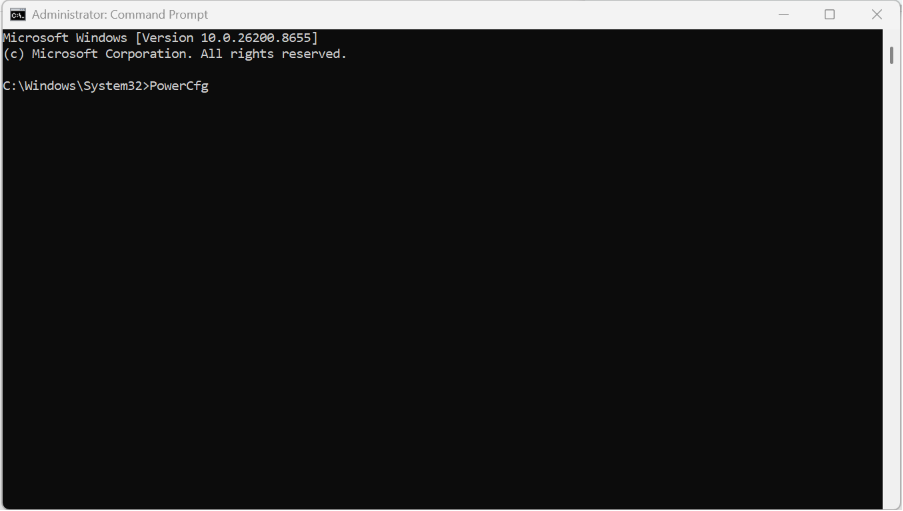
3. Apply the current power plan settings.
4. Restart the PC.
That’s all! You’ll easily fix it when your WiFi keeps dropping after locking.

Leave a Reply