

Getting Group Policy Error Event 1129? Typically, this error is displayed in the Windows Event Viewer and means that the computer could not connect to a domain controller while processing group policy.
Event ID 1129 may be caused by either a network or Active Directory communication issue, but it can also be caused by DNS problems, too-early or too-late startup, domain controller availability or blocked LDAP traffic. It may cause the Group Policy settings to not update properly, causing delays in logging on, Group Policy deployments to fail, authentication issues, and different system configurations.
In this guide, we’ll discuss what Group Policy Error Event ID 1129 is, what caused it, and give you detailed, step-by-step answers to solve the problem.
What is Group Policy Error Event ID 1129?
The Group Policy Error Event ID 1129 is logged if Windows can’t communicate with a domain controller during the processing of Group Policy. It tries to find an Active Directory domain controller but cannot get in touch or authenticate to an Active Directory domain controller.
A common error message would be: “The processing of the Group Policy was not successful due to lack of network connection to a DC.”
In such cases, Windows might apply the previously cached group policy settings or not process group policy until it reconnects to the domain controller.
How to fix Group Policy Error Event ID 1129
Follow these four methods to fix Group Policy Error Event ID 1129.
Fix 1: Verify That the Computer Can Reach the Domain Controller
The most frequent cause of Group Policy Error Event ID 1129 is that the client computer is unable to communicate with the domain controller. Group Policy settings will not be retrieved and applied if it fails to connect.
1. As an admin, open up the Command Prompt.
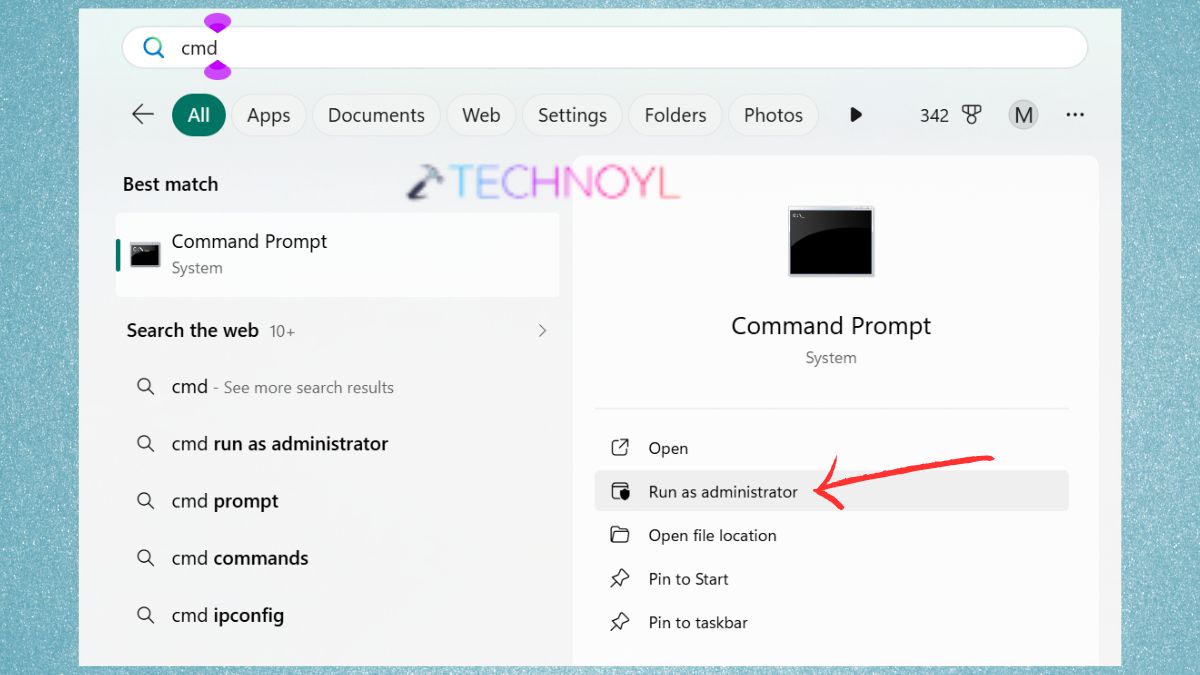
2. Then, execute the following command.
ping
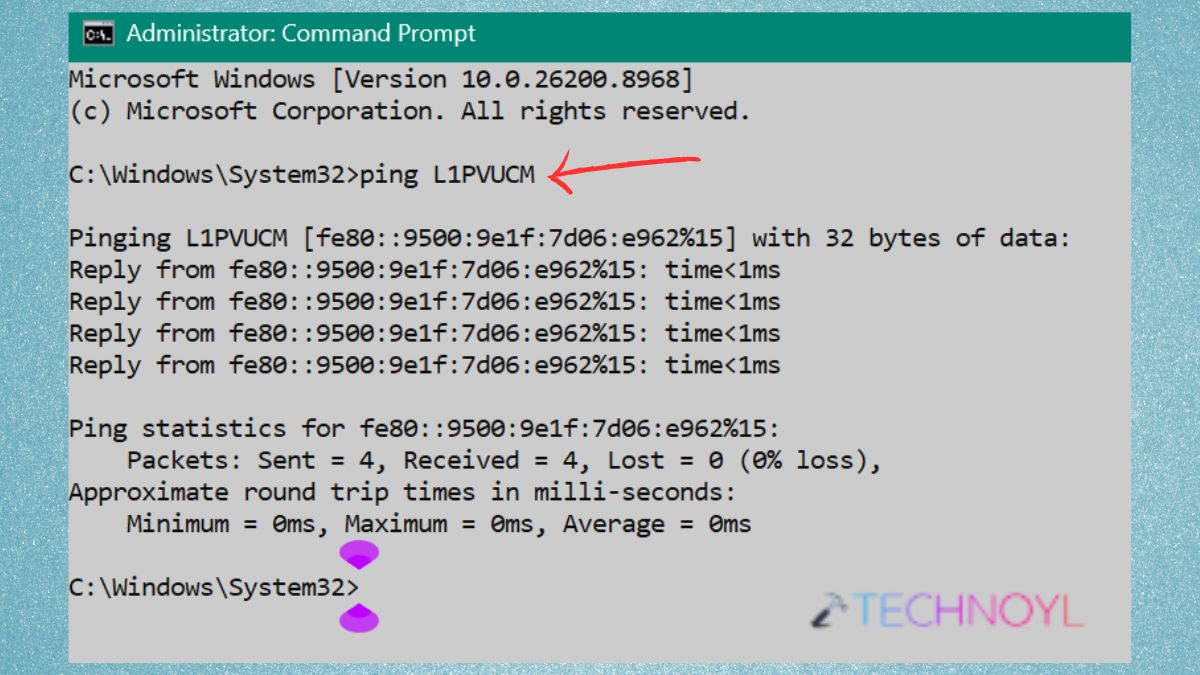
3. If this fails, make sure that:
- The computer is connected to the network.
- An online and reachable domain controller.
- If there are any VPN connections necessary to access the domain that are up, they should be active.
4. Now, run the following command one by one.
nltest /dsgetdc:
nltest /sc_verify:
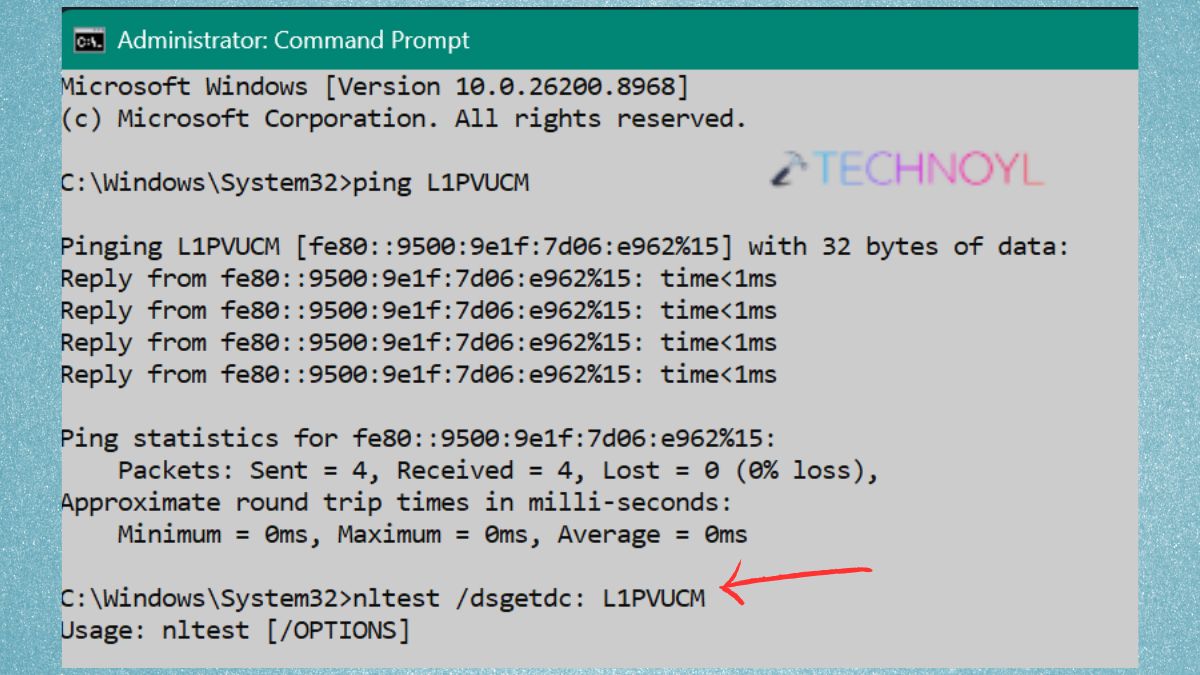
If you don’t have a domain controller, check the network and DNS settings. If secure channel verification fails, you might have to re-establish the computer’s trust relationship with the domain.
Fix 2: Check DNS Configuration and Domain Name Resolution
One of the most common causes of Event ID 1129 is when DNS settings are misconfigured. Because Active Directory uses DNS to find domain controllers, the incorrect DNS server can cause the Group Policy to not process properly.
1. Run these commands.
ipconfig /all
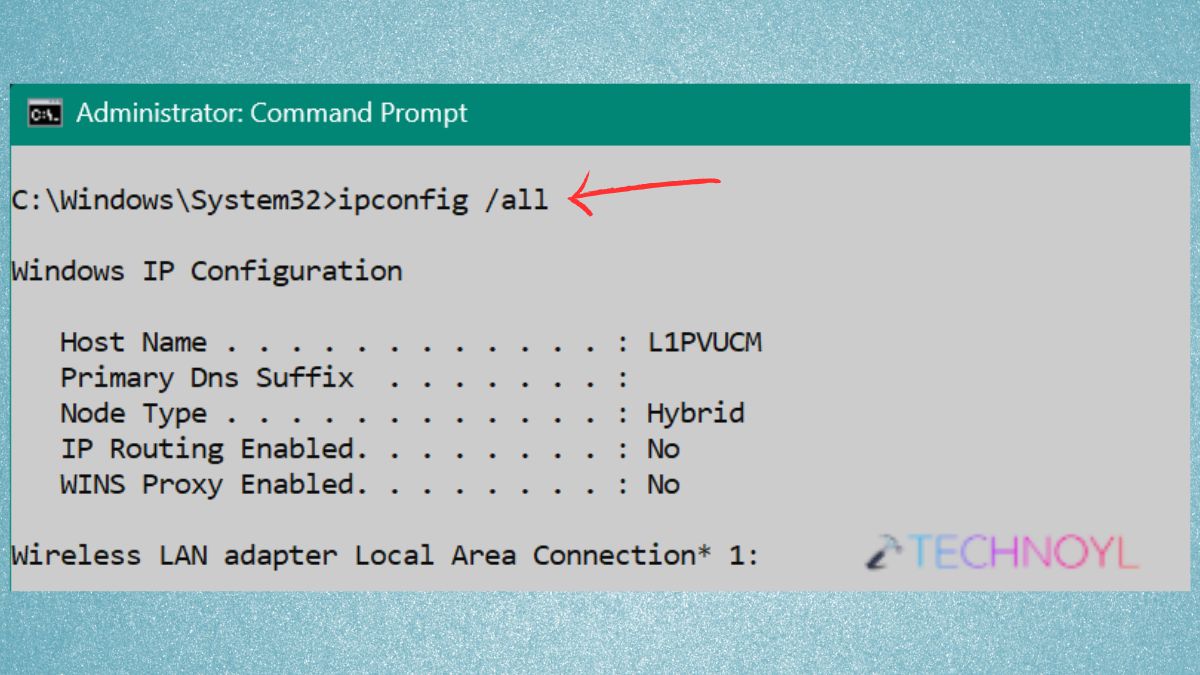
Make sure that the preferred DNS server is set to the internal DNS server of your company, rather than a public DNS server.
2. To clear the DNS cache use the following command.
ipconfig /flushdns
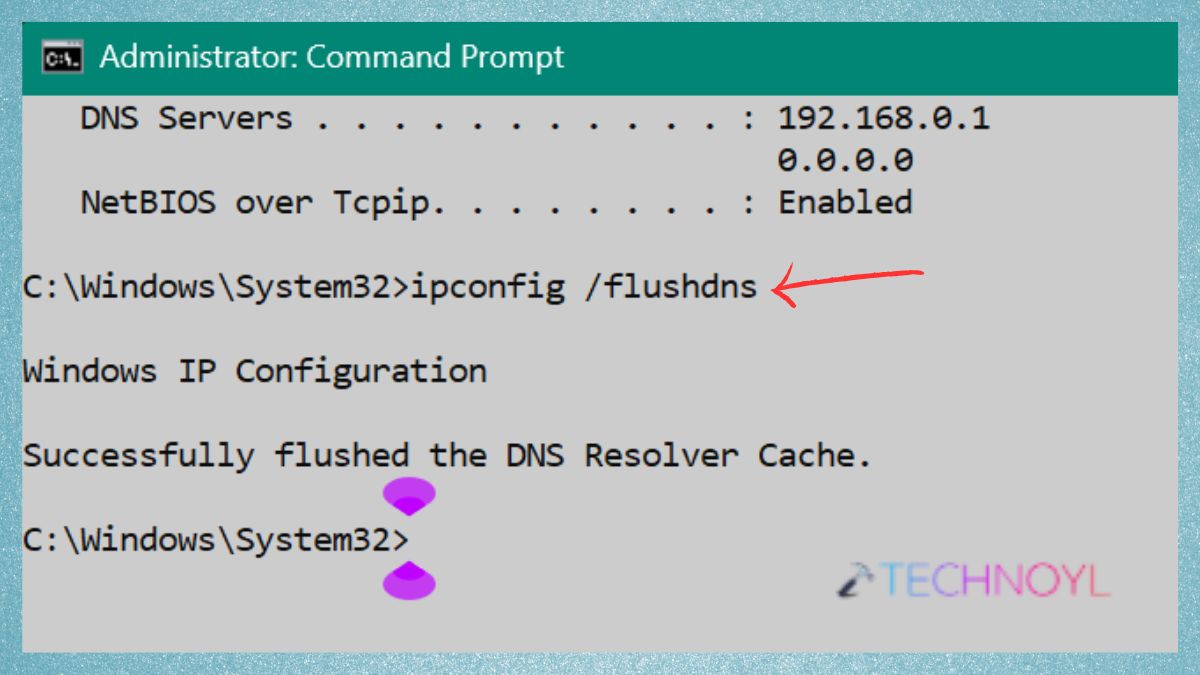
3. Next, register the DNS records of the computer.
ipconfig /registerdns
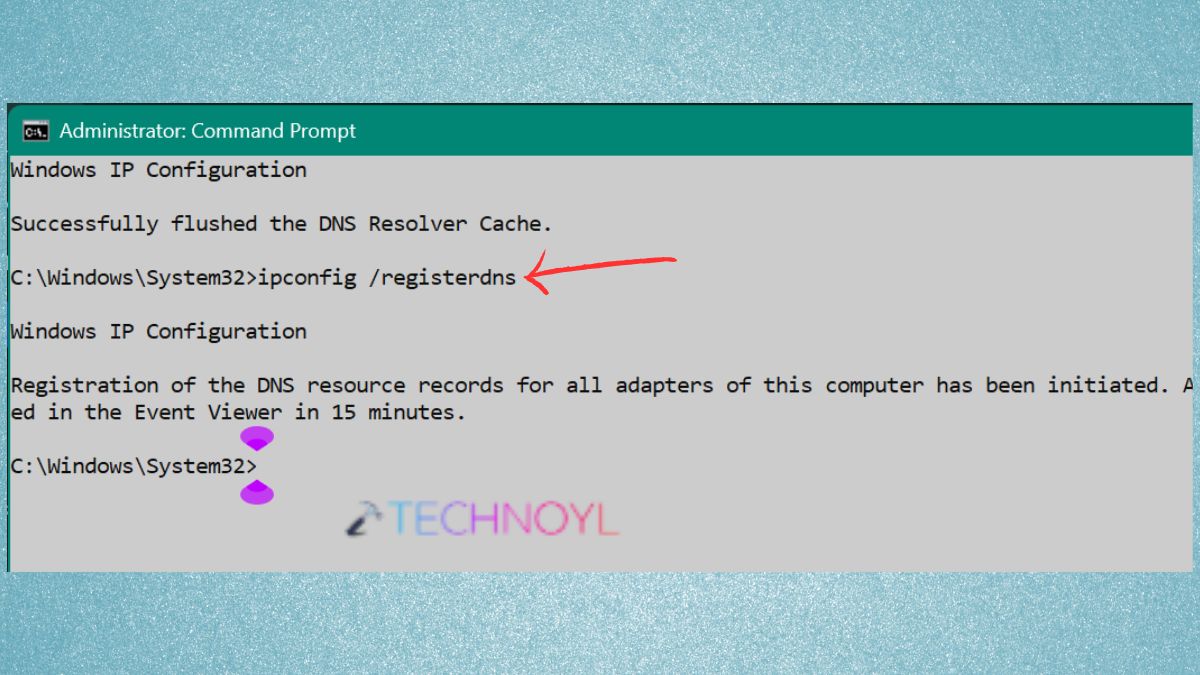
4. To check if the domain can be resolved, use the following command:
nslookup
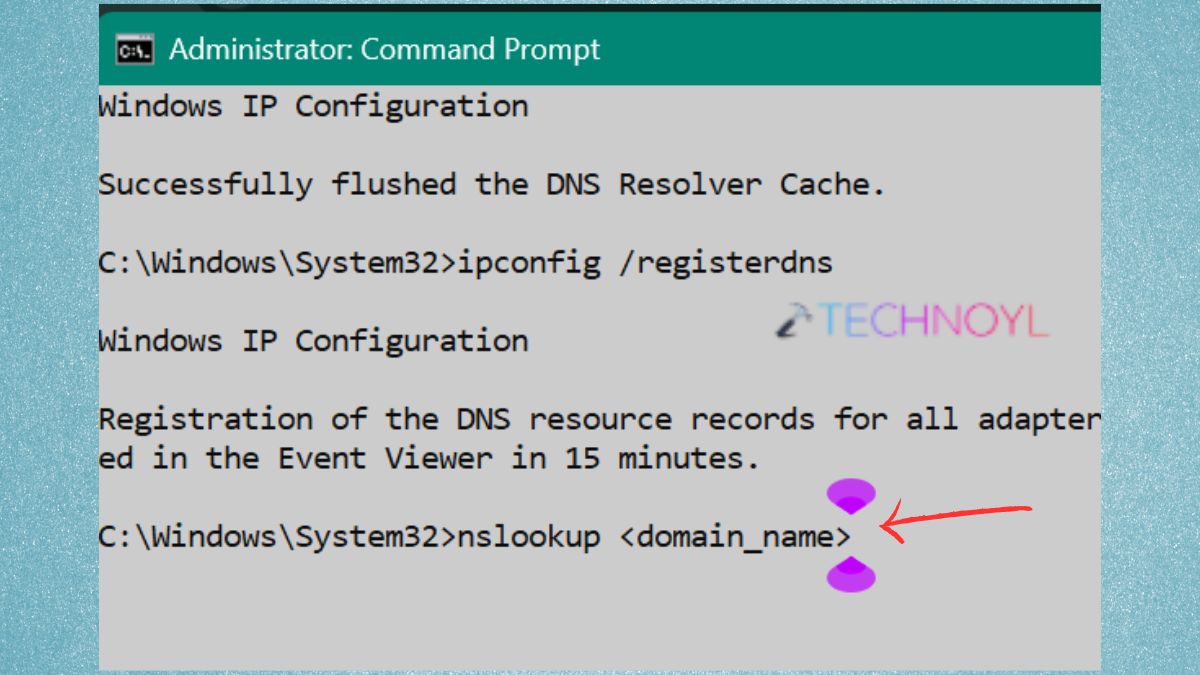
If the command is unable to locate the domain controller, fix the DNS configuration and re-run the Group Policy test.
Fix 3: Allow LDAP Traffic and Verify Firewall Settings
The Group Policy communicates with the domain controller through the support of LDAP and other Active Directory services. Event ID 1129 might appear if these ports are denied access by Windows Defender Firewall or another network firewall.
1. Open Windows PowerShell with admin rights.
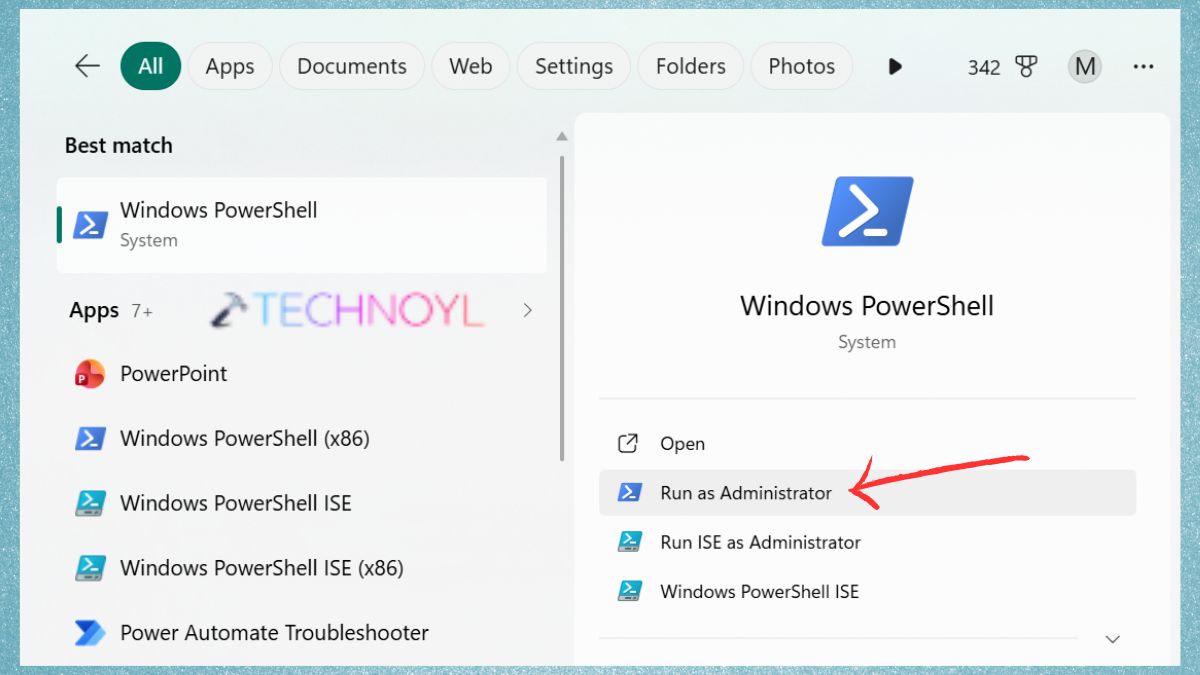
2. Run the following PowerShell command.
Test-NetConnection -Port 389
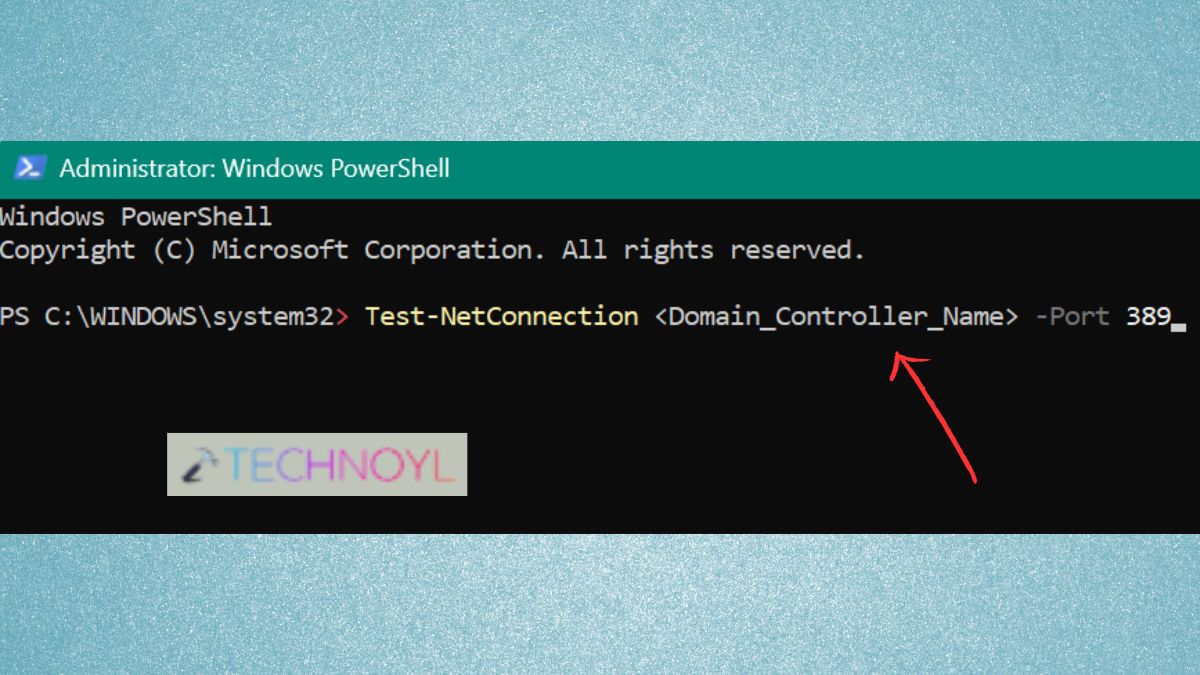
3. Success will be indicated by a successful result, which signifies that LDAP communication can be achieved. Make sure that the following ports are open on the client computer to the domain controller:
- TCP/UDP 389 (LDAP)
- TCP 636 (LDAPS)
- TCP 88 (Kerberos)
- TCP 445 (SMB)
- TCP 53 (DNS)
Before testing Group Policy again, check the firewall configuration to make sure that any required ports are open, then restart the computer.
Fix 4: Configure Windows to Wait for the Network During Startup
In certain environments, Windows starts processing the Group Policy prior to completing the network connection. This can lead to Group Policy Event ID 1129, particularly when using laptops, wireless devices or virtual machines.
Hit Win + R, type this command, and press Enter.
Go to Computer Configuration \ Administrative Templates \ System \ Logon.
Double-click Always wait for the network at computer start up and logon.
Select Enabled.
Click Apply and then OK.
Restart your computer.
After the restart, Windows will wait until the network is completely loaded before processing Group Policy to try to prevent the occurrence of Event ID 1129 during startup.
Frequently Asked Questions (FAQs)
What does Group Policy Error Event ID 1129 mean?
Event ID 1129 means that there was a problem contacting a domain controller during the processing of Group Policy. This may cause Group Policies to not be processed properly.
Can incorrect DNS settings cause Event ID 1129?
Yes, some of the most frequent reasons for Group Policy connectivity problems are due to having incorrect or public DNS servers, since they cannot find the right domain controller.
Which ports are required for Group Policy communication?
Group Policy uses a number of ports, such as:
- LDAP (389)
- LDAPS (636)
- Kerberos (88)
- DNS (53)
- SMB (445)
- Global Catalog (3268)
These ports need to be open between the client computers and domain controllers.
Can I ignore Group Policy Error Event ID 1129?
No, while Windows might load the Group Policy settings that it cached, it can be impossible for new policies to be applied in the event of Group Policy Error Event ID 1129. And, it can also cause authentication or network problems. It’s recommended to resolve the error as soon as possible.
That’s it!

Leave a Reply