


Missing a WhatsApp message on your PC? Well, this can be annoying. If you suddenly realise that WhatsApp notifications aren’t working on Windows 11, this article will help you to get the issue resolved.
You can try the fixes below.
Fix: WhatsApp Notifications Not Working On Windows 11
When the WhatsApp notifications are not working on your Windows 11, then follow the fixes one by one till the issue is resolved.
Fix 1: Check Windows 11 Notification Settings
Windows notification settings can sometimes block app alerts.
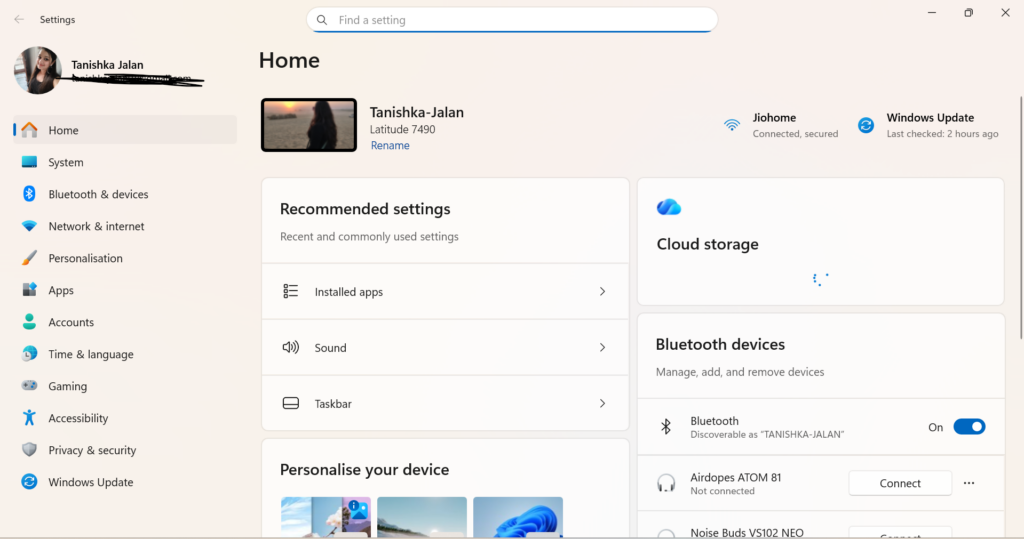
- Press Windows + I to open Settings.
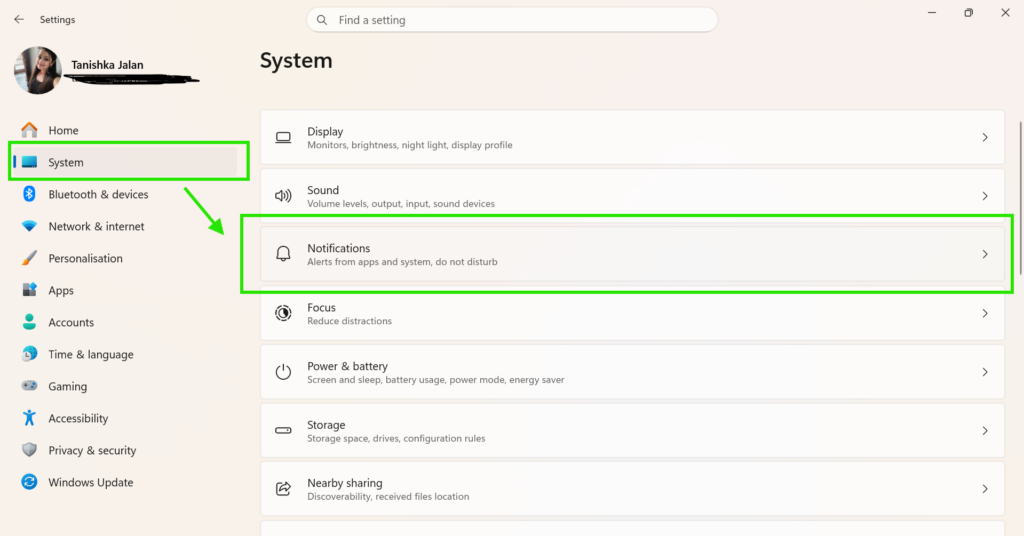
- Go to System > Notifications.
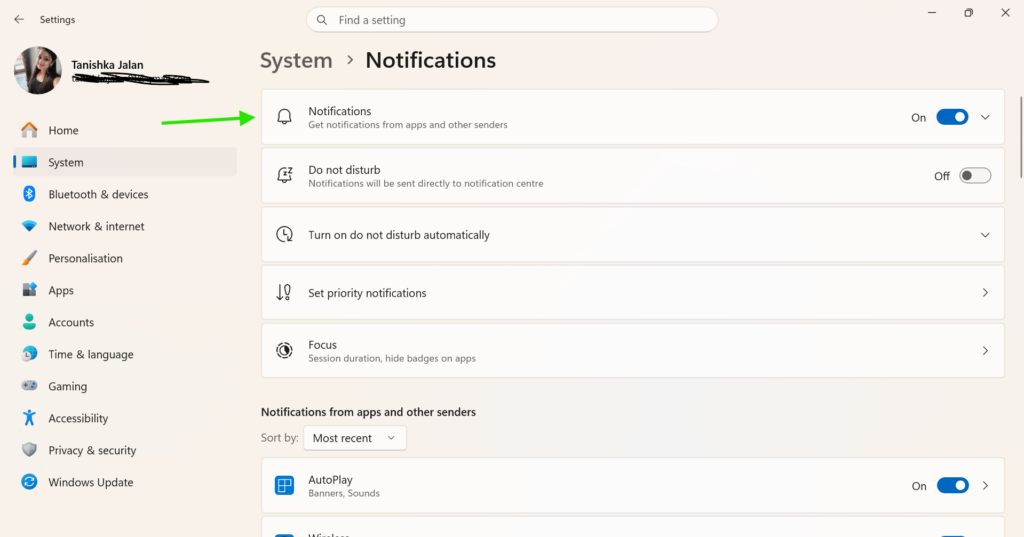
- Turn On Notifications.
- Scroll down and find WhatsApp.
- Make sure WhatsApp notifications are enabled.
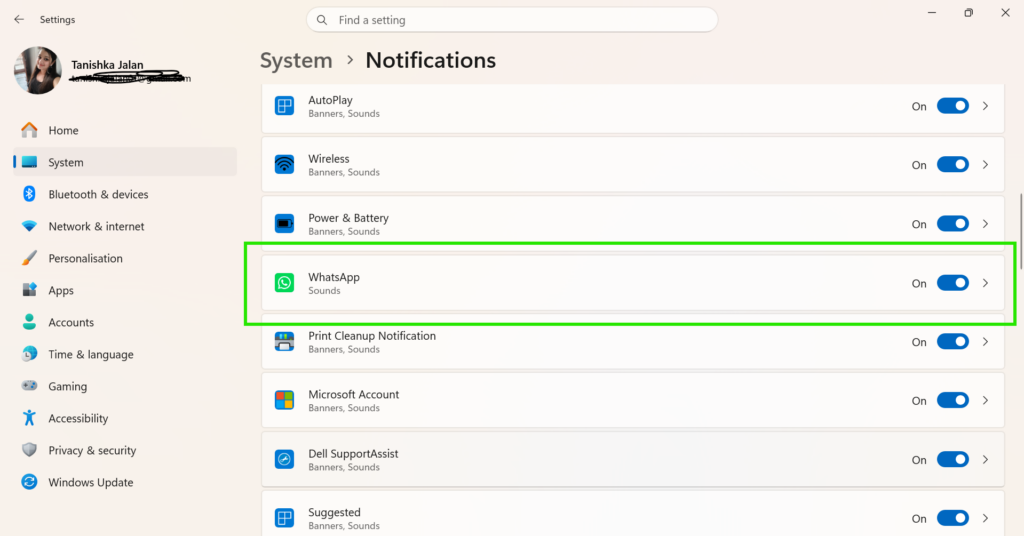
- Open WhatsApp notification settings and enable sounds and banners if needed.
Fix 2: Verify WhatsApp Notification Settings
Disabled notification options inside WhatsApp may cause the issue.
- Open WhatsApp Desktop.
- Click the three-dot menu.
- Select Settings > Notifications.
- Turn on notification alerts.
- Enable sound notifications and message previews.
- Make sure desktop notifications are not muted.
Fix 3: Allow Notifications in Your Browser
If you use WhatsApp Web, your browser must have permission to send notifications.
For Google Chrome
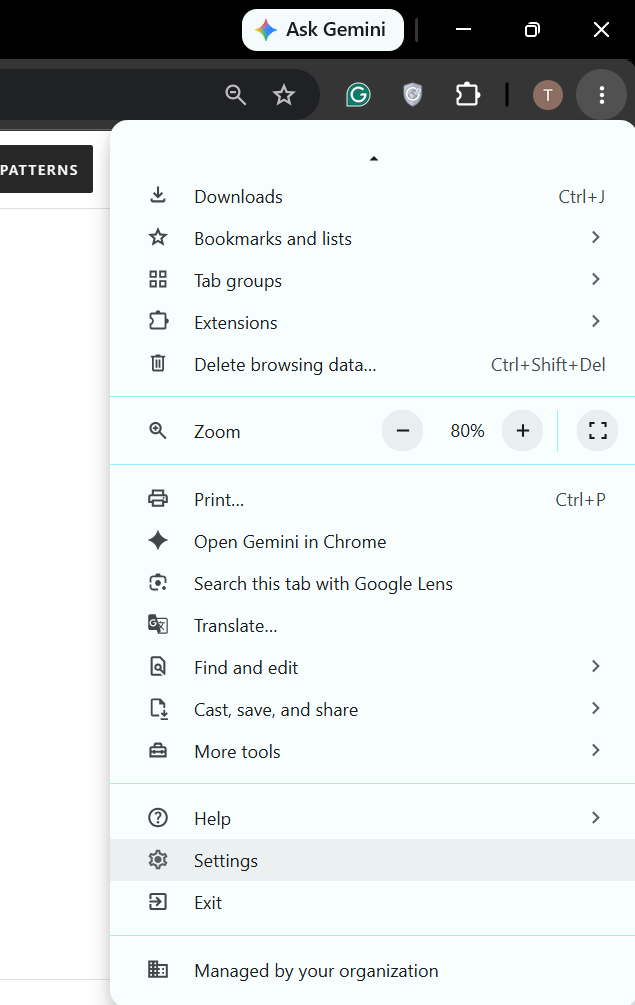
- Open Chrome and click the three-dot menu.
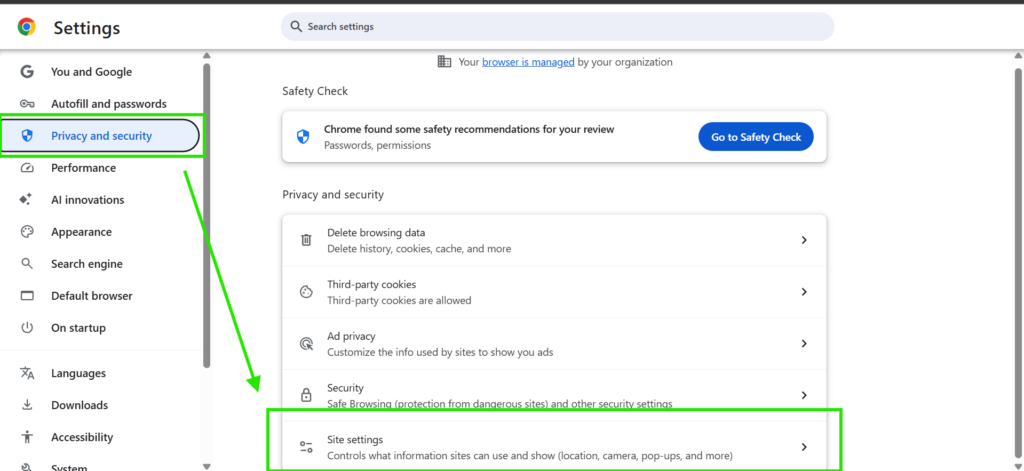
- Select Settings > Privacy and Security > Site Settings > Notifications.
- Find web.whatsapp.com.
- Make sure it is listed under Allowed.
For Microsoft Edge
- Open Settings in Edge.
- Go to Cookies and Site Permissions > Notifications.
- Allow notifications for web.whatsapp.com.
Try WhatsApp Web Instead
If notifications still do not work in the desktop app, switch to WhatsApp Web.
- Open web.whatsapp.com in your browser.
- Link your WhatsApp account.
- Allow browser notifications when prompted.
WhatsApp notification problems on Windows 11 are usually caused by disabled app, browser, or system notification settings. Check each setting carefully and enable notifications where required.
In most cases, these steps restore WhatsApp alerts and help you stay updated with new messages.

Leave a Reply