

You have a PPT or PPTX presentation, but you don’t have Microsoft PowerPoint installed on your computer? Thankfully, you can open PPT files without Microsoft PowerPoint with many free and secure options. There are several ways to open PowerPoint files, edit and present them even if you do not own Microsoft Office, no matter whether you are working with a Windows, Mac or Linux computer or even a smartphone.
In this guide, we’ll show you the best ways to open PowerPoint presentations without PowerPoint. We’ll also be describing which is the best one to edit, view, or share your presentations.
Ways to Open PPT Files Without Microsoft PowerPoint
It is easy to open a PowerPoint presentation if you don’t have Microsoft Office. Here are some simple ways you can do so.
Method 1: Open PPT Files Using Google Slides
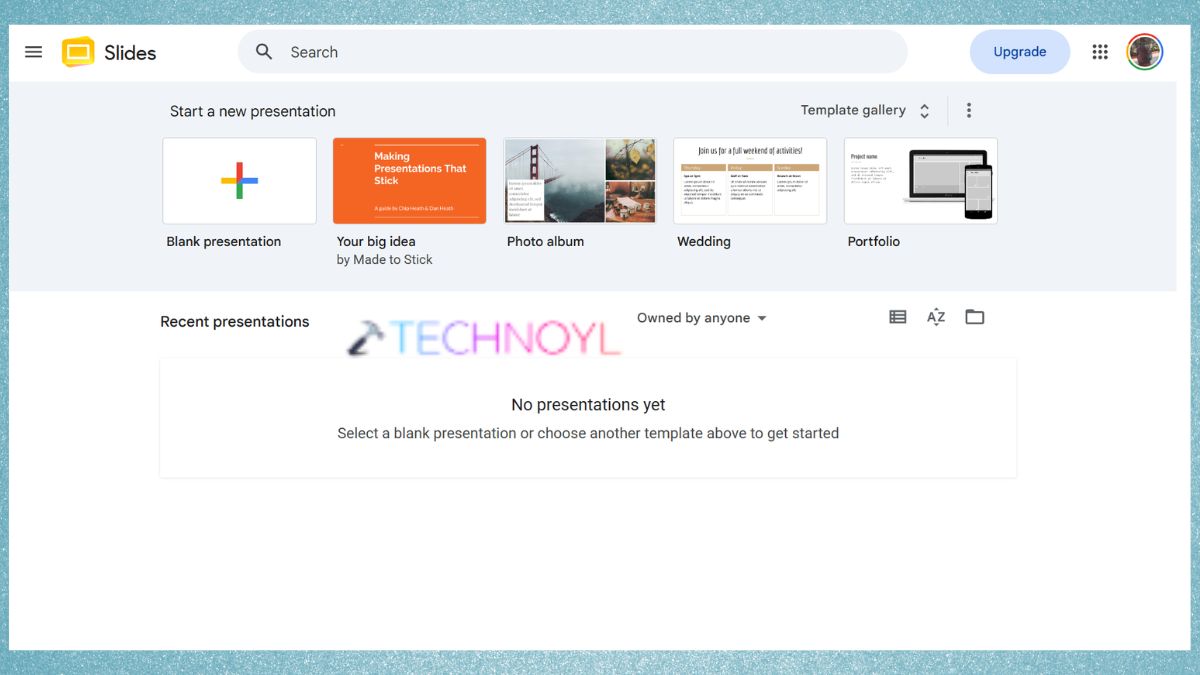
Google Slides is most preferred tool to view and edit PowerPoint presentations online. It simply works in your browser, meaning that you don’t need to install anything. The following is a list of steps to take.
1. Use a web browser. Visit Google Slides – “https://docs.google.com/presentation/create“.
2. Sign in with your Google account.
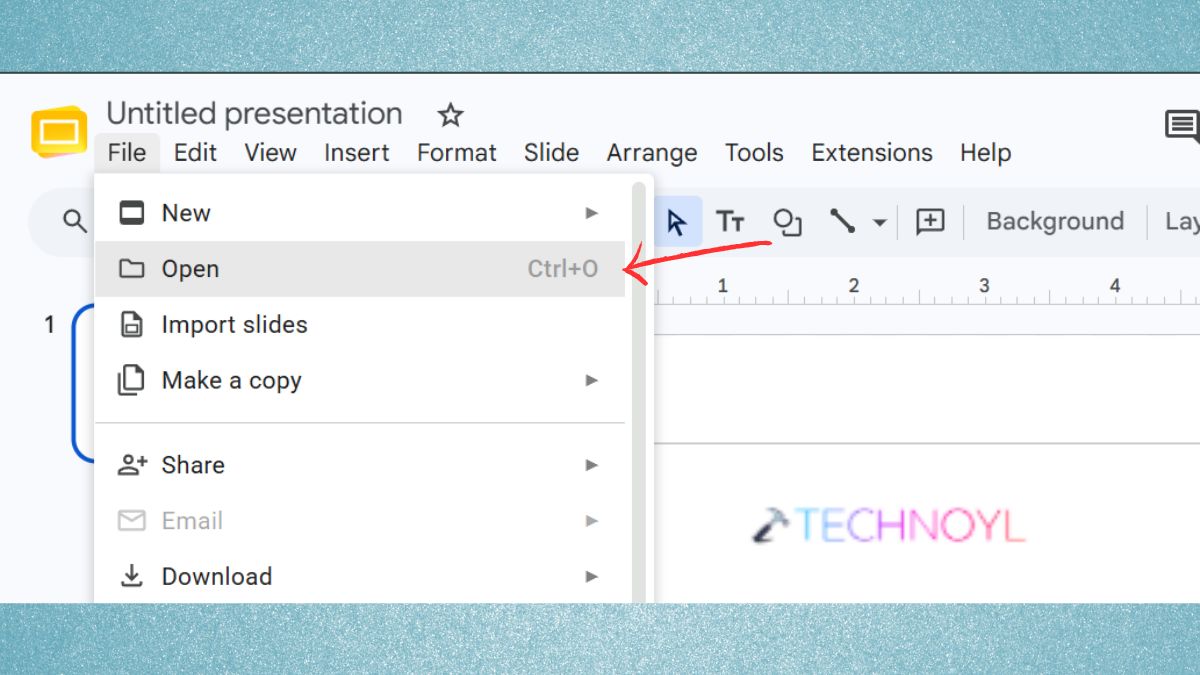
3. On the File menu, click on File. Select Open.
4. Click on the Upload tab. Upload your PPT or PPTX presentation by pressing on “Browse”. Wait for the presentation to be loaded.
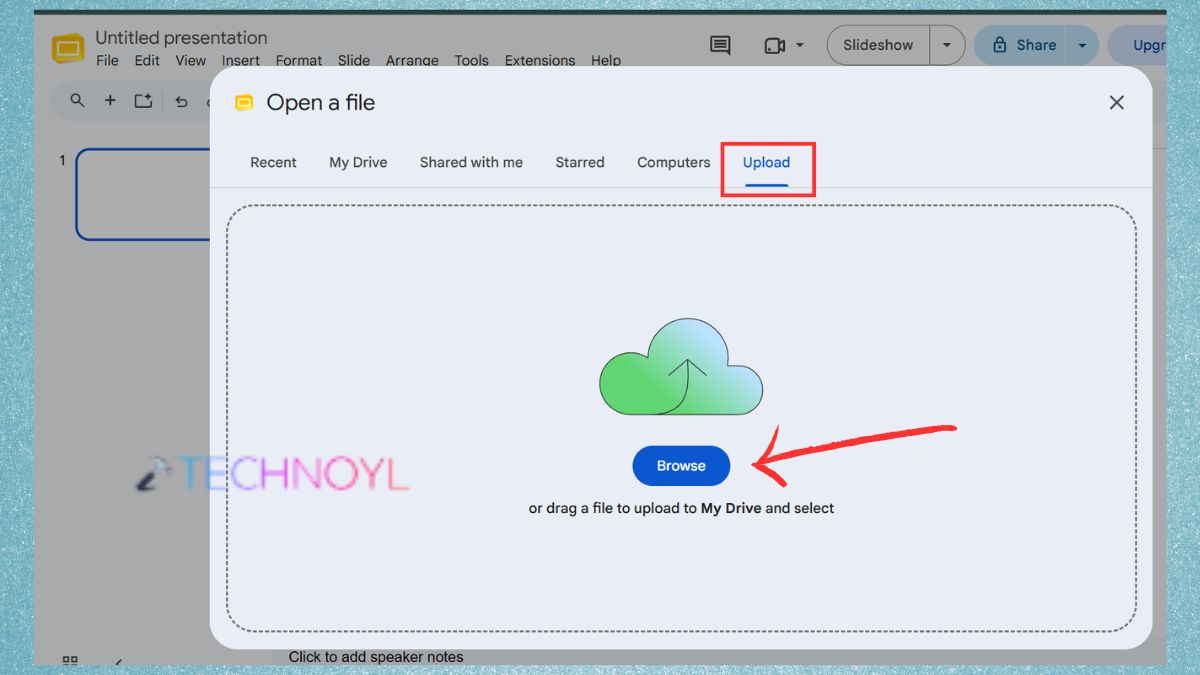
You can now see, edit and even work collaboratively with others in real time. After making changes, download the presentation as a PowerPoint file or save it in Google Slides format.
Method 2: Use PowerPoint for the Web
PowerPoint for the Web is a great option if you’re looking for something that looks like Microsoft PowerPoint without the software.
1. Open your browser. Click on Microsoft PowerPoint for the Web – “https://powerpoint.cloud.microsoft/“. Sign in with your Microsoft account.
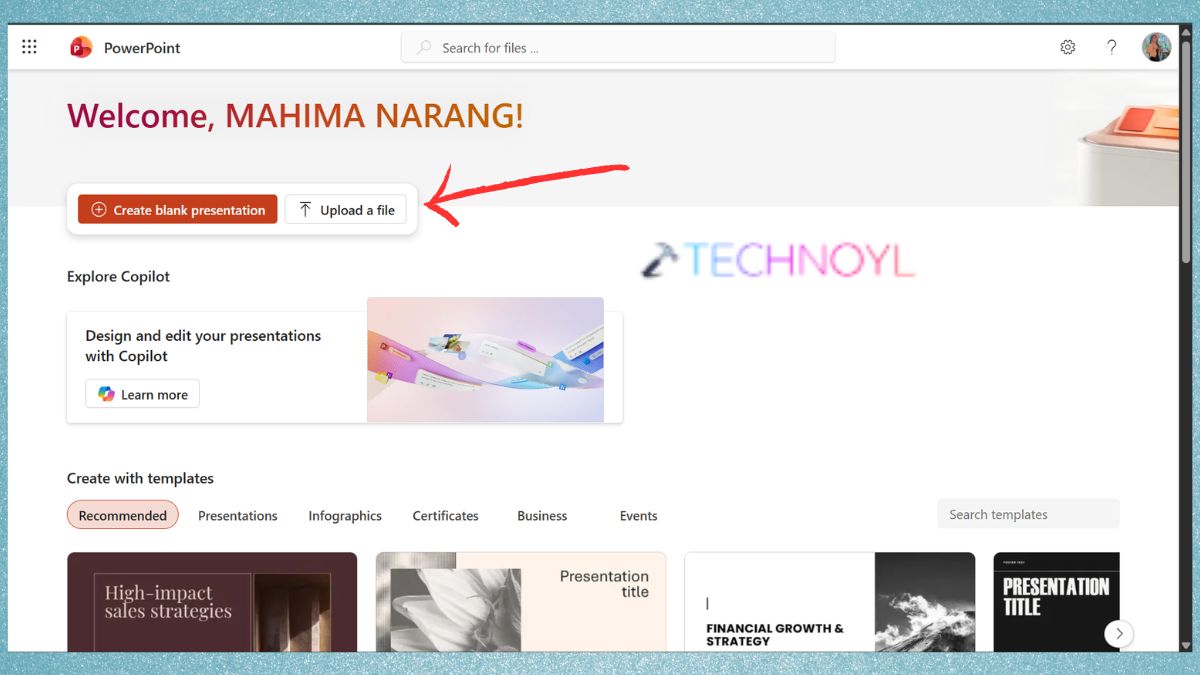
2. Here, upload your PPT or PPTX presentation. The file will begin to view and you can edit the file. The online version offers most essential editing features and is suitable for basic presentation editing.
Method 3: Open PPT Files Using LibreOffice Impress
LibreOffice Impress is an open source, free alternative to Microsoft PowerPoint for creating presentations.
1. Go to the LibreOffice website – “https://www.libreoffice.org/download/“. Download and install it by configuring the details as per your system.
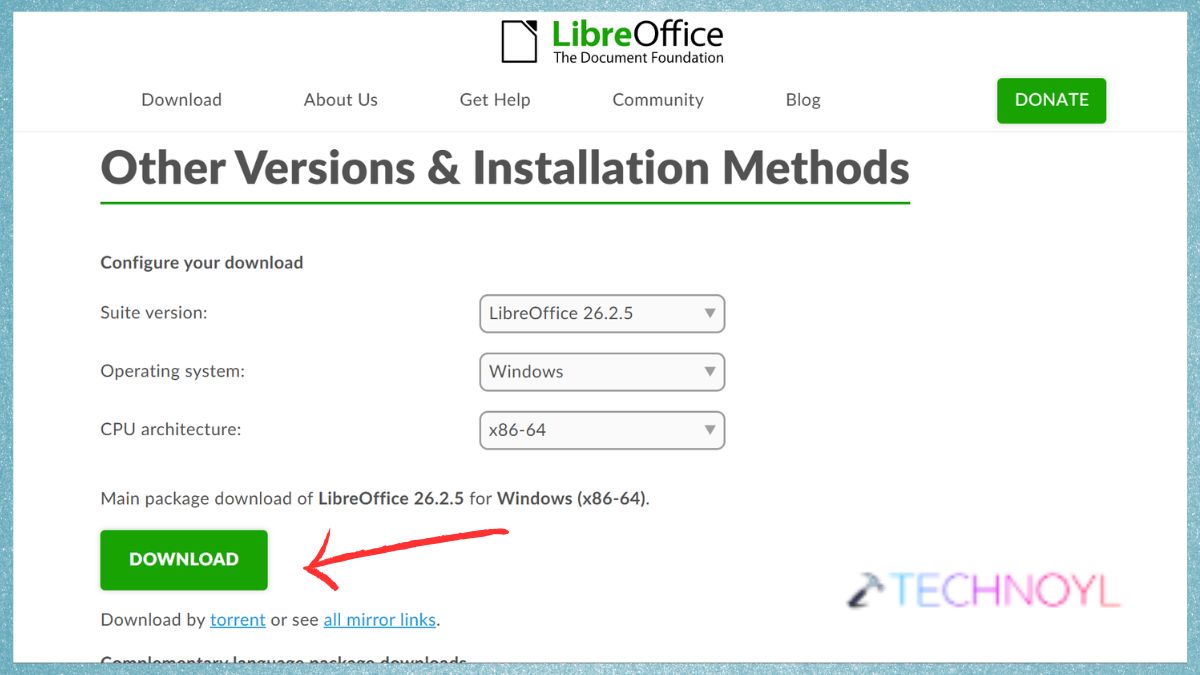
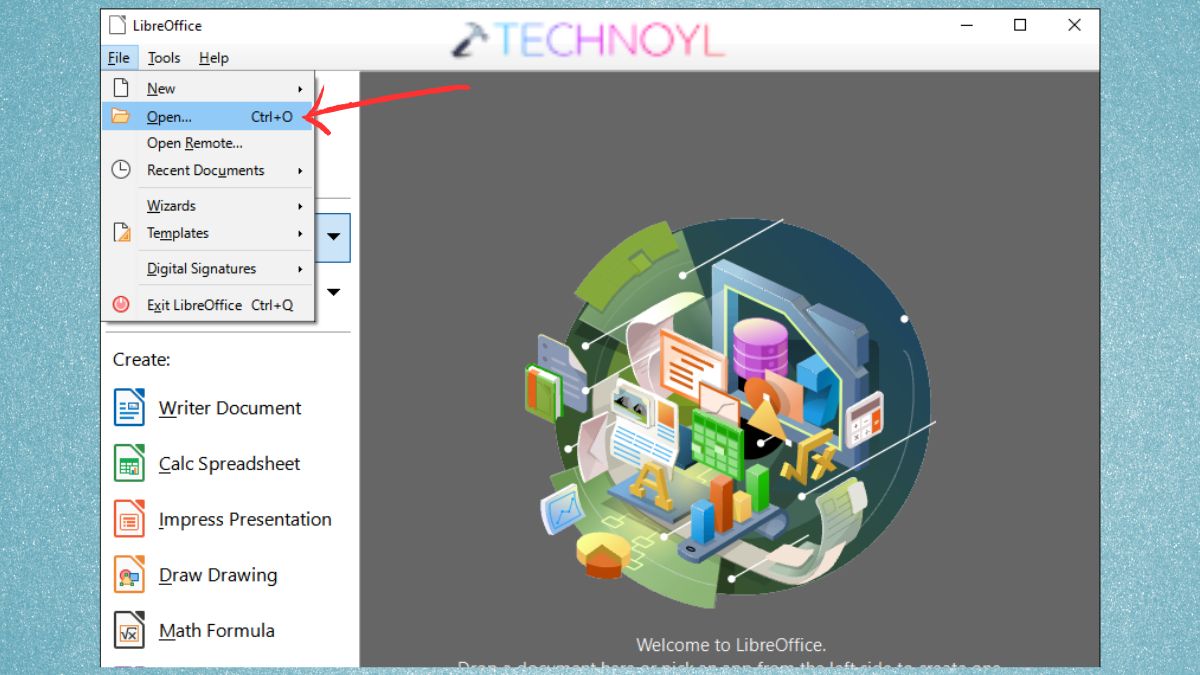
2. Launch LibreOffice Impress. Click on File and then Open. Here, open any PPT file you like to. LibreOffice retains most formatting and has no additional costs for editing presentations.
Advantages of Using LibreOffice for PPT
If you are looking for an alternative to Microsoft PowerPoint to open PPT files and do some offline work on them, LibreOffice Impress is a good option.
- Open source, no need to buy a subscription to Microsoft Office.
- View, edit and present presentations without Internet connectivity.
- It can read the widely used PowerPoint and PPTX file formats.
- Operating system independent, meaning LibreOffice works on Windows, macOS and Linux.
- Text, images, layout, animation and other presentation components can be edited.
Method 4: Open Presentations with WPS Office
WPS Office also offers a presentation program that is compatible with PowerPoint. In addition to presentations, WPS Office also provides editing options and presentation templates.
1. Download and install WPS Office via its official website.
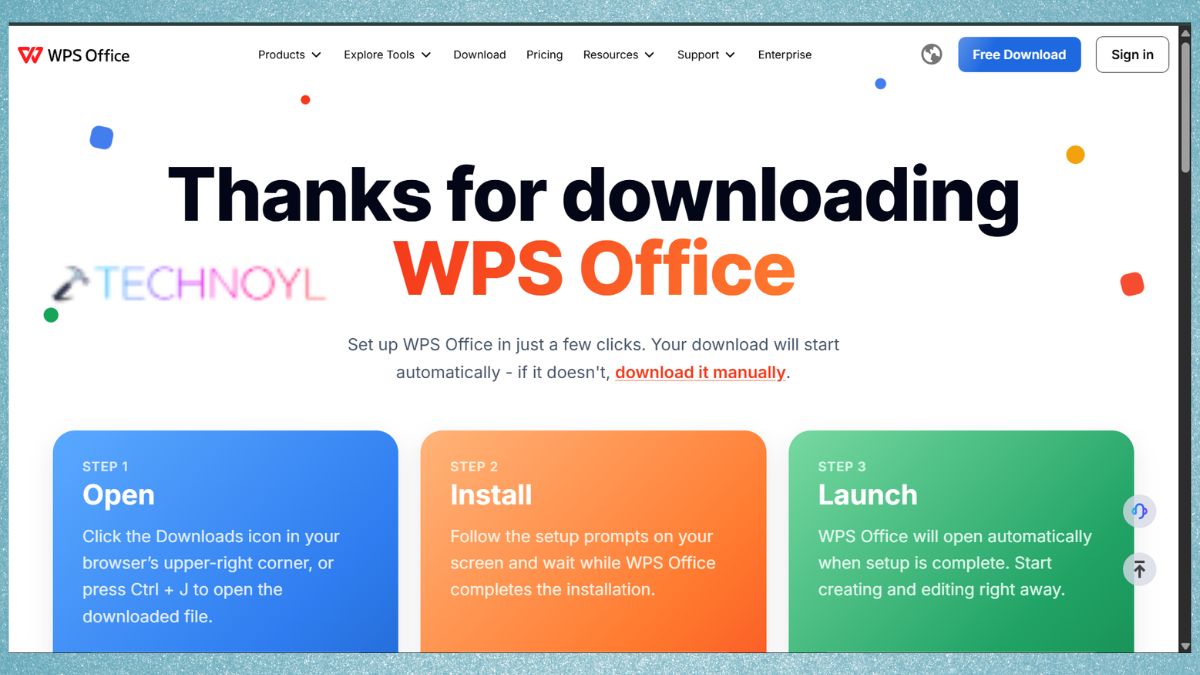
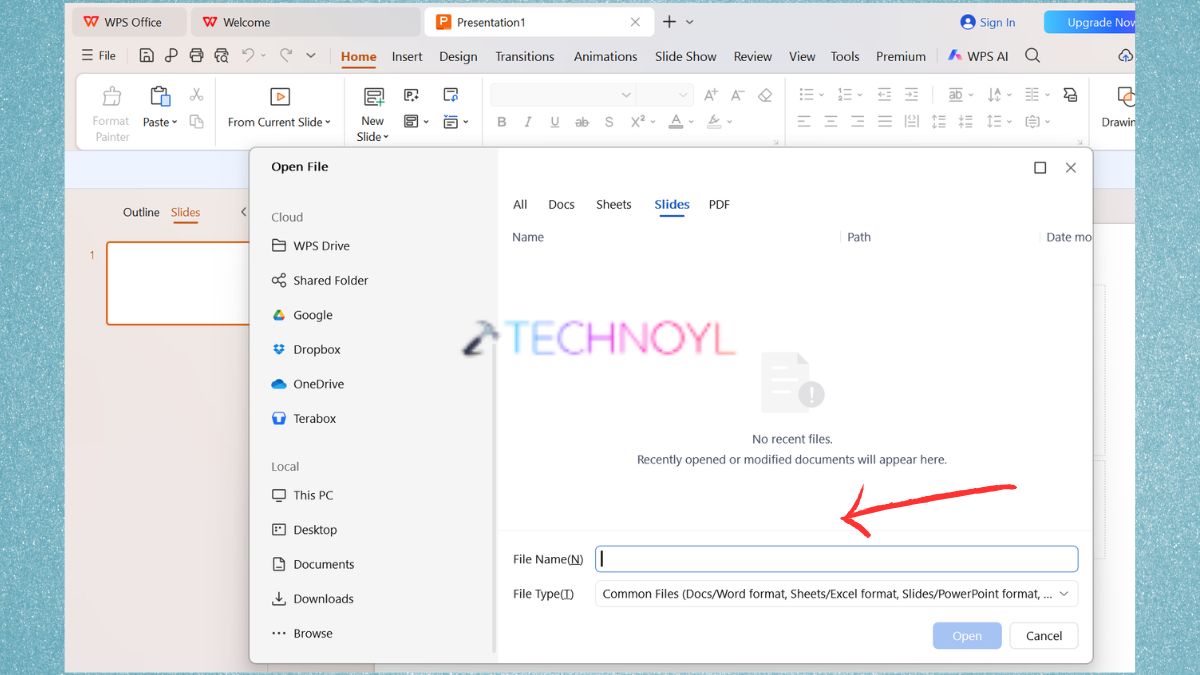
2. Launch the application. Access the Presentation module. Click File > Open.
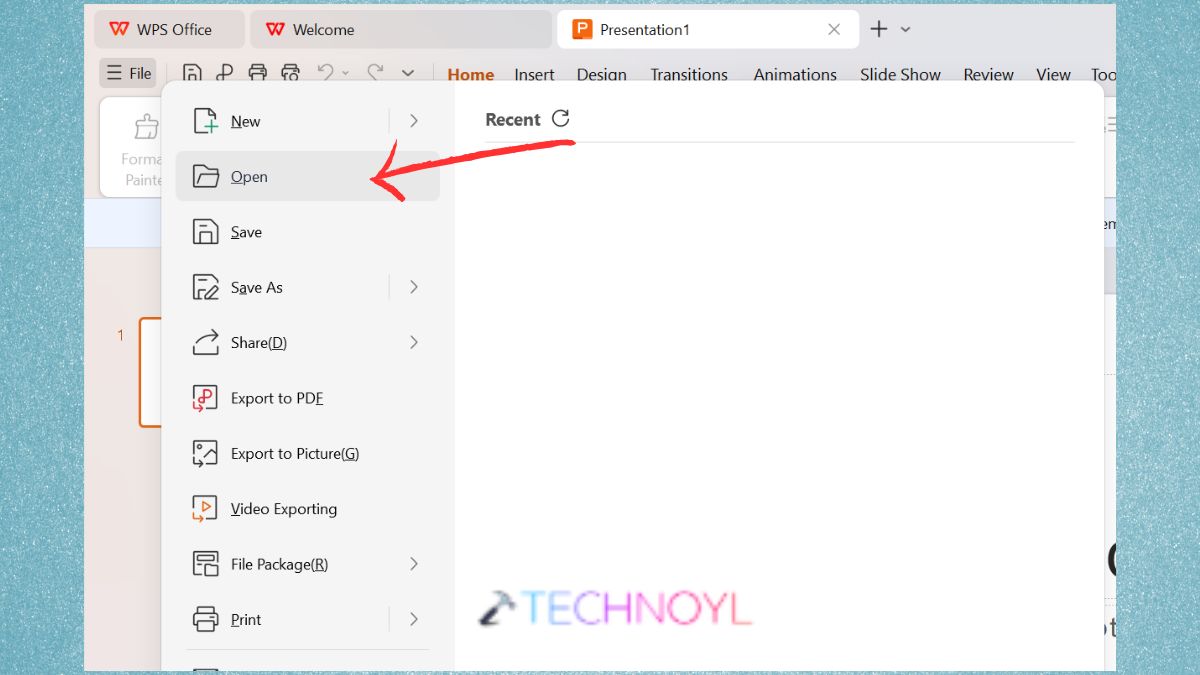
3. Choose your PPT or PPTX file.
Advantages of Using WPS Office for PPT
Another handy PowerPoint alternative is WPS Office, which lets people open and modify PPT documents without installing Microsoft PowerPoint.
- Familiar user interface: Users may be familiar with the user interface, as it is similar to that of Microsoft Office PowerPoint.
- Good file compatibility: This means that WPS Presentation can maintain much of the original formatting and supports PPT and PPTX files.
- The free version is available: Many of the presentation features are available free of charge, without purchasing Microsoft Office.
- Practical solution: WPS Office can be a good choice for users who don’t need to install many applications as an Office suite.
Method 5: View PPT Files Using Canva
Canva can also used for PowerPoint presentations. Canva can be particularly helpful when you’re looking to enhance your presentation using contemporary templates and visual components.
1. Sign in to Canva – “https://www.canva.com/“. Tap on “Upload”.
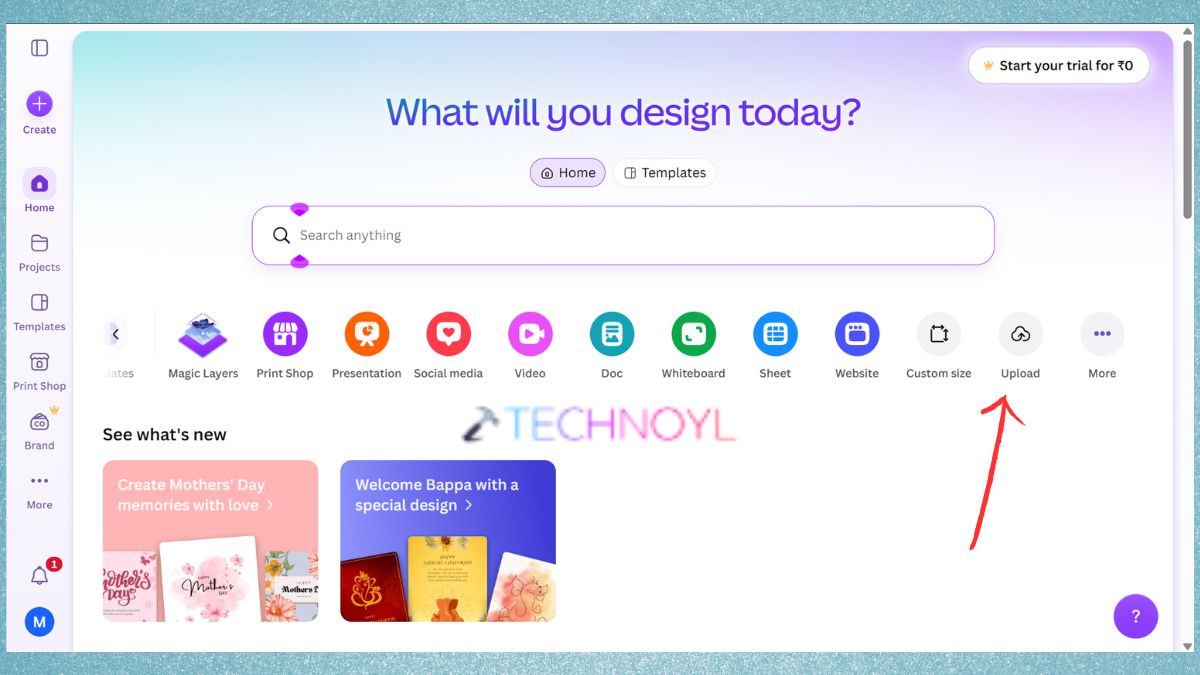
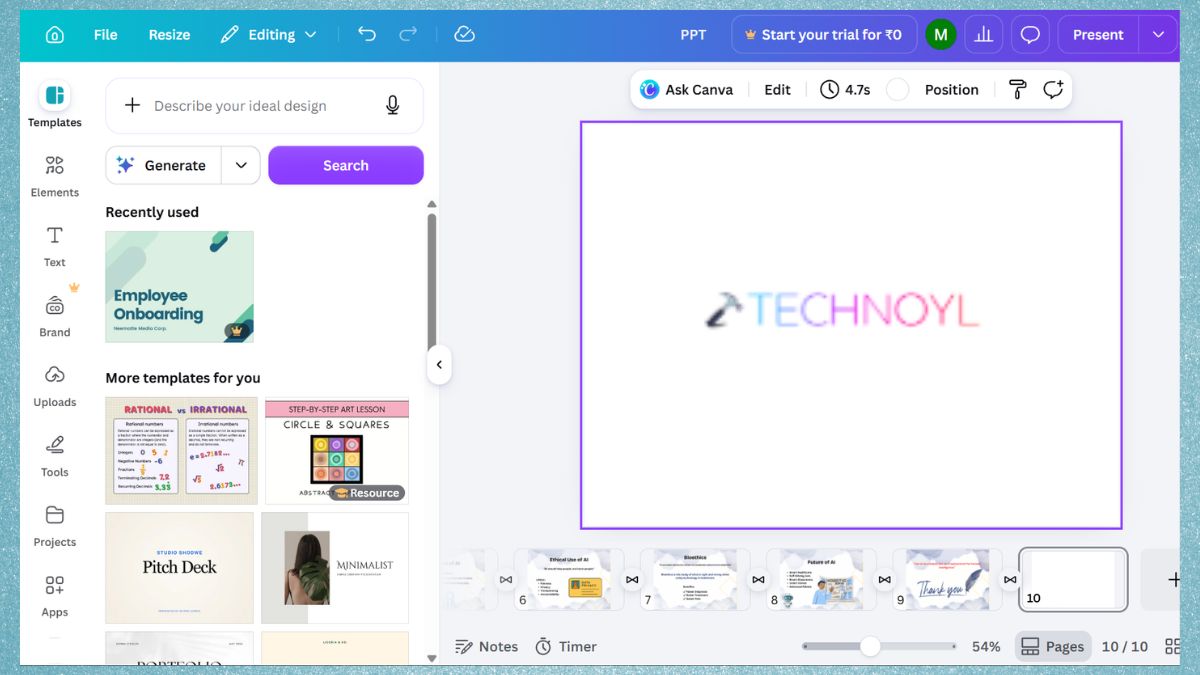
2. Submit a PowerPoint presentation. Canva does the auto conversion of the presentation. then, view, edit or improve the slides.
Advantages of Using Canva for PPT
Canva is a great choice if you need to open and edit a PowerPoint presentation, but want to give your slides a more attractive design.
- User-friendly: Canva’s presentation editor is intuitive and easy to use, making it accessible for beginners.
- Improved import PowerPoint Designs: Add templates, graphics, images, icons, etc. to PowerPoint slides brought in from other sources.
Method 6: Convert PPT to PDF
Alternatively, if you need only to read the presentation, then make it a PDF. There are numerous online PowerPoint-to-PDF conversion services that will convert the PowerPoint format into PDF without additional charges.
1. Use an online PPT to PDF converter.
2. Upload your presentation. It will automatically start the conversion. Download the PDF.
3. Use any PDF reader to open it.
Although you won’t be able to edit the slides, this method works well for reviewing or printing presentations.
Method 7: Use an Online PPT Viewer
An online PPT viewer is a quick solution if you just need to view a presentation but don’t want to edit it.
1. Launch a trusted and reliable online PPT viewer.
2. Submit your PowerPoint presentation. Wait until the file has been processed. See your presentation in real time.
Expert Tip: Do not post any private or sensitive presentations on an untrusted site. When using online viewers, select trusted options, ideally.
Frequently Asked Questions (FAQs)
Can I open PPT files without Microsoft PowerPoint?
It is possible to open a PPT without Microsoft PowerPoint. You can use Google Slides, PowerPoint for the Web, Canva, and online PPT viewers. This way, a PPT file can be converted into a PDF to make it easily viewable.
Which free software is best for opening PowerPoint presentations?
One of the simplest is Google Slides. You can upload your PPT or PPTX file in Google Slides, and then use Google Slides to view and edit the presentation without installing Microsoft PowerPoint.
Can I edit a PowerPoint presentation without Microsoft Office?
Yes, PPTX files can be accessed and edited online with the following tools: Google Slides, PowerPoint for the Web, and Canva. However, there are some advanced editing features that will require an account or paid plan.
Is it safe to use online PPT viewers?
Yes, view the PPT online or upload it to Google Slides or PowerPoint for the Web. You can also convert the PPT to PDF and open it using any PDF reader.
That’s it!

Leave a Reply