


You sit down to work, click Microsoft Word, Excel, or PowerPoint, and nothing happens. But Microsoft 365 won’t open after a Windows update or a recent system change. This is a common problem, usually caused by corrupted files, stuck background processes, or faulty add-ins. Follow the fixes below:
Why Microsoft 365 Is Not Opening?
Microsoft 365 may fail to open because:
- Office processes are stuck in the background.
- An add-in is causing a conflict.
- Office files became corrupted.
- A recent Windows update created compatibility issues.
Fix Microsoft 365 Won’t Open
Let’s see how you can fix it when Microsoft 365 is not opening:
Fix 1: End Stuck Microsoft 365 Processes
Sometimes Office apps continue running in the background even after they are closed.
Press Ctrl + Shift + Esc to open Task Manager.
Look for Word, Excel, PowerPoint, or other Office processes.
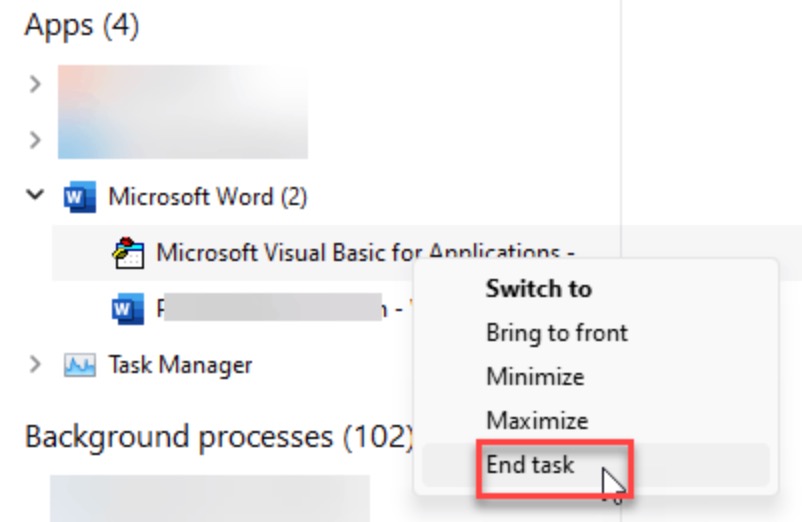
Right-click each process and select End task.
Try opening Microsoft 365 again.
Fix 2: Open Microsoft 365 In Safe Mode
Safe Mode starts Office without add-ins.
1. Press Windows + R.
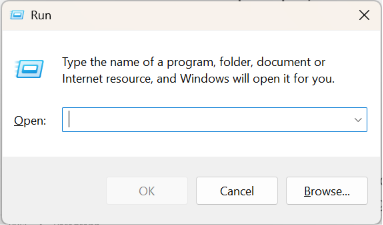
2. Type one of the following commands:
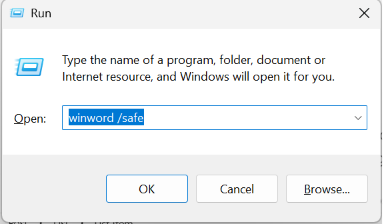
- winword /safe
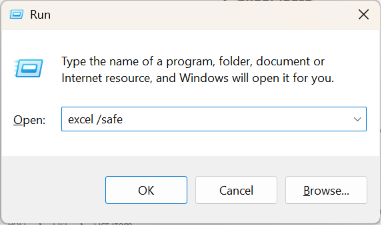
- excel /safe
- powerpnt /safe
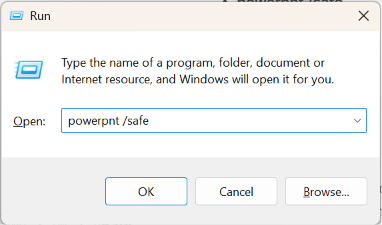
3. Press Enter.
If the app opens, disable unnecessary add-ins.
Fix 3: Repair Microsoft 365
Repairing Microsoft 365 can replace damaged files and resolve issues that prevent Office apps from opening properly.
- Open Settings > Apps > Installed apps.
- Find Microsoft 365.
- Click the three-dot menu and select Modify.
- Choose Quick Repair and click Repair.
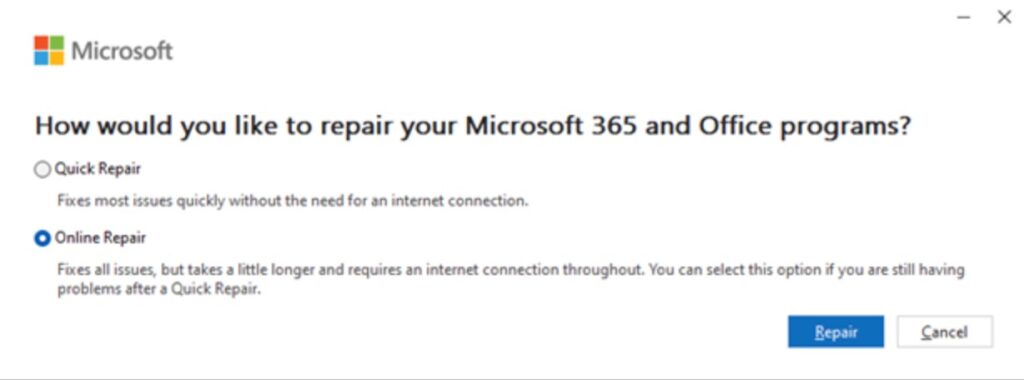
If the problem remains, repeat the steps and select Online Repair instead.
Fix 4: Remove The Recent Windows Update
If the issue started immediately after an update:
- Open Settings > Windows Update.
- Select Update history.
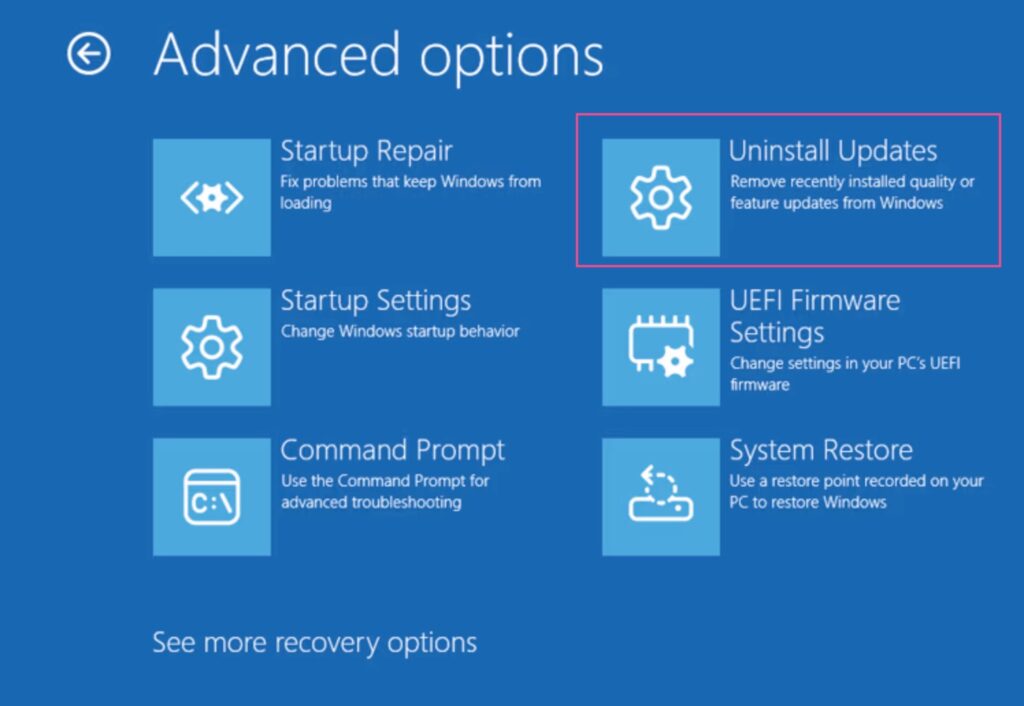
- Click Uninstall updates.
- Remove the latest update and restart your PC.
Fix 5: Reinstall Microsoft 365
If nothing works, reinstall Microsoft 365.
- Uninstall Microsoft 365 from Installed apps.
- Restart your computer.
- Sign in to your Microsoft account.
- Download and install a fresh copy of Microsoft 365.
In most cases, repairing Microsoft 365 or ending stuck Office processes fixes the problem. If the issue began after a Windows update, removing the update or reinstalling Microsoft 365 usually restores normal functionality.

Leave a Reply