


You open Google Chrome to check something important. But suddenly the browser freezes. Tab stops are loading. You click on the close button, but nothing works. Then, a message “Google Chrome Not Responding” appeared.
You can solve this problem easily with the solutions given below:
Fix Google Chrome Not Responding
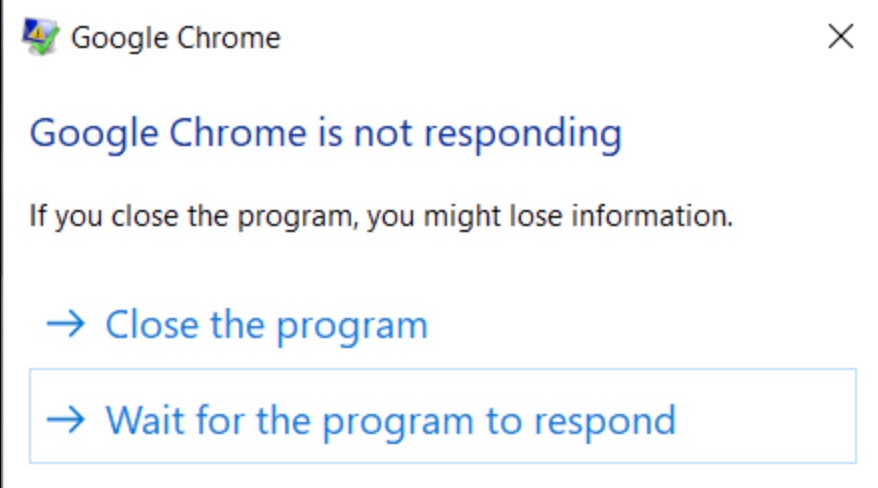
Google Chrome not responding
Solution 1: Restart Chrome & Your Computer
Temporary system glitch makes Chrome freeze. First, completely close Chrome using Task Manager. Here is how you can fix “Google Chrome Not Responding”
On Windows
Step 1: Press Ctrl + Shift + Esc.
Step 2: Select Chrome.
Step 3: Click End Task.
On Mac
Step 1: Press Command + Option + Escape.
Step 2: Choose Chrome.
Step 3: Click Force Quit.
Now restart the computer and reopen Chrome.
Solution 2: Disable Hardware Acceleration
Hardware Acceleration improves performance. However, sometimes it causes Chrome to crash or freeze. So, here are the steps to turn it off.
Step 1: Open Chrome
Step 2: Go to Settings
Step 3: Open System
Step 4: Turn it OFF: Use hardware acceleration when available
Step 5: Now, relaunch Chrome
Solution 3: Clear Chrome Cache & Browser Data
Corrupt cache files can slow Chrome and make it unresponsive. You must follow the steps below to fix it:
Step 1: Open Chrome
Step 2: Press Ctrl + Shift +Delete
Step 3: Select from the following:
- Cached image and files
- Cookies
- Browser history
Step 4: Click Delete Data
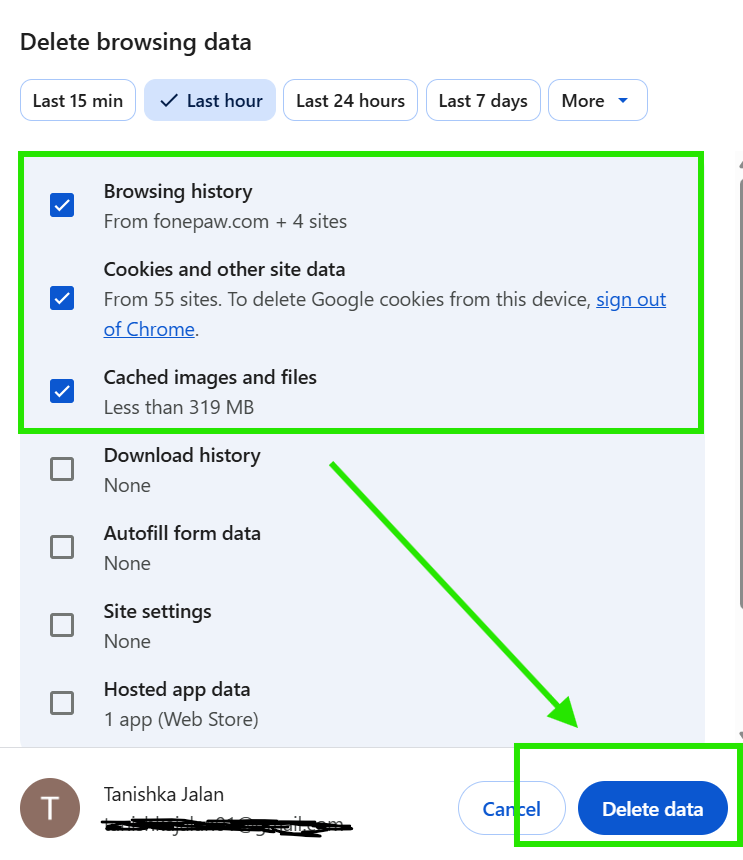
After this, restart Chrome and check it.
Solution 4: Remove Faulty Extension
Some extensions use too much memory or conflict with websites. So to turn off that extension, here are the steps:
Step 1: Type:
chrome://extensions
Step 2: Turn OFF all extensions
Step 3: Restart Chrome
Step 4: Enable them one by one
Solution 5: Update Or Reinstall Chrome
An outdated browser version may contain bugs. So, to update Chrome, do:
- Open
Menu > Help > About Google Chrome
Chrome will automatically install updates.
If the problem continues, uninstall and reinstall Google Chrome completely.
Solution 6: Check Your Internet Connection
Sometimes the browser freezes because of an unstable internet connection. So, try these quick fixes to resolve the “Google Chrome Not Responding” issue.
- Restart your router
- Reconnect Wi-Fi
- Switch to another network
- Use a mobile hotspot temporarily
Solution 7: Reset Chrome Settings
Wrong Chrome setting also triggers freezing issues. So, follow the steps:
Step 1: Open Settings
Step 2: Go to Reset Settings
Step 3: Click:
Restore settings to their original defaults.
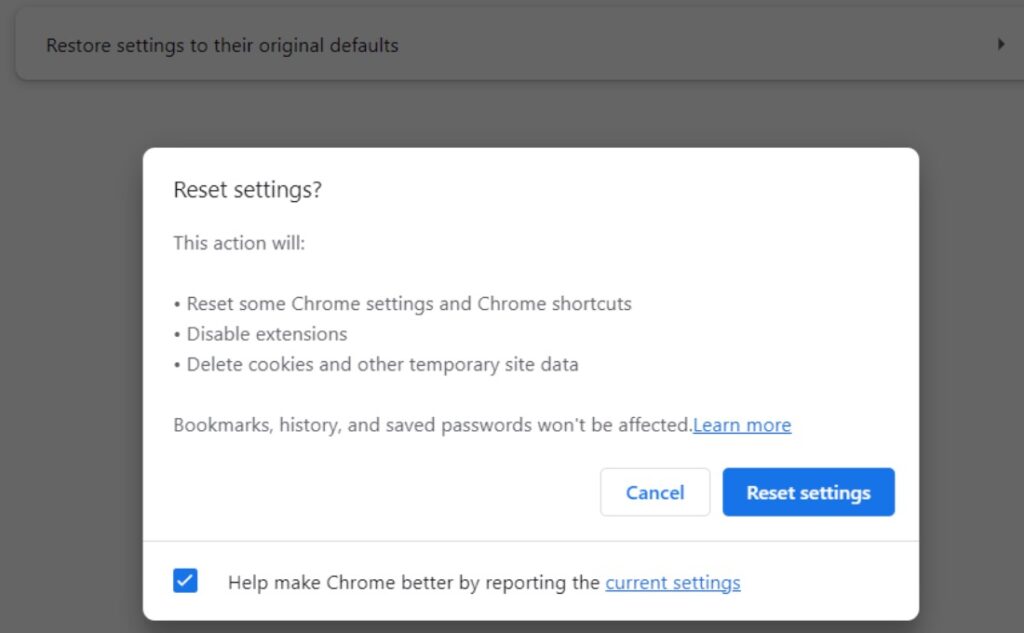
It resets Chrome without deleting bookmarks or passwords.
So, that’s how you solve “Google Chrome Not Responding”.

Leave a Reply