

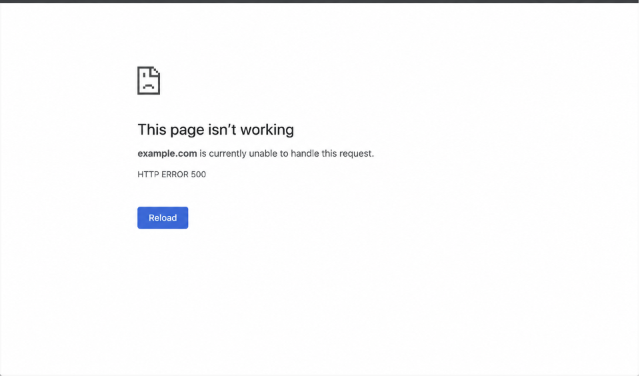
You see a blank page or a message that says “HTTP 500 Internal Server Error“. One moment your WordPress website is working fine, and the next moment it becomes inaccessible. If visitors cannot access your site, it can affect traffic, sales, and trust. The good news is that this error is usually fixable.
Why Does HTTP Error 500 Appear?
HTTP Error 500 usually appears when something goes wrong on the server, and WordPress cannot complete the request.
- A faulty or incompatible plugin.
- A corrupted WordPress theme.
- A damaged .htaccess file.
- Low PHP memory limit.
- Corrupted WordPress core files.
- Incorrect file or folder permissions.
- Problems with the hosting server.
- Errors in custom code or recent website changes.
- Failed WordPress updates.
- Database connection or configuration issues.
Because it is a generic server error, WordPress often does not show the exact cause, necessitating troubleshooting.
Fix HTTP Error 500 On A WordPress Website
Below are the steps to fix HTTP Error 500:
Method 1: Disable Plugins
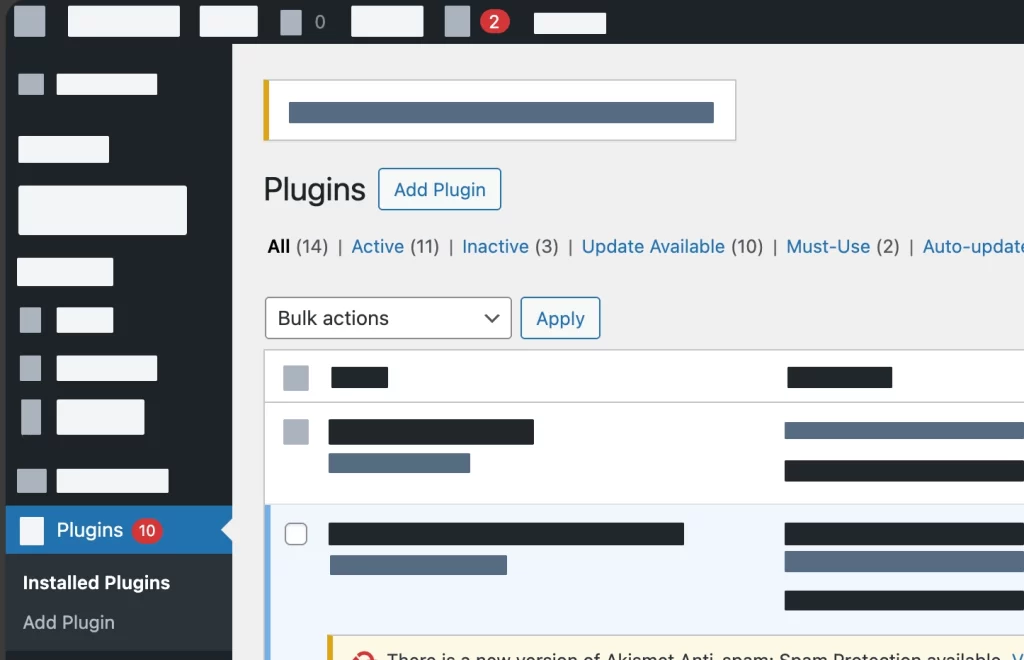
A faulty plugin is one of the most common causes. Below are the steps:
- Log in to your hosting control panel or use FTP.
- Open the wp-content folder.
- Rename the plugins folder to plugins-old.
- Check your website.
- If the site loads, rename the folder back and disable plugins one by one to find the problematic plugin.
Method 2: Increase PHP Memory Limit
Low PHP memory can trigger a 500 error. Steps are listed below:
- Open the wp-config.php file.
- Add the following line before “That’s all, stop editing”:
define(‘WP_MEMORY_LIMIT’, ‘256M’); - Save the file and refresh your website.
Method 3: Replace The .htaccess File
A damaged .htaccess file can break your site. Here is how to do it:
- Access your WordPress root folder.
- Rename .htaccess to .htaccess-old.
- Visit your website.
- If it works, go to Settings > Permalinks in WordPress.
- Click Save Changes to generate a new .htaccess file.
Method 4: Reinstall WordPress Core Files
Corrupted WordPress files may cause server errors.
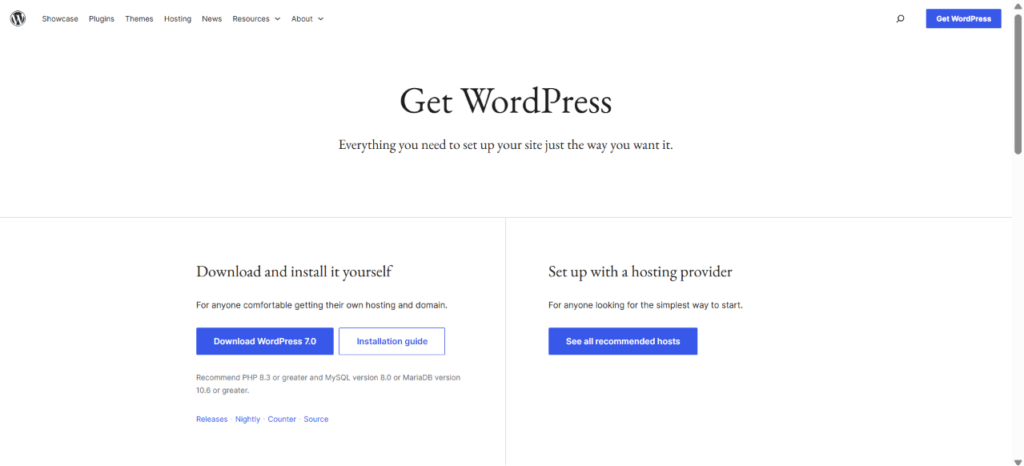
- Download a fresh copy of WordPress.
- Upload the wp-admin and wp-includes folders.
- Replace the existing folders.
- Keep your wp-content folder unchanged.
Method 5: Check Server Logs To Fix HTTP Error 500
If the error still appears, review your hosting error logs or contact your hosting provider. The logs often reveal the exact cause of the problem.
So, that’s it. Follow these methods one by one, and your website should be back online quickly. And if you have any questions, comment below!

Leave a Reply