

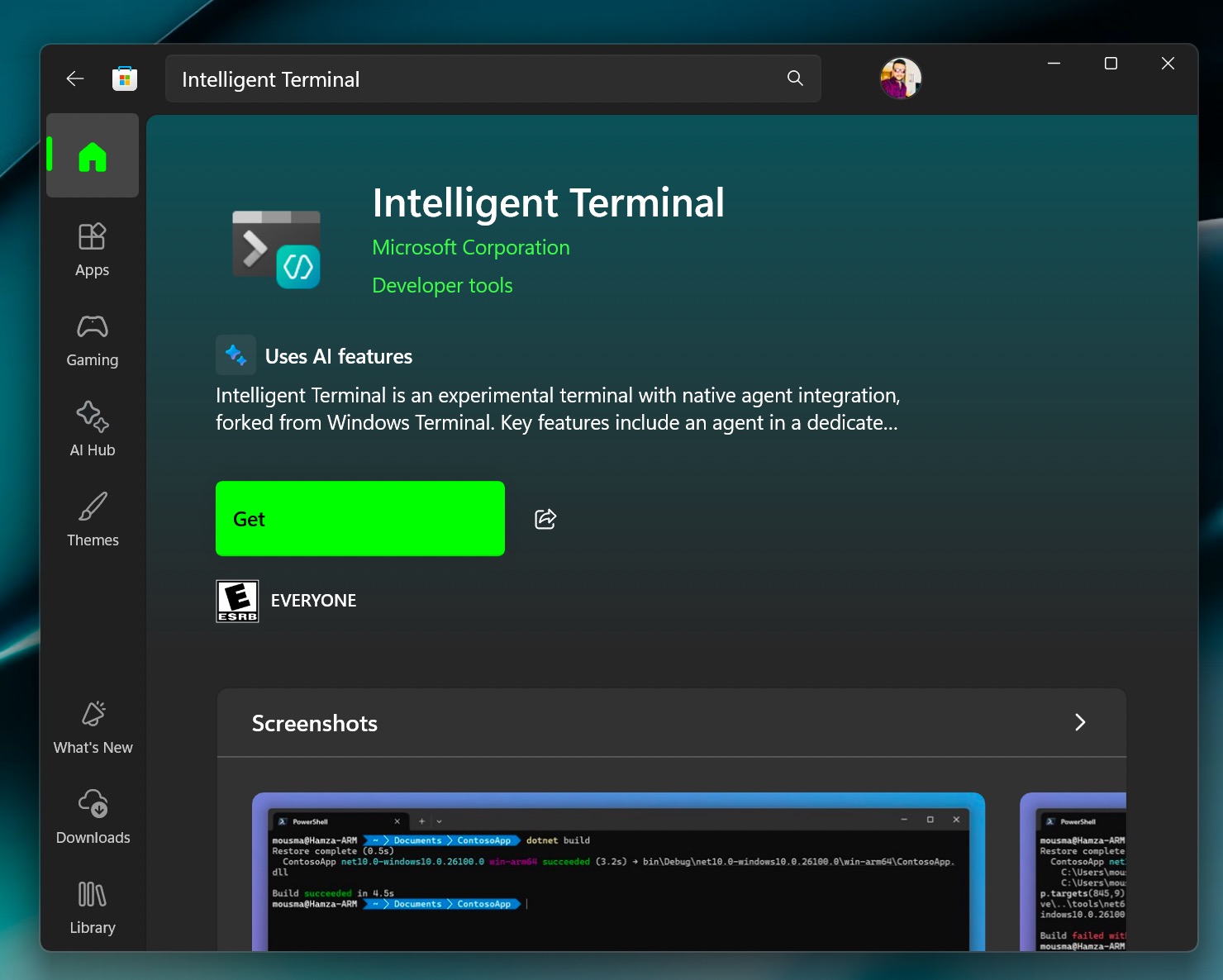
You typed a command in the terminal, and it failed to process. Then you spent the next 20 minutes searching for the error online. Well, we know many developers do this every day. And switching between the terminal, browser, and documentation can slow down your work. Microsoft wants to change that with a new tool called Intelligent Terminal.
What Is An Intelligent Terminal?
It is a new experimental app for Windows 11. It adds AI assistance directly into the command-line experience.
The app works alongside the Windows Terminal. It does not replace it. You can continue using your favourite shell and settings while getting help from AI when needed.
Meet Intelligent Terminal on Windows 11
Let’s show you how Intelligent Terminal helps:
1. AI-Powered Error Detection
When a command fails, Intelligent Terminal can:
- Detect the error automatically.
- Read the command output.
- Explain what went wrong.
- Suggest possible fixes.
This helps users troubleshoot faster without leaving the terminal.
2. Built-In Agent Panel
The app includes a dedicated AI panel.
Users can:
- Ask questions.
- Review errors.
- Get troubleshooting help.
- View AI suggestions.
Everything stays inside the same workspace.
3. Support For Different AI Agents
For, Intelligent Terminal, GitHub Copilot CLI is the default AI assistant.
However, you can also connect following:
- Other compatible AI agents.
- Local AI models.
- Custom ACP-supported agents.
This provides more flexibility and control to use Intelligent Terminal.
How To Install An Intelligent Terminal
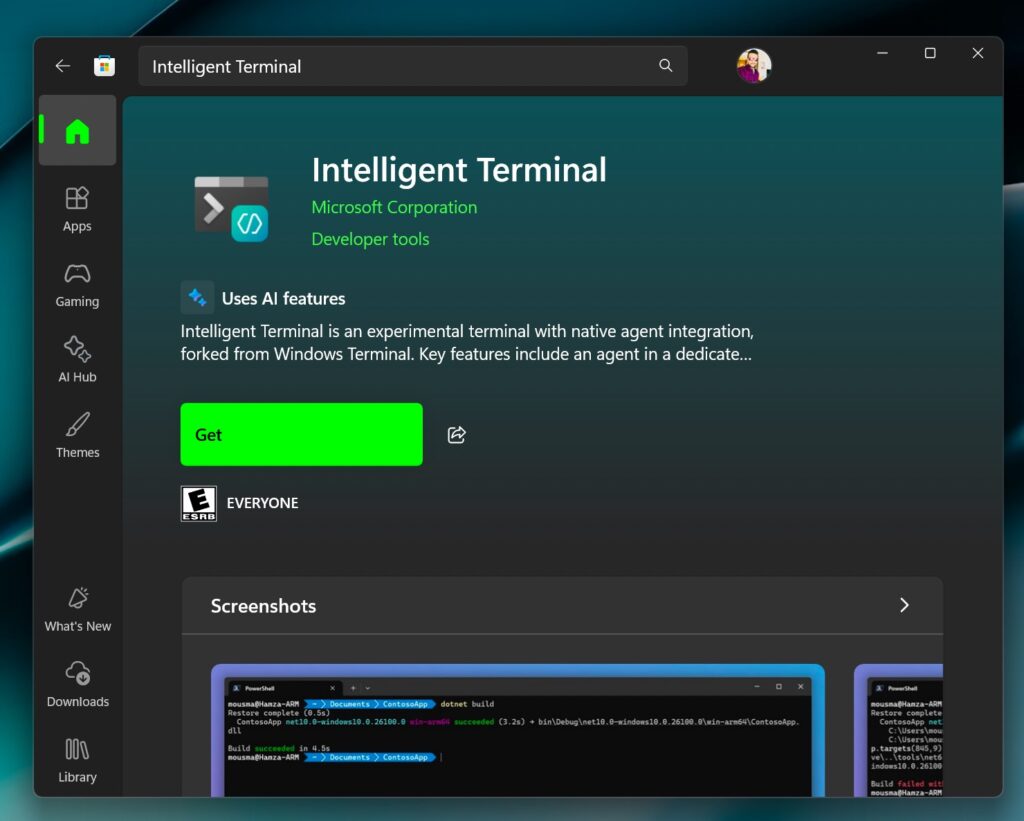
Method 1: Install From Microsoft Store
- Open Microsoft Store.
- Search for Intelligent Terminal.
- Click Install.
- Launch the app.
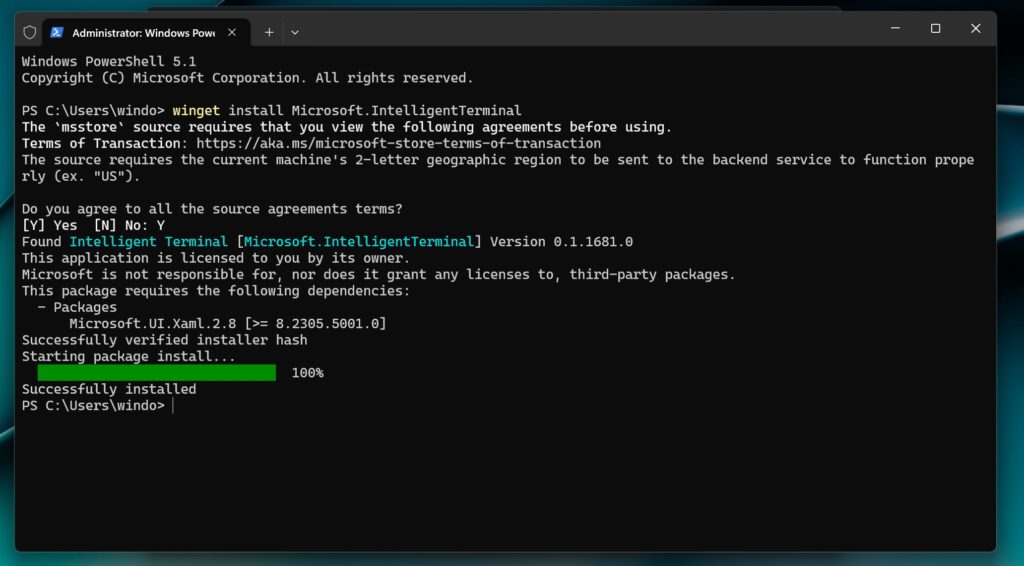
Method 2: Install Using Winget
- Open Command Prompt as Administrator.
- Run: winget install Microsoft.IntelligentTerminal
- Wait for the installation to finish.
- Open the app from the Start menu.
Useful Keyboard Shortcuts
- Ctrl + Shift + . — Show or hide the AI panel.
- Ctrl + Shift + / — Toggle the AI panel.
- Ctrl + Shift + I — Switch focus between terminal and AI.
- Alt + Shift + / — Open the AI command palette.
That’s it!

Leave a Reply