

As an author, I sometimes get the urge to play games on the Xbox on my Windows 11 laptop. But it can be annoying when the Xbox is disabled for its hardcore gamers and weekend warriors like me. If you also can’t find the option to enable Xbox mode on your Windows 11 PC, here’s every step you can try.
Microsoft has launched the Xbox mode to enhance gaming, enable Game Pass, stream and share games and overall improve the gaming experience. But on some devices, particularly unsupported and modified versions of Windows, it may not be enabled.
Timeline of Xbox in Windows 11
- October 2021 Windows 11 Launch
Windows 11 has built-in support for Xbox. These features include Xbox Game Bar, Xbox App, Game Pass and cloud gaming. Windows 11 is a gamer-friendly operating system. It brought console gaming to PC and let you play without having to set it up. - November 2025 Xbox Full-Screen Experience (Preview)
Microsoft has been testing the Xbox Full Screen Experience (FSE) with Insider builds. It was designed to simplify the gaming interface for use with a game controller. The goal of this change was to bring console gaming to the PC. It was particularly useful for gaming on handheld devices, and if you want a more immersive gaming UI. - March 2026 Xbox Mode Announced
Microsoft announced Xbox Mode for Windows 11 at the Game Developers Conference 2026. This game mode offered a console-like full-screen gaming experience. This marked Microsoft’s plans to transform Windows PCs into Xbox consoles. It aimed to enhance performance, simplify the interface, and integrate with the Xbox ecosystem. - April 2026 Xbox Mode Rollout Begins
April 2026 Xbox Mode has been available to Insiders in preview versions of Windows 11 26H1. First, it was available in the Canary Channel. This was a time for performance and feedback testing. And it provided stability before making Xbox Mode available to all users.
Ways to Enable Xbox mode on Windows 11 PC
Windows 11’s Xbox mode can help you improve your gaming performance. Whether you are a casual gamer or a weekend warrior, switching on Xbox features guarantees improved performance, control and gaming experience. Here are four surefire ways to turn on Xbox mode on any Windows 11 PC.
Way 1: Enable Xbox Mode Using Settings
This is the easiest method of enabling Xbox features on Windows 11. This should be sufficient if your PC supports these features.
1. Go to Settings on your Windows 11 PC.
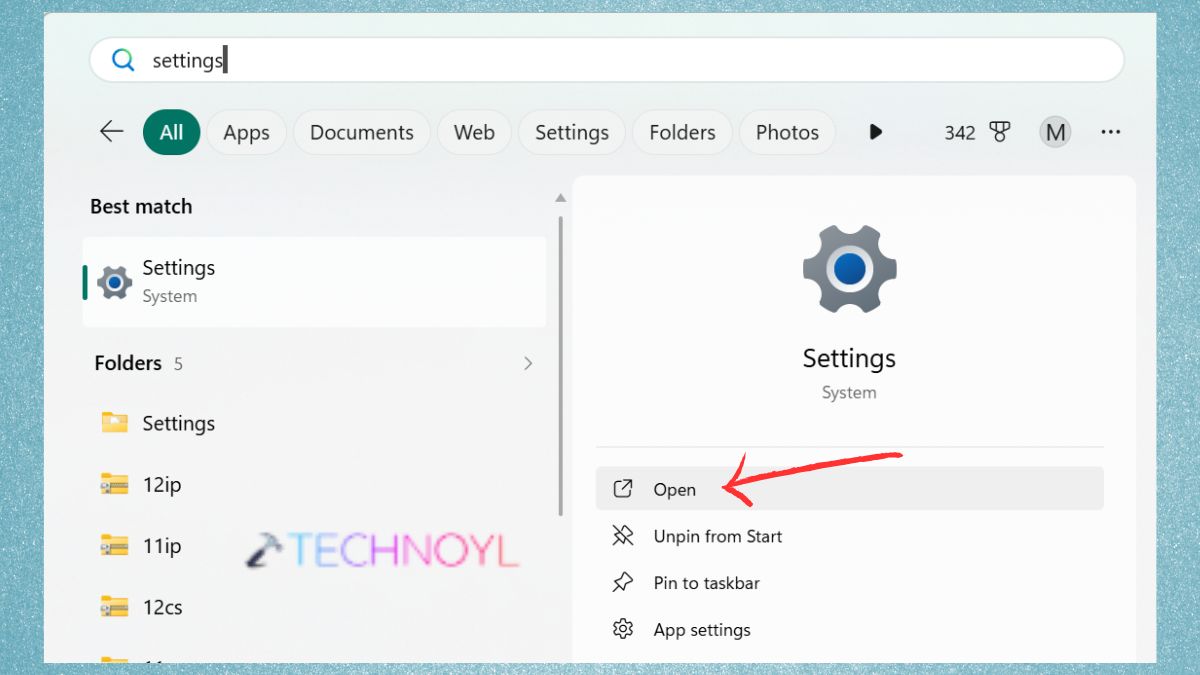
2. Click on Gaming on the left menu. Choose the Xbox Game Bar.
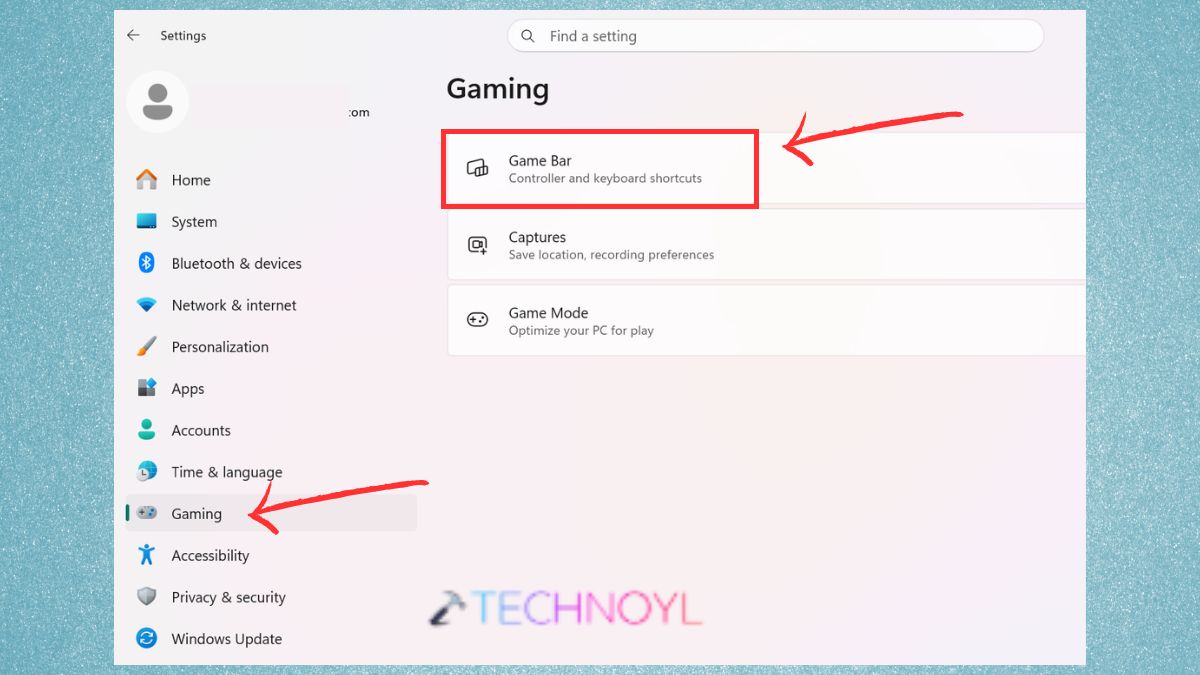
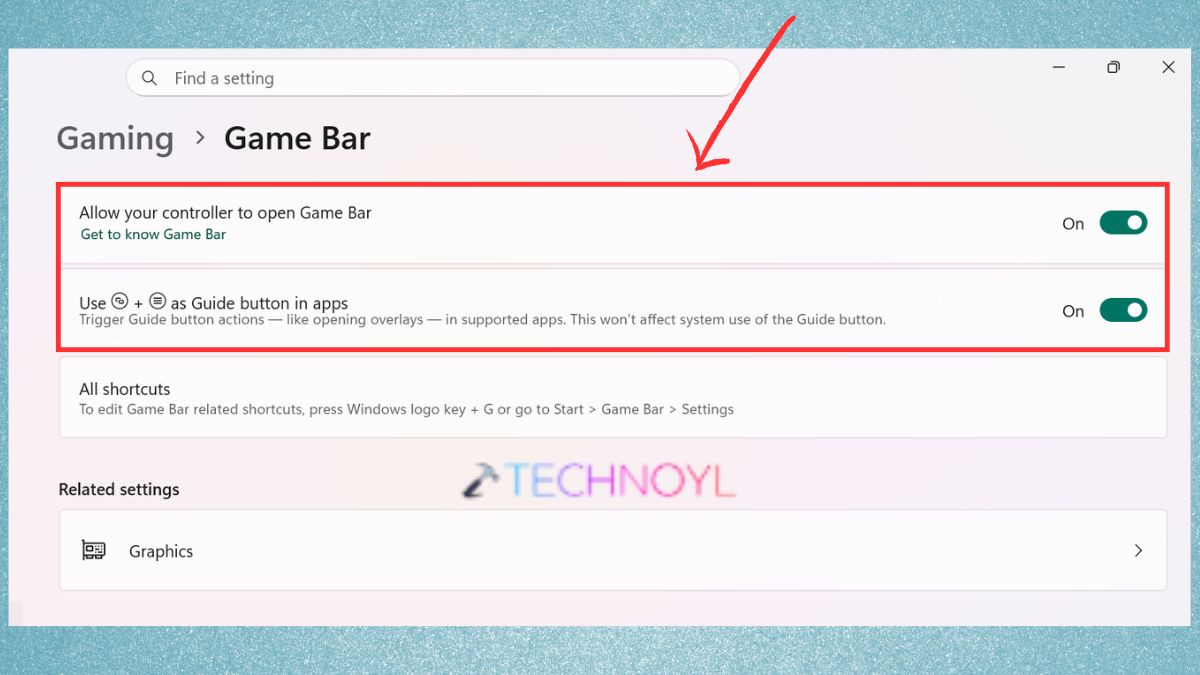
3. Tap on the Xbox Game Bar, and then turn the options ON. And make sure related gaming features like Game Mode, Captures and Remote Play are also enabled.
4. Also, toggle ON the Game Mode.
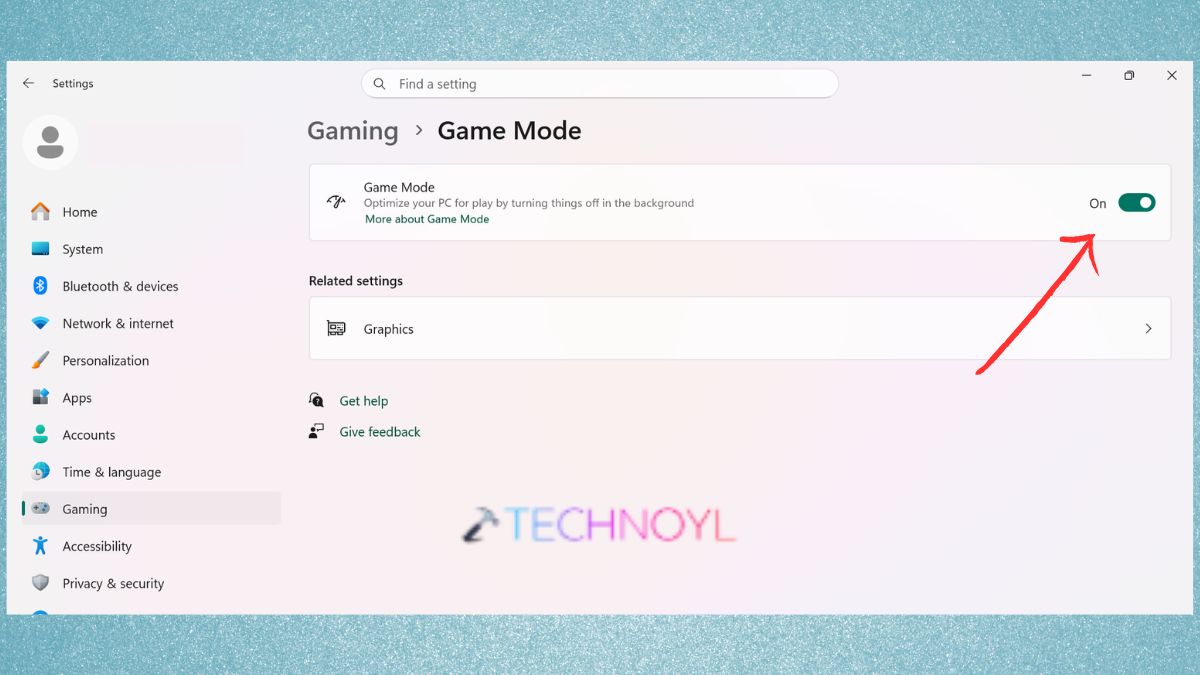
Reboot your computer for changes to take effect.
Way 2: Enable Xbox Mode on Any Windows 11 PC (Using Registry Editor)
If the Xbox mode is disabled or hidden by system settings or OEM settings, Registry hacks can be used to enable it.
Caution: Registry tweaks can make your computer unbootable. Back up your Registry before making changes.
1. Open the Run box by pressing Win + R, and enter the following.
regedit
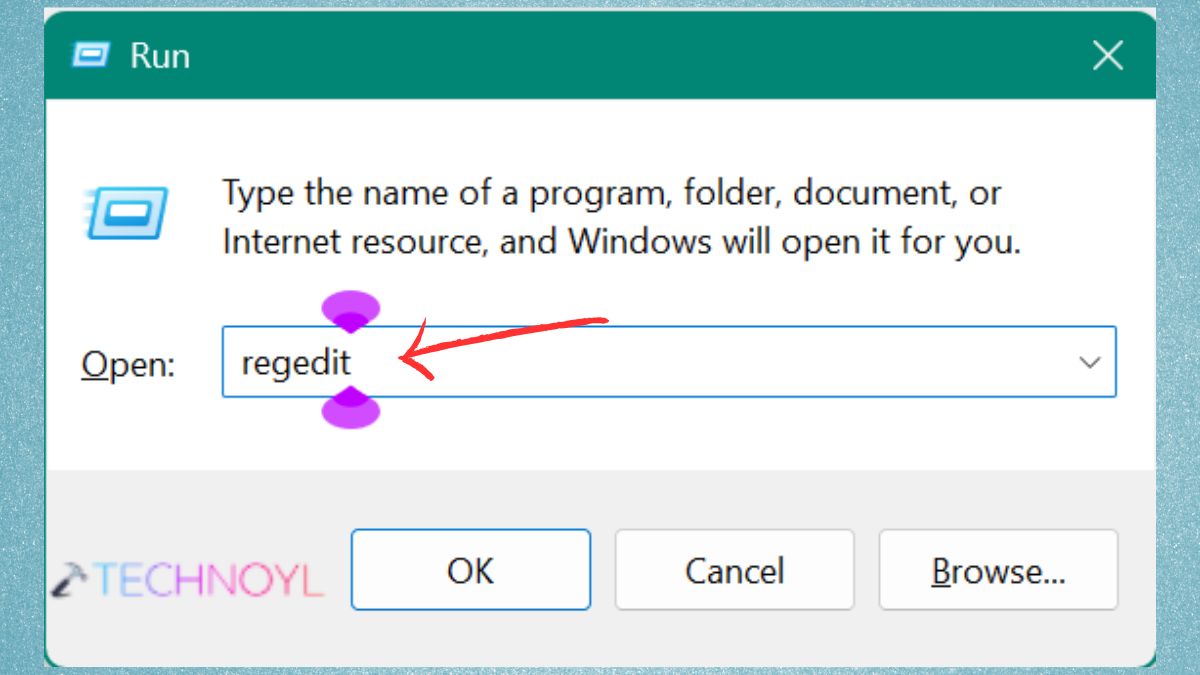
2. Go to the following location:-
HKEY_CURRENT_USER\Software\Microsoft\Windows\CurrentVersion\GameDVR
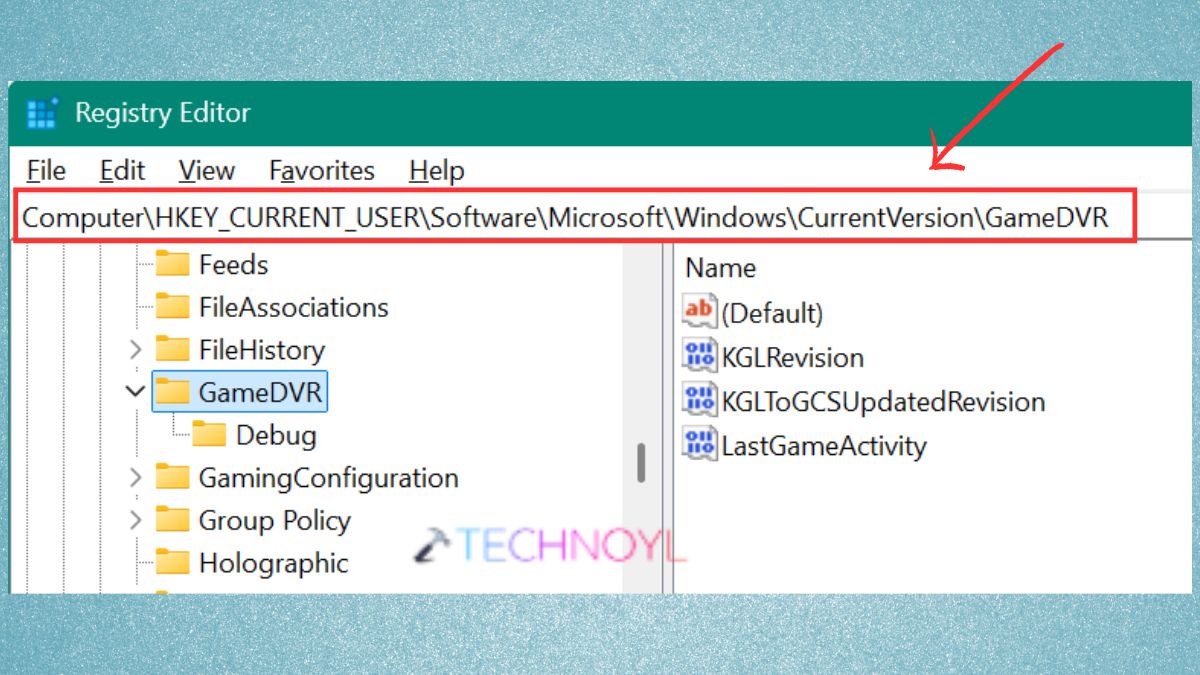
3. If it exists, check for a value called “AppCaptureEnabled”. If it’s not present, then add a DWORD (32-bit) key with the same name. Set the value to: 1.
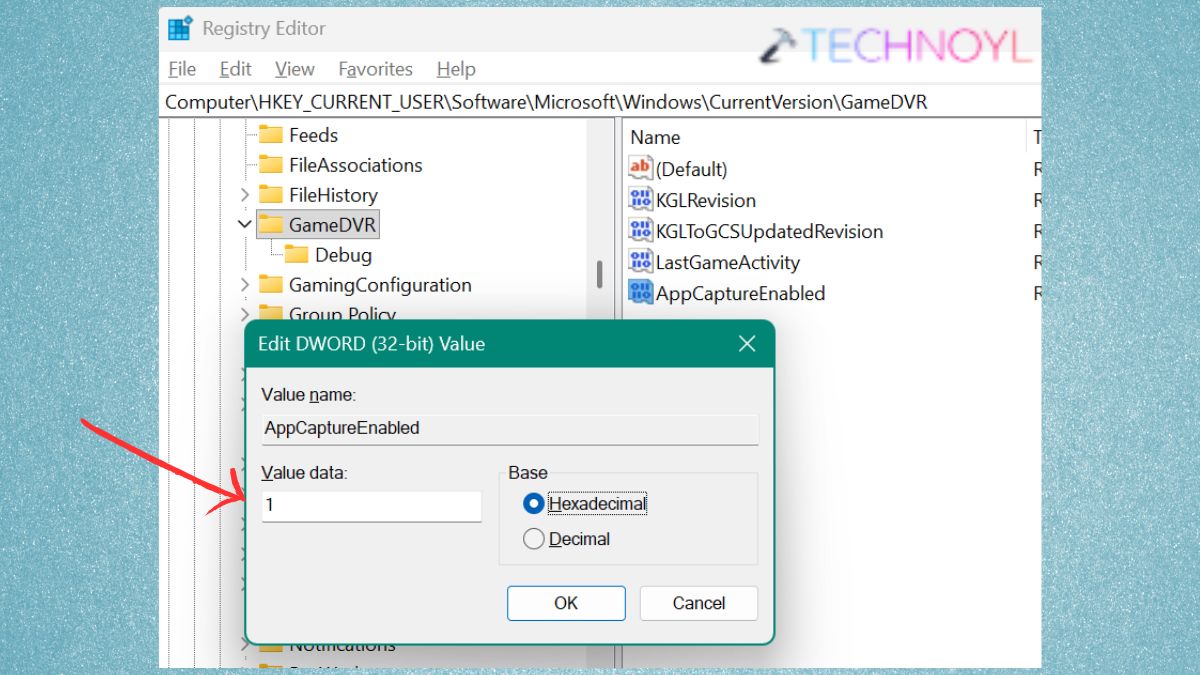
4. Now go to this path:-
HKEY_LOCAL_MACHINE\SOFTWARE\Policies\Microsoft\Windows
Add or change the DWORD value “AllowGameDVR” to “1”.
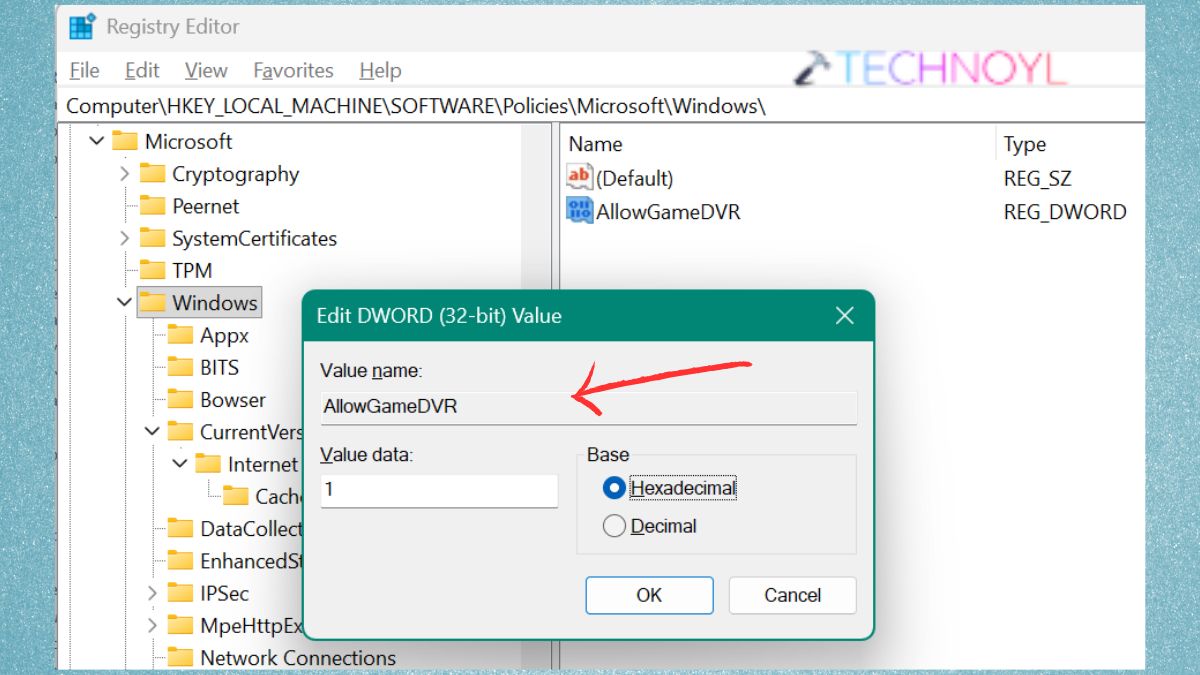
Exit Registry Editor and reboot your computer.
Way 3: Enable Xbox Mode Using ViveTool
ViveTool can be used to unlock new features in Windows. If Windows is preventing you from enabling Xbox mode (feature control policy), this is a good option. In this case, we’re using ViveTool (ZIP file) from its official GitHub.
1. In this case, we’re using ViveTool (ZIP file) from its official GitHub link – “https://github.com/thebookisclosed/ViVe/releases”. Unzip ViveTool ZIP file to a location, such as “C:\ViveTool”.
2. Open Command Prompt as Administrator.
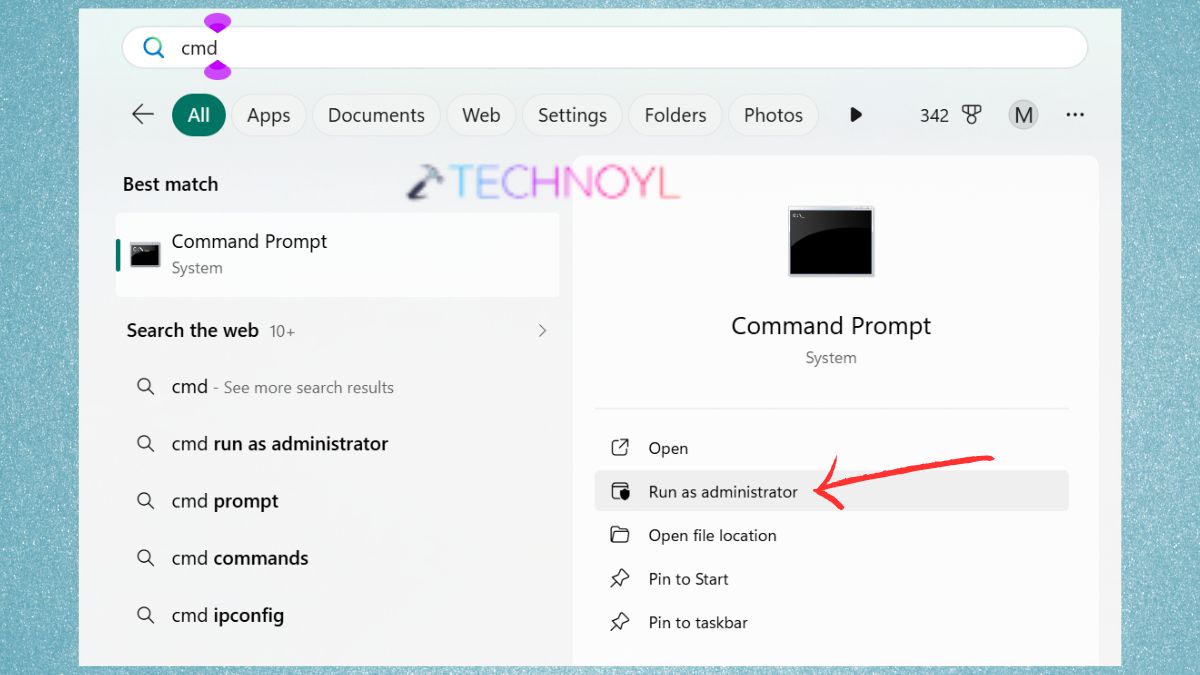
3. Go to the ViveTool folder with this command:-
cd C:\ViveTool
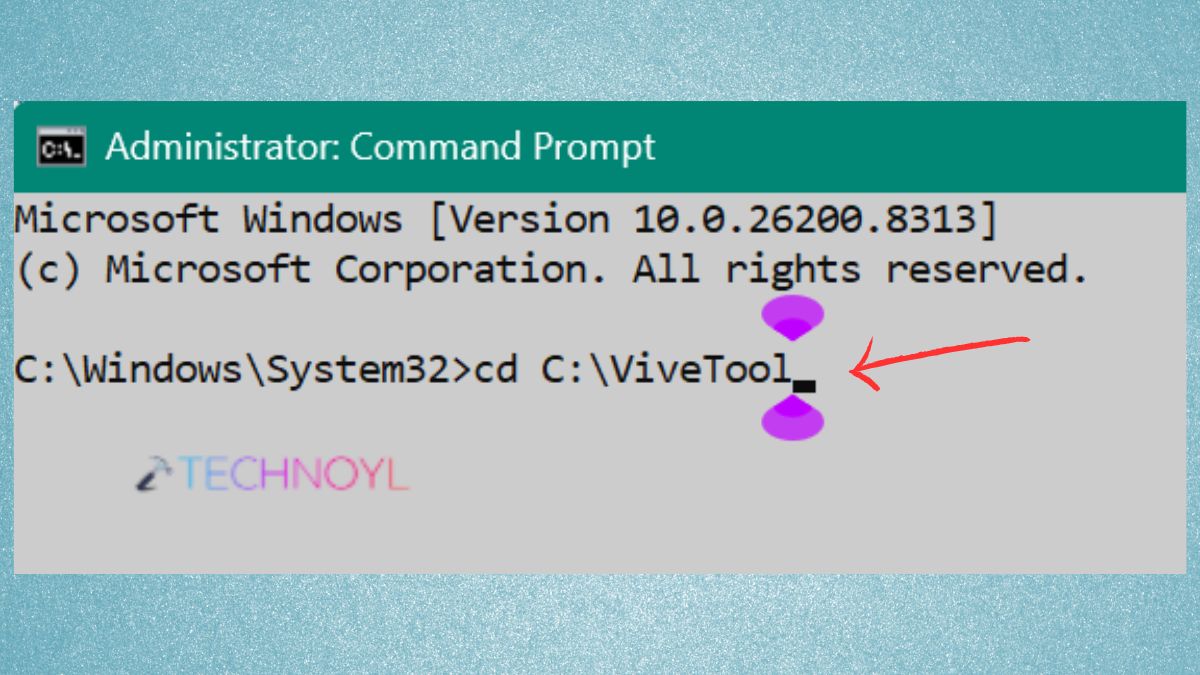
4. To enable Xbox games, enter this command. It may also be necessary to enable other gaming feature IDs.
vivetool /enable /id:36898195
vivetool /enable /id:34370472
vivetool /enable /id:32009189
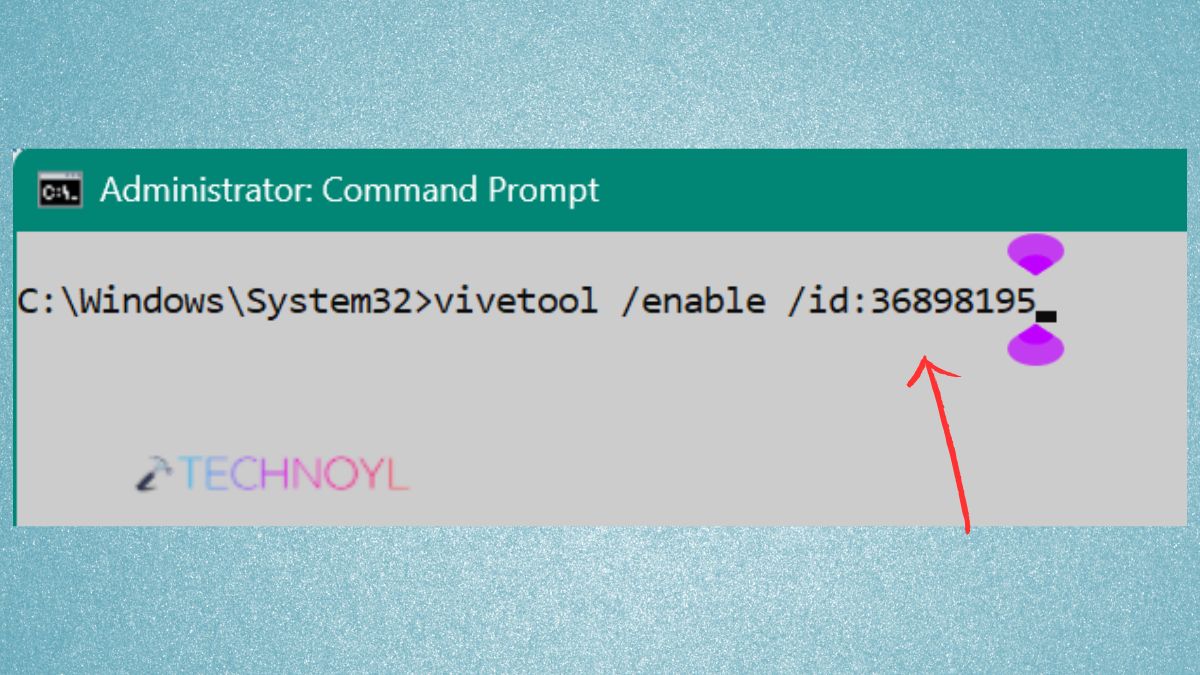
Restart the PC.
Way 4: Enable Xbox Mode on Any Windows 11 PC (GitHub Tools)
There are some tools and scripts you can use to enable gaming features on a computer with Windows 11 where it is missing, such as in a debloated, LTSC or modified edition. Here’s how to use GitHub Tools.
1. Visit the GitHub repo for reinstalling Xbox/Game Bar packages. Extract the script (it will be a .bat or .ps1 file). Unzip the ZIP file.
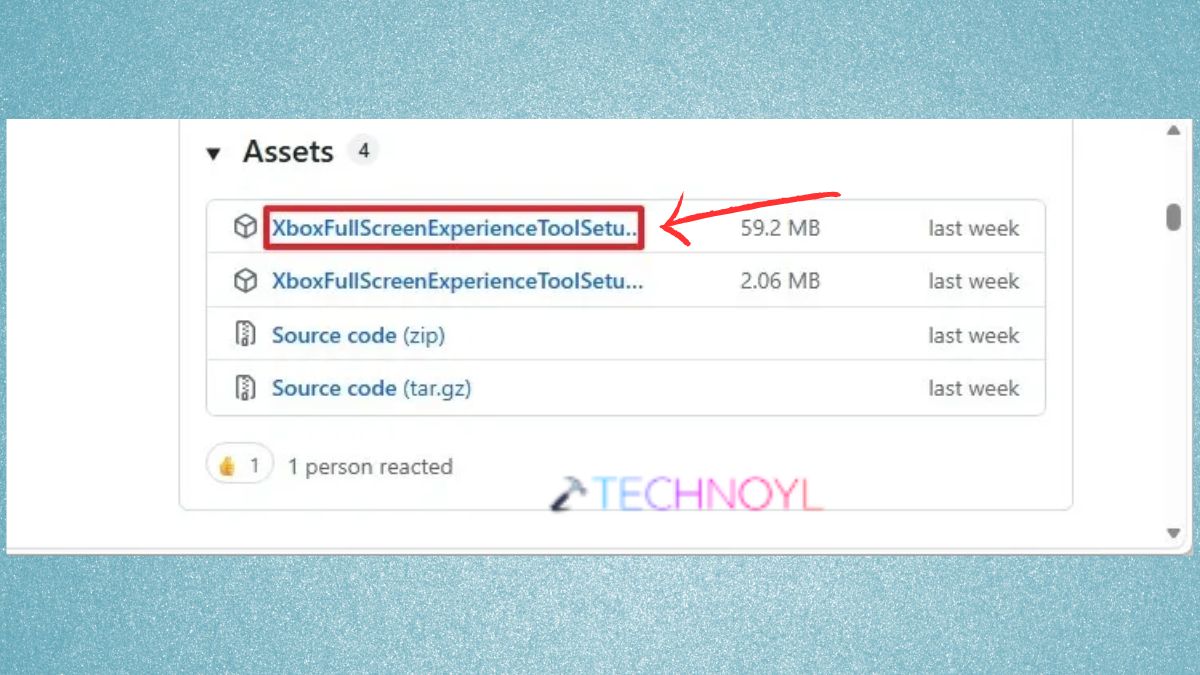
2. Double-click the “.msi” installer script. Follow the on-screen instructions. This will be done by the tool:-
- Reinstall the removed Xbox packages.
- Re-enable Game Bar.
- Enable gaming APIs.
- Re-enable Microsoft Store services.
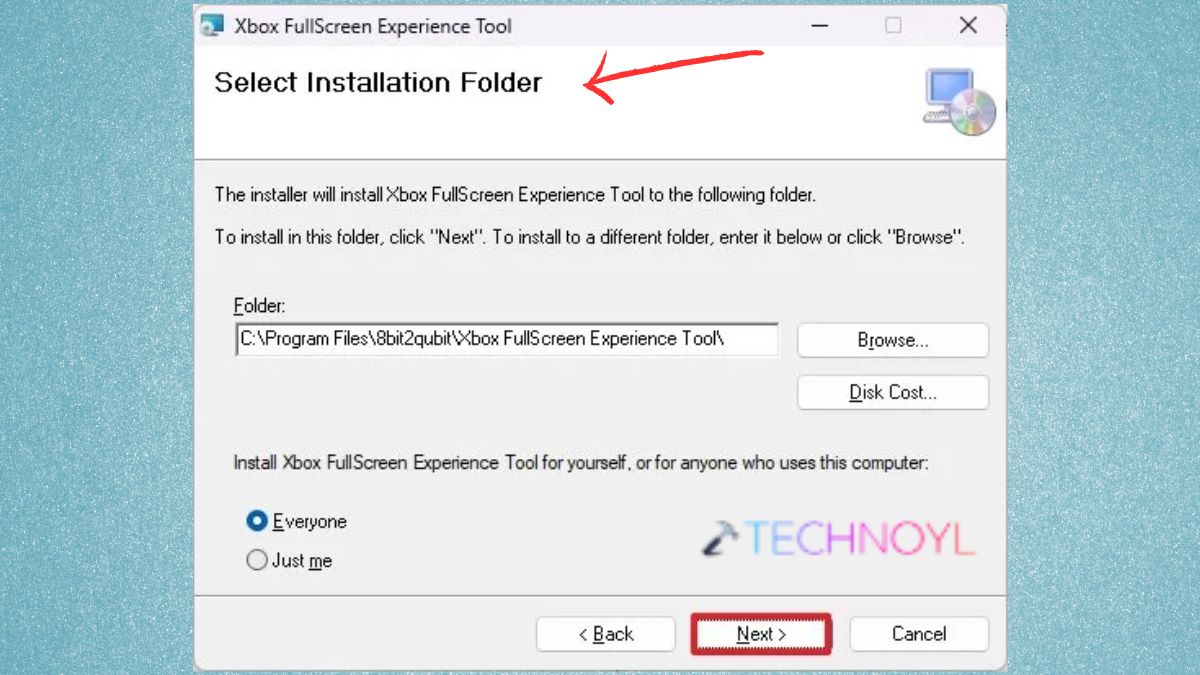
Reboot the computer after the script has run.
Frequently Asked Questions (FAQs)
How to enable Xbox mode in Windows 11?
If needed, use the four ways to re-enable the Microsoft Store, as explained in this article, via Settings, Registry Editor, ViveTool, or GitHub restore options.
Is Xbox mode coming to Windows 11?
Yes, Microsoft has been slowly expanding the number of Xbox features in Windows 11, such as Game Mode, enhancements to the Xbox Game Bar, Gaming Services, and Game Pass. And future releases will build on the “Xbox mode” features.
How to use Xbox in Windows 11?
Download and sign in to the Xbox app, play Game Pass games, plug in an Xbox controller, and use the Xbox Game Bar to record, chat, view performance or join parties. Xbox mode enhances all these capabilities.
How to enable Gaming Mode in Windows 11?
Under Settings > Gaming > Game Mode, turn it ON. Game Mode prioritises games on your PC by reducing distractions.
If you have any problems when you turn on Xbox mode or need any help with any of the features in Windows 11, please let me know in the comments. I will do my best to help.
That’s it!

Leave a Reply