


If you’ve ever opened the Services panel in Windows and noticed entries that look like duplicates, with slightly different names, you’re not imagining things. What you are watching are per-user services, which are one of the main components of the operation of a modern Windows.
Hence, this article will guide you on how to manage Per-User Services in Windows, how to turn them off and everything you need to know.
What Exactly Are Per-User Services?
In easy terms, per-user services are background services created by Windows on behalf of each user who has logged in. Rather than having a single, common service running across the entire system, Windows spins up instances per user session.
It means that when you log into your system, Windows will set up some services specific to you. When another user logs in, Windows will create another set of the same services. But totally unruined by yours. These services are executed within the framework of the user, rather than the entire system.
This is a change from the way things used to be. Traditionally, most services ran globally and were shared across all users. But with per-user services, Windows isolates functionality at the user level. It implies that your notifications, syncs, and some actions of certain apps are processed independently of the rest of the users on the same computer.
It might appear to be needless duplication on the surface. In fact, it is a strategic design decision that assists Windows in handling users in a more secure and efficient manner.
Why Windows Moved to Per-User Services
So why did Microsoft introduce per-user services in the first place?
To get an idea of that, one can refer to the way services were handled in older versions of Windows. With the traditional model, the majority of the services were operated under system-level accounts and shared by all users. Although this was effective, it had some limitations.
One was a security issue. These services that were at the system level were usually more privileged. In case of a failure or exploitation, it might have an impact on the whole system and all the users on it.
Second, there was a lack of isolation. Services were shared, and this meant that the actions of one user may at times disrupt the experience of other users. This was not the best, particularly when there were several users simultaneously.
Last but not least, the old model did not quite fit the modern working of window features. The operating system of today comes with features such as real-time notifications, account-based synchronization, and app-specific data management, all of which are user-specific features.
Per-user services solve these problems by:
- Executing services as the user, rather than the system.
- Isolating and making the processes independent of each user.
- Backing up of modern concepts such as notifications, sync and separation of app data.
How Do Per-User Services Work Behind the Scenes?
At the background, the per-user services are designed on a two-layer approach.
The top-most level is a service template. This is the entry definition of a service, which is kept in the system registry. It holds all the configuration information, the way the service is executed, which services it is relying on, etc. There can be only one copy of this template on the system.
When a user logs in, Windows makes an instance of the service with this template, specifically in relation to that user. This example is independent and directly related to the session of that user.
This is where the strange naming enters into.
Rather than being referred to by the original service name, windows are referred by a unique suffix on each instance. Thus, a service, such as “OneSyncSvc”, would look like “OneSyncSvc_3f2a1”. After the user logs out, such service instances are usually destroyed, and the system is returned to the base template until the next user login.
A Closer Look at Key Per-User Services
After getting the idea behind per-user services, the next thing would be to know the ones that are really important. Although Windows developers develop some of these services undercover, some are directly related to features that you use on a daily basis.
Connected Devices Platform User Service will take care of implementing communication between your system and other devices.
This service is one of those that allow you to get your phone connected to your PC or even to share devices, in case you ever did that. These interactions are user-specialised; therefore, Windows executes Windows as a per-user service instead of a system-wide service.
Windows Push Notifications User Service is responsible for delivering all the notifications to a given user session. Every user is assigned a separate instance of this service, so they only receive the notifications being sent to the appropriate user.
These services control access to user-specific data, which is used by apps and system features. Using these services, apps are able to store and retrieve data effectively. Since this information is specific to individual users, Windows isolates this information with per-user service instances rather than information being shared on a system-wide basis.
PimIndexMaintenanceSvc runs silently as a background process and keeps indexing of personal data. Interacting with this service is not in your direct scope, but it assists in making sure the apps can find and display relevant personal data in a quick manner without delays.
How to Find All Per-User Services in Windows
Assuming you need to find out all the per-user services on your system, there are easy ways to do it. None of them needs sophisticated tools, and some provide you with a better picture than others.
a. Using Services.msc
It can most easily be done by the built-in Services panel.
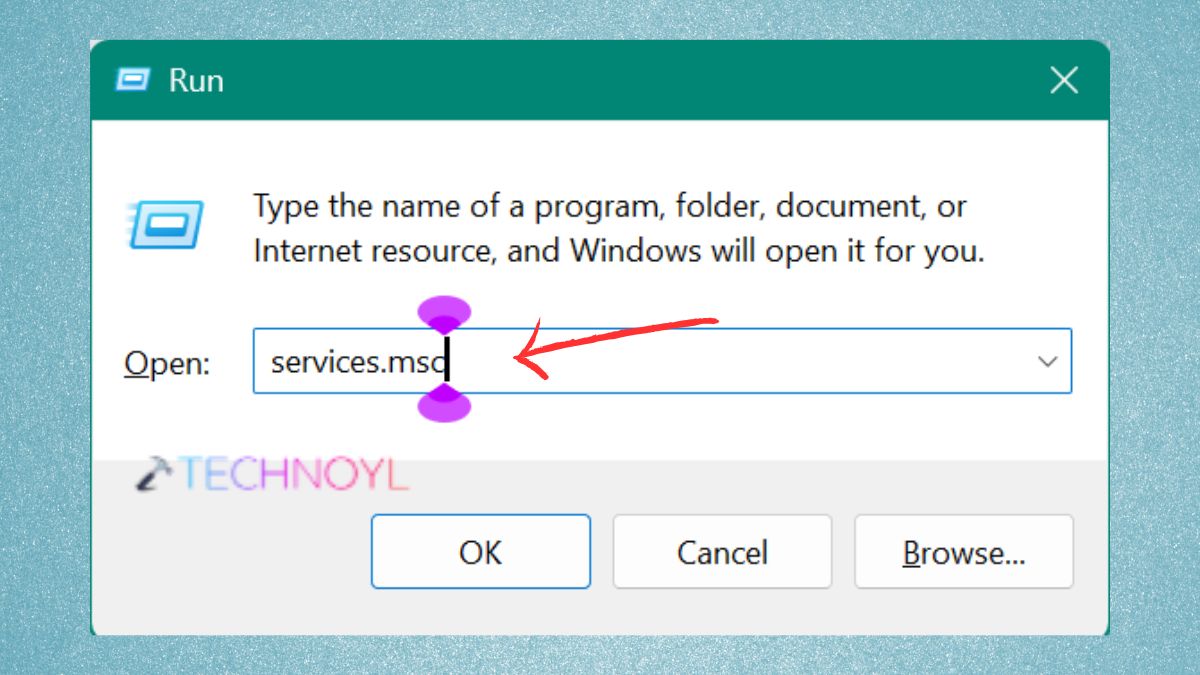
1. Press Win + R, enter the following command and press Ok.
services.msc
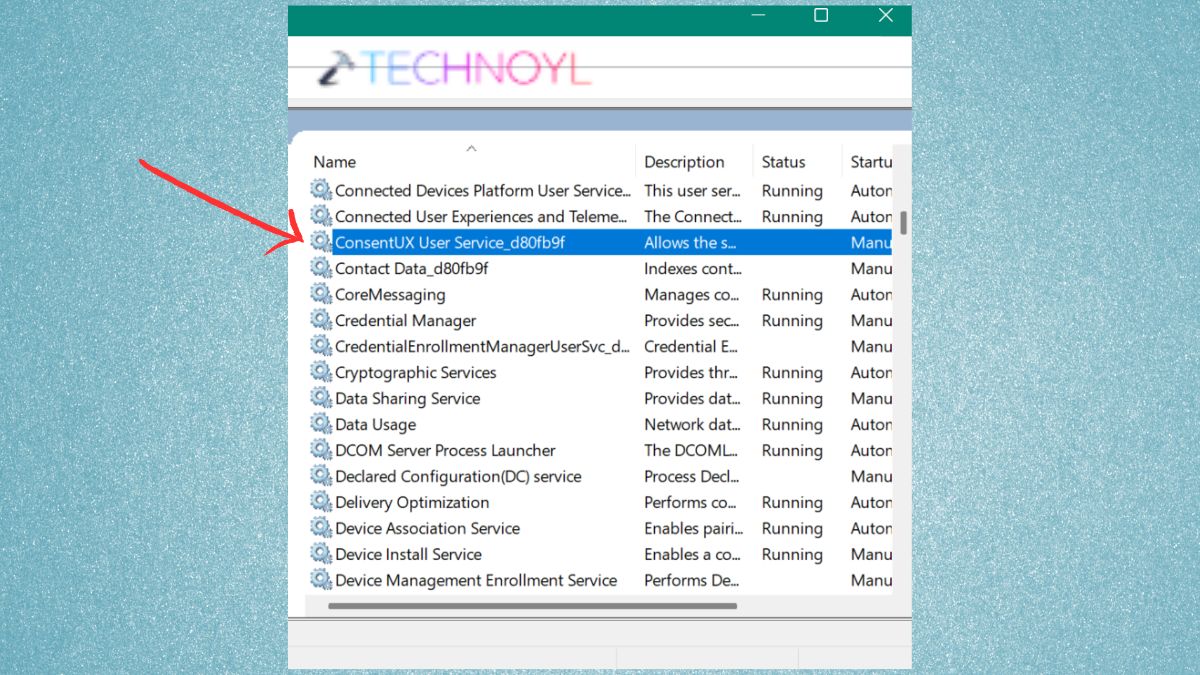
2. Browse through the list. Search using services whose names contain an underscore and some random character. The fastest visual indicator of that being a per-user instance is that pattern.
b. Using PowerShell
PowerShell simplifies things in case you would like a more filtered list.
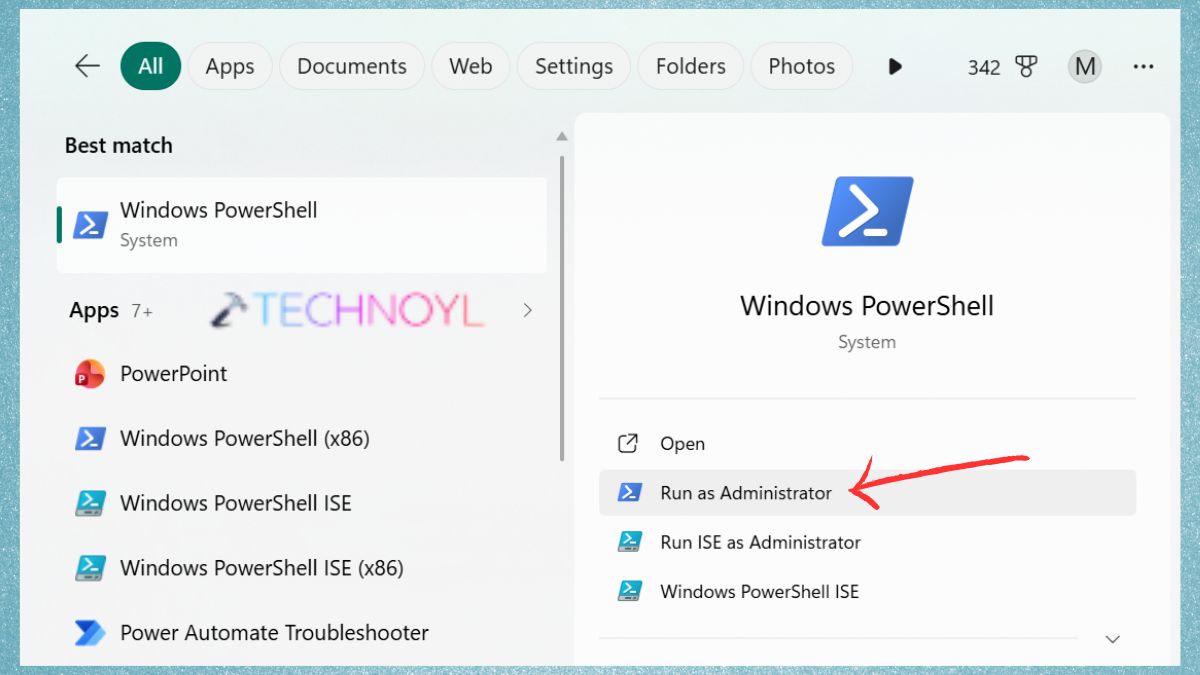
1. Open the PowerShell (Admin).
2. Paste this command into it.
Get-Service | Where-Object { ($_.ServiceType -band 64) -eq 64 } | Select Name, Status, ServiceType,DisplayName
The command only displays services with an underscore in their name, which typically are per-user instantiations.
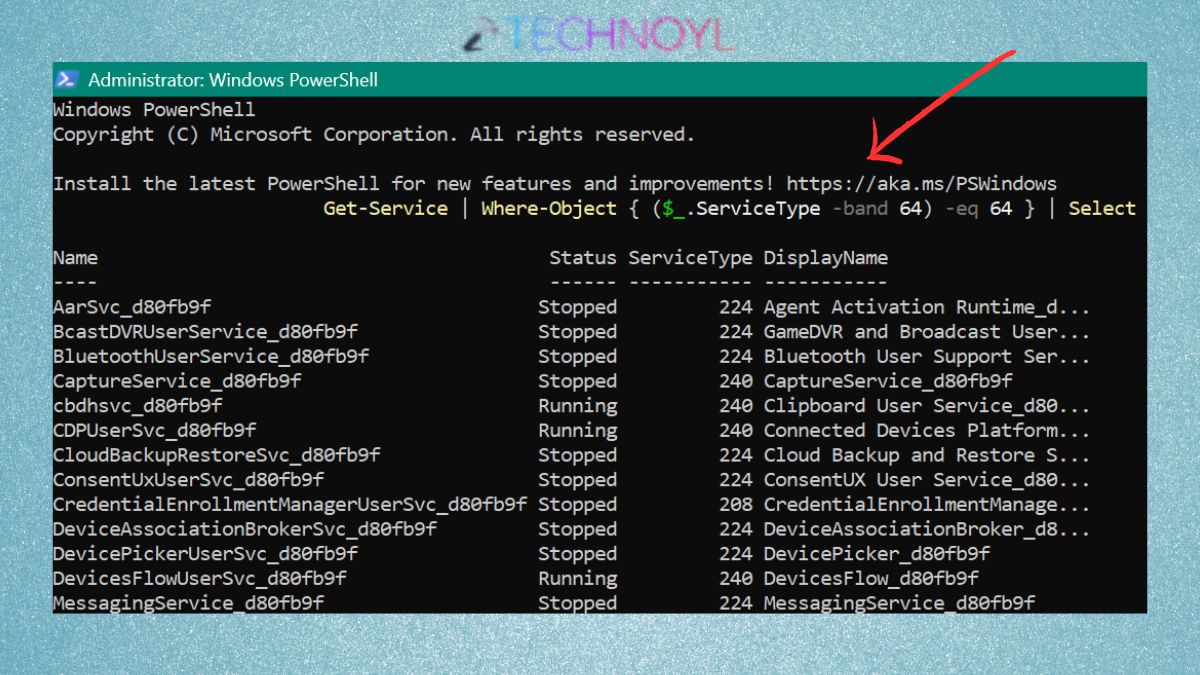
It is not flawless; however, it is a fast method of filtering things without scanning through dozens of entries by hand.
c. Checking the Registry
To go a notch higher, you can go to the registry where the base service templates are maintained.
1. Go to the Registry Editor and open it.
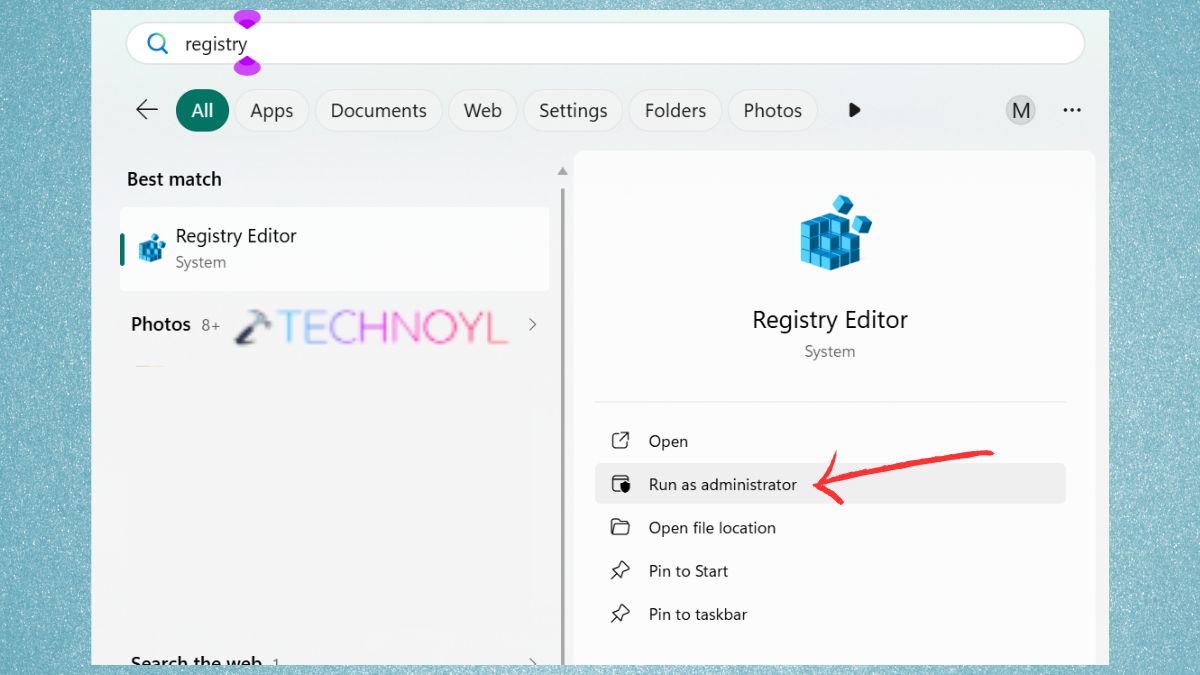
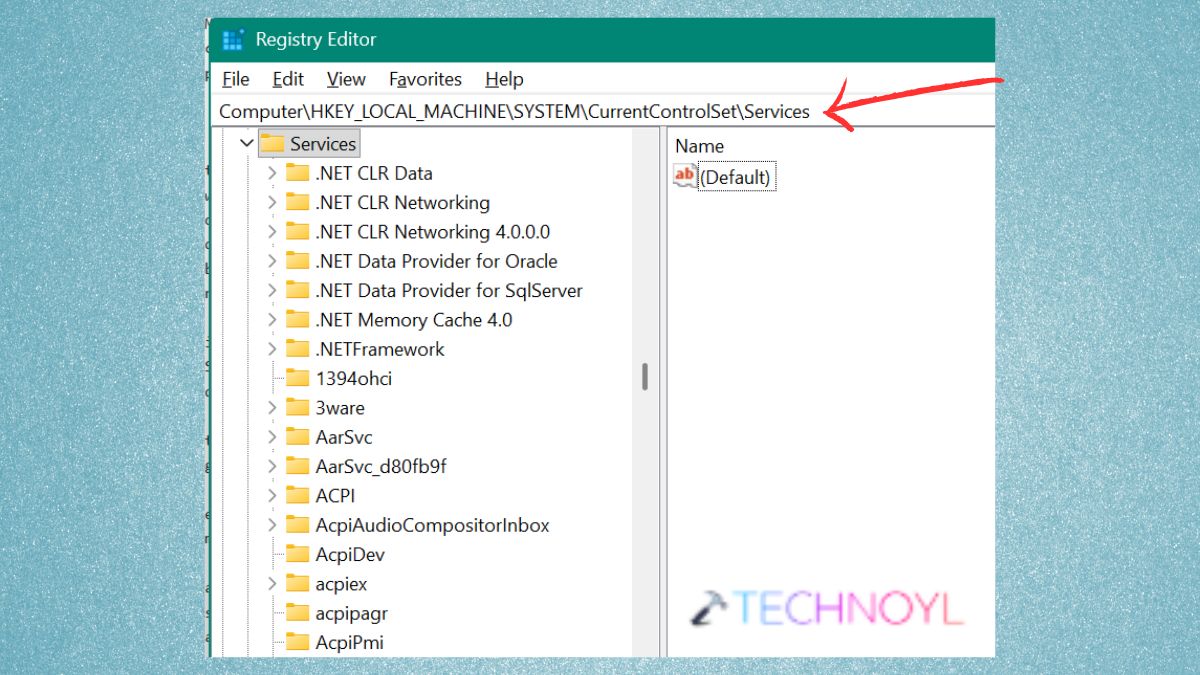
2. Open this path in it.
HKLM\SYSTEM\CurrentControlSet\Services
In this case, you will not find the suffixed forms. Rather, you will be presented with the original service names the templates, which Windows uses to make per-user instances when logging in.
How to Disable Per-User Services in Windows
This is where one ought to be a little bit delicate. One can regulate per-user services, and the manner in which you do it is not usually understood. The important thing is this: You do not put the individual per-user instances out of commission; you put the underlying service they are based on under control.
a. Disable Using Registry
To prevent the creation of a per-user service, you must make changes to its configuration in the registry.
1. Open Registry Editor via Start.
2. Go into Service Key. Add or edit the “UserServiceFlags” Value. What you need to do is to right-click and create a “new DWORD (32-bit)” value with the name: “UserserviceFlags” and with the value: “0”.
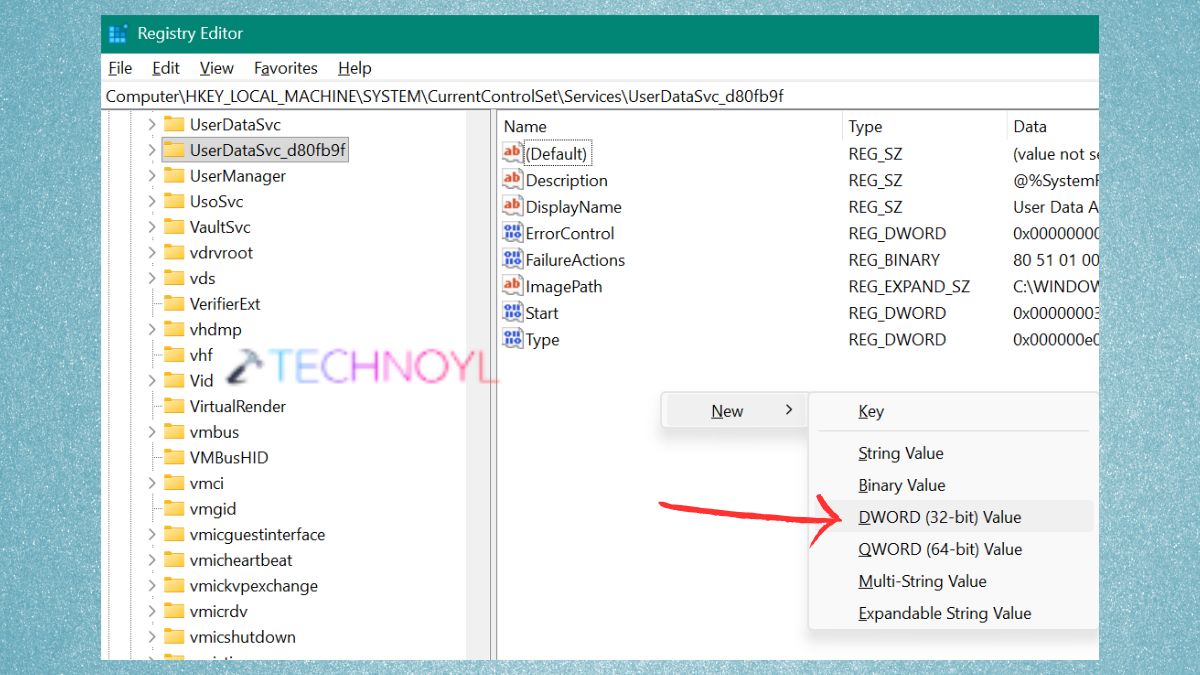
This instructs Windows against initiating per-user instances of that service.
b. Using PowerShell
This can also be done through PowerShell.
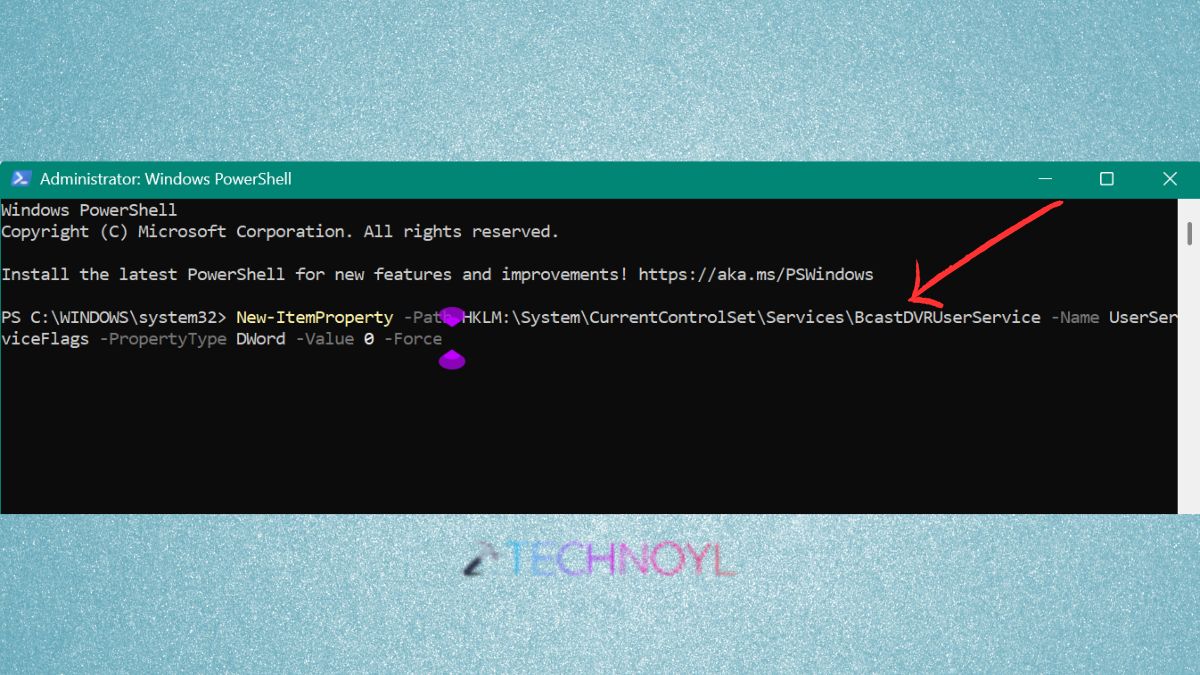
1. Firstly, open Windows PowerShell as an administrator.
2. This command will automatically create (or update) the necessary registry value.
New-ItemProperty -Path HKLM:\System\CurrentControlSet\Services\BcastDVRUserService -Name UserServiceFlags -PropertyType DWord -Value 0 -Force
When Should You Actually Disable Them?
In the majority of situations, you do not even have to disable per-user services. They are there to assist the essentials of the Windows system, and the system is created to deal with them effectively. Turning off per-user services is not an unthought thing. Examples of services that are closely associated with the core Windows functions include some of them. Have a rollback feature, such as a backup.
That notwithstanding, in some cases, it may be reasonable to disable:-
- You have a system that has a lot of users at any given time.
- You are attempting to decrease background activity in a controlled situation.
- You know very well what a particular service is and what you do not require.
Frequently Asked Questions (FAQs)
What are per-user services in Windows?
Background services, which are per-user services, are services created by Windows on a per-user basis. Rather than having a single service to serve the whole system, Windows creates a service instance per user session.
Why do Windows services have random suffixes in their names?
The random-appearing suffix (e.g., 3f2a1) is a special identifier per user session. It enables Windows to execute various instances of a service concurrently without conflicts.
Can I safely disable per-user services?
Yes, though, cautiously. It should be the base service that is disabled, but not the single instances, unless you are certain that you will not need the feature it serves.
Do per-user services affect system performance?
Mostly, the effect is not significant, particularly on personal computers. In high usage environments (such as RDS or VDI configurations), however, the instances of service can grow dramatically, and this can have an impact on the utilisation of resources.
That’s it!
