

Do you ChatGPT to generate images, as well? And, in the event that, you may have encountered situations when ChatGPT image generation stuck or not working, just refused to create a response, becomes caught in its loop of working on it… or when it returns you to endless errors. It is a frustrating thing especially when you need a picture urgently to use in work, create some contents or when you have a school project.
The good news? The problem is normally a temporary one and can be resolved in a couple of steps. The most efficient ways of the ChatGPT image generation stuck or not working problem are below.
Fix ChatGPT image generation stuck or not working
Fix 1: Try a Different Web Browser
Occasionally it is not ChatGPT, but rather your browser. Some browsers will block scripts or have problems with intensive AI processing.
1. Use any alternate web browser like Chrome, Firefox, or Edge.
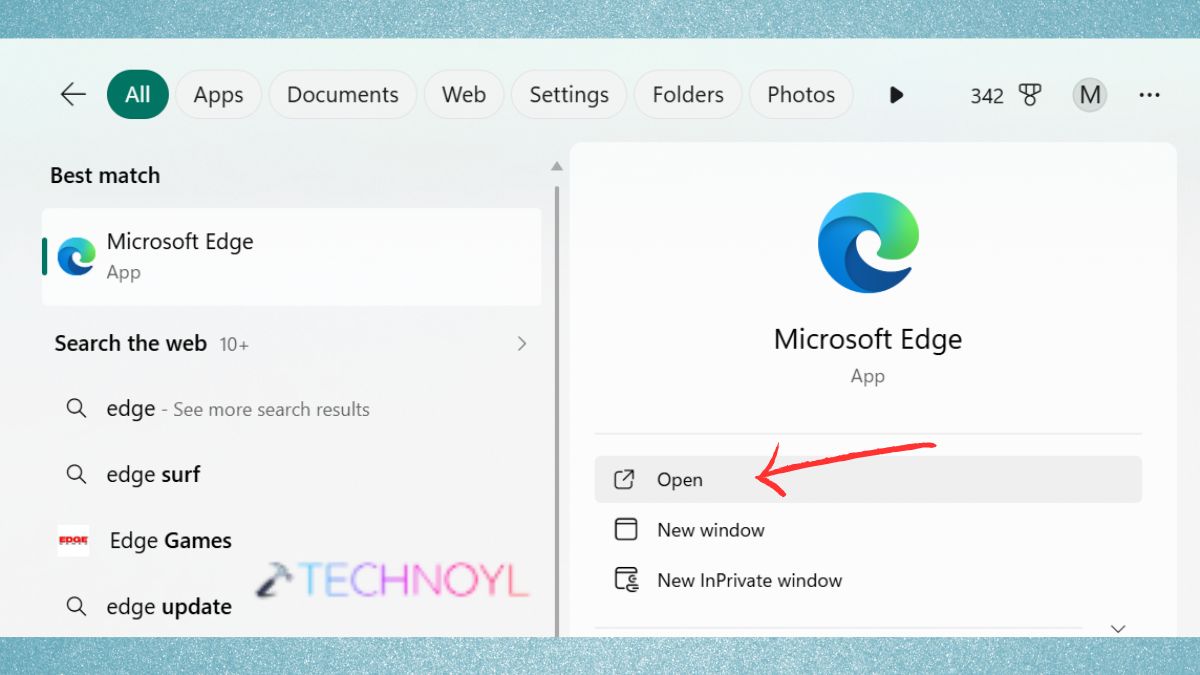
2. Try Incognito/Private mode.
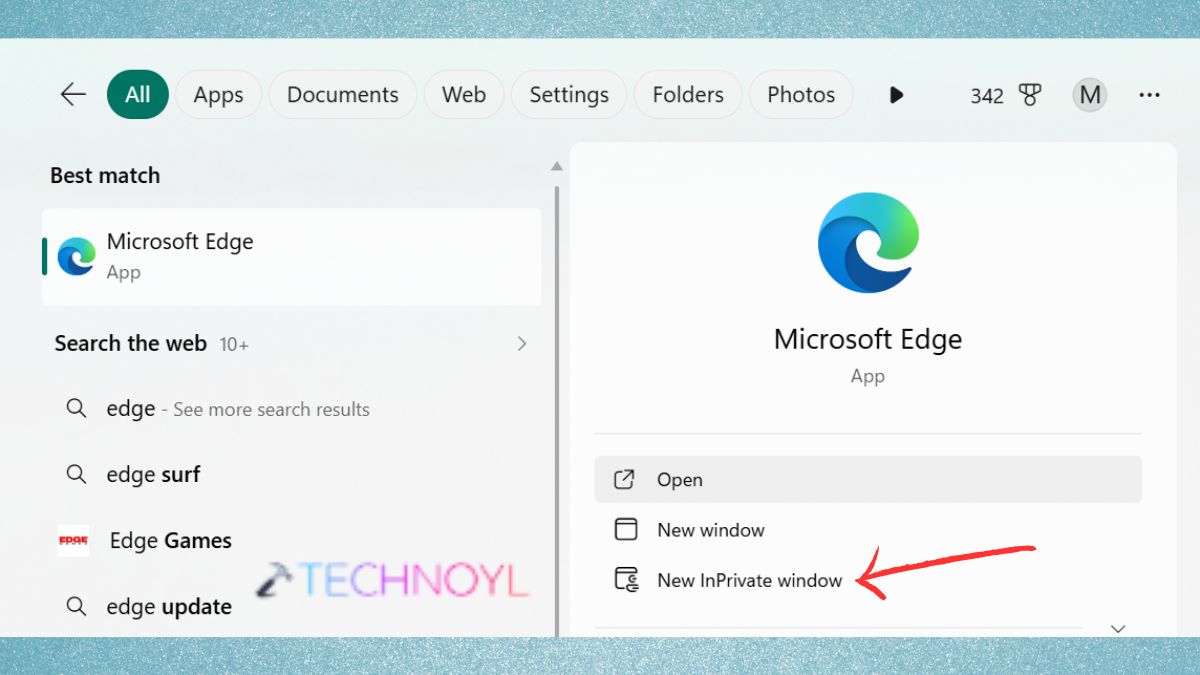
In the case of image generation beginning to work in a different browser the problem is browser-specific.
Fix 2: Disable Browser Extensions
Active extensions, such as ad blockers, script blockers, VPNs, or privacy extensions may disrupt ChatGPT capabilities, particularly image generation and loading.
1. Disable all Extensions.
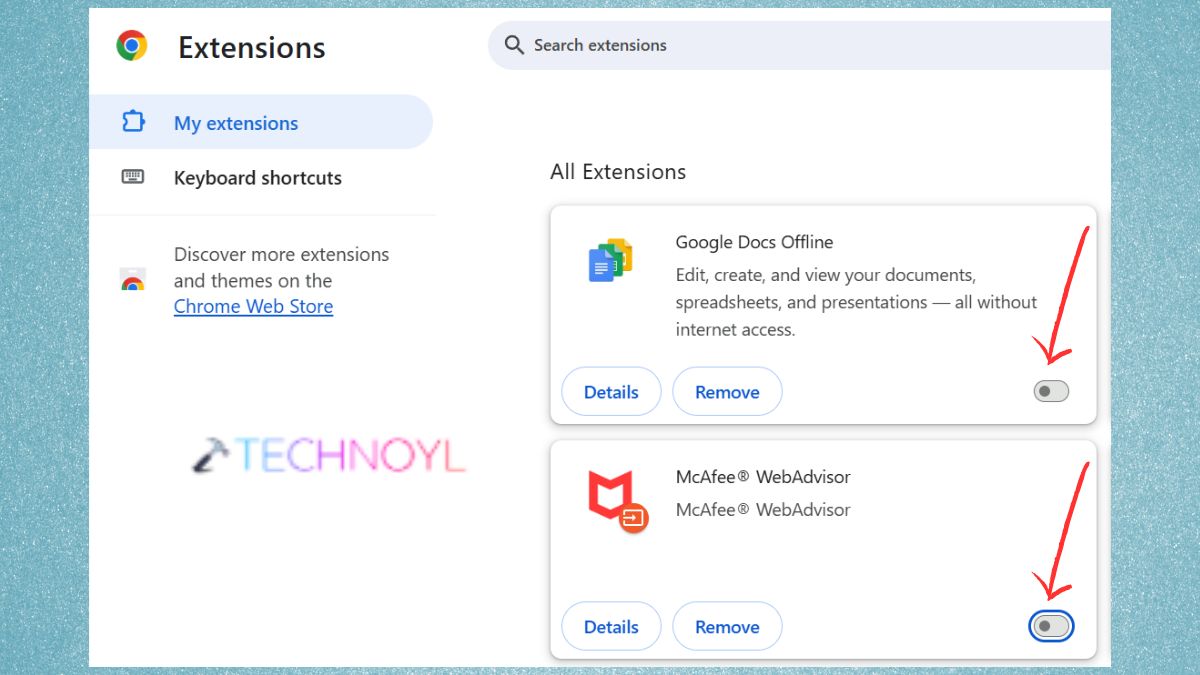
2. Refresh ChatGPT. Attempt to produce the image once more. When found to work, one should re-enable your extensions individually identifying the culprit.
Fix 3: Clear Cache for OpenAI and ChatGPT
Image generation or proper rendering images may not be produced by ChatGPT due to a corrupted browser cache.
1. Click on your browser settings > Privacy and Security. Tap on “Delete Browsing Data”.
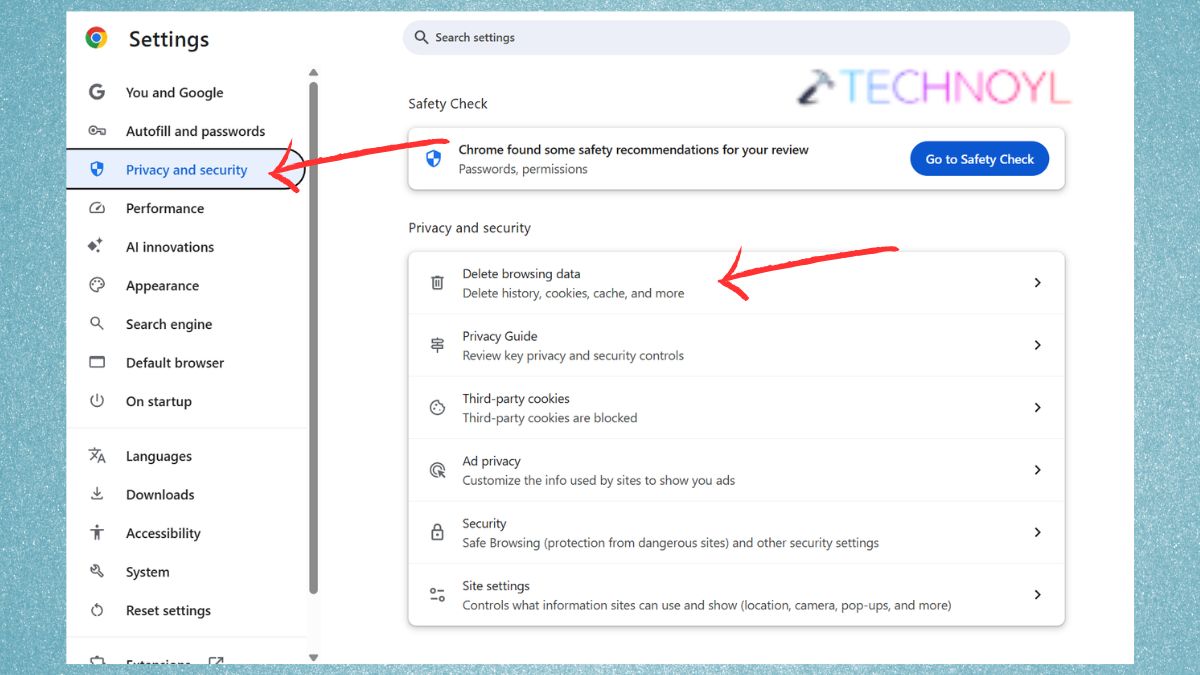
2. Clear cookies and cache with these URLs:-
- chat.openai.com
- openai.com
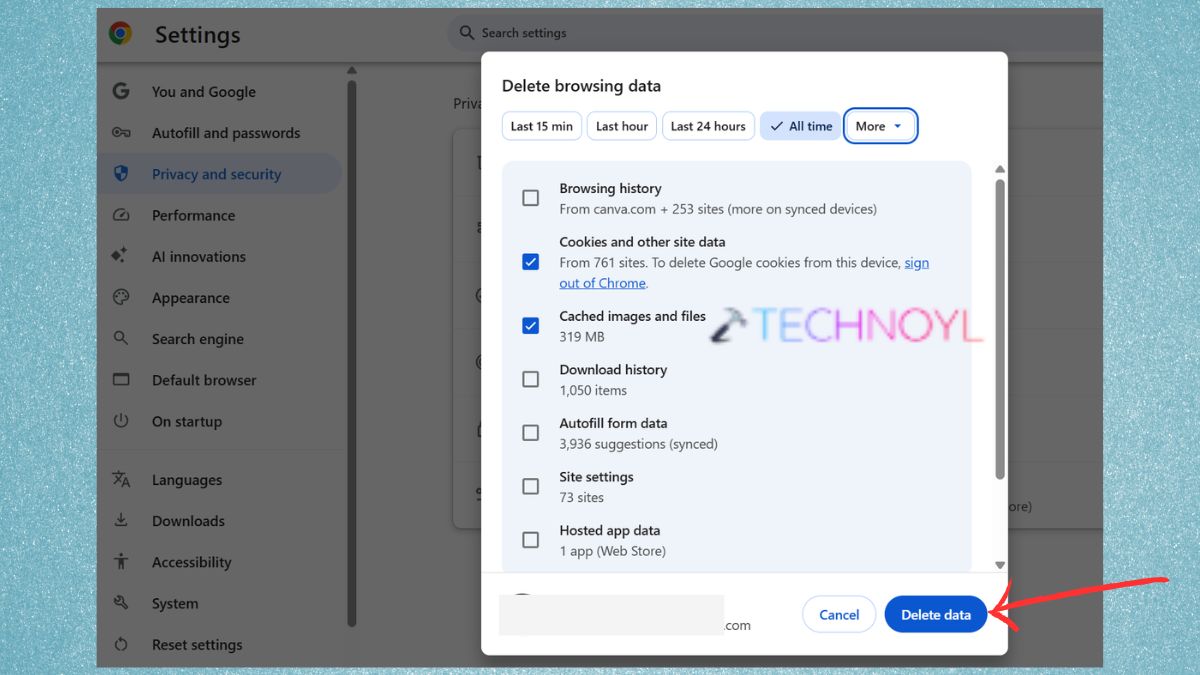
Reload ChatGPT. This is a frequent fix to causing a loading stuck.
Fix 4: Start a New Chat
In some cases the current conversation thread is too large or congested and generating pictures stops. Re Credit On a clean slate, ChatGPT is able to restart fresh and provide a usual response.
1. Click on New Chat.
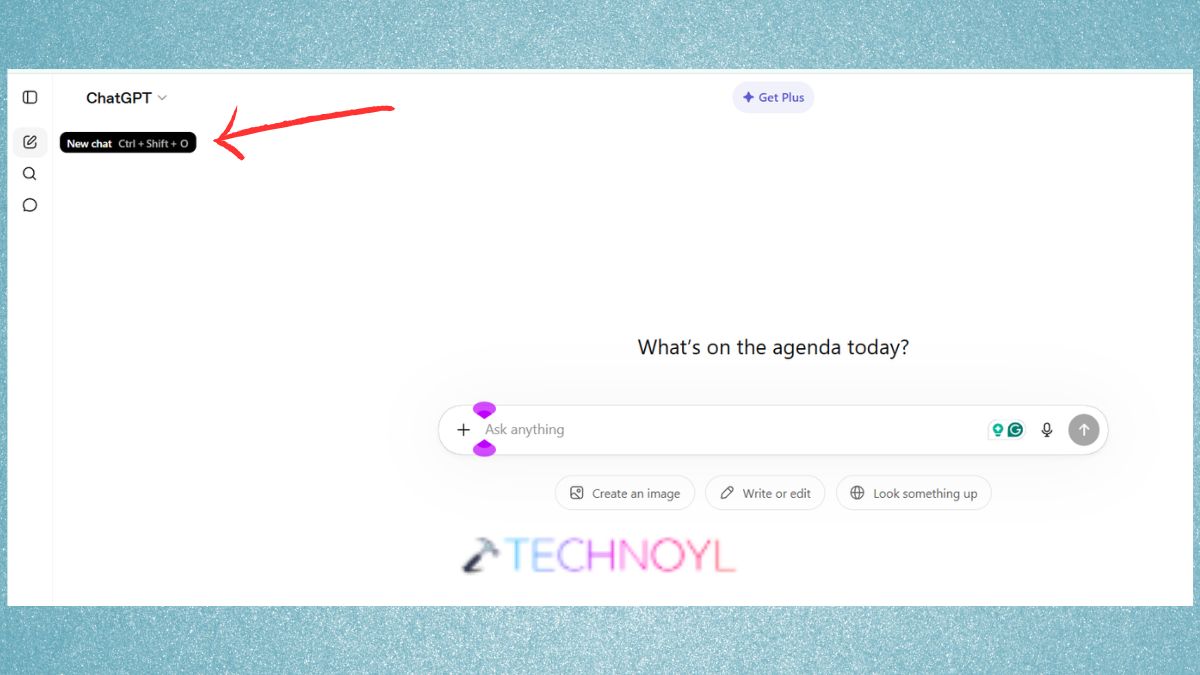
2. Request it to re-create the image. You will be amazed to know how often this will clear the problem.
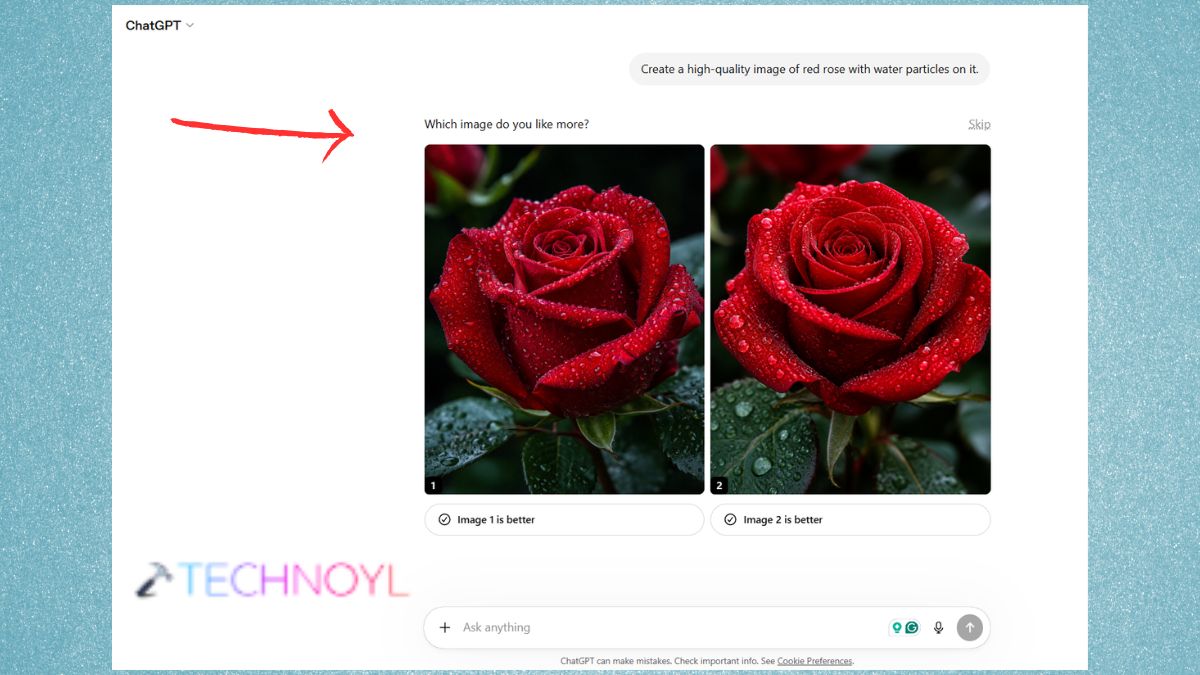
Fix 5: Branch the Chat
You can fork off of an older message, instead of beginning anew. This retains your context without carrying massive discussion with it.
1. Place the mouse cursor over a message.
2. Click on the three dots (⋯) > Branch in new chat.
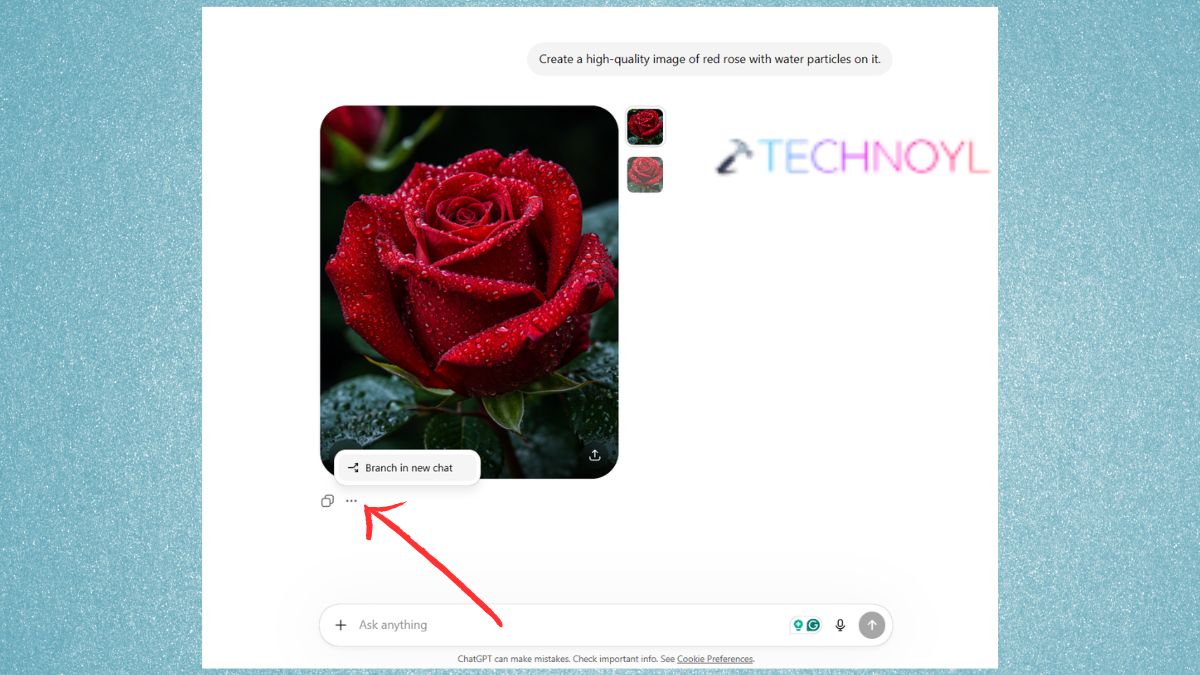
Recreate your picture. This replaces the processing path, but not your previously stored data.
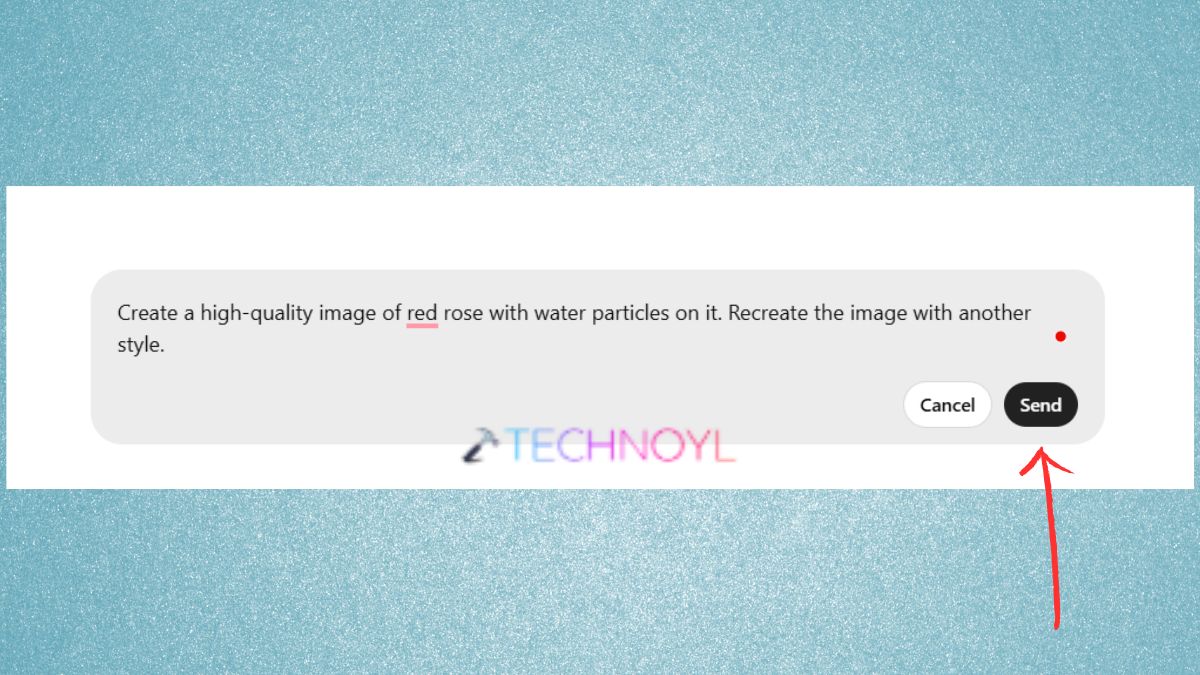
Fix 6: Try a Workaround
In case ChatGPT is not responding, it can be helpful to switch the method. Examples are-
1. Rephrase your prompt. Ask to recreate the image with another style. First, give the prompt to have a smaller or a simpler version.
2. Minimise sensitive content that can be blocked. This frequently skips whatever filter or bug is freezing.
Fix 7: Check the Image Library
In some cases the image actually comes, but does not appear within the chat.
1. Open three-dot “More” > images and verify whether the image that you require is already present.
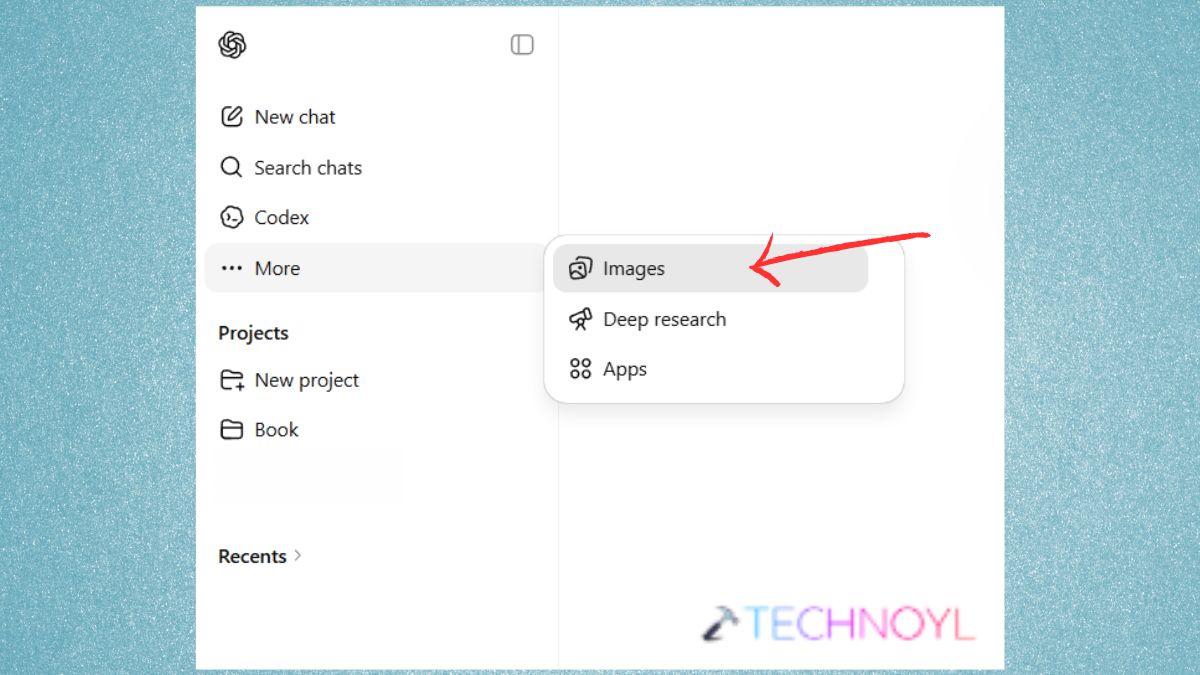
2. This will help when the message is displayed as an error, the image fails to load or the chat stops working but backend generation is successful.
Frequently Asked Questions (FAQs)
Why is my ChatGPT image generator not working?
This can be as a result of the server overloading, browser cache problems, slow internet or even due to conflicting extensions or even a prompting safety filters. It is normally fixed by switching the browsers or clearing the cache.
Why is the ChatGPT image generator taking so long?
The complex prompts require additional processing time with the model, or the servers can be occupied. Heavy image styles, such as hyper-realistic art, are also hard to compute.
Can you use a ChatGPT image generator for free?
Yes, ChatGPT Free has image-generation now, though it can be restricted in terms of daily usage, response speed, or other limitations compared to premium options.
How to make ChatGPT generate accurate images?
Be make explicit, detailed prompts. Add style, lighting, background, details on the subject, and the kind of artwork you desire. Do not use abstract or too detailed descriptions.
That’s it!

Leave a Reply