


You finish editing an important Word document and click Save. And you see the error “Word cannot complete the save due to a file permission.” Now you don’t have any clue why this occured. Well, there could be multiple reasons behind this error. You don’t need to worry, and simply try the solutions next in this article.
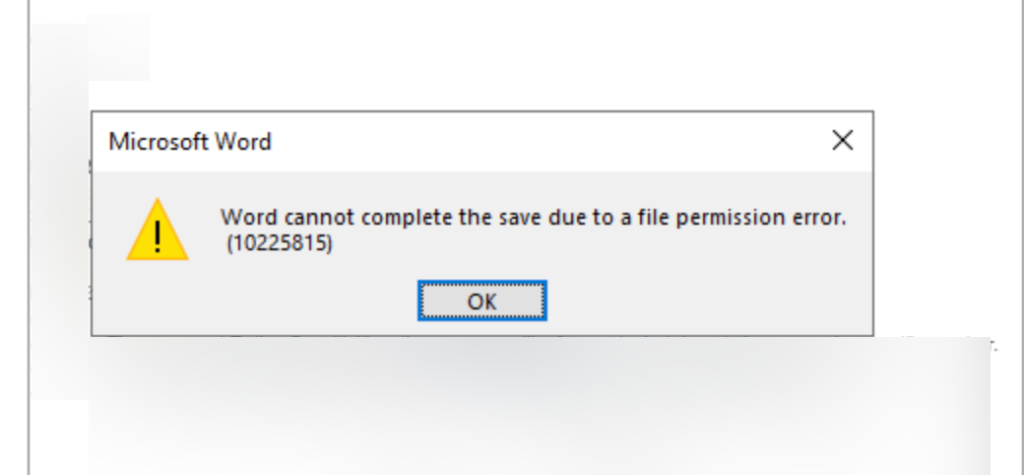
Fix: Word Cannot Complete The Save Due To A File Permission
Here are the solutions:
Fix 1: Save The File With A New Name
Sometimes Word cannot save a file because the current file name causes conflict.
- Open the document.
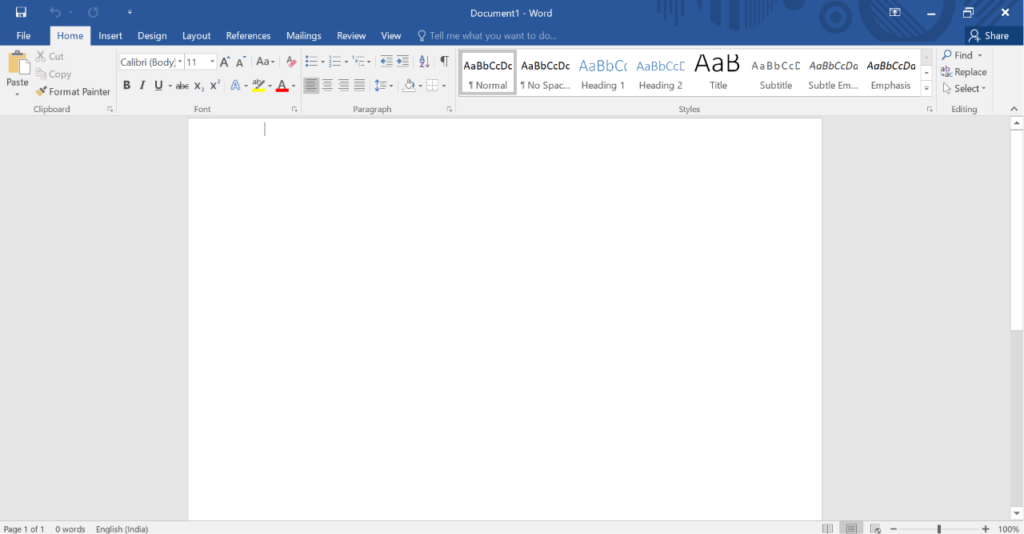
2. Click File > Save As.

3. Select a location to save the file.
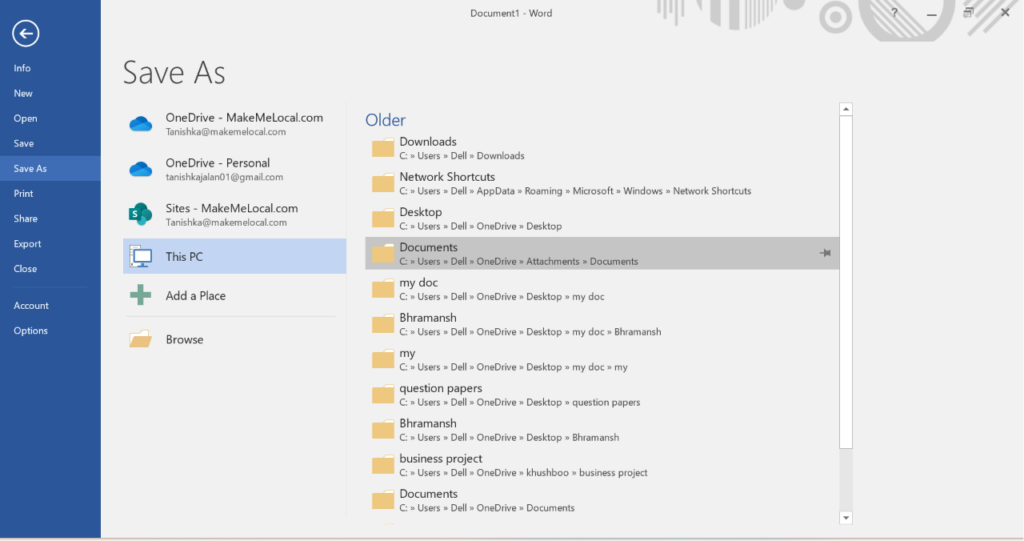
4. Enter a different file name.
5. Choose Word Document (*.docx) as the file type.
6. Click Save.
Fix 2: Disable Word COM Add-Ins
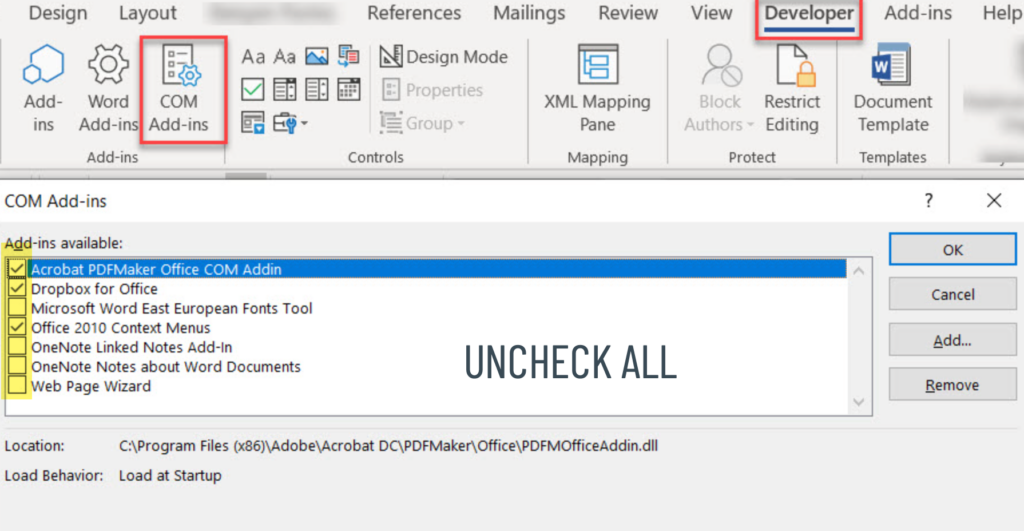
Certain add-ins can interfere with Word and prevent files from saving correctly.
- Press Windows + R.
- Type winword /safe and press Enter.
- In Word, click File > Options > Add-ins.
- Select COM Add-ins and click Go.
- Uncheck all add-ins.
- Click OK and restart Word.
Fix 3: Repair The Word Document
A damaged document may trigger permission errors.
- Open Microsoft Word.
- Go to File > Open > Browse.
- Select the affected file.
- Click the arrow beside Open.
- Choose Open and Repair.

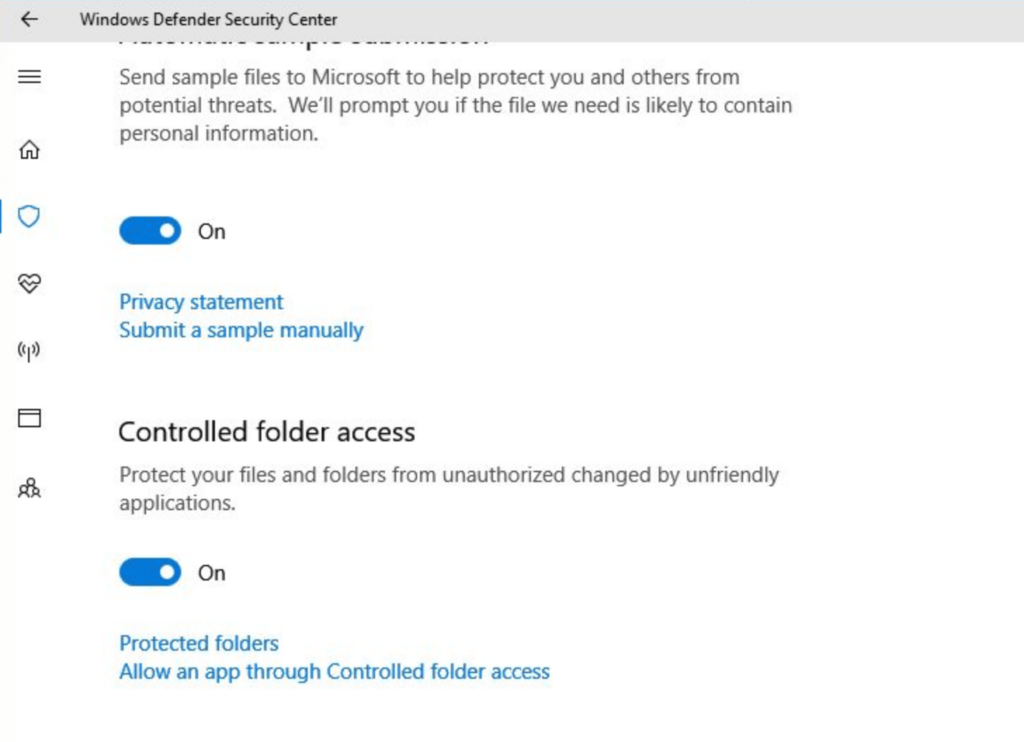
Fix 4: Turn Off Controlled Folder Access
Windows Security may block Word from saving files.
- Open Windows Security.
- Go to Virus & Threat Protection.
- Click Manage Settings.
- Turn off Real-Time Protection temporarily.
- Open Controlled Folder Access settings.
- Disable Controlled Folder Access and try saving again.
Fix 5: Update Windows And Restart Windows Search
Outdated system files or service issues can also cause save errors.
- Install all available Windows updates.
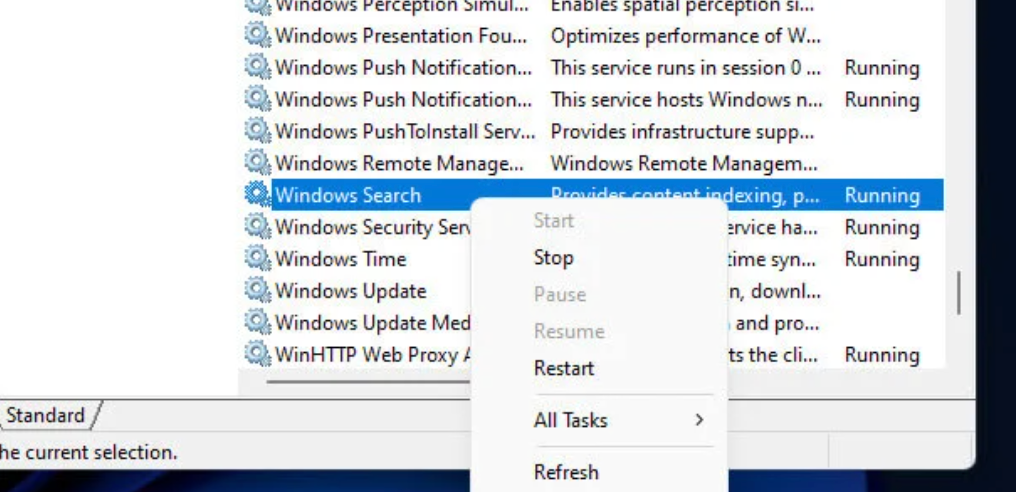
- Open Services (using services.msc command).
- Find Windows Search.
- Right-click it and select Restart.
So, try the solutions above one by one to resolve the error. And you will be able to save your document successfully.
That’s it!

Leave a Reply