


NotebookLM is basically an AI-powered research assistant and thinking partner by Google. I am sure you’re using it and the upload issue caught your attention to this article. You upload a PDF or a website to Google NotebookLM, and the process suddenly fails. Sometimes the source stays stuck on processing. Other times, you see “NotebookLM Upload Error.” It can stop your research completely.
The good news is that this problem is usually easy to fix.
NotebookLM Upload Error – How To Fix Source Upload Issues
1. Fix NotebookLM Source Upload Errors
Split Large Files Into Smaller Parts
NotebookLM has upload limits. Very large PDFs or documents may fail during processing. If your file is close to 200MB or contains too many pages, divide it into smaller sections.
Use a PDF splitter tool and create smaller files. Upload each part separately. This reduces the load and often fixes the issue instantly.
Convert the File To Plain Text
Complex formatting can break uploads. Some PDFs include scanned images, tables, or unsupported elements that NotebookLM cannot read properly.
Open the document in Word or Google Docs. Copy the text and paste it into Notepad. Save the file as a TXT document and upload it again. Plain text files usually work without errors.
2. Fix Browser-Related Problems
Use Incognito Mode Or Another Browser
Browser extensions sometimes block NotebookLM uploads in the background. Open NotebookLM in an Incognito window and try again.
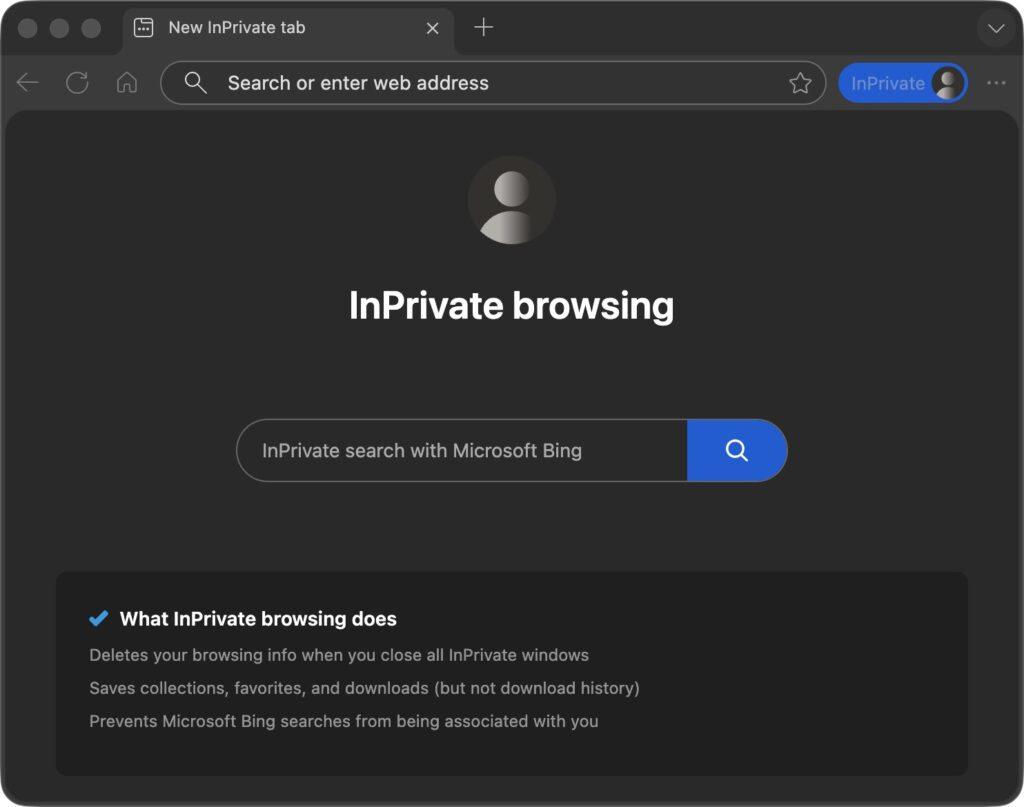
If the error persists, switch to another browser, such as Google Chrome or Microsoft Edge, with no extensions enabled. If uploads work there, one of your extensions is causing the problem.
Clear Cache And Cookies
Old cache files or broken session data can interrupt uploads. Clearing the browser cache forces a fresh connection with Google’s servers.
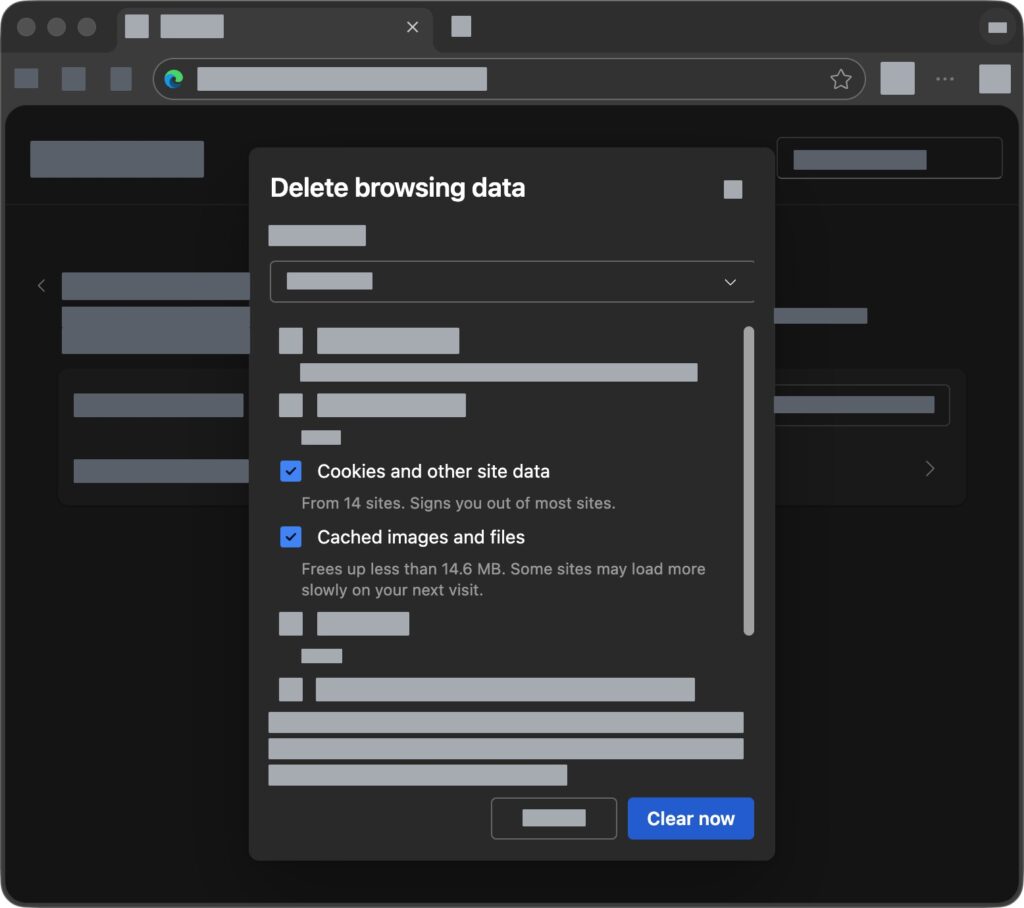
After clearing the cache and cookies, restart the browser and upload the source again.
3. Additional Workarounds To Fix NotebookLM Upload Error
Fix Website URL Errors
Some websites block AI tools from accessing content. Instead of adding the URL directly, save the webpage as a PDF and upload the file manually.
You can also copy the article text in Reader Mode and paste it directly into NotebookLM.
Wait And Retry Later
Sometimes Google temporarily limits repeated upload attempts. Stop trying for about one hour, restart the browser, and test with a small file first. Once that uploads successfully, try your main document again.

Leave a Reply