


Here, we will take you through a few easy steps to resolve Your current hardware doesn’t support any graphics features – Intel error, including BIOS/graphics card configuration and a clean graphics driver installation.
You see, it may perhaps not be your graphics chip that’s faulty. This message is typically seen when Windows 11 or Intel Graphics Software is unable to detect, initialize, and communicate with the Intel integrated GPU (iGPU). The issue can be caused by a disabled iGPU, incorrect BIOS settings, an incompatible graphics driver, switching to a Windows driver, or a graphics hybrid conflict. Now, let us get ahead and fix this error.
Check Device Manager Before Trying Any Fixes
With Device Manager, you can find out in a few clicks if Windows actually recognizes your Intel graphics card.
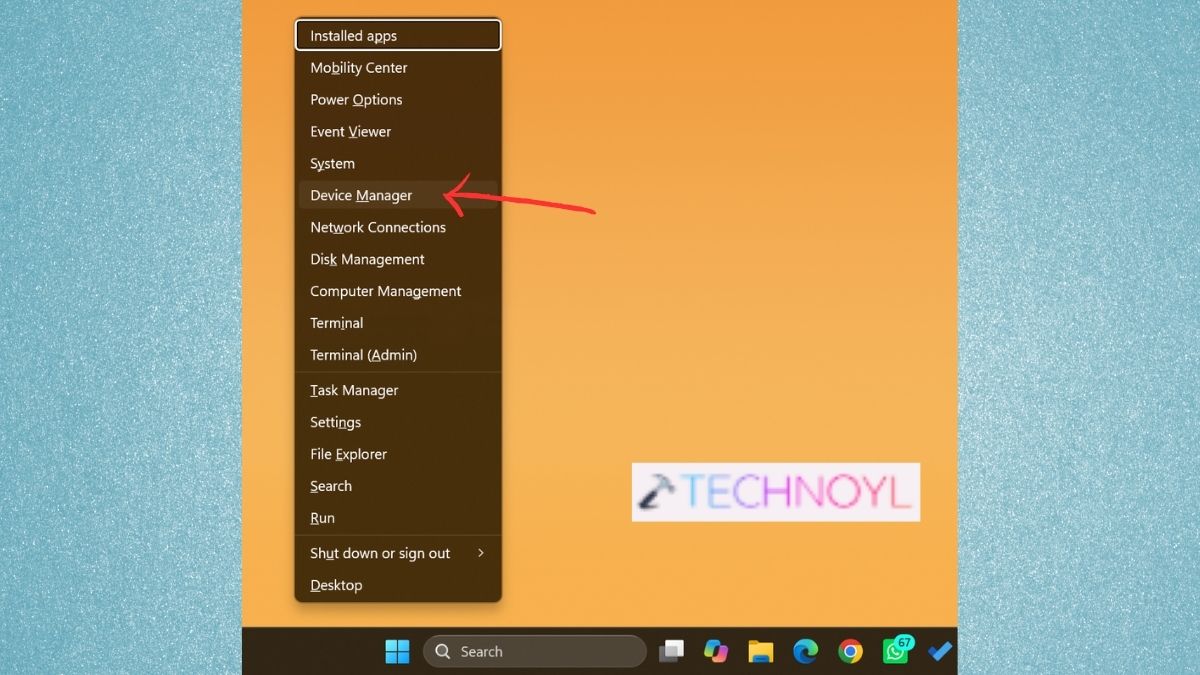
1. Press Windows + X. Select Device Manager.
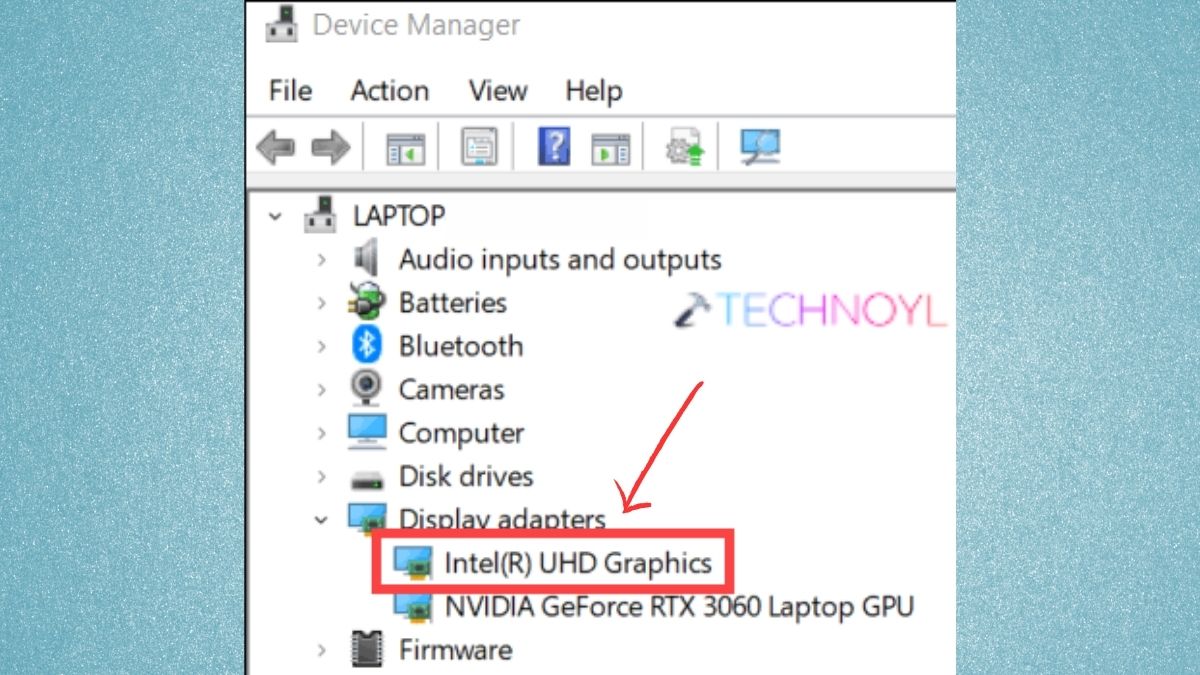
2. Expand Display adapters. Check if the Intel GPU is listed as usual and see these points:-
- If the graphics adapter is there, then the problem is more likely to be due to the graphics configuration, Intel Graphics Software or the driver itself.
- However, if the Intel GPU has a yellow warning icon, right-click on the adapter and choose Properties. Look at the Device status section for an error code. A driver or device initialisation issue can necessitate a clean driver installation.
- If the Intel GPU isn’t listed, select View > Show hidden devices in Device Manager.
Fix Your current hardware doesn’t support any graphics features – Intel error
When you see this error, the problem is typically due to the Intel integrated GPU, BIOS setting, or an incompatible/corrupted graphics driver.
Apply the following fixes in order to solve this error.
Fix 1: Enable Intel iGPU and Configure Graphics Memory in BIOS
Intel Graphics Software may not detect your hardware if your GPUs are disabled.
1. Restart the computer and press the F2, Delete, F10 or Esc key at boot-up to enter the BIOS/UEFI.
2. Click on Advanced, Chipset, Graphics settings, or System Configuration. Search for Intel Graphics, iGPU, Integrated Graphics or Internal Graphics.
3. Set the option to ON or Enabled. If possible, look for DVMT Pre-Allocated, UMA Frame Buffer Size, iGPU Memory, and set a fixed memory value for them. Save and restart Windows 11.
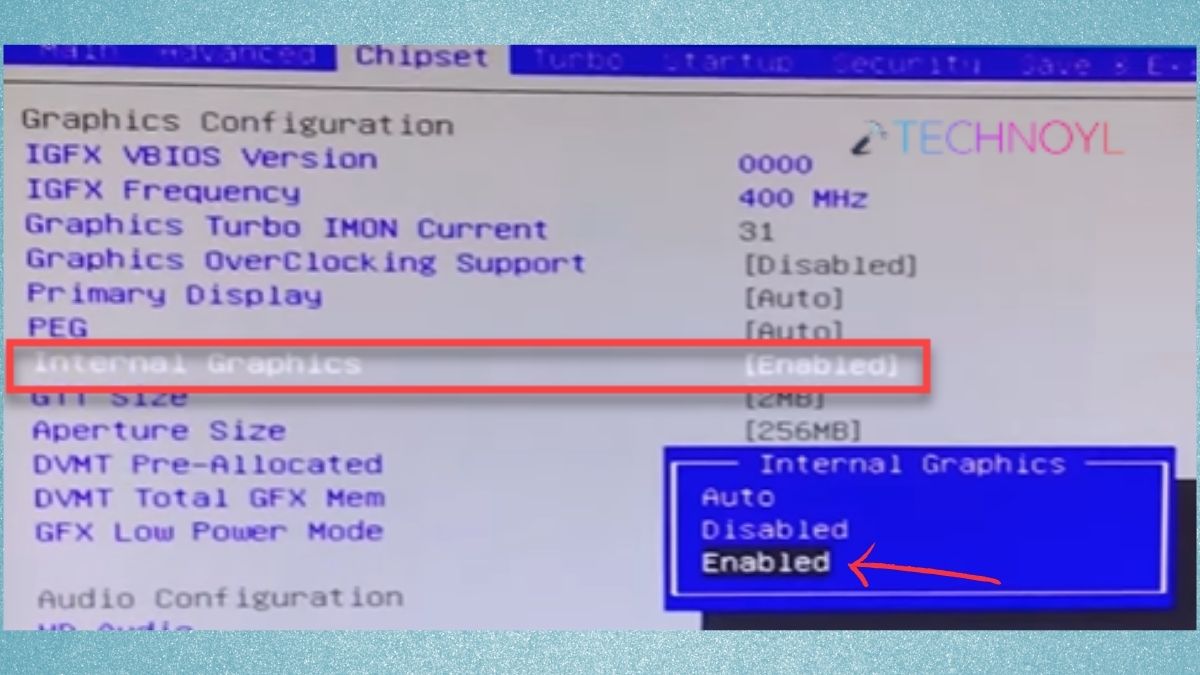
4. Now, once the computer boots, go to Device Manager > Display adapters and see if the Intel GPU shows up.
Fix 2: Prevent Windows From Replacing the Graphics Driver
Windows Update can update a working OEM Intel driver to another version.
1. Hit the keys Win + R. Type this into the Run box and hit Enter.
sysdm.cpl
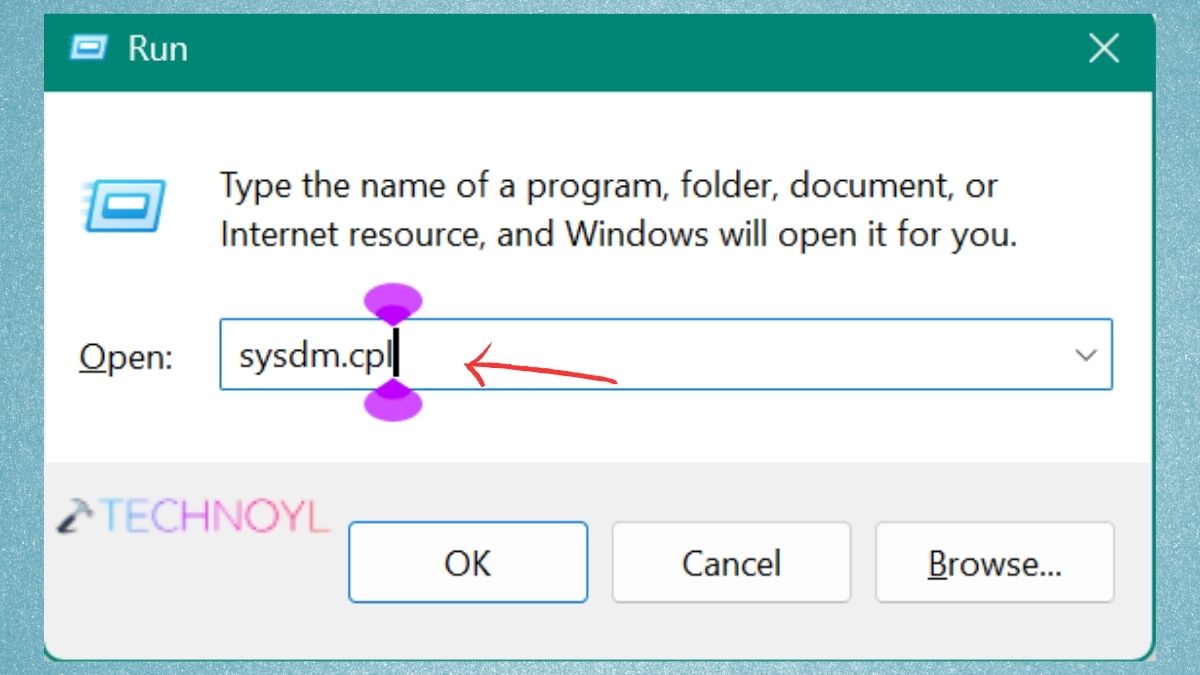
2. Click on the Hardware tab and then tap “Device Installation Settings”.
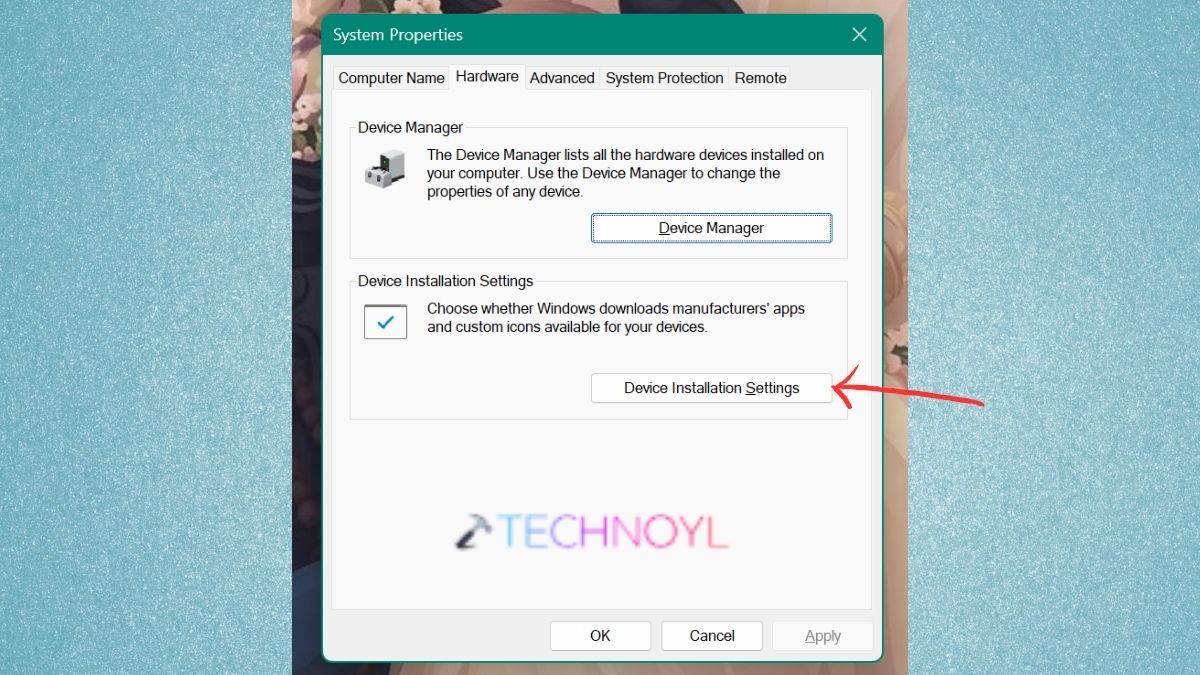
3. Select the option “No” and that will prevent Windows from automatically downloading manufacturer applications and drivers.
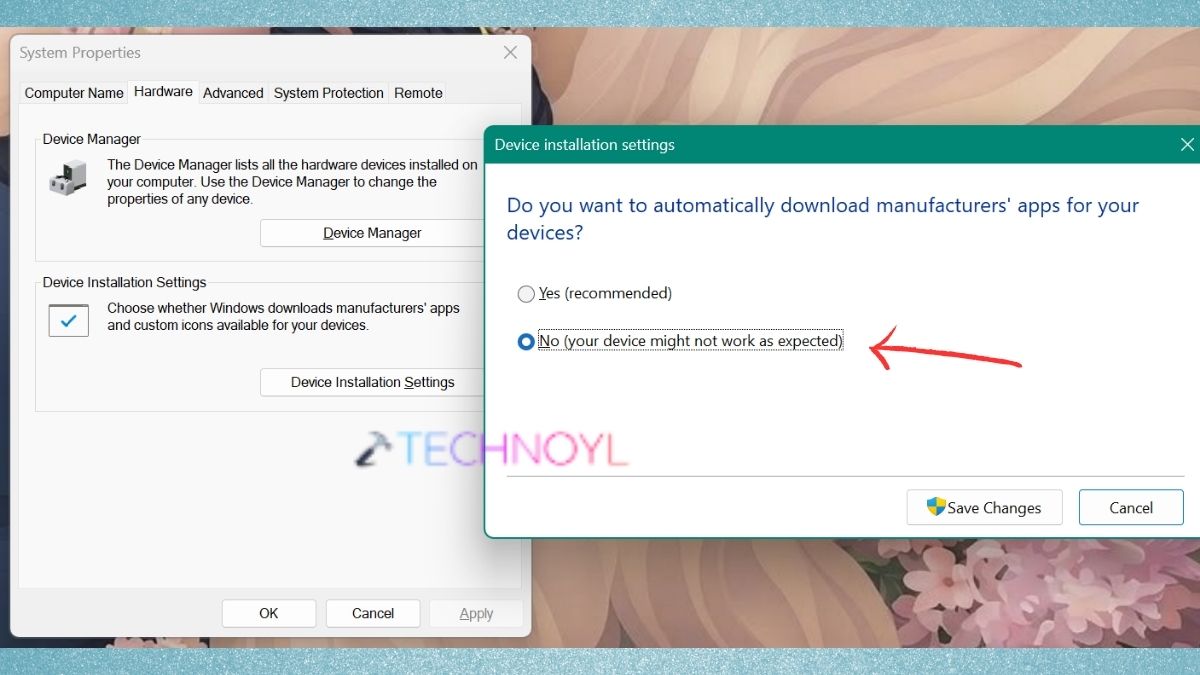
4. Next, install the graphics driver that’s suggested for the exact model of laptop or motherboard.
Fix 3: Clean Intel Graphics Drivers Using DDU
The Intel hardware-not-supported error can be a result of a corrupted driver installation.
1. Download Display Driver Uninstaller (DDU) and the appropriate OEM Intel graphics driver.
2. Boot windows in safe mode.
3. Open DDU and select GPU > Intel. Select “Clean and restart”.
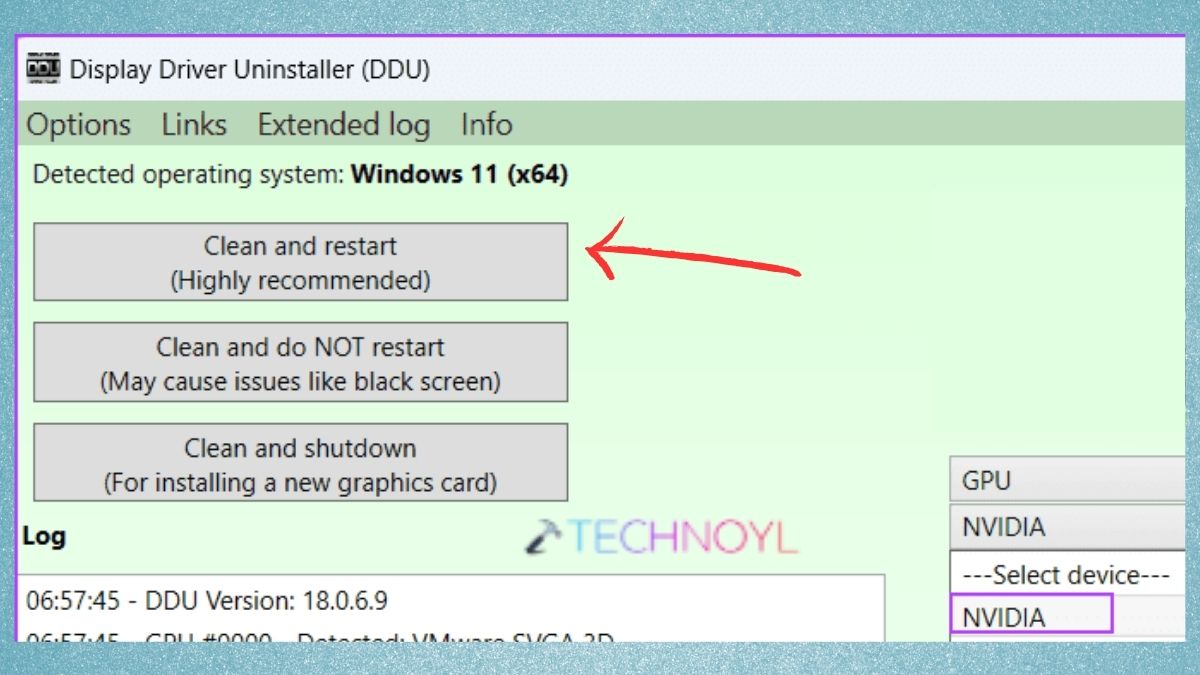
4. Upon normal Windows restart, install the OEM Intel graphics driver. Restart the computer once again and inspect the Intel Graphics Software.
Fix 4: Reinstall Intel Graphics Software
If the software is still reporting the error after Windows has detected the Intel GPU successfully, reinstall the software.
1. In Device Manager, go to Display Adapters > right-click Intel Graphics Software, and uninstall it.
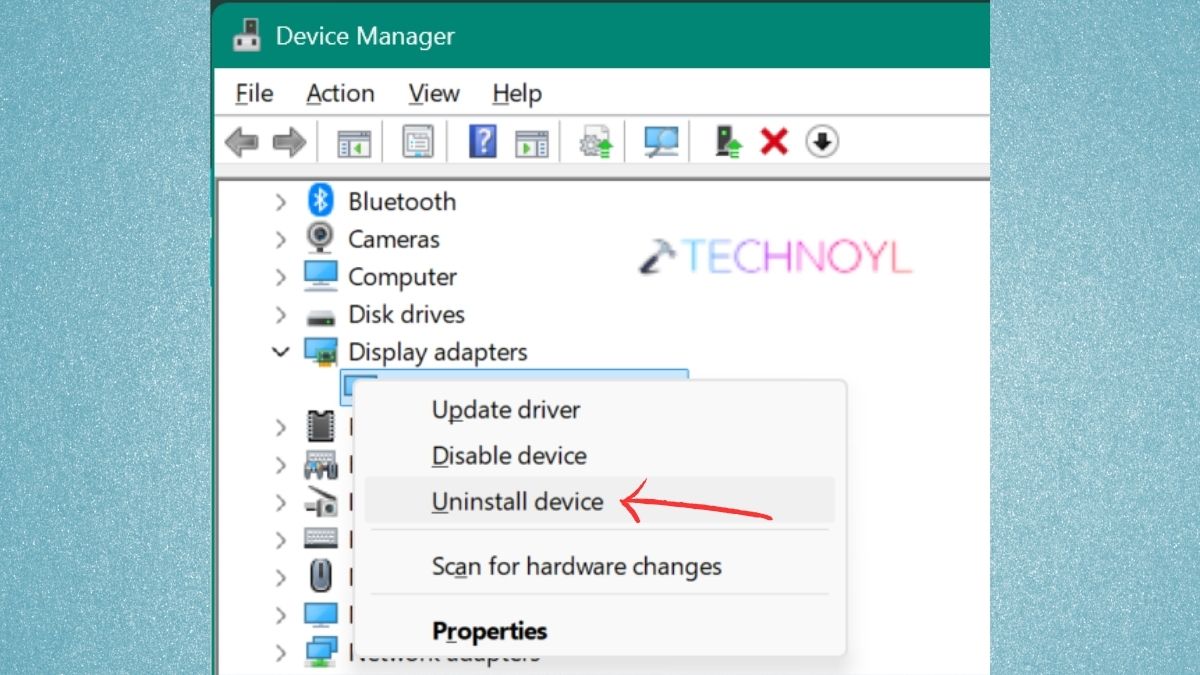
2. Shut the computer down, and then download the most recent compatible version from Intel’s Support page or the PC manufacturer’s support page.
Fix 5: Check Hybrid Graphics Settings
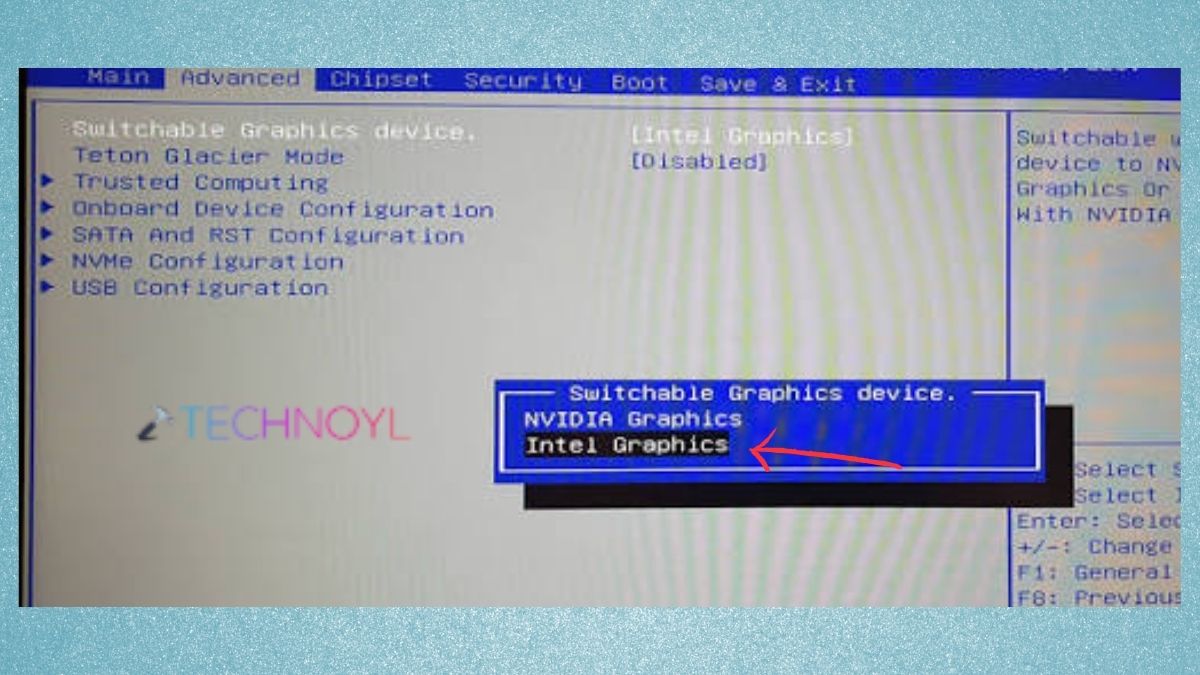
Users with Intel graphics on laptops that also come with an NVIDIA/AMD graphics card might experience detection issues. While using the wrong hybrid-graphics settings, this error can pop up. Hence, access the BIOS and search for Hybrid Graphics, Switchable Graphics, Dynamic Graphics or Graphics Mode. Set to Hybrid or the manufacturer-recommended mode, save the changes, and restart Windows.
Frequently Asked Questions (FAQs)
What does “Your current hardware doesn’t support any graphics features” mean?
The message typically indicates that there is a problem with the graphics devices or that there is an unsupported graphics device.
How do I fix the Intel graphics hardware not supported error?
Check and see if the Intel GPU is listed in Device Manager first. Then, verify that integrated graphics is enabled in the BIOS, confirm hybrid-graphics settings, install the proper OEM graphics driver and reinstall Intel Graphics Software if needed. If normal driver installation fails, a clean DDU installation can be of assistance.
Should I install Intel’s generic graphics driver or my laptop manufacturer’s driver?
For laptops, it’s typically the manufacturer’s driver that you want to try first, especially if the laptop has hybrid graphics.
Can a BIOS setting cause Intel Graphics Software to show this error?
Yes, Windows and Intel Graphics Software might not detect the iGPU as expected. If the integrated GPU is disabled or the graphics mode is set incorrectly, then this problem will happen. Therefore, it is important to check the BIOS/UEFI graphics configuration, which is a troubleshooting step.
That’s it!

Leave a Reply