


The Cannot Complete the Archive Extraction Wizard error usually appears when Windows fails to extract ZIP or other compressed files properly. This can happen because of corrupted archives, long file paths, insufficient permissions, blocked downloads, or storage issues.
In some cases, users may also see related errors like a Compressed zipped folders error, Destination path too long, or extraction suddenly stopping midway.
Fix Cannot Complete the Archive Extraction Wizard
Follow these step-by-step methods to fix the problem in Windows 11.
Method 1: Move the ZIP File to Another Location
Sometimes Windows cannot extract files correctly if the original folder path is too deep or complex. Moving the archive to a simpler location reduces path-related conflicts and often fixes the issue immediately.
1) Locate the ZIP or archive file causing the error.
2) Cut or copy the file to a simpler location like the Desktop.
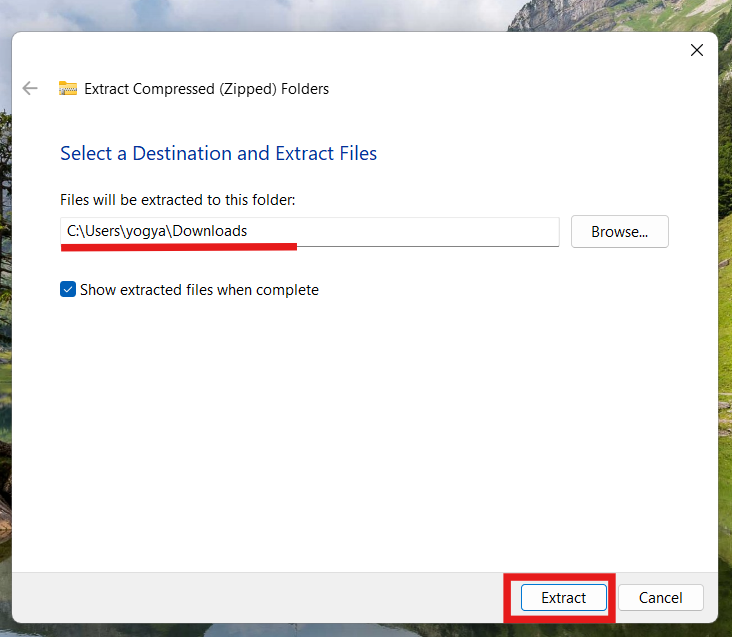
3) Right-click the archive and select Extract All.
4) Choose a short extraction path and continue.
Method 2: Re-download the Archive File
A partially downloaded or corrupted archive is one of the most common reasons behind extraction failures. Download interruptions or browser issues can damage compressed files without showing any obvious warning.
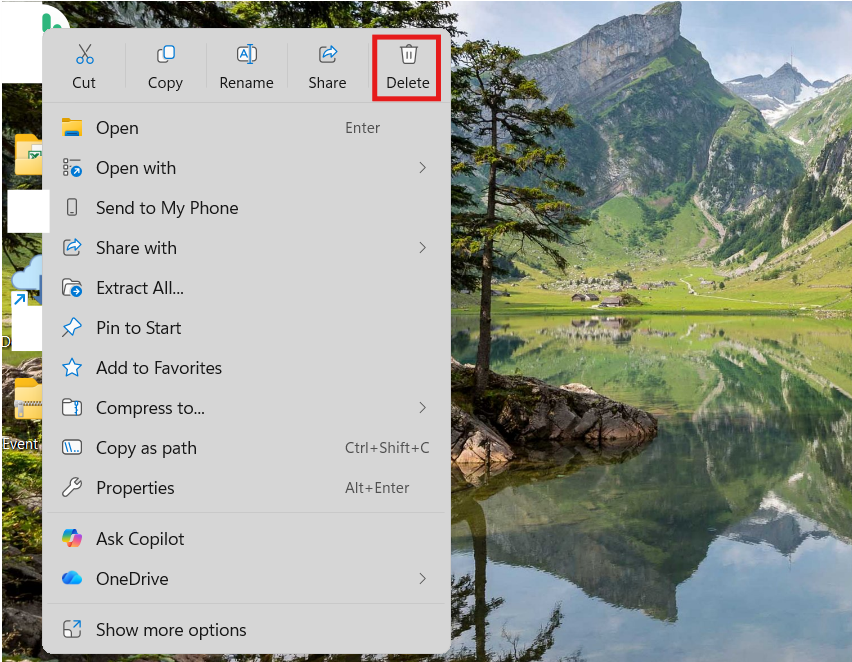
1) Delete the current archive file from your system.
2) Visit the original download source again.
3) Re-download the ZIP or RAR file completely.
4) Try extracting the newly downloaded archive.
Method 3: Extract Using Third-Party Software
The built-in Windows extraction wizard sometimes struggles with damaged or advanced archive formats. Third-party tools often support more compression formats and handle extraction errors more gracefully.
1) Install a trusted extraction tool like 7-Zip or WinRAR.
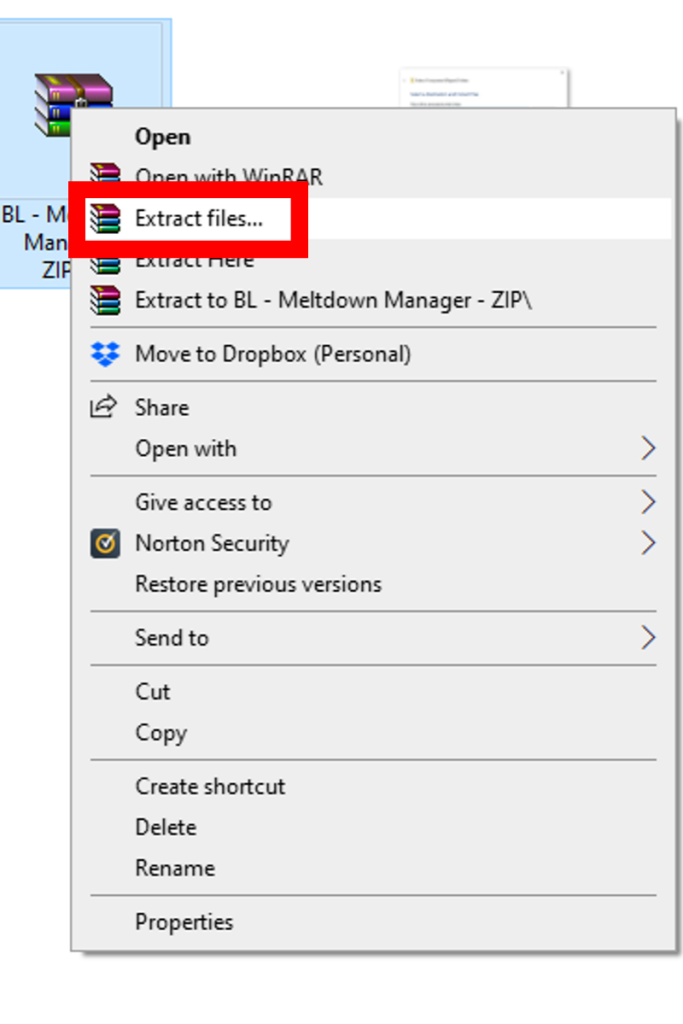
2) Right-click the archive file.
3) Select the extraction option provided by the software.
4) Choose a destination folder and start extraction.
Method 4: Shorten the File Name or Path
Windows has limitations on file path length, especially when extracting archives containing deeply nested folders. Shortening the path prevents Windows from exceeding those limits during extraction.
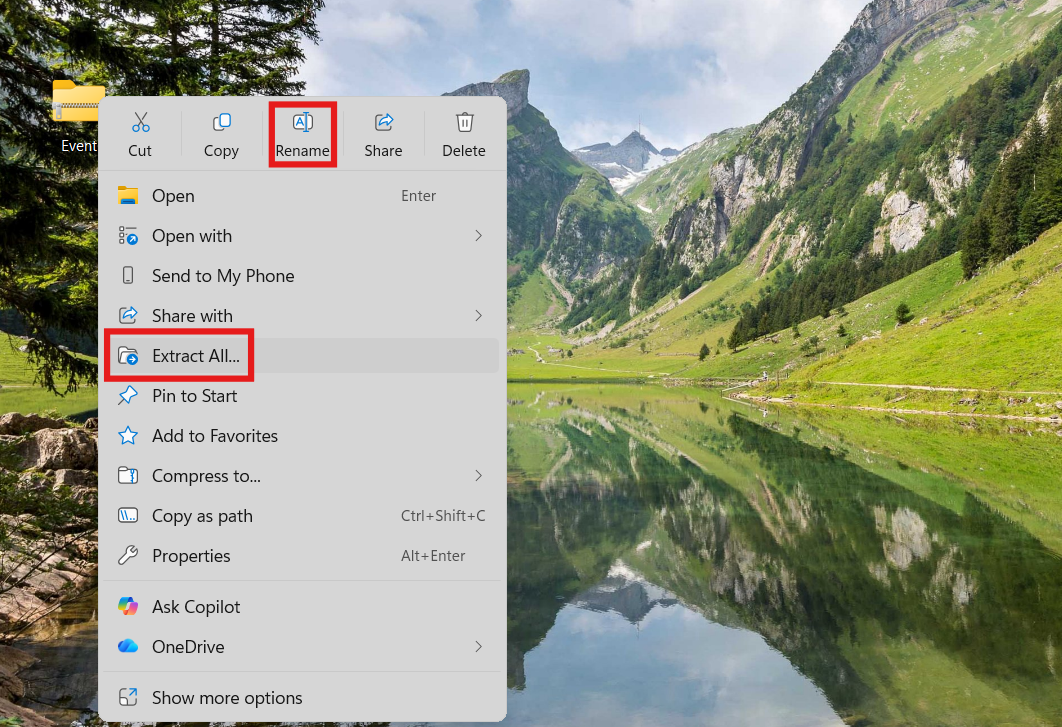
1) Rename the ZIP file to something short and simple.
2) Create a folder directly on the Desktop.
3) Move the archive into that folder.
4) Extract the contents again.
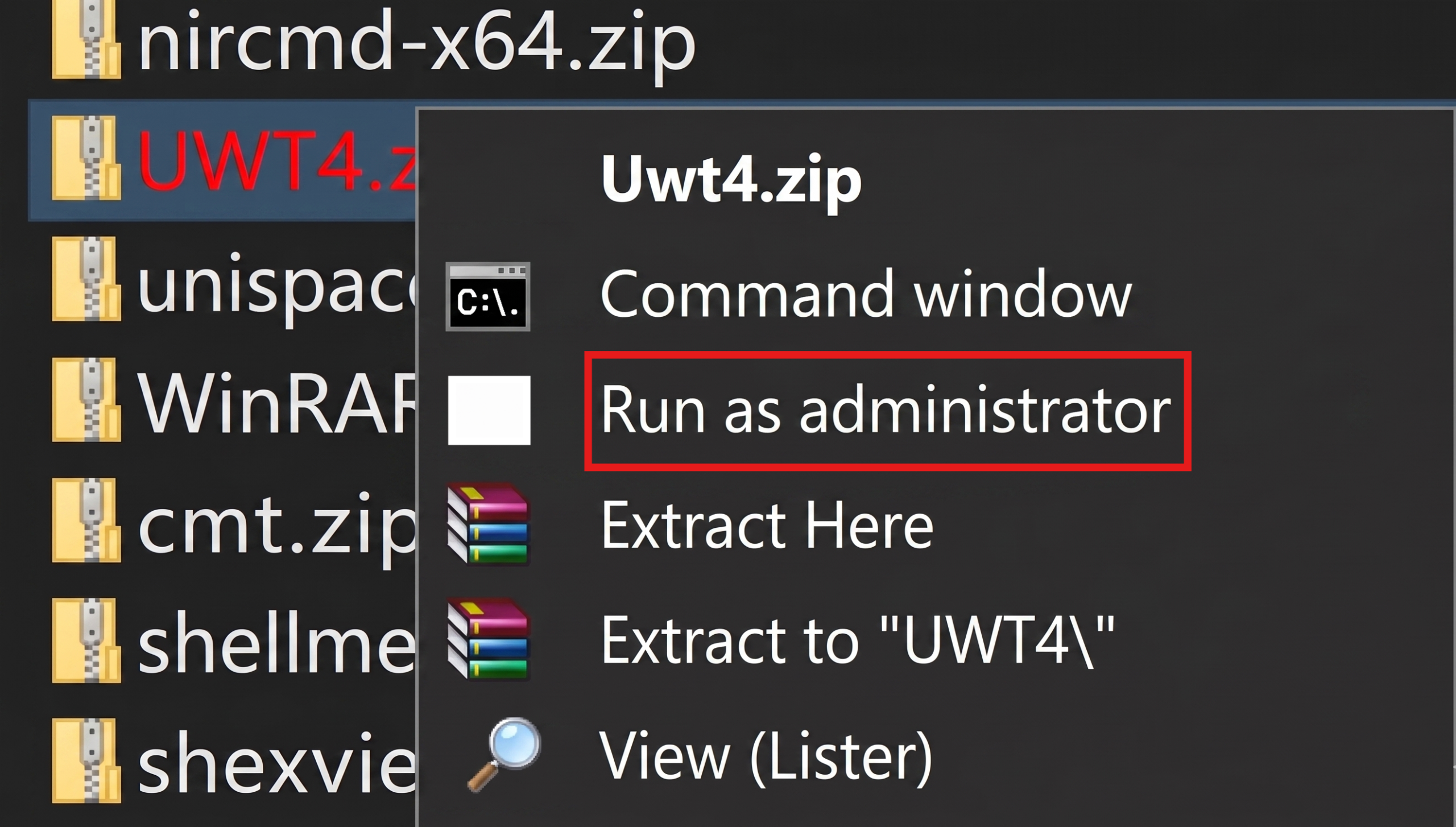
Method 5: Run the Extraction as Administrator
Permission restrictions can sometimes block Windows from creating or modifying extracted files. Running the process with administrator privileges helps bypass those access limitations.
1) Right-click the archive extraction tool or File Explorer.
2) Select Run as administrator.
3) Try extracting the archive again.
4) Confirm any User Account Control prompts if they appear.
Final Thoughts
The Cannot Complete the Archive Extraction Wizard error is usually caused by corrupted archives, long file paths, or permission-related issues. Fortunately, most cases can be fixed using simple troubleshooting methods.
By following the solutions above, you should be able to extract your compressed files successfully without advanced technical steps.

Leave a Reply