


You edit a WordPress blog post and save your changes. Later, you want to go back to an older version. But when you check, the WordPress revision history is missing. It is frustrating, especially if you need to recover important content.
Thankfully, there are a few simple ways to fix this problem.
Why Are WordPress Revisions Missing?
WordPress revisions are not showing because:
- Revisions are disabled.
- The post does not have enough saved versions.
- A plugin or theme is causing a conflict.
- Your host has limited revisions.
- Old revisions were deleted automatically.
Fix: WordPress Revisions Not Showing
Here are the fixes that will help:
Fix 1: Save The Post Again
Sometimes, there are no revisions to show.
- Open the post or page.
- Make a small change.
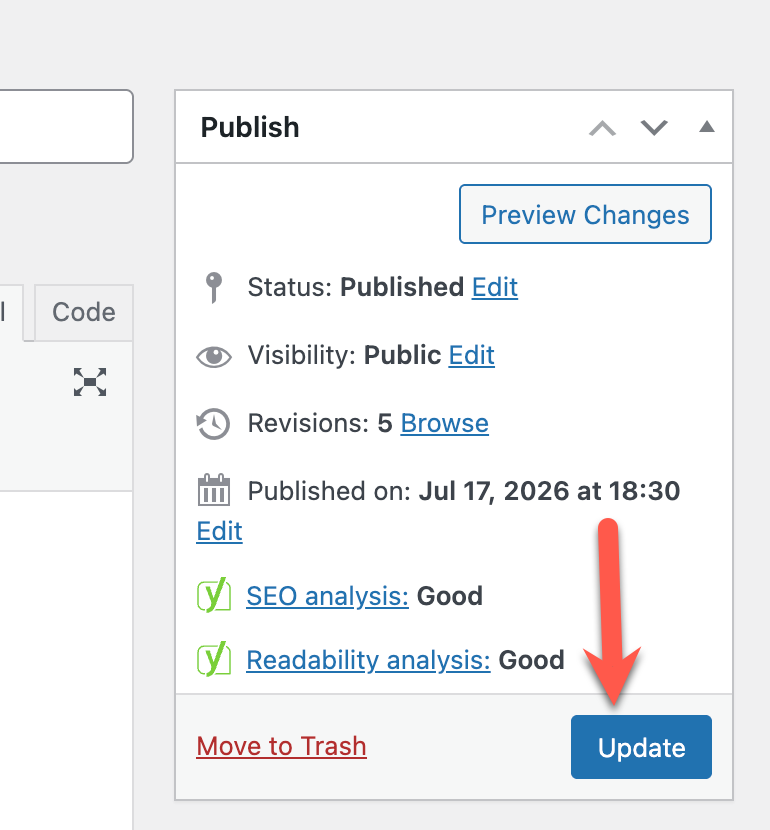
- Click Update a few times.
- Check if the Revisions option appears.
Fix 2: Enable WordPress Revisions In wp-config.php
WordPress may sometimes block revisions.
- Open the wp-config.php file.
- Look for: define(‘WP_POST_REVISIONS’, false);
- Change false to true.
- Save the file.
If the line is missing, add:
define(‘WP_POST_REVISIONS’, true);
Fix 3: Check Screen Options
This applies to the Classic Editor. You can check screen options with below steps.
- Open a post.
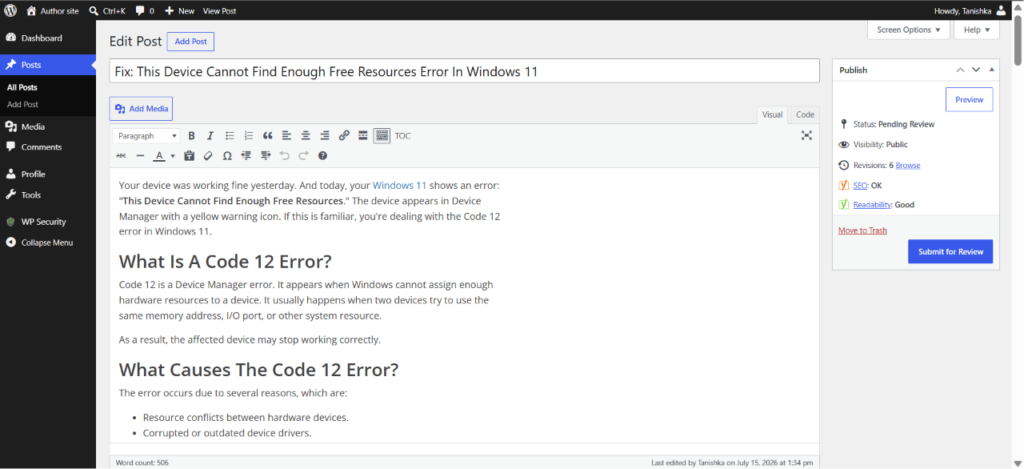
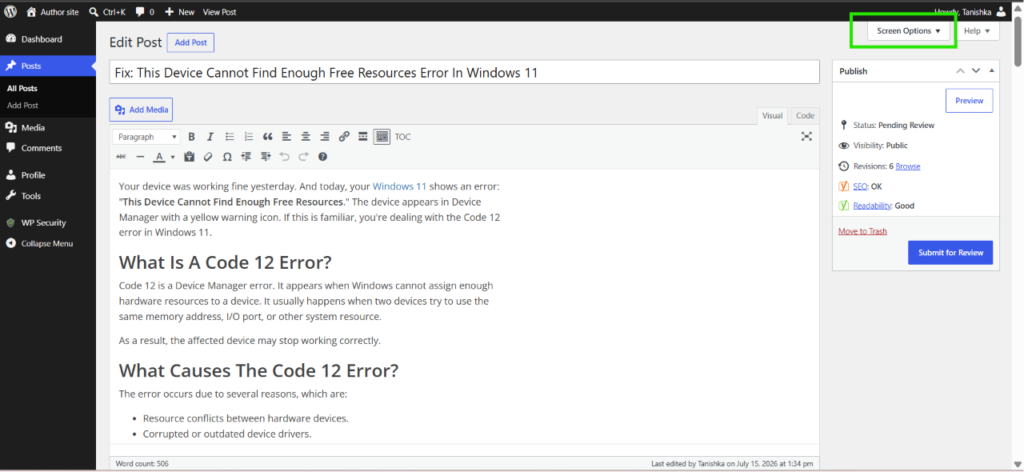
2. Click Screen Options.
3. Enable Revisions.
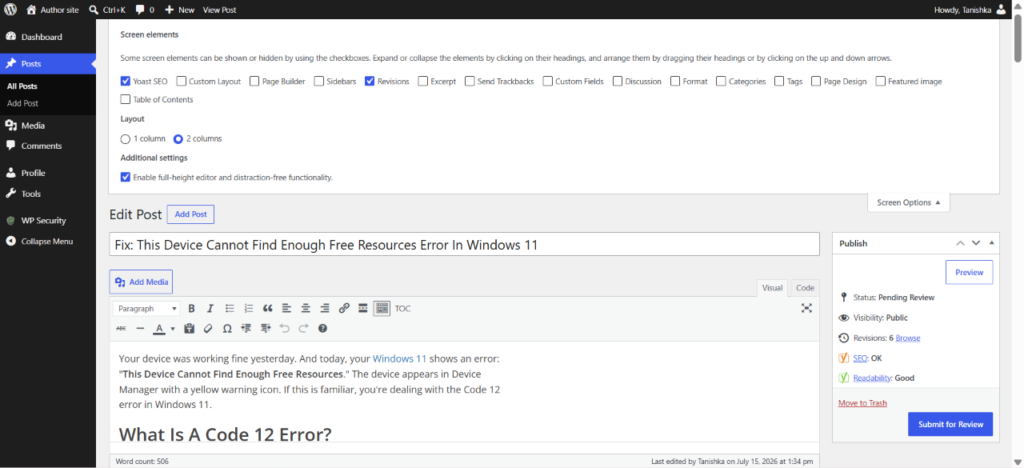
The revisions box should now appear.
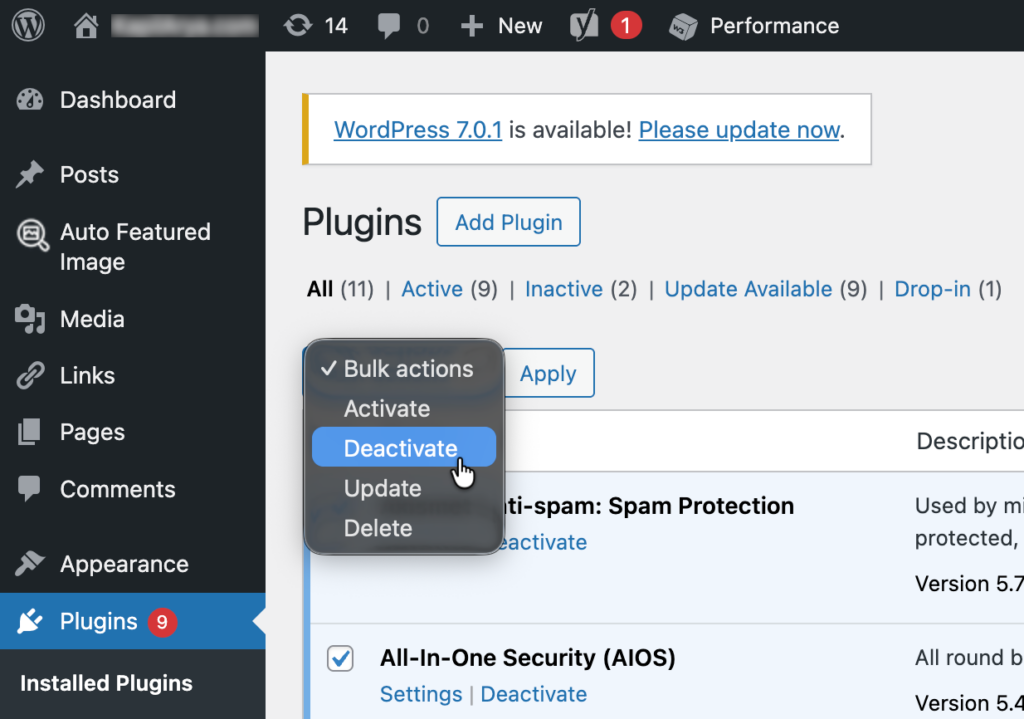
Fix 4: Disable Plugins And Switch Themes
A plugin or theme may interfere with revisions. Disable all plugins once, if issue is resolved, identify culprit plugin by enabling them one-by-one.
- Activate a default WordPress theme.
- Check if revisions work.
- If not, deactivate all plugins.
- Enable them one by one to find the conflict.
Fix 5: Contact Your Hosting Provider
Some hosts disable or limit revisions to save database space. A database issue can stop WordPress from storing revisions.
Ask your hosting provider to check:
- Revision settings
- Database health
- Automatic revision cleanup rules
That’s it! We hope this will solve your issue.

Leave a Reply