


Copilot Cowork plugins are add-ons that enhance the functionality of Microsoft’s AI tool. Copilot is not just limited to specific functions; plugins can connect it with other services and carry out more specialized functions.
Depending on the plugins available, you can:
- Get information from attached services
- Enhance research and productivity
- Use software for business or organisations.
- Automate repetitive workflows
Why Use Plugins in Copilot Cowork?
There are a number of benefits to adding plugins to your site, such as:
- Efficient automation for enhanced productivity
- Improved information availability.
- Enhanced information access.
- Improved workflow management
- Enhanced collaboration
- Expanded AI capabilities
- A reduced switch between applications will be required.
- Personalized Copilot experience
How to Install Plugins in Copilot Cowork
The installation is simple and only takes a few minutes.
1. Open Copilot Cowork. Log in with your Microsoft account (if necessary).
2. From the sidebar or the toolbar, select Plugins or Extensions. Depending on your version, it may be found under Settings and/or Manage Plugins. There are a number of plugins grouped by categories. Take a look at them or use the search feature to find a particular plugin. To see a description, permissions, supported features, and compatibility description for the plugin, you’ll click on it.
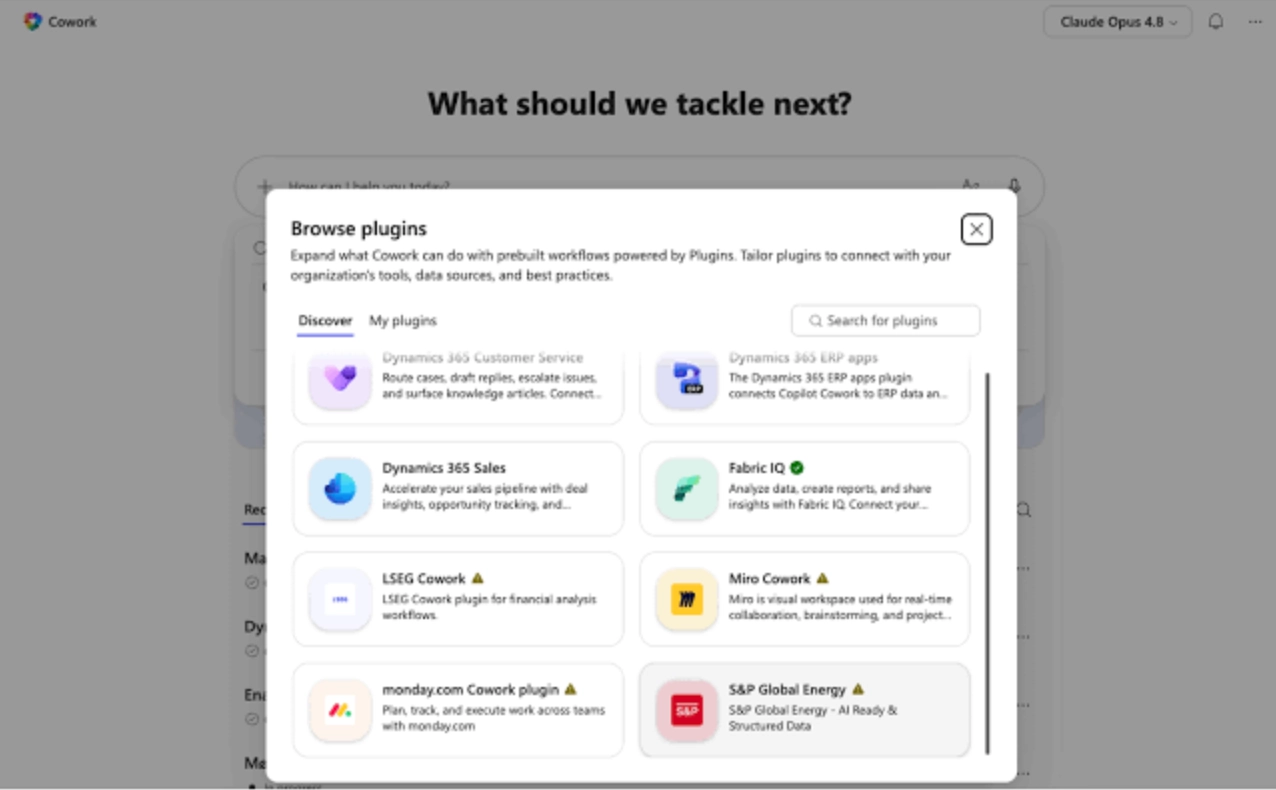
3. Now, click on Install / Add Plugin and wait until the installation is complete. Some plugins need access to your Microsoft account or services. Please read the requested permissions and only approve if they are relevant.
When it is installed, the plugin will be available within Copilot Cowork. It can be activated on a regular basis when it is required.
Discover New Plugins in Copilot Cowork
In the Discover section, you can browse new plugins that can enhance your productivity and extend Copilot’s functionality.
Use it as follows:
1. Click on Plugins > Discover. There are suggestions for plugins based on popularity, productivity, business, writing, and more.
2. Quickly search for plugins by your workflow using the search bar.
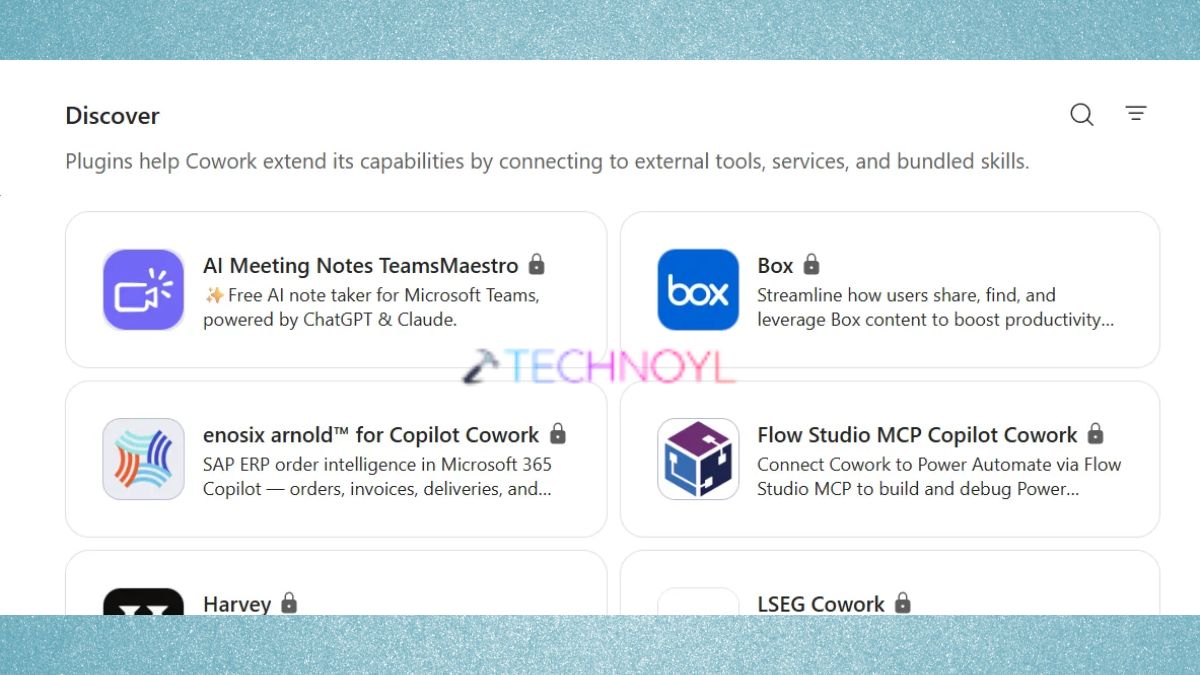
Before installing a plugin, please check:
- Description
- Features
- Ratings (if available)
- Permissions
- Supported services
- Developer information
- Install Directly
3. Click “Install” to install the plugin on the Discover page. Regularly checking the Discover section will keep you up to date with new plugins and productivity tools that have been released.
Manage Installed Plugins in Copilot Cowork
Once you install the plugins, then you can easily manage them.
1. Open the Installed section to view all plugins that you have installed in your Copilot workspace.
2. Here you can:-
- View installed extensions
- Check plugin status
- Enable or disable plugins
- Update supported plugins
- Remove unused plugins
Removing unused plugins increases organization and makes working in the workspace easier.
Enable or Disable Plugins
Not all the Copilot plugins must be enabled at all times. To disable or enable a plugin:
1. Click on the Customize section.
2. Locate the “My plugin”.
3. Toggle it ON or OFF.
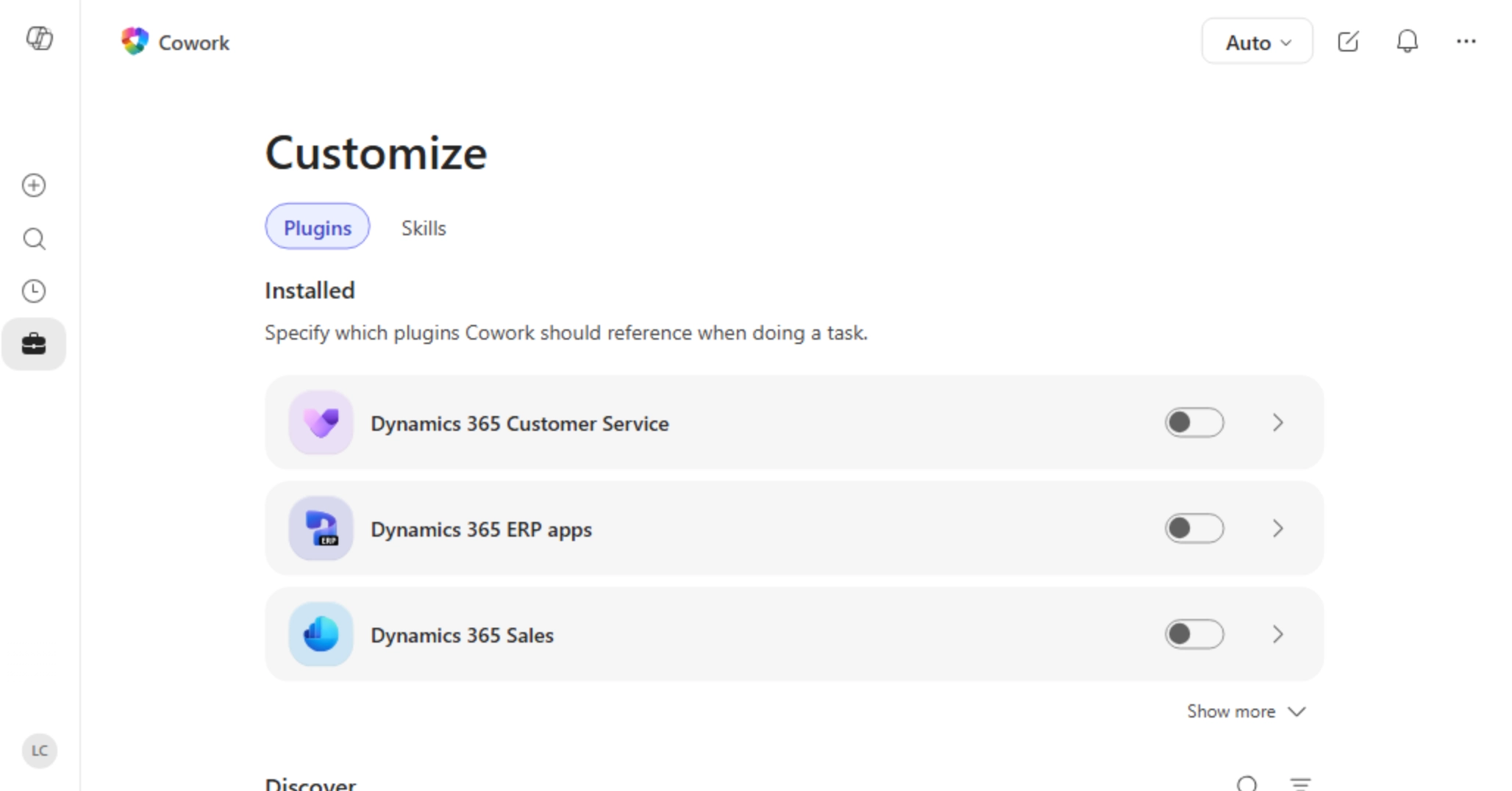
If the plugin is disabled, it will not be available until it is re-enabled.
Remove Unused Plugins
If you no longer need a plugin, do these steps:
1. Again, go to the “My Plugin” section.
2. Click on Remove or Uninstall. Confirm your selection.
Clearing out unused plugins will help keep your Copilot environment clean and uncluttered.
Expert Tips for Using Plugins Efficiently
To enjoy the most of Copilot Cowork plugins, be sure to adhere to these:
- Only install trusted plugins.
- Consider carefully the permissions you are asking for.
- Update plugins whenever an update is available.
- Get rid of unnecessary plugins.
- Regularly check the Discover section.
- Do not install too many plugins at once but use those that are relevant to your workflow.
These practices aid in the preservation of better performance and security.
Frequently Asked Questions (FAQs)
What are plugins in Copilot Cowork?
Plugins are extensions you can add to Copilot Cowork to extend its capabilities. Additionally, they help connect to supported services, automate some tasks, and increase productivity.
Where can I find new plugins in Copilot Cowork?
The Discover section offers a variety of plugins to browse and you can install them.
Can I disable a plugin without uninstalling it?
Yes, the Installed section is for temporarily disabling plugins while they are installed without removing them.
Is it safe to install every available plugin?
We recommend installing only trusted plugins. Kindly remove the plugins that you no longer need for better security and performance.
That’s it!

Leave a Reply