


If Claude AI is showing error messages when you try to send a prompt, upload a file, log in, or generate a response, then this article is just for you. The issue could be a temporary service interruption, an internet connection issue, browser data, a usage limit or prompt size. Fortunately, many of the mistakes made by Claude AI can be fixed easily without any technical procedures. In this guide, you will find the top reasons why Claude may stop working, as well as how to repair Claude errors step-by-step.
Fix Claude AI error messages
Anthropic also differentiates between the limits of usage and the limits of length. The usage limits define the amount of Claude usage during a specific timeframe, while length limits are related to the information Claude can handle in a single conversation. Attempt each of the following solutions, one at a time. It is not required to use all seven methods.
Fix 1: Check Whether Claude AI Is Down
Before you start troubleshooting your device, you need to know if the issue is with Claude or not. Claude has an official status page that indicates the status of its services, including claude.ai, Claude Console, Claude API, and Claude Code.
Access the official Claude Status page – “https://status.claude.com/“.
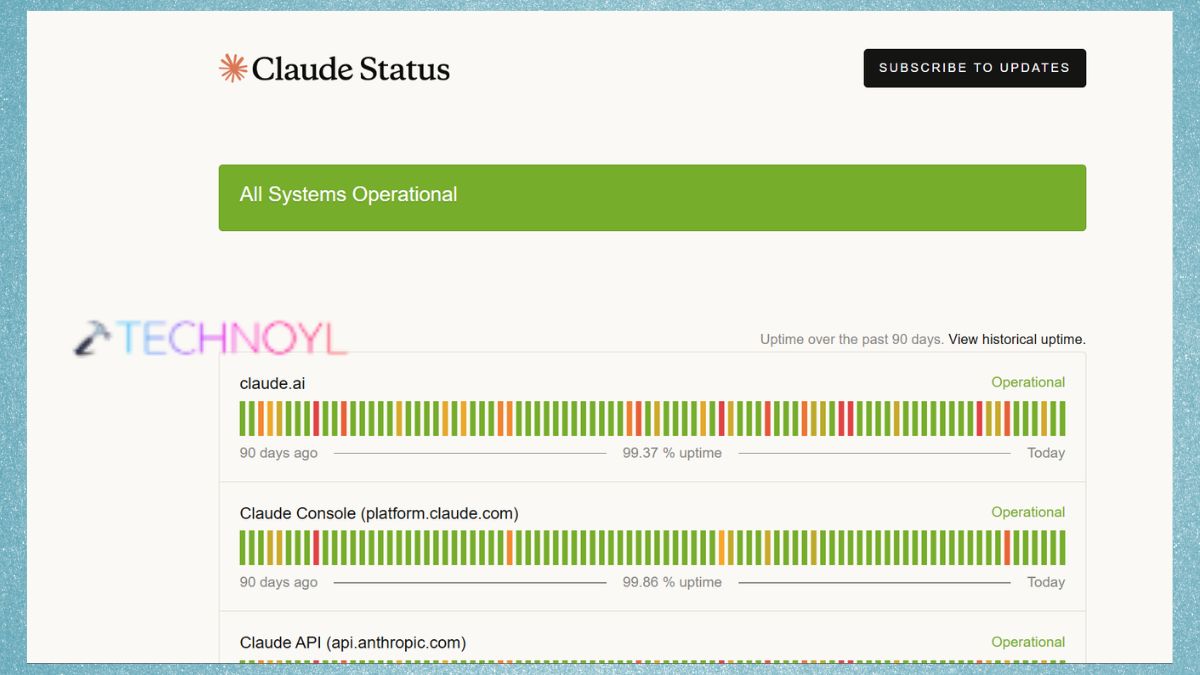
Check for the claude.ai service. Please wait for Claude’s outage to be resolved. After the service returns to normal, Experiment with Claude again. If the status page indicates that everything is working, but Claude is still reporting an error, proceed to the next solution.
Fix 2: Test and Stabilize Your Internet Connection
Useful to note: a capacity constraint is not necessarily a Claude outage. When the demand for Claude is high, it can be temporarily unavailable to process a request, despite the service being operational. If this happens, try again after a few minutes, according to Anthropic.
Claude may not load or produce a response properly if the internet connection is weak or unstable. In case, Claude switched networks to work, the original connection could have caused the error.
Fix 3: Refresh Claude and Start the Request Again
Claude can sometimes just be stuck due to a temporary page or session problem. A quick refresh can refresh the page and reconnect your present session.
1. Save any important text from the prompt you are now using.
2. Refresh the Claude web page by using the refresh button of your web browser.
3. Leave the conversation page until it has fully loaded.
4. Re-send your prompt.
If the error still occurs, click on the Claude icon in a new browser window. If the conversation seems to be deadlocked, try to restart it. Anthropic also suggests that Claude users refresh the page and restart the task in problems involving Chrome.
At what time to create a new Claude conversation?
When the error is present in just one long conversation, it might be too long. Opening a new chat may come in handy when you get a length limit error.
Fix 4: Check Your Claude Usage Limit
If you’re using Claude heavily and you just suddenly cease to be able to send messages anymore, it may be that you’ve hit your account limit.
Claude can show messages like: ‘Approaching 5-hour limit’ or ‘5-hour limit reached – resets [time]. However, according to Anthropic, usage restrictions can differ based on the plan and also depend on things like conversation length, model selection, and features being used, as well as message length.
To determine if you have hit the Claude limit, use the following method:-
1. Open Claude AI.
2. Search for a warning or limit about usage. Look for the time displayed for the reset of the limit. If full, wait until it resets!
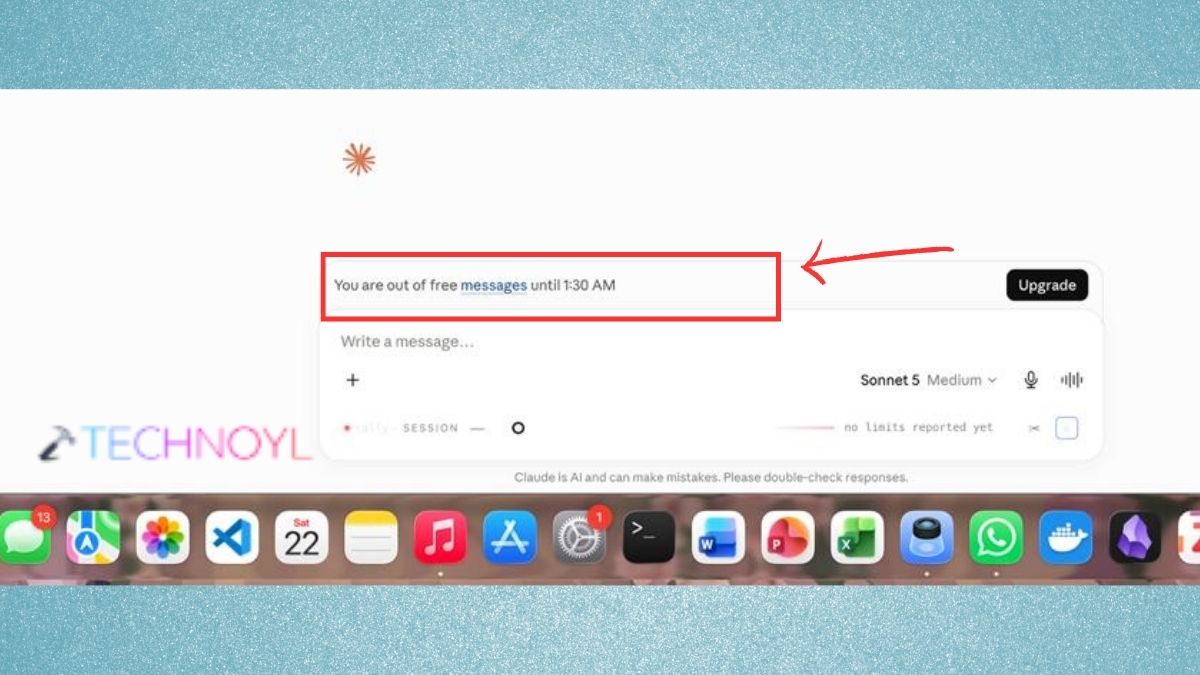
3. If you have usage credits, make sure to verify if they are available. For future chats, try to limit unnecessary message exchanges and prolonged back-and-forth conversations.
Users of free Claude will enjoy usage based on sessions, resetting after 5 hours (the number of messages may vary according to demand and other factors).
Fix 5: Shorten Your Prompt or Remove Large Attachments
Claude might display an error akin to: “Message is too long”, “Your message will go beyond the limit for this chat. Attempt to add fewer or smaller files or start a new conversation.”
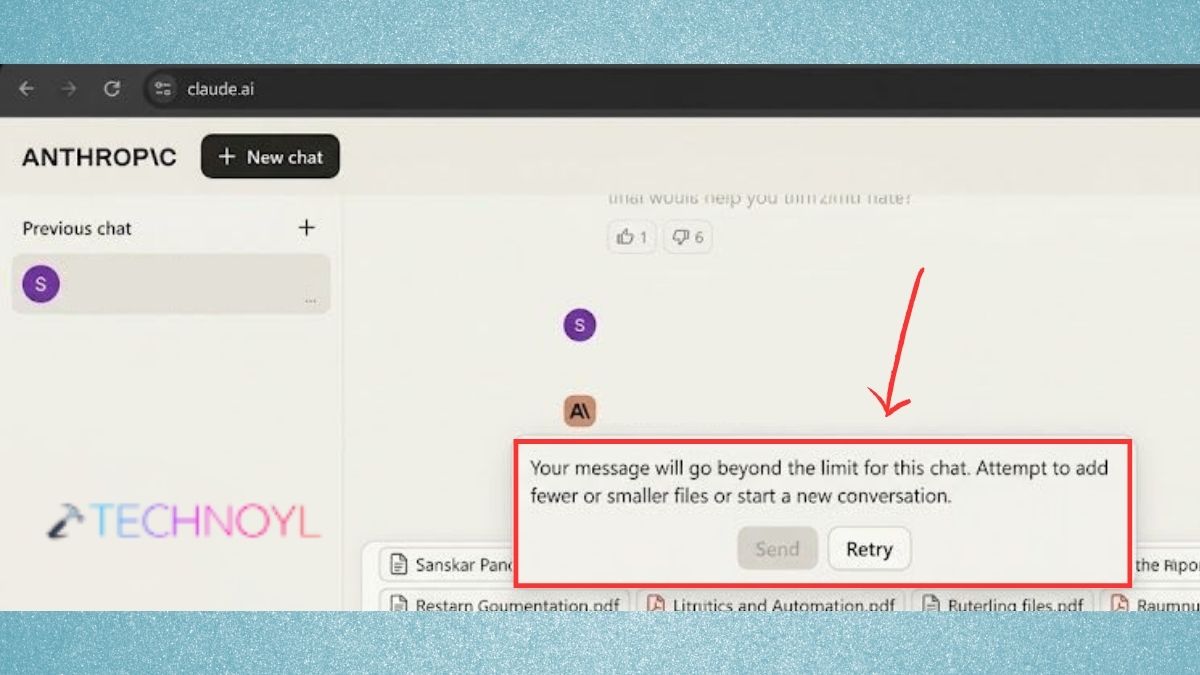
This is typically when the request is too much information to fit in the context window. There are instructions, information, and irrelevant text that must be eliminated.
- Break up a document into smaller chunks when making a request.
- If you have added several files, delete any files that are not needed for the task at hand.
- If it’s long, create a new Claude chat and include only the relevant context.
- Don’t duplicate your entire conversation in a new one; just inform Claude of the key points of what you’ve said.
Fix 6: Sign Out of Claude and Sign Back In
Signing out and signing in can refresh the authentication session if Claude continues to display login errors, account errors or exhibits unusual behavior after you have been logged in for a long time.
1. Open up the Claude website – https://claude.ai/.
2. In the lower-left corner, click on your initials or name. Click on the sign-out button.
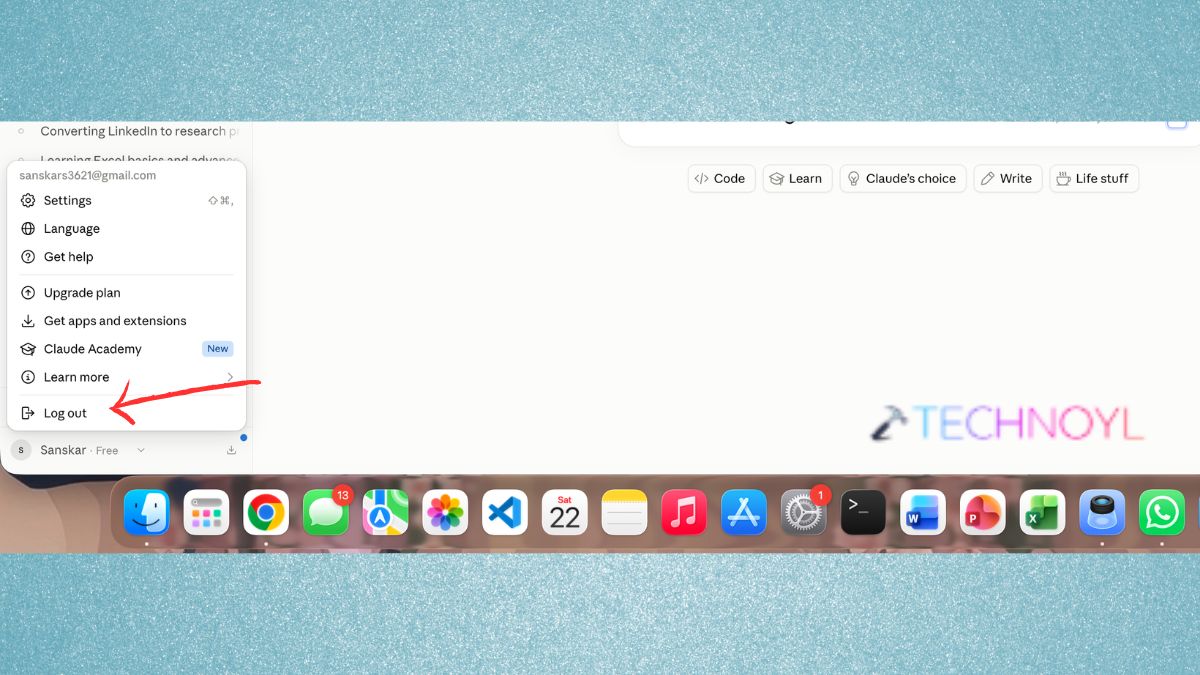
3. Close the Claude tab.
4. Open Claude again. Log in with your normal sign-in procedure. Try again to send a new message.
Fix 7: Clear Your Browser Cache and Cookies
Sometimes, old or corrupted browser data can impact how Claude functions on the web page, login session, etc.
These steps vary slightly depending on the browser, but the process is:
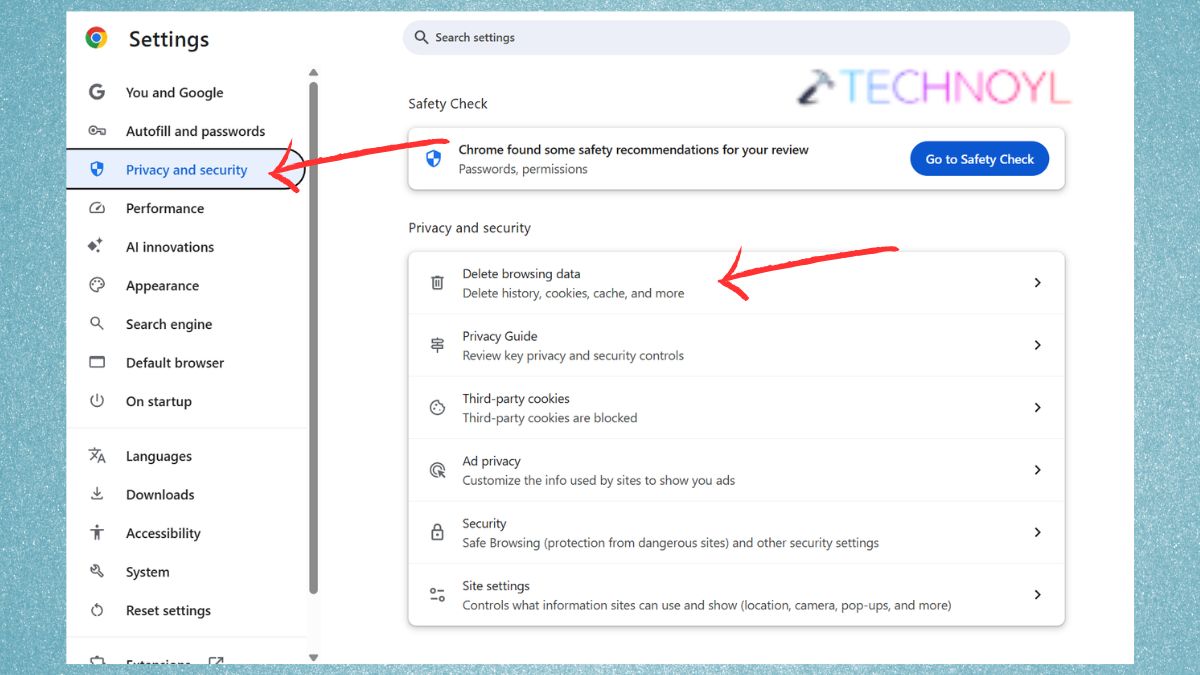
1. Go to your browser’s preferences or Settings. Click on Privacy and security.
2. Look for the browsing data, cookies, or site data option. Look up information related to claude.ai. Clear the pertaining cookies and cache.
3. Close and reopen the browser.
4. Visit Claude again. Sign up and try the service.
What If Claude Still Shows an Error?
If none of the above solutions works and Claude isn’t working, determine exactly what error message you get, as it will direct you to other solutions.
| Claude error | Likely cause | What to try |
| “5-hour limit reached” | Usage limit | Wait for the reset |
| “Your message will exceed the length limit” | Long prompt/chat | Shorten content or start a new chat |
| “Claude is unable to respond” | Capacity or service issue | Wait and check status |
| Generic login error | Session/browser issue | Sign out, clear cookies, disable extensions |
| File upload error | File size/content or connection | Reduce files and check your connection |
| Claude page won’t load | Browser/network/service issue | Refresh, test another network, check status |
If the problem persists, Anthropic offers help via Claude’s help system. Users will have access to a variety of customer support materials, Fin or Product Support, depending on the account plan.
Frequently Asked Questions (FAQs)
Why is Claude AI not working?
Claude might not be functioning properly due to a temporary service incident, capacity restriction, internet problems, web browser problems, usage restrictions, or if the prompt or conversation is too long. Check the official Claude Status page and then troubleshoot your connection and browser.
How do I fix the Claude AI “5-hour limit reached” error?
If you see the “5-hour limit reached” message, it indicates that you have met the usage limit for your account. Then, test the reset time of Claude and wait until it resets again. The length of your messages, the length of your conversation, the model you selected and the feature you used can all impact your usage.
Why does Claude say my message is too long?
If the prompt, attachments, or conversation exceeds the length limit of the context, Claude might display a length limit error. Shorten the prompt, cut away any superfluous attachments, break up the prompt into smaller chunks or create a new conversation.
How do I fix Claude login errors?
Firstly, verify your internet connection and Claude service status. Then attempt to disable browser extensions, clear Claude-related cookies and cache and log out and log back in. If you are awaiting a login email, also scan the spam or junk folder.
That’s it!

Leave a Reply