


You log in to WordPress, but the dashboard is not loading. Or opens without styles. Sometimes you only see a blank screen.
It is annoying, especially when you need to update your website quickly. The good news is that this problem is usually caused by a few common issues and can often be fixed in minutes.
Why Is The WordPress Dashboard Not Loading?
The problem may happen because of:
- Plugin or theme conflicts
- Browser cache issues
- Low PHP memory
- Corrupted WordPress files
- Database errors
- Browser extensions
- Incorrect configuration settings
Fix WordPress Dashboard Not Loading
Try the fixes below one by one.
1. Check For Plugin And Theme Conflicts
A faulty plugin or theme is one of the most common causes.
- Connect to your site using FTP or File Manager.
- Open the wp-content folder.
- Rename the plugins folder.
- Try loading the dashboard.
- If it works, rename the folder back and disable plugins one at a time.
- Also, rename your active theme folder to test for theme conflicts.
2. Clear Browser Cache And Cookies
Old cached files can stop the dashboard from loading correctly.
- Open your browser settings.
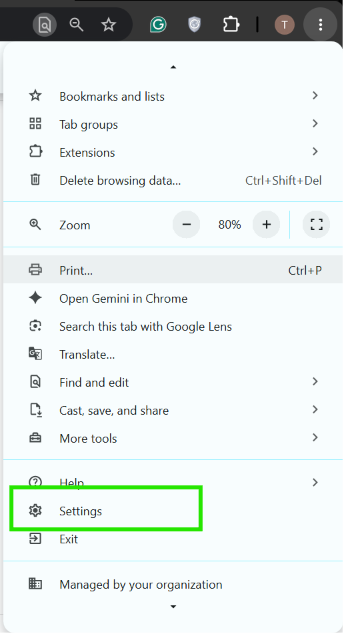
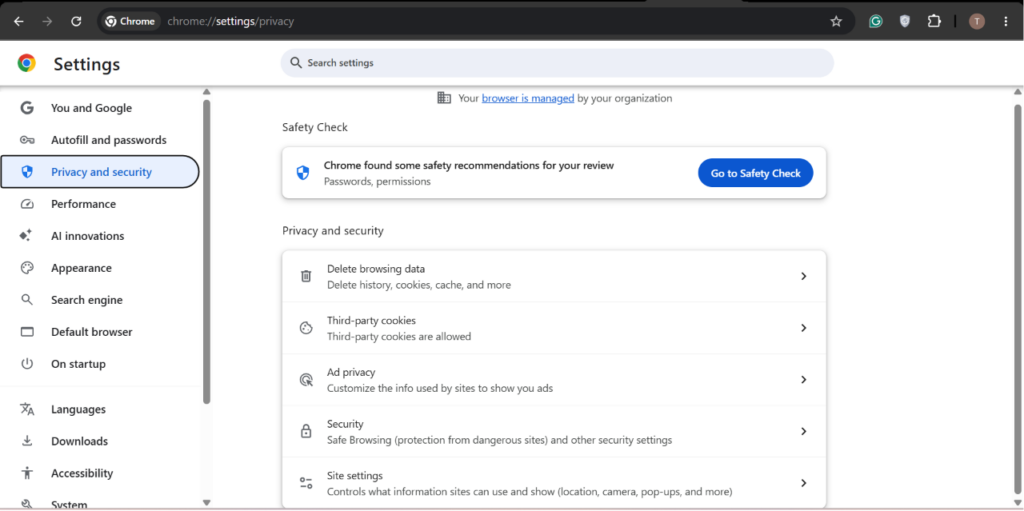
2. Go to Privacy and Security.
3. Clear cookies and cached files.
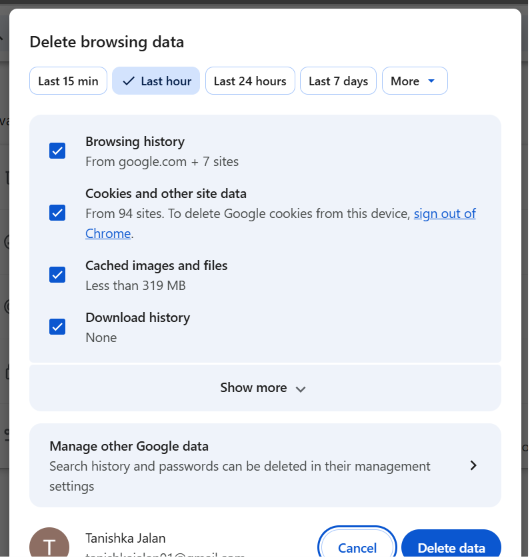
4. Restart the browser and test WordPress again.
3. Increase The PHP Memory Limit
WordPress may run out of memory while loading the admin area.
- Open the wp-config.php file.
- Add:
define('WP_MEMORY_LIMIT', '256M');
3. Save the file and reload the dashboard.
4. Enable WordPress Debug Mode
Debug mode helps identify hidden errors.
- Open wp-config.php.
- Add:
define('WP_DEBUG', true);
3. Refresh the dashboard and check the error details.
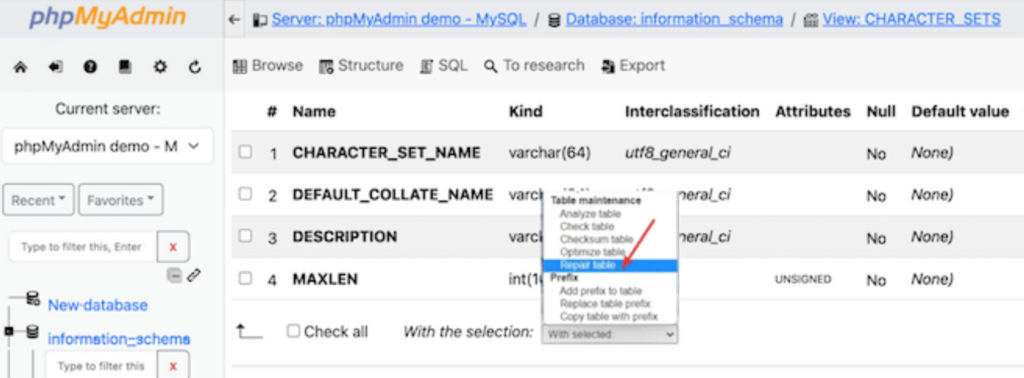
5. Repair The Database
A damaged database can break the admin panel.
- Open phpMyAdmin from your hosting account.
- Select your WordPress database.
- Choose all tables.
- Click Repair Table.
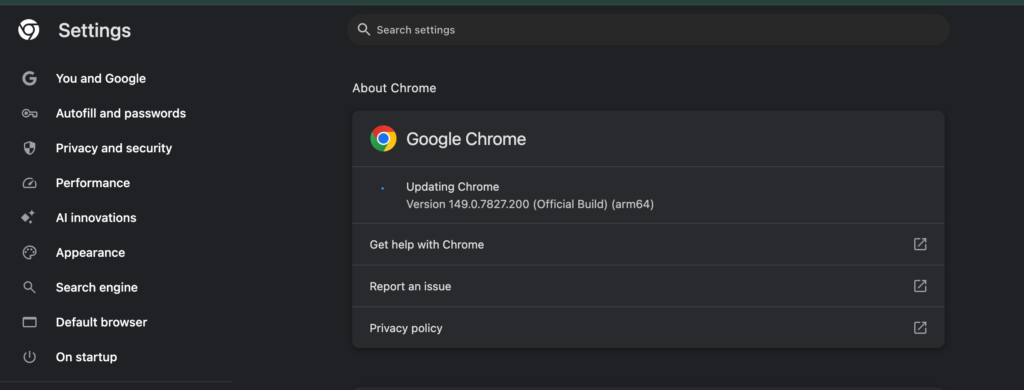
6. Update Your Web Browser
An outdated browser can create loading problems.
- Open browser settings.
- Check for updates.
- Install the latest version.
- Restart the browser.
7. Edit The wp-config.php File
Extra spaces or incorrect code can cause issues.
- Open wp-config.php.
- Remove unnecessary blank lines.
- Delete any closing ?> tag at the end if present.
- Save the file.
8. Try Incognito Mode
Open your site in a private browsing window.
If the dashboard loads, a browser extension may be causing the problem. Disable extensions and test again.
9. Check the .htaccess File
A corrupted .htaccess file can block the admin area.
- Open the file through FTP.
- Remove incorrect custom rules.
- Save the changes.
- Reload WordPress.
10. Verify User Roles
Incorrect permissions can prevent dashboard access.
- Check your user account in the database.
- Confirm it has Administrator privileges.
- Update the role if necessary.
That’s it!

Leave a Reply