


Want to try Windows 11 26H2 before everyone else?
Maybe you want to test new features. Maybe you need it for a virtual machine. Or perhaps you’re simply curious about the next Windows update.
The problem is that Microsoft may not always provide an official ISO file during the early preview stage. Fortunately, you can still create a Windows 11 26H2 ISO using UUP Dump. The tool downloads official Windows files directly from Microsoft’s servers and builds the ISO for you.
In this guide, we’ll show you the easiest way to download the Windows 11 26H2 ISO file.
What Is A UUP Dump?
UUP Dump is a free tool that lets you create Windows ISO files from Microsoft’s update packages.
It downloads the required files and converts them into a complete ISO image for installation, testing, or upgrades. Before you start, make sure you have:
- A stable internet connection
- Around 70GB of free storage space
- Administrator access on your PC
- A ZIP extraction tool (Windows built-in extractor works fine)
Guide: Download Windows 11 26H2 ISO File
1. Select The Latest 26H2 Build
- Open the UUP Dump site (https://uupdump.net/known.php?q=category:dev).
- Choose the latest Windows 11 26H2 build, i.e. 26300.xxxx builds.
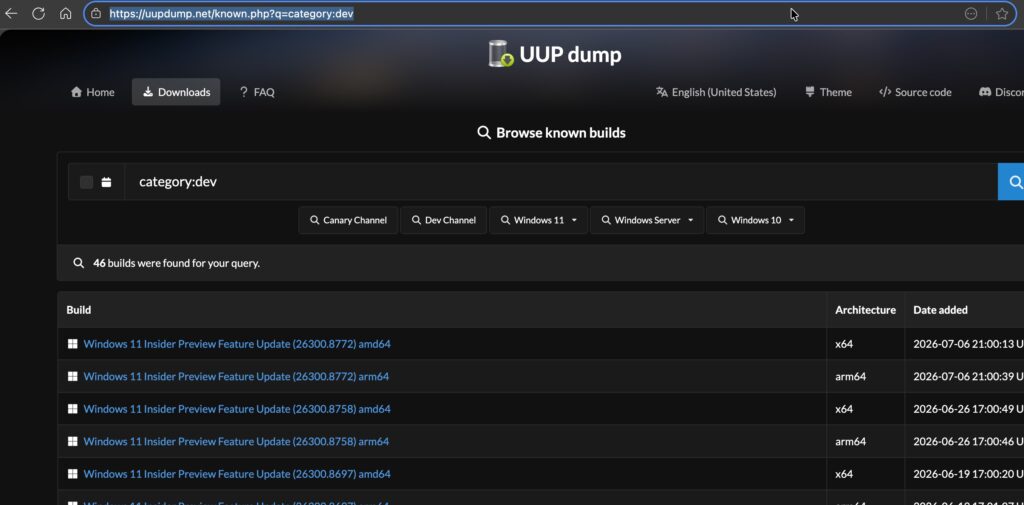
- Select x64 or ARM64 based on your device.
2. Choose Language And Edition
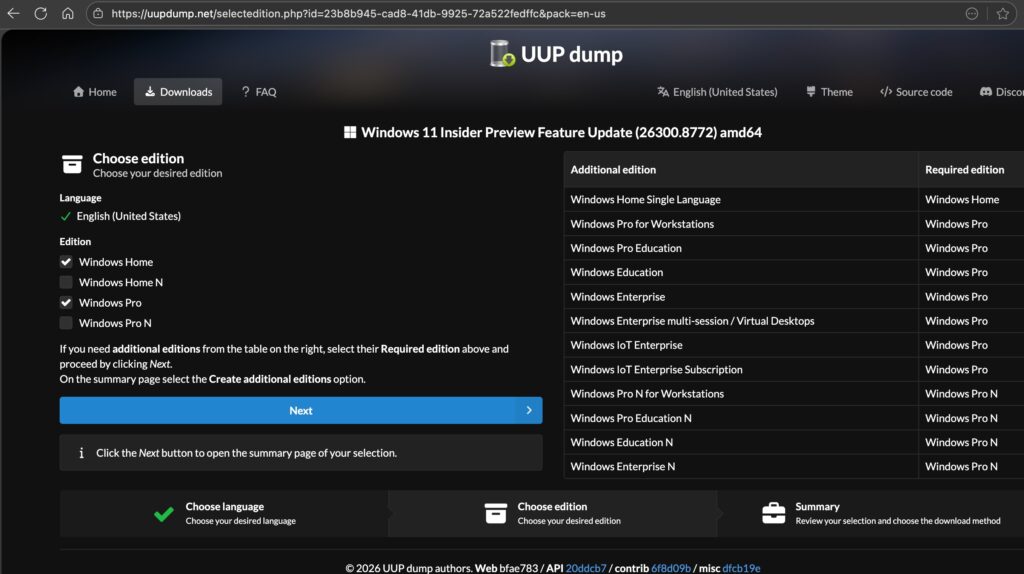
- Select your preferred Windows language.
- Choose the Windows 11 edition you want, such as Home or Pro.
- Click Next to continue.
3. Create The ISO Package
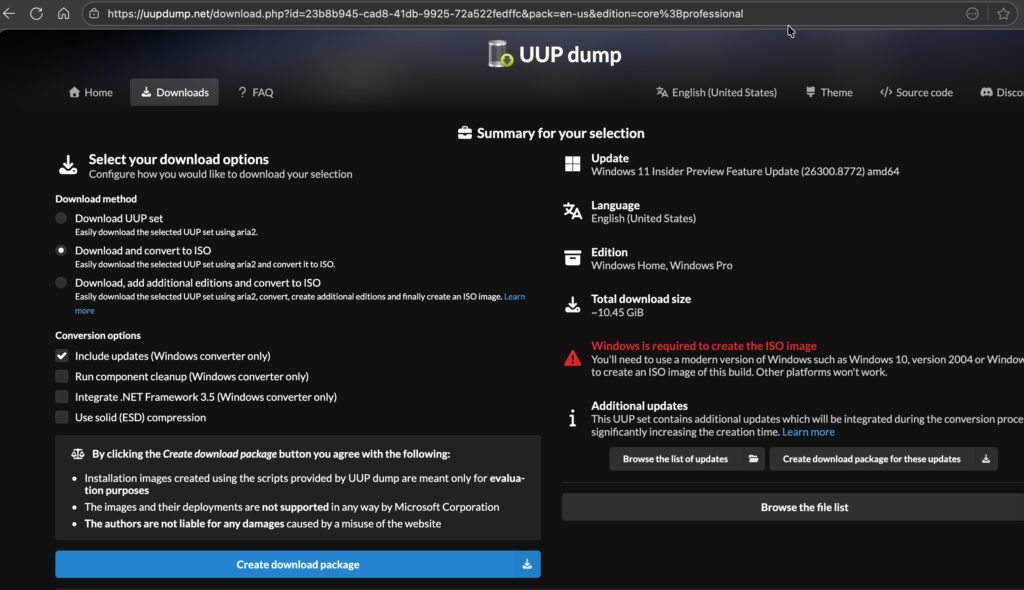
- Select Download and convert to ISO.
- Enable Include updates.
- Click Create download package to download the ZIP file.
4. Extract The Download Package
- Open the downloaded ZIP file.
- Click Extract All.
- Choose a location and extract the files.
5. Run The UUP Download Script
- Open the extracted folder.
- Right-click uup_download_windows.cmd.
- Select Run as administrator.
- Click Run anyway if prompted.
6. Download And Build The ISO
- Press R and hit Enter when prompted.
- Wait for the tool to download Windows files.
- The script will automatically create the ISO file.
7. Access The ISO File
- When the process finishes, press 0 to close the window.
- Find the Windows 11 26H2 ISO inside the extracted UUP Dump folder.
8. Fix Download Errors (If Needed)
- Run Remove_Failure_MountDr_TempDir.cmd as Administrator.
- Ensure you have enough free storage space.
- Run the download script again.
That’s it! If you have any questions, share them in the comments!

Leave a Reply