


When it comes to AI, Claude is a well-known name. If you are into deep reasoning, coding or in task automation, clot can handle these things very efficiently. Having the Claude desktop app can help you to achieve your goal easily. In this article, we will see how you can fix if Claude desktop app is not opening in your Windows 11.
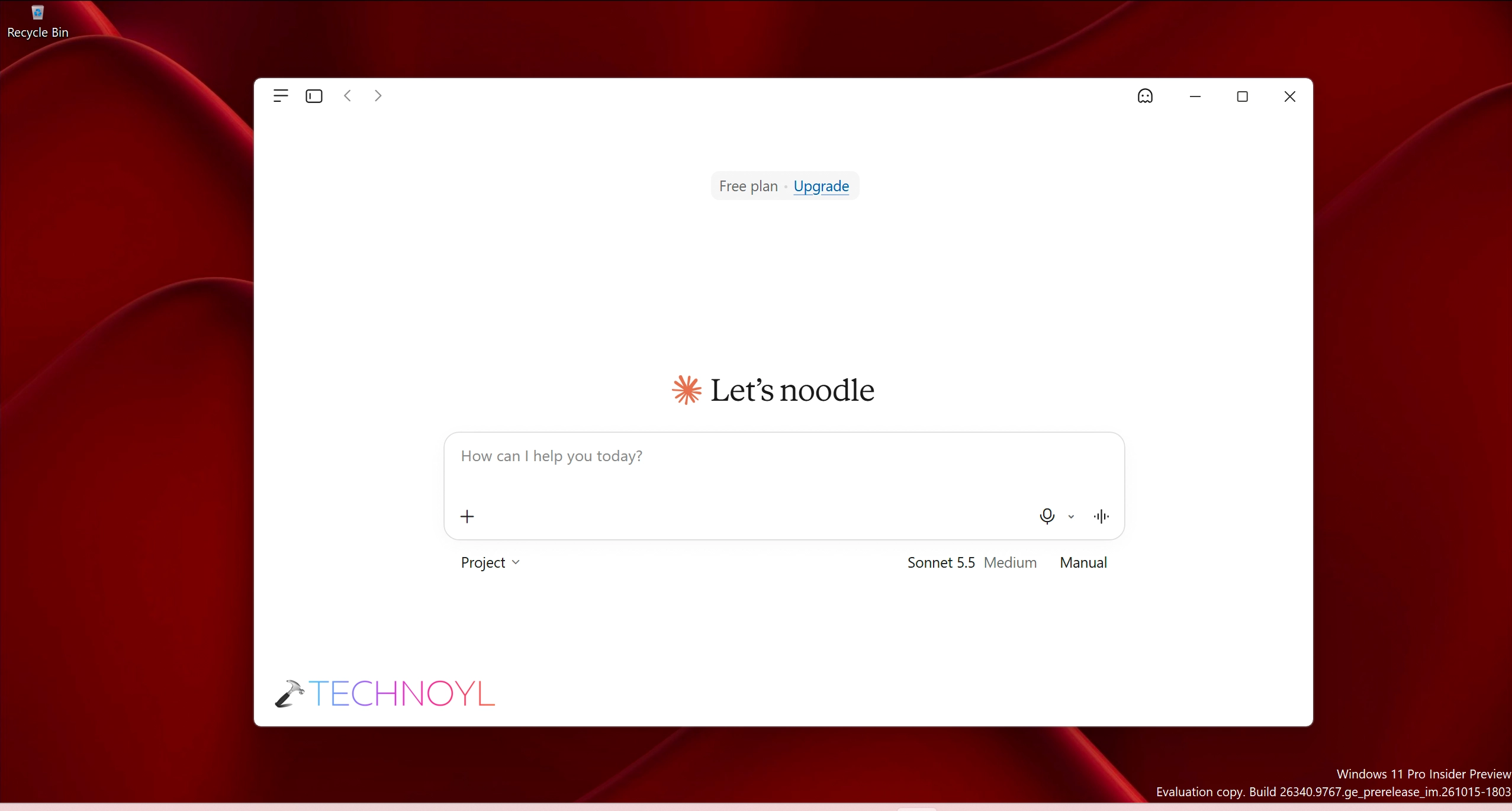
You can try some of the solutions mentioned below. They can help you to resolve this problem without many efforts.
Solved: Claude desktop app won’t open in Windows 11
Option 1: Kill the stuck Claude process
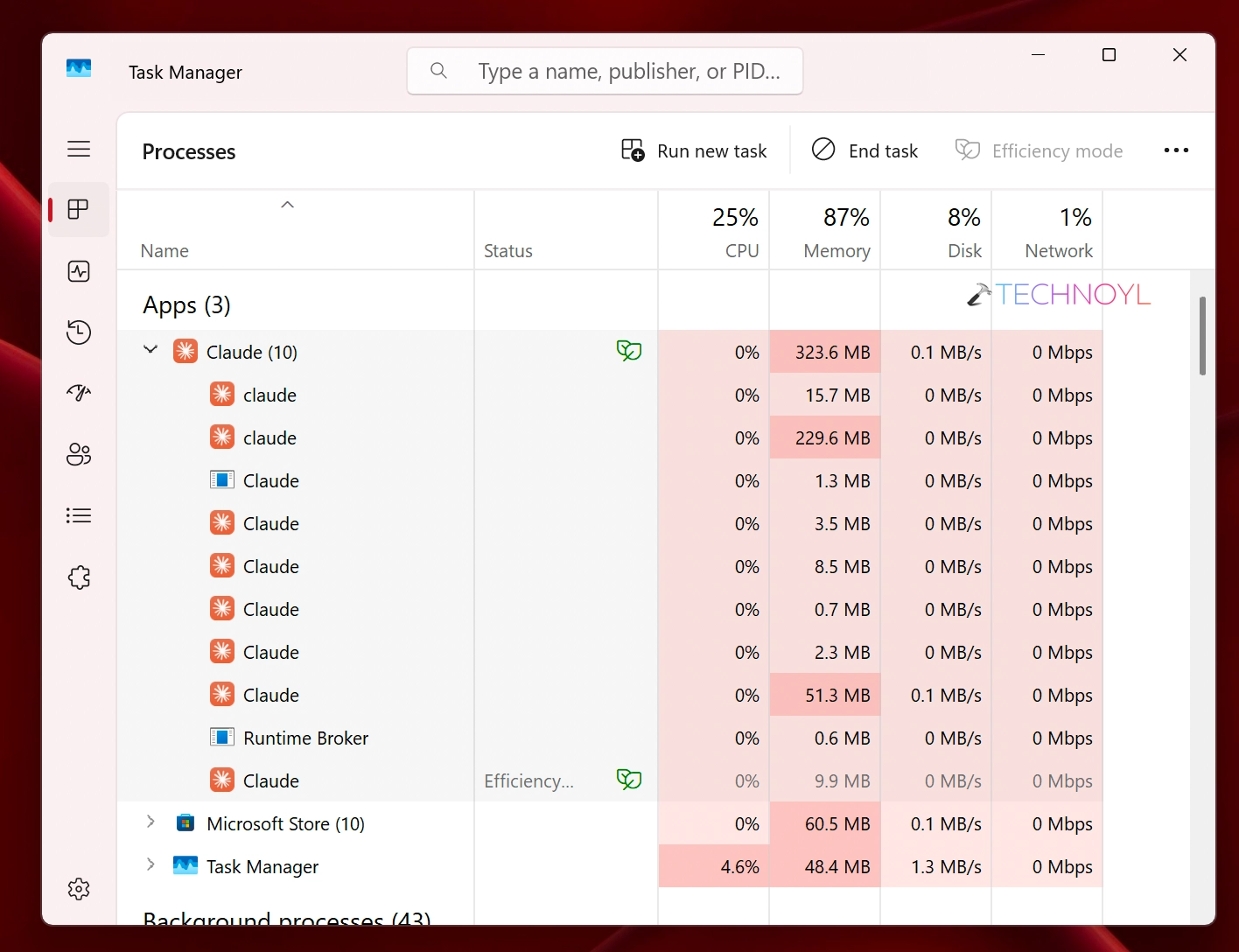
Sometimes a single stuck Claude process can prevent other new instances of Claude. So, if you previously used Claude and some of its processes are still running in the background, they may prevent the new instance of Claude to run.
In this situation, the best suggestion is to locate the old stuck processes and terminate them. For this, you can simply open the task manager by pressing Control+Esc+Shift keys on your keyboard. Once you have a task manager opened, you can locate the old stuck Claude processes one by one and select them, click End task.
Option 2: Ensure virtualization features are on
For some instances, Claude may require virtualization features enabled on your Windows 11. According to the Claude’s documentation, it may require virtual machine platform for its operation.
Hence, it is necessary that you enable the virtualization features so that your Claude desktop app can work as expected.
Follow these steps on your system:
- Boot your system to BIOS settings and locate advanced settings.
- Ensure that you have Intel VT – X is enabled.
- After this, restart the system.
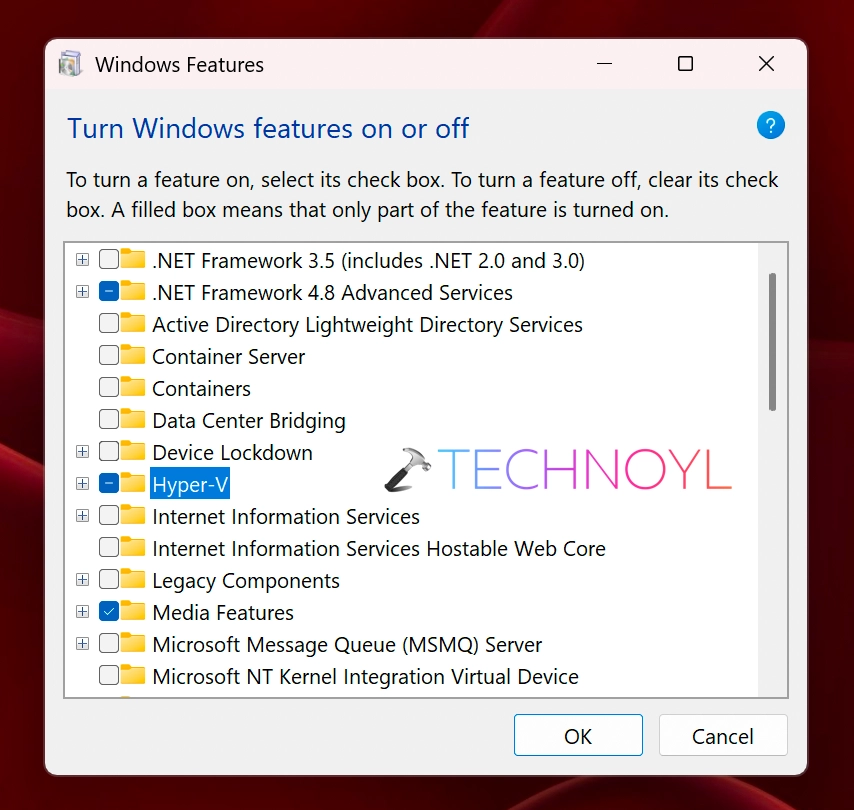
- Next, once your system starts go to Turn Windows features on or off.
- Ensure that these features are enabled:
- Hyper-V
- Virtual Machine Platform
- Windows Containers
- Windows Hypervisor Platform
Option 3: Reset Local Claude VM
When the claude desktop app fails to open, it might be due to invalid VM configuration.
You can try to reset the local VM configuration to resolve the issue.
If you have the claude app installed from Microsoft store, you can execute this command in Run:
%LOCALAPPDATA%\Packages\Claude_pzs8sxrjxfjjc\LocalCache\Roaming\Claude
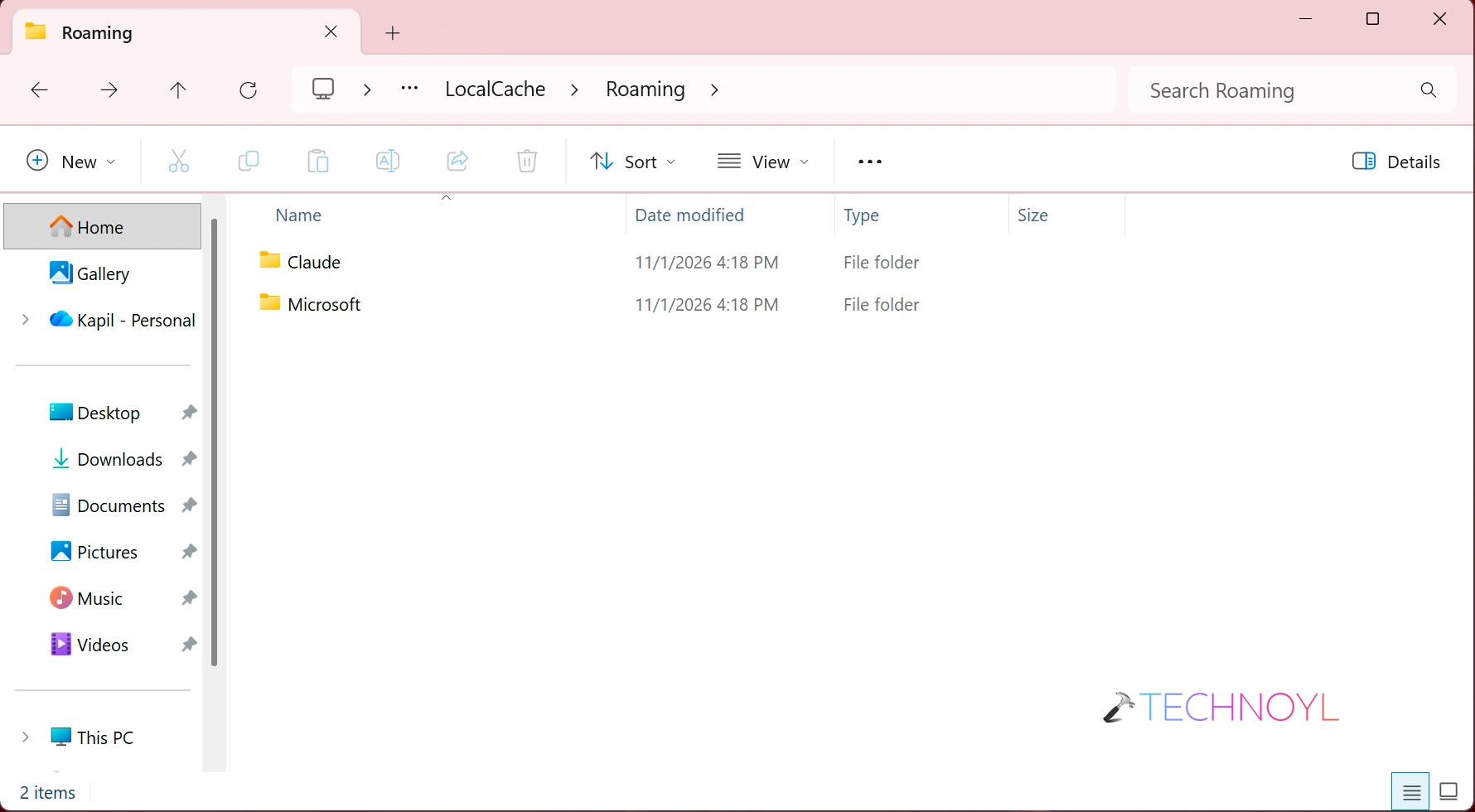
Inside the Claude folder, if you’re able to locate folders with either of the following names, you can try deleting them or simply rename them by adding .OLD extension.
- Cowork
- local-agent-mode-sessions
- vm
In case if you installed Claude app directly from Anthropic, you’ve to look at the following location instead:
%APPDATA%\Claude
After removing the folders mentioned in above command, you should be able to resolve the problem permanently.
If the issue still persists, do let us know via your comments, we would be happy to help you!

Leave a Reply