

Windows 11 looks simple on the surface, but it’s packed with powerful features hidden inside menus and shortcuts. Many of these tools are designed to improve productivity, simplify workflows, and enhance system control, yet most users never discover them.
Windows 11 Hidden Features Every User Should Know
Below are 10 hidden features worth exploring.
1. Snap Layouts for Multitasking
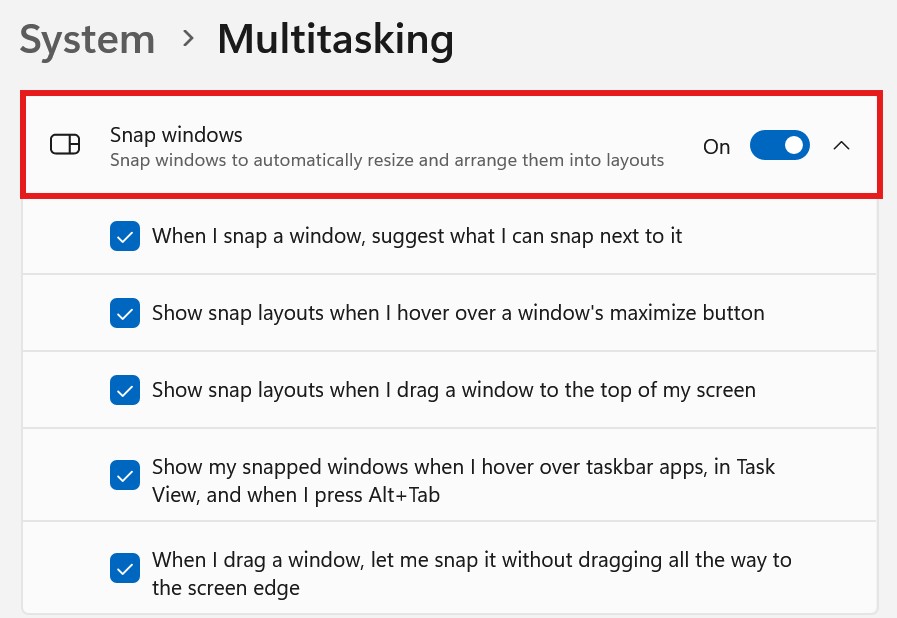
Snap Layouts let you quickly organize multiple windows into predefined grid layouts by hovering over the maximize button. You can instantly split your screen into halves, thirds, or quarters depending on your workflow.
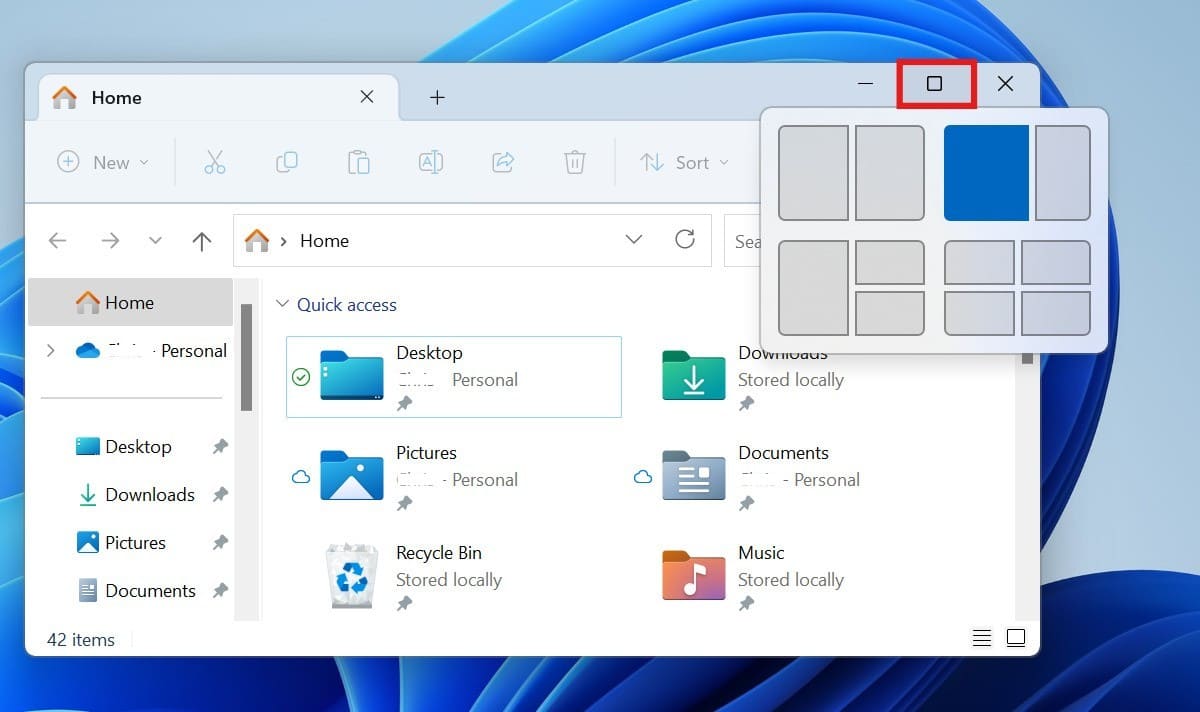
This feature is extremely useful for multitasking, especially when working with documents, browsing, and communication apps simultaneously. It reduces the need to resize windows manually and helps maintain a cleaner, more structured workspace.
2. Clipboard History
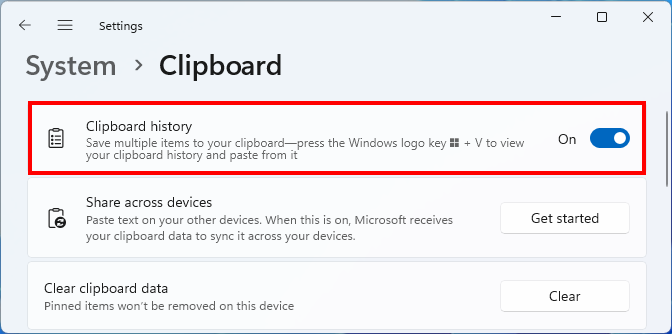
Press Windows + V to access the clipboard history, which stores multiple copied items instead of just one. You can quickly paste older text snippets, links, or images without re-copying them.
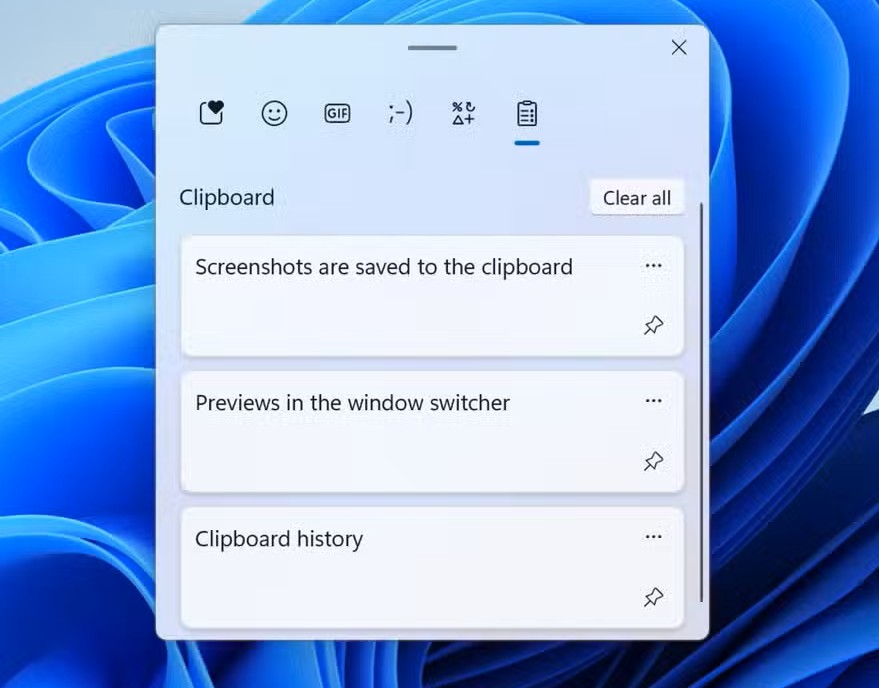
It even allows you to pin frequently used items and includes emojis, GIFs, and symbols for quick insertion. Once you start using it, basic copy-paste feels extremely limited in comparison.
3. Dynamic Lock
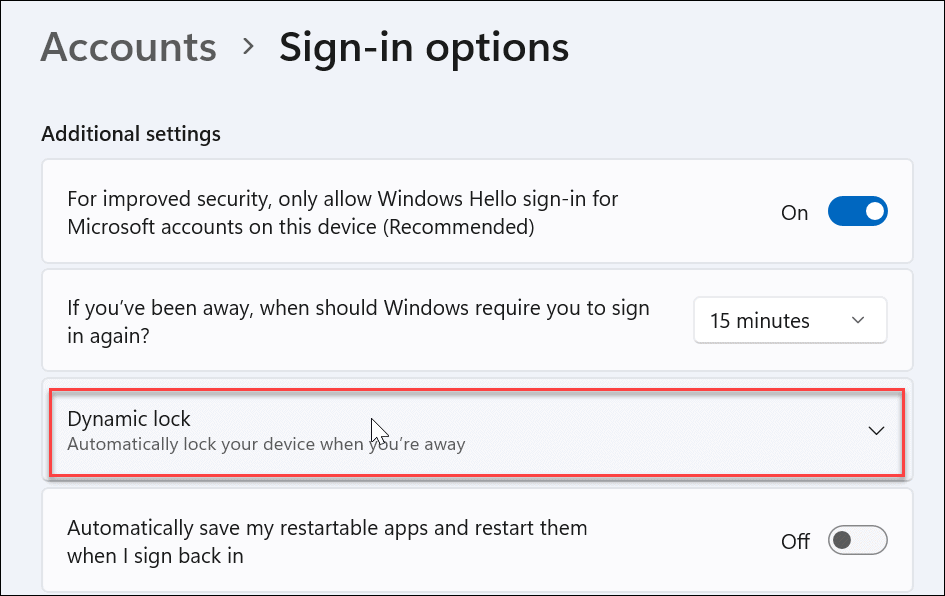
Dynamic Lock automatically locks your PC when you step away, using your phone’s Bluetooth connection as a proximity trigger. Once your paired device goes out of range, your system secures itself.
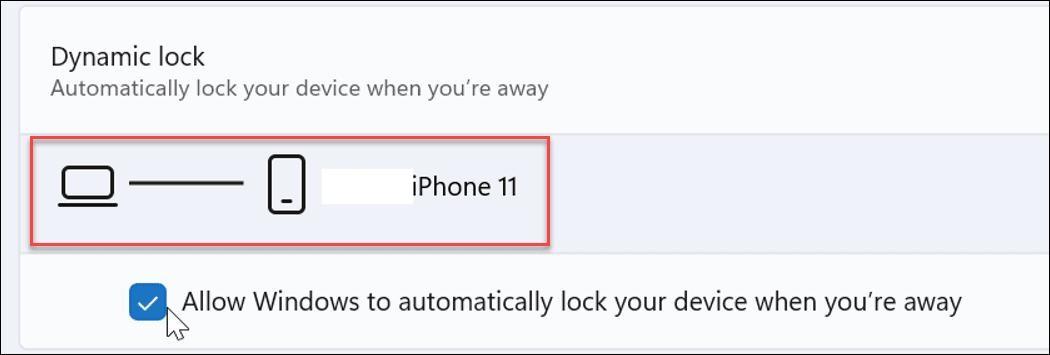
This adds a passive layer of security without requiring manual locking every time. It’s especially helpful in shared environments or workplaces where leaving your PC unattended could pose a risk.
4. Advanced Touchpad Gestures: A Windows 11 Hidden Feature
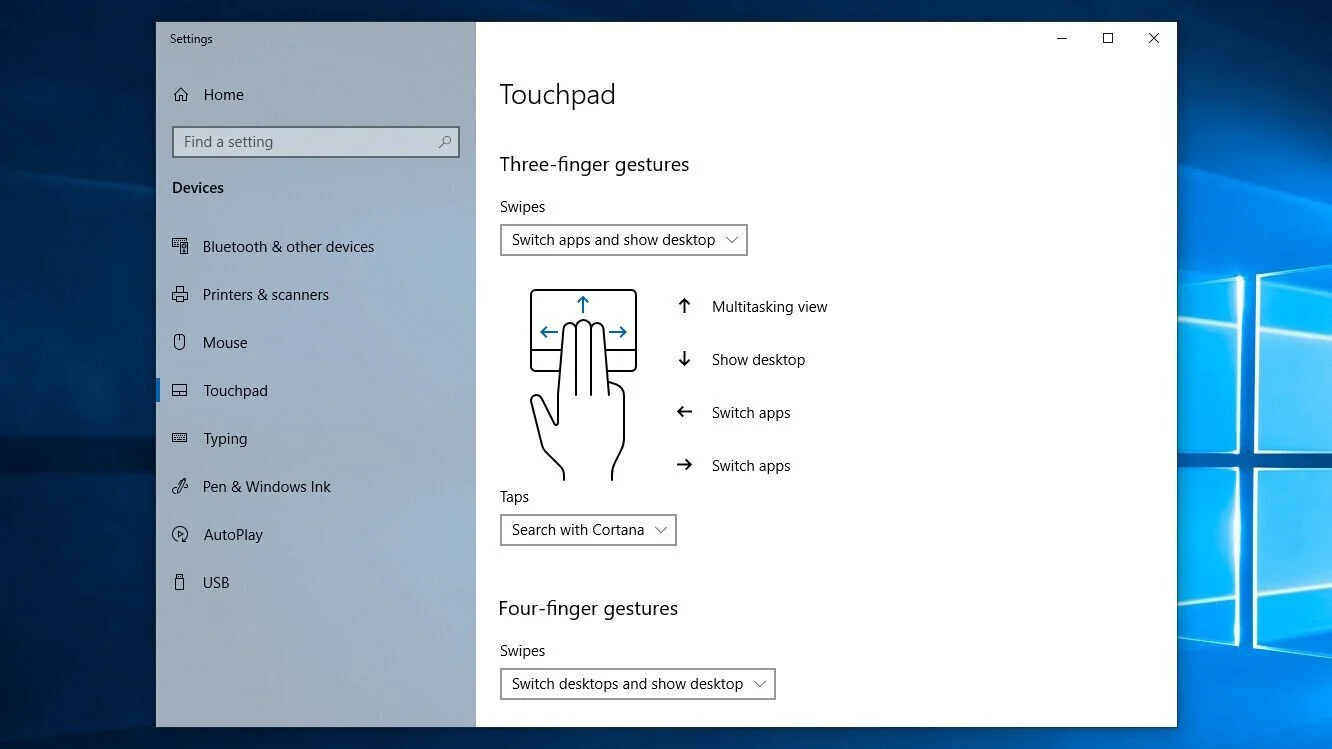
Windows 11 offers customizable three and four-finger gestures for navigation, app switching, and shortcuts. You can assign actions like minimizing windows or opening Task View with simple swipes.
These gestures significantly improve efficiency on laptops, reducing reliance on the mouse or keyboard. Once configured, they make navigation faster, smoother, and more intuitive.
5. Voice Typing
Press Windows + H to activate voice typing, which converts speech into text with impressive accuracy. It works across apps, including browsers, documents, and messaging tools.
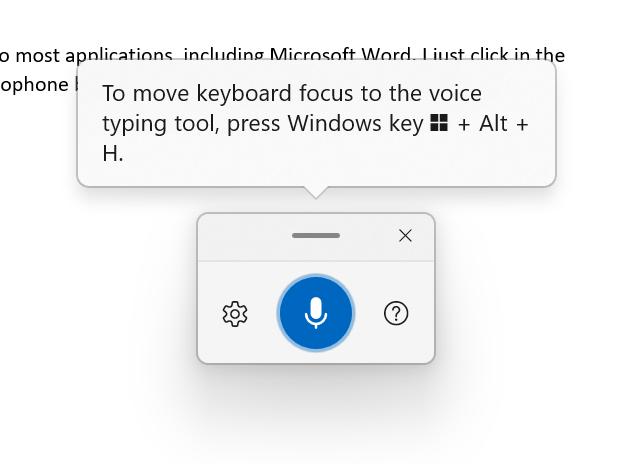
The feature also supports automatic punctuation, meaning you don’t need to manually dictate commas or periods. It’s ideal for drafting emails, notes, or content quickly without typing.
6. Volume Mixer (Per-App Control): A Windows 11 Hidden Feature
Windows 11 includes a hidden Volume Mixer that lets you control sound levels for individual apps. Instead of adjusting system-wide volume, you can fine-tune each application separately.
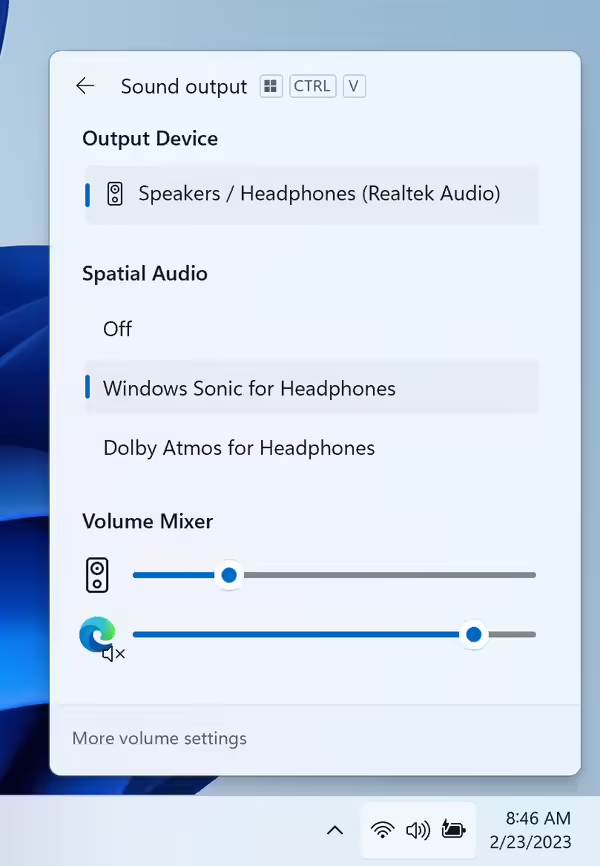
This is particularly useful when multitasking, like lowering browser audio while keeping music or calls louder. It eliminates the need for third-party tools and gives you more precise audio control.
7. Virtual Desktops
Virtual Desktops, accessible via the Task View icon on the taskbar or Windows Key + Tab, allow you to create separate workspaces for different tasks, such as work, study, or entertainment. Each desktop can have its own apps and layout.
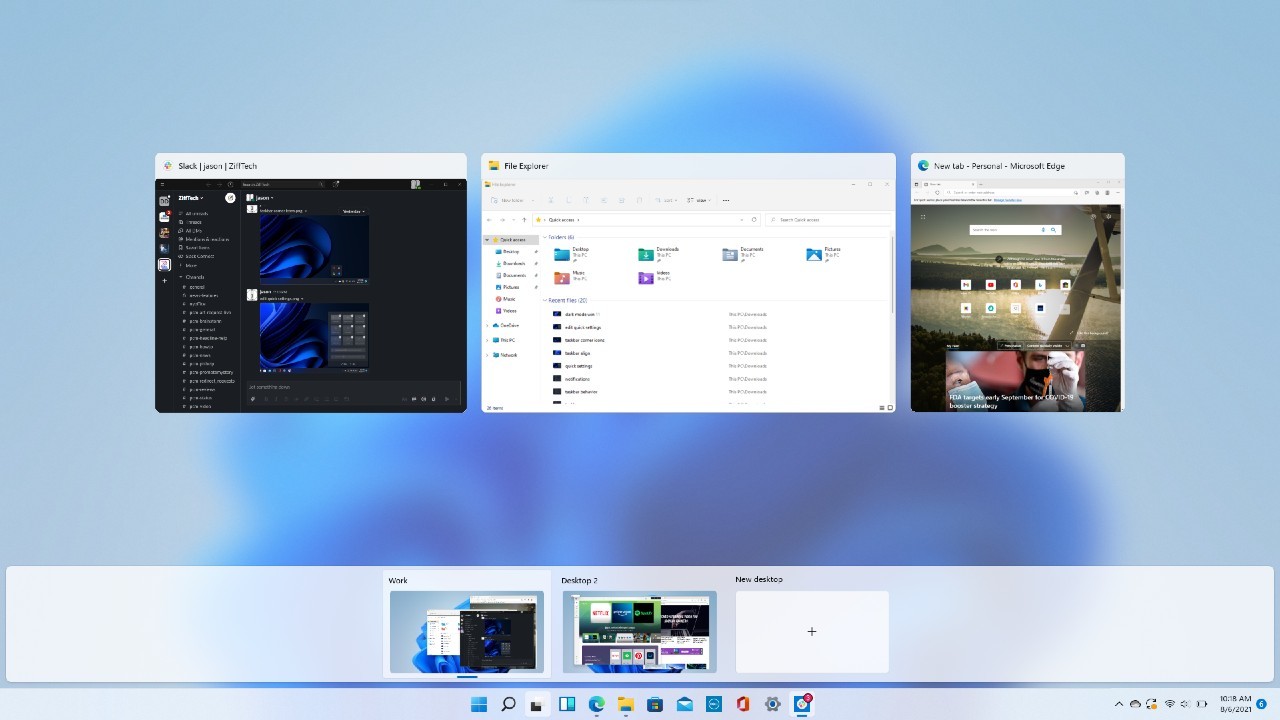
This helps reduce clutter and keeps your tasks organized without closing applications. It’s especially useful for users who juggle multiple projects or want a distraction-free environment.
8. Customize Quick Settings Panel: A Windows 11 Hidden Feature
The Quick Settings panel (Wi-Fi, volume, battery icons) can be customized to show only the toggles you need. You can add, remove, or rearrange options for quicker access.
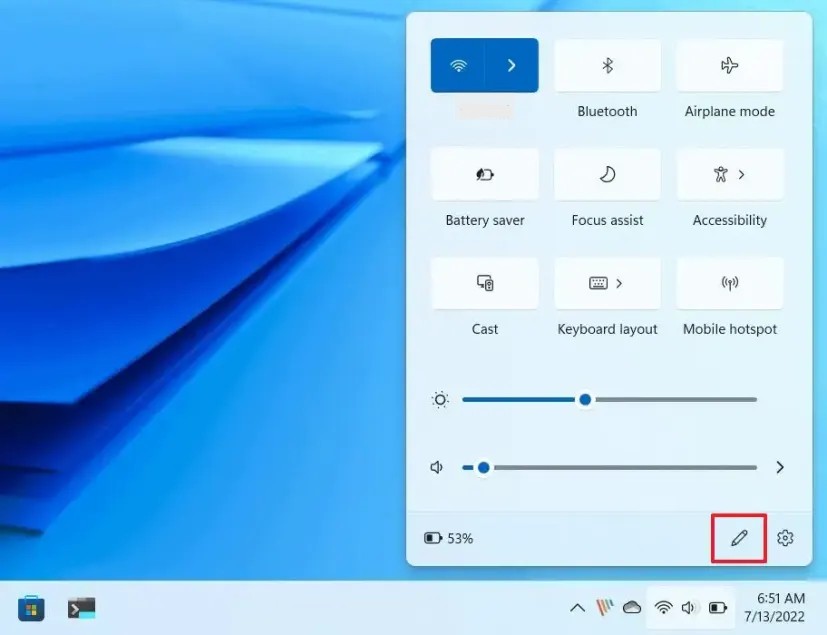
This makes everyday actions, like connecting to networks or enabling Bluetooth, faster and more convenient. A cleaner panel also improves usability by reducing unnecessary clutter.
9. Snipping Tool Shortcut
Press Windows + Shift + S to instantly capture a portion of your screen. You can choose between rectangular, freeform, window, or full-screen snips.
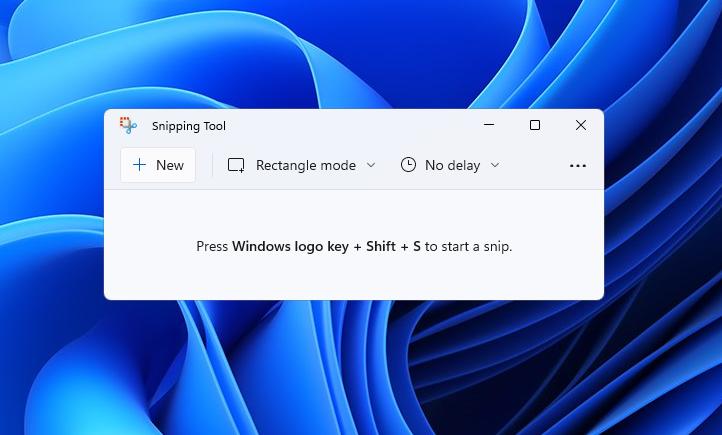
The tool is fast, lightweight, and perfect for quick screenshots without opening a full app. It’s especially helpful for sharing information, creating tutorials, or saving visual references.
10. Disable Startup Apps
Many apps automatically launch at startup, slowing down boot time and consuming system resources. Windows 11 lets you disable these apps from the Startup settings.
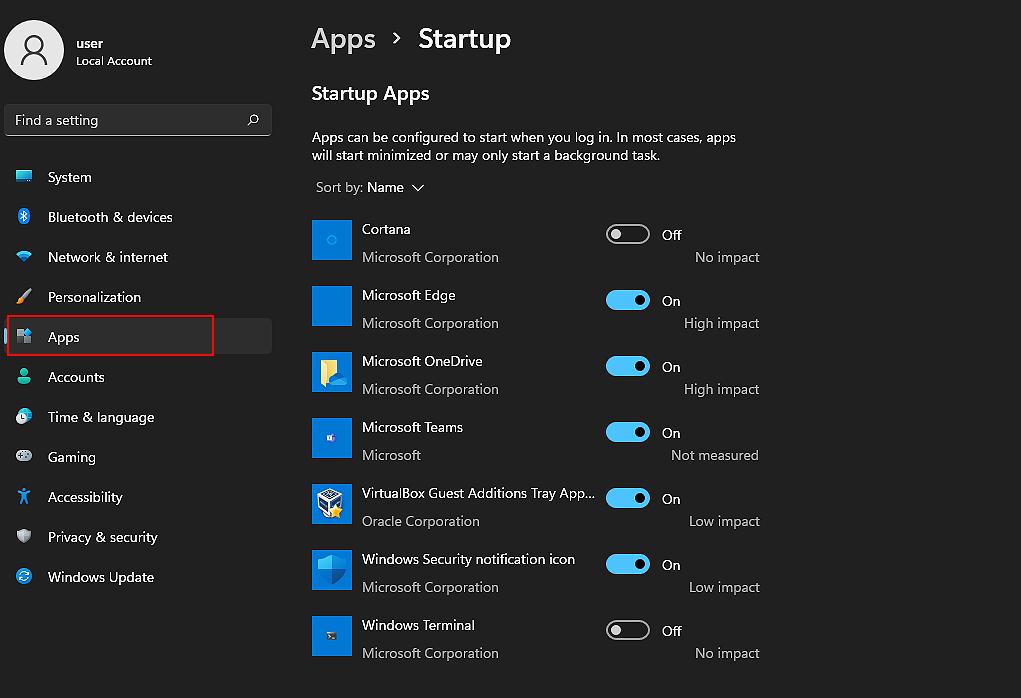
Managing startup programs can noticeably improve performance and make your PC feel faster. It also gives you better control over what runs in the background when your system starts.
Final Thoughts
Windows 11 hides a lot of useful tools beneath its clean interface. These features aren’t just extras; they can genuinely improve productivity, security, and everyday usability.
Once you start using them regularly, you’ll realize how much more efficient your workflow can become.

Leave a Reply