


Microsoft 365 gives you cloud-powered apps that can boost your productivity. All of your files are synced automatically with OneDrive and in the cloud you have access to every important file. If you’re not able to sign into Microsoft 365, this guide can help you to resolve the issue. Under the situation, you may be receiving Authentication couldn’t be completed error. The show may appear irrespective of, if you are on a Windows PC or on Mac.
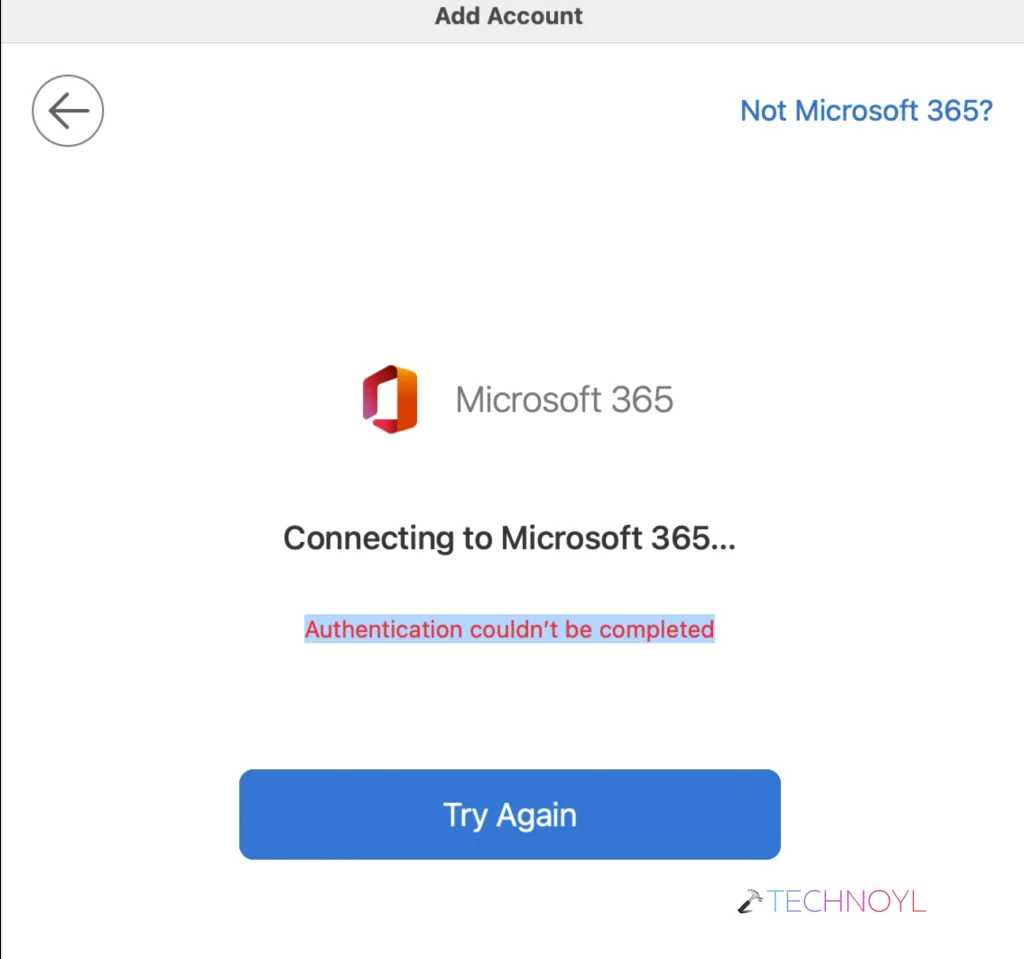
Solved: Microsoft 365 authentication couldn’t be completed
Solution 1: Verify if you’re entering the correct password
If you have recently changed your Microsoft 365 password, this may create issues while authenticating. It is highly recommended that you use the current password. In case if you forgot the password you can use the relevant option to retrieve or set the new password. Usually the passwords are complex, so make sure you are using the correct uppercase and lowercase combintation.
Solution 2: Verify status of Microsoft 365
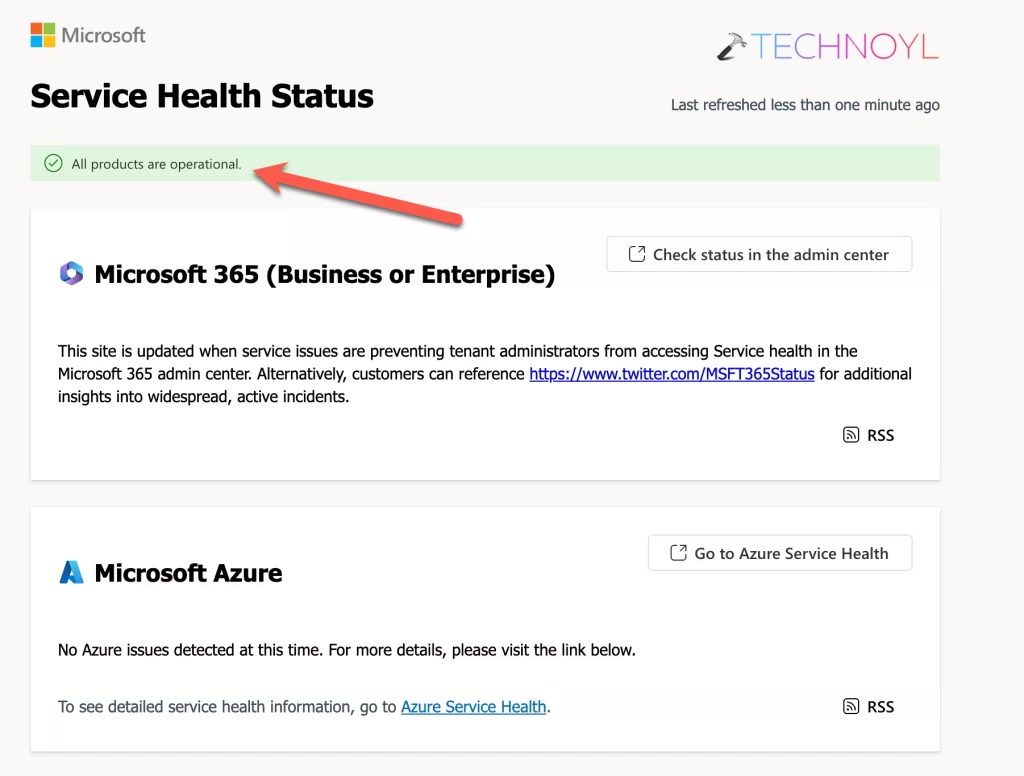
In some cases the activation server managing Microsoft 365 might be down. And if they are down, you really can’t do anything about this.
Microsoft provides the status of activation service on this website (https://status.cloud.microsoft). So while you are getting this error, it is highly recommended that you verify the status of Microsoft 365 before changing anything from your side.
Solution 3: Ensure you have active subscription
Microsoft 365 is a subscription based productivity suite, unlike the traditional Microsoft Office, which was a one-time purchase. To keep using Microsoft 365, you must have a valid subscription on the go.
To verify if you have a valid subscription, sign into your account in case if you have a personal account or a work or a school account and locate the subscription section. In case if the subscription is being managed by your company or school, check the Order history and see if the subscription was renewed.
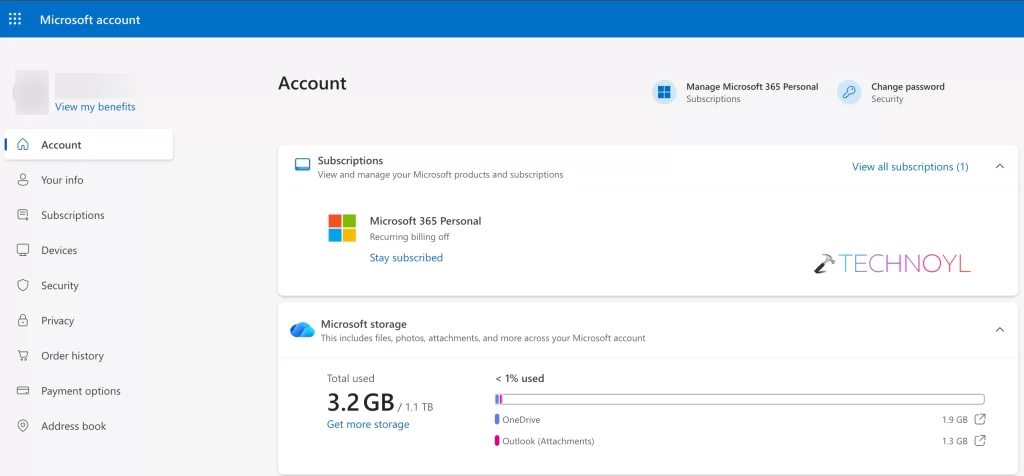
In absence of an active subscription, your account authentication could not be completed and you may keep receiving that error.
If you have a expired subscription, best you can do is to renew the subscription and that would automatically fix this problem.
Solution 4: Using Credential Manager
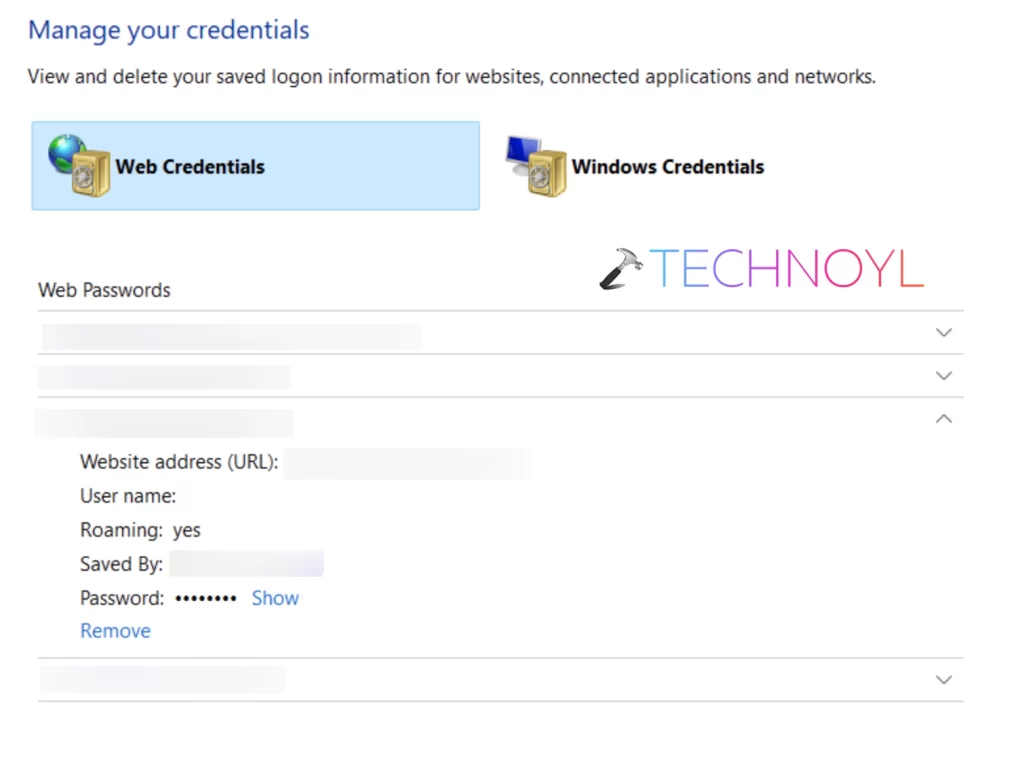
Your Windows device may store the old credentials on your Credential Manager. If that is true, Windows might be allowing Microsoft 365 to fetch old credentials. And if you changed the password, your old credentials automatically become obsolete. Hence it is recommended that you go to the Credential Manager and Remove the old credentials for your Microsoft 365, in case if they are present there.
Solution 5: Repair Microsoft Office 365
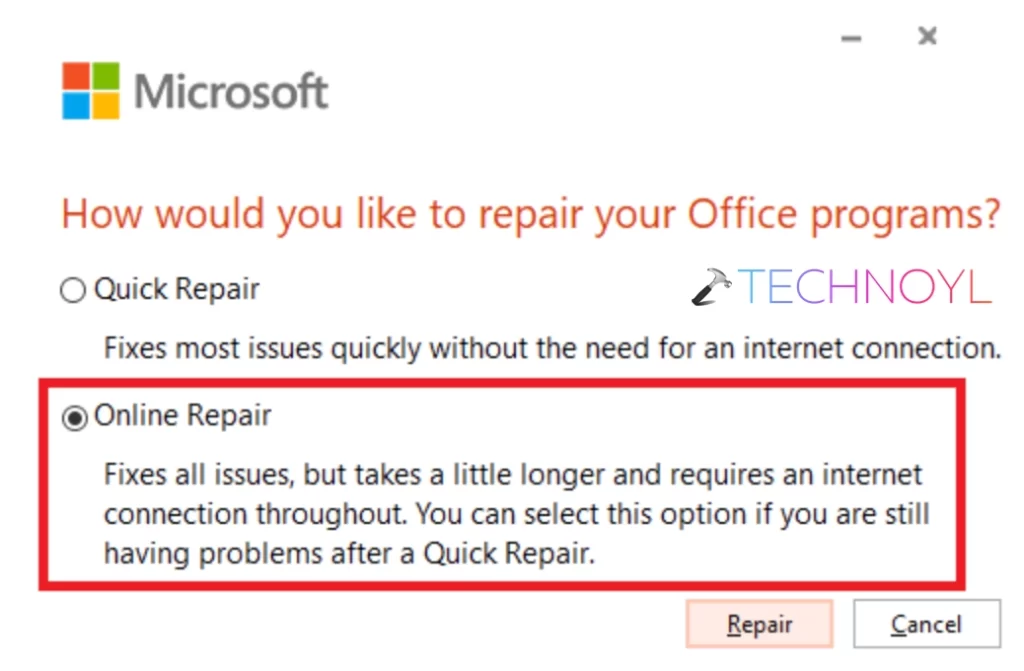
In case if the above solution didn’t help you, it’s high time you must repair your Microsoft Office installation. Microsoft provides option to do this in a very easy and efficient manner. Simply press go to the Settings app on your Windows and then navigate Apps > Installed apps. In the list of Installed apps, locate the Microsoft 365 entry. Click on the three dots (•••) next to it and select Modify. Now in The Pop-up window, choose Online Repair. Make sure you’re connected to the Internet and let it be completed.
That’s it!

Leave a Reply