


The repeated Microsoft Authenticator requests can be annoying. It can also signal a security issue. If you are not trying to sign in, someone else may be trying to access your account. This could generate constant sign-in requests from Microsoft Authenticator.
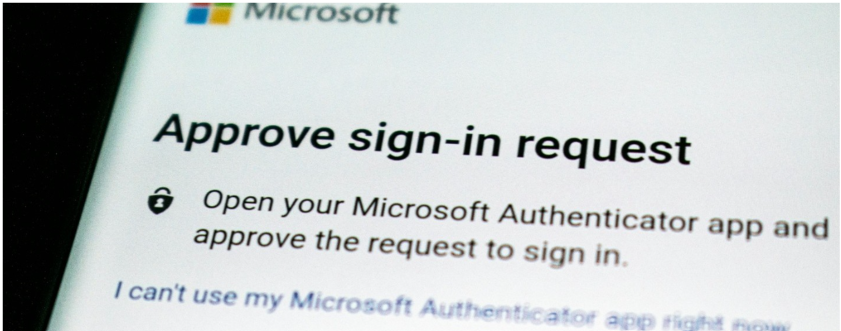
Fix: Constant Sign-In Requests From Microsoft Authenticator
You can follow these fixes to secure your account and stop unwanted requests.
1. Check Your Sign-In Activity
First, check whether the requests are from someone else.
- Sign in to your Microsoft account.
- Open Security.
- Go to your sign-in activity.
- Check recent login attempts.
- Look for unknown locations or devices.
If you find anything suspicious, secure your account immediately.
2. Change Your Password
A new password will definitely block someone who knows your old password. You can change the password to new one to eliminate the person knowing that password.
- Open your Microsoft account.
- Go to Security.
- Select the option to change your password.
- Create a strong, unique password.
- Save the changes.
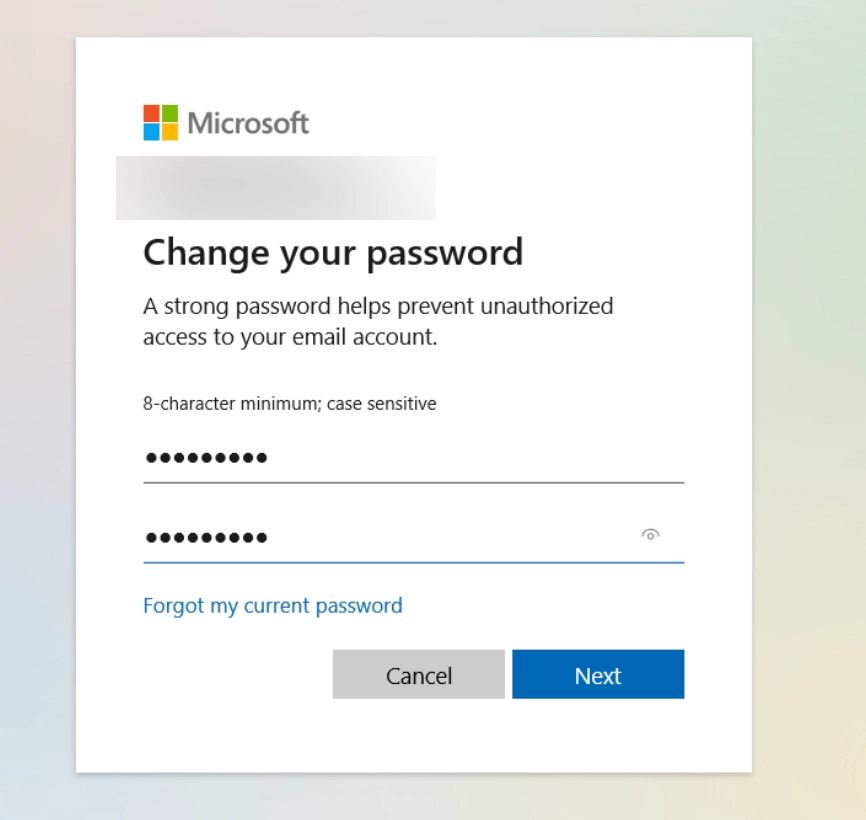
Do not reuse your old password. Additionally make sure you do not use easy to guess passwords. A good practice is to have a complex password.
3. Sign Out Everywhere
An old session may be causing repeated requests. Avoid this by signing out everywhere from your account across various devices.
- Open your Microsoft account.
- Go to Security.
- Open your sign-in settings.
- Select Sign out everywhere.
- Sign in again on your trusted devices.
Make sure you know your password before doing this.
4. Remove Untrusted Devices
If you have previously added other devices to your account and you no longer use them, it’s great time to remove devices you no longer use.
- Sign in to your Microsoft account.
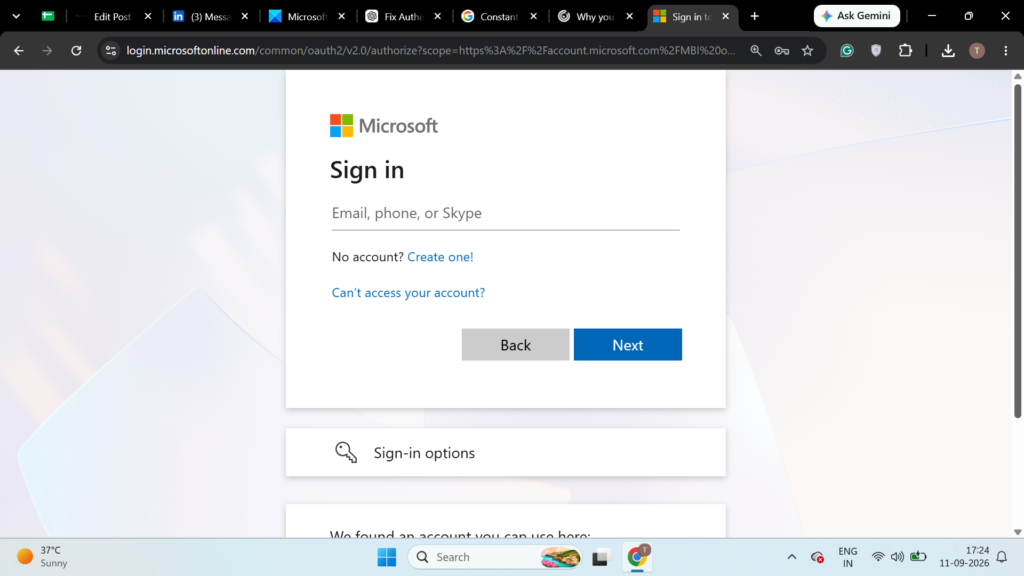
2. Open Devices.
3. Review the listed devices.
4. Select an unknown or unused device.
5. Click Remove device.
5. Disable Passwordless Sign-In
If passwordless sign-in is enabled, temporarily switch to password-based sign-in.
Make sure you have a working password and another recovery method first.
6. Add a Passkey or Another Sign-In Method
Add a passkey, phone number, security key, or another available sign-in method.
This gives you another way to access your account.
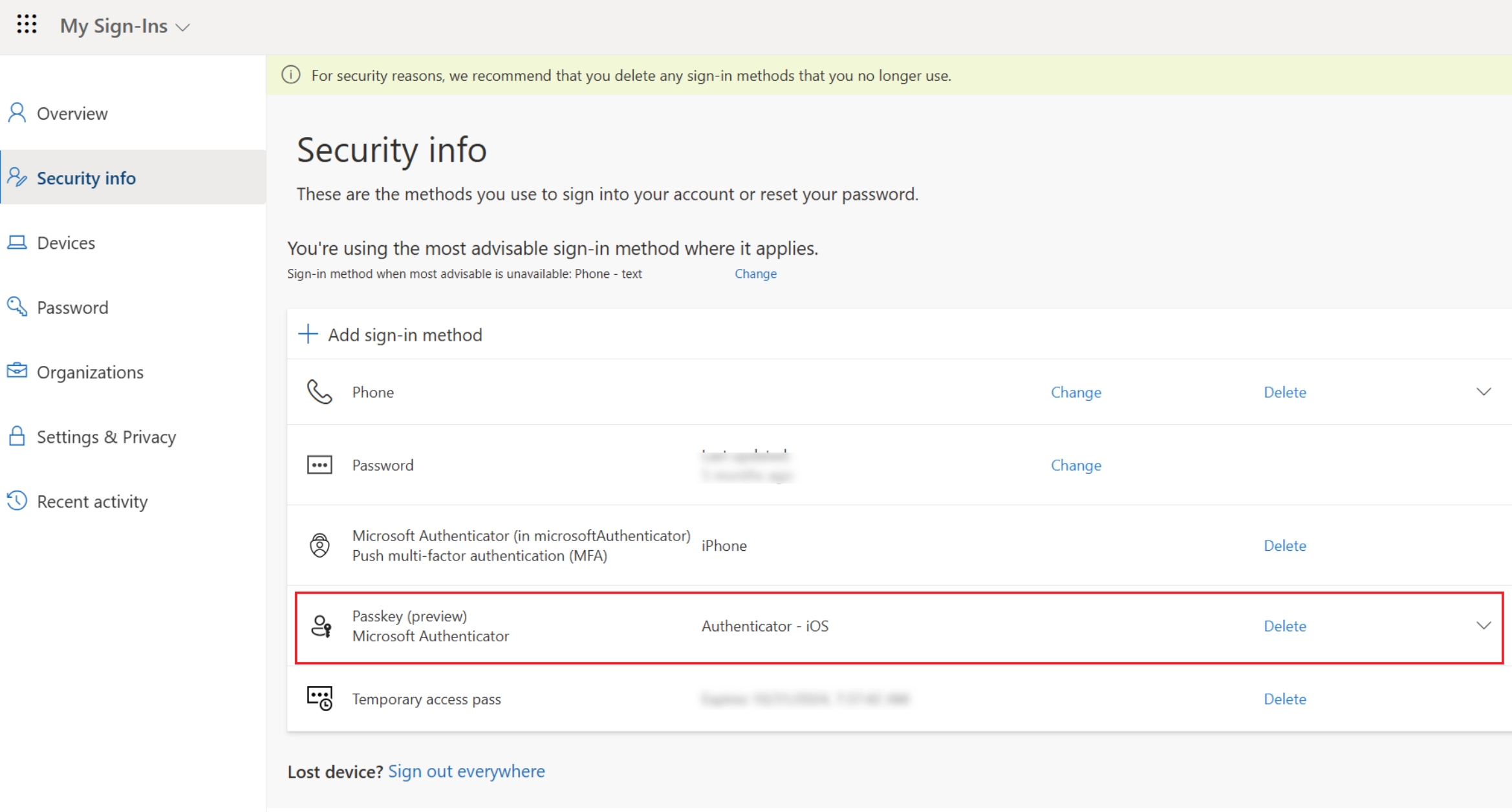
7. Remove Microsoft Authenticator
If the issue continues, we highly recommend to temporarily remove Authenticator from your account.
Go to Security > Sign-in options, find Microsoft Authenticator, and select Remove.
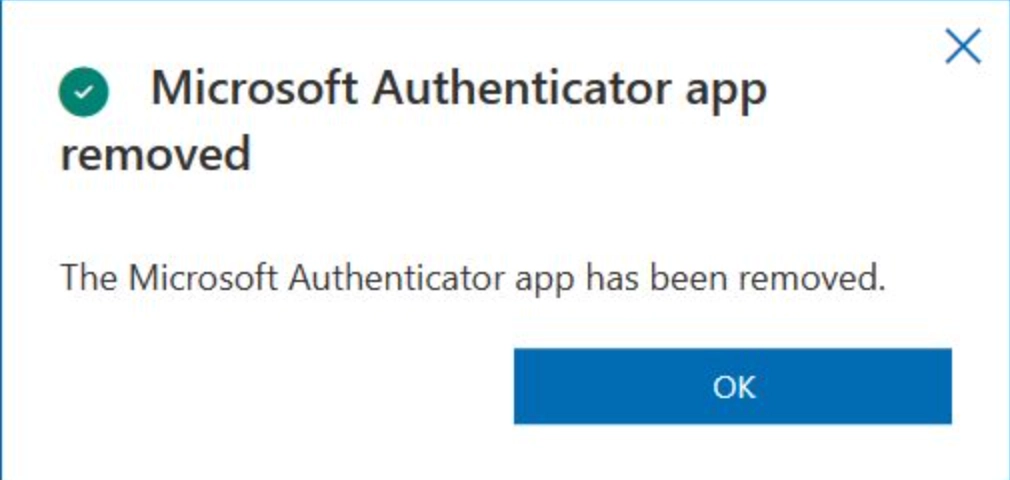
Before removing it, make sure you have another sign-in method, such as password available. If no other method is available, you can’t remove Microsoft Authenticator

Leave a Reply