


You double-click a PDF file, but it doesn’t open. Then you check Task Manager and notice multiple Adobe Reader processes running in the background. The app uses memory, but no window appears on the screen. Adobe Reader is stuck in the background. It is a common problem on Windows 11 and usually happens because Adobe Reader crashes before the interface loads properly.
Adobe Reader Stuck In Background On Windows 11
Below are easy fixes to solve when Adobe Reader is stuck in the background on Windows 11:
Fix 1 – Disable Compatibility Mode
Old compatibility settings often stop Adobe Reader from opening correctly. Here are steps to disable compatibility mode:
- Search for Adobe Reader in the Start menu.
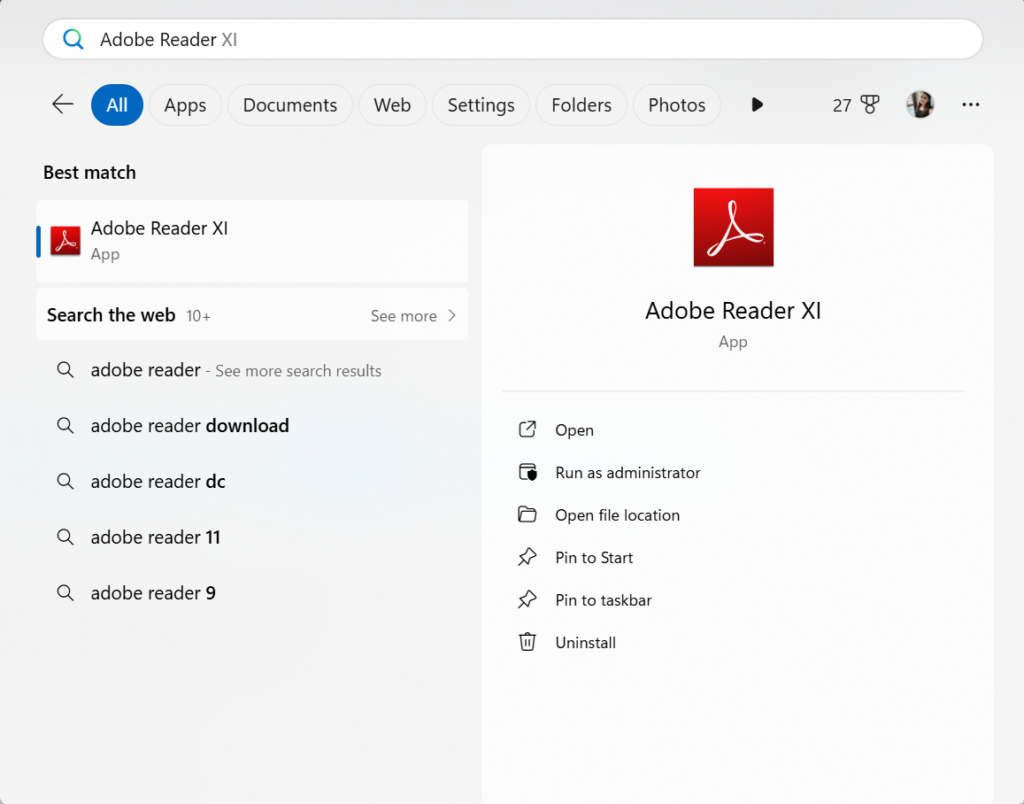
2. Right-click it and choose Open file location.
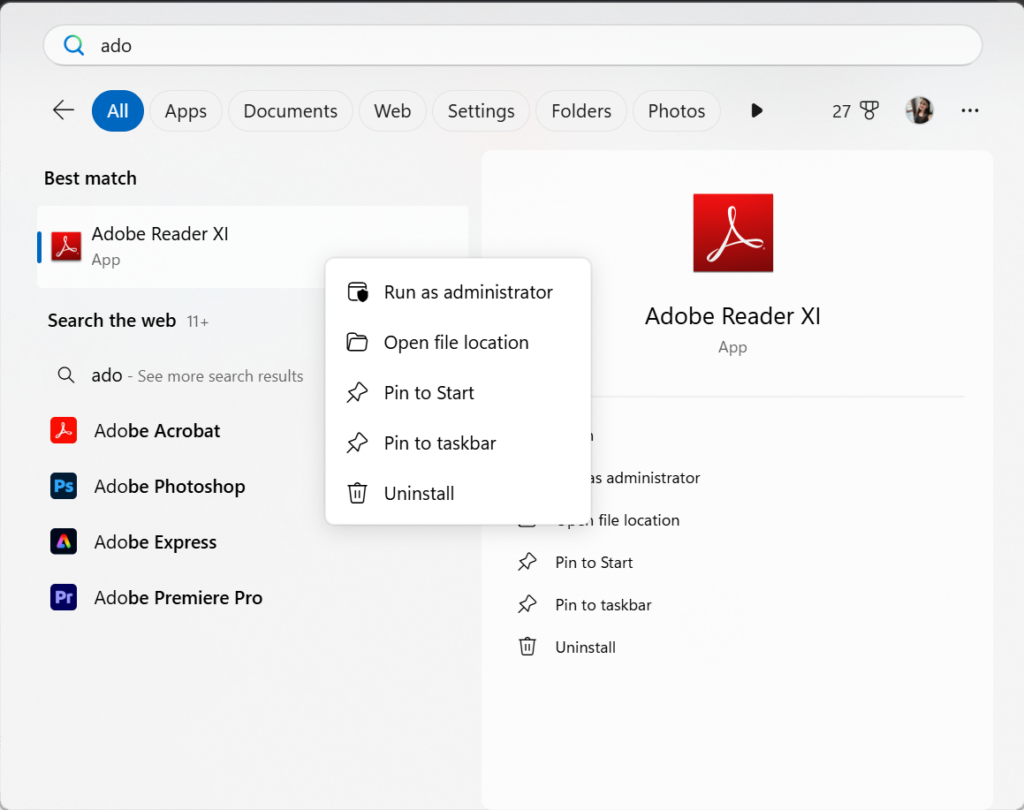
3. Right-click the Adobe Reader shortcut or EXE file.
4. Select Properties.
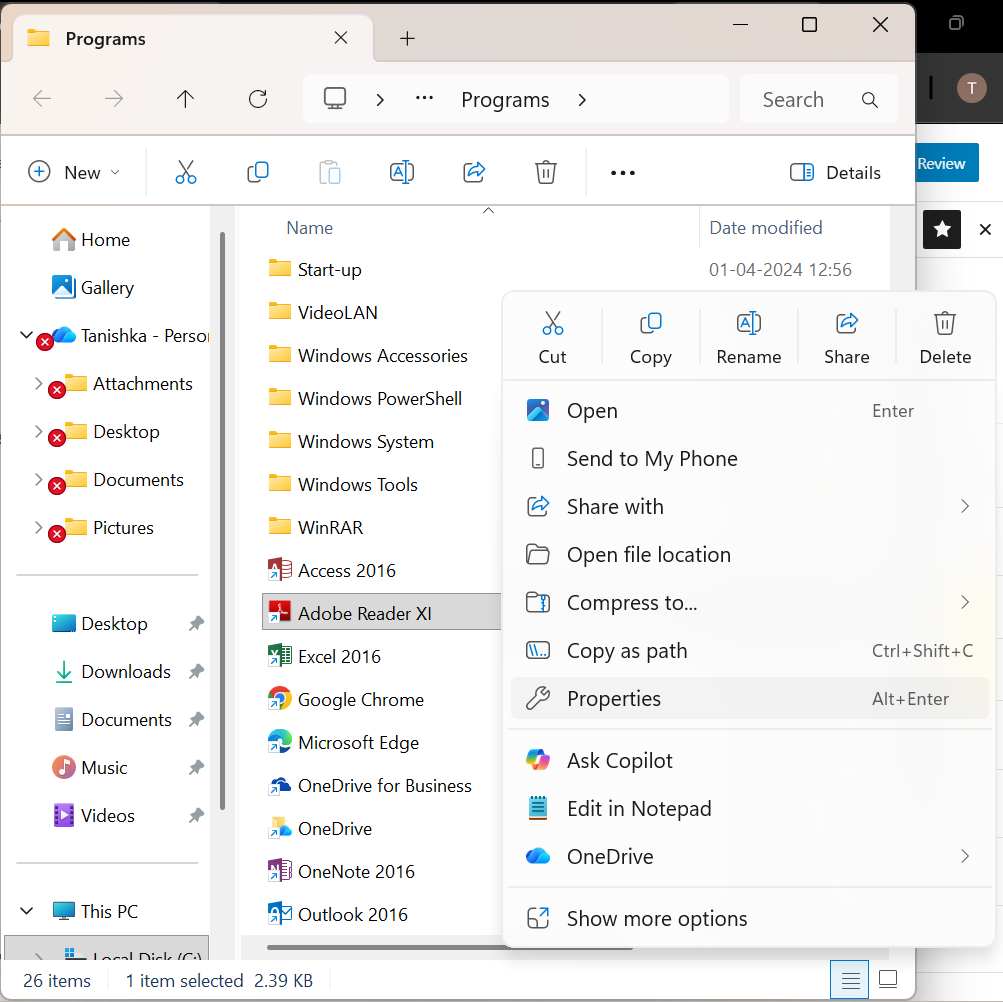
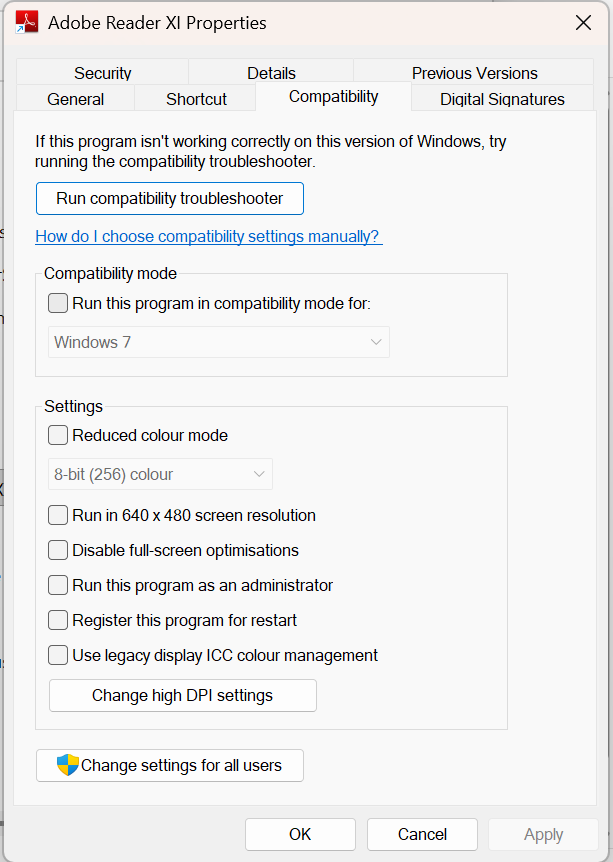
5. Open the Compatibility tab.
6. Uncheck these options:
- Run this program in compatibility mode
- Run this program as administrator
- Disable full-screen optimizations
7. Click Apply and then OK.
8. Now try to open the PDF again.
Fix 2 – End Adobe Background Processes
Sometimes Adobe gets stuck in the background and never closes properly. Steps to Kill Adobe Processes:
- Press Ctrl + Shift + Esc to open Task Manager.
- Open the Details tab.
- Find processes named Acrobat, AcroRd32, or Adobe.
- Select each process and click End task.
- Close Task Manager.
- Open the PDF file again.
Fix 3 – Turn Off Protected Mode
Adobe’s Protected Mode can silently crash on some systems. Below are steps to Disable Protected Mode:
- Open Adobe Reader.
- Click the Menu button and open Preferences.
- Select Security (Enhanced).
- Uncheck Enable Protected Mode at startup.
- Click OK.
- Restart Adobe Reader.
Fix 4 – Reset Adobe Reader Data
Corrupted app data can stop Adobe from launching. The steps to reset Adobe Data are here:
- Press Windows + R.
2. Type %appdata%\Adobe and press Enter.
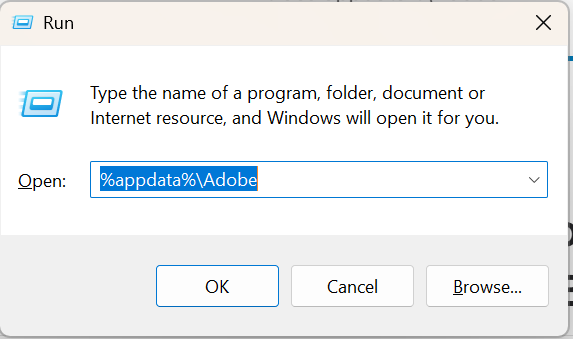
3. Delete the Acrobat folder.
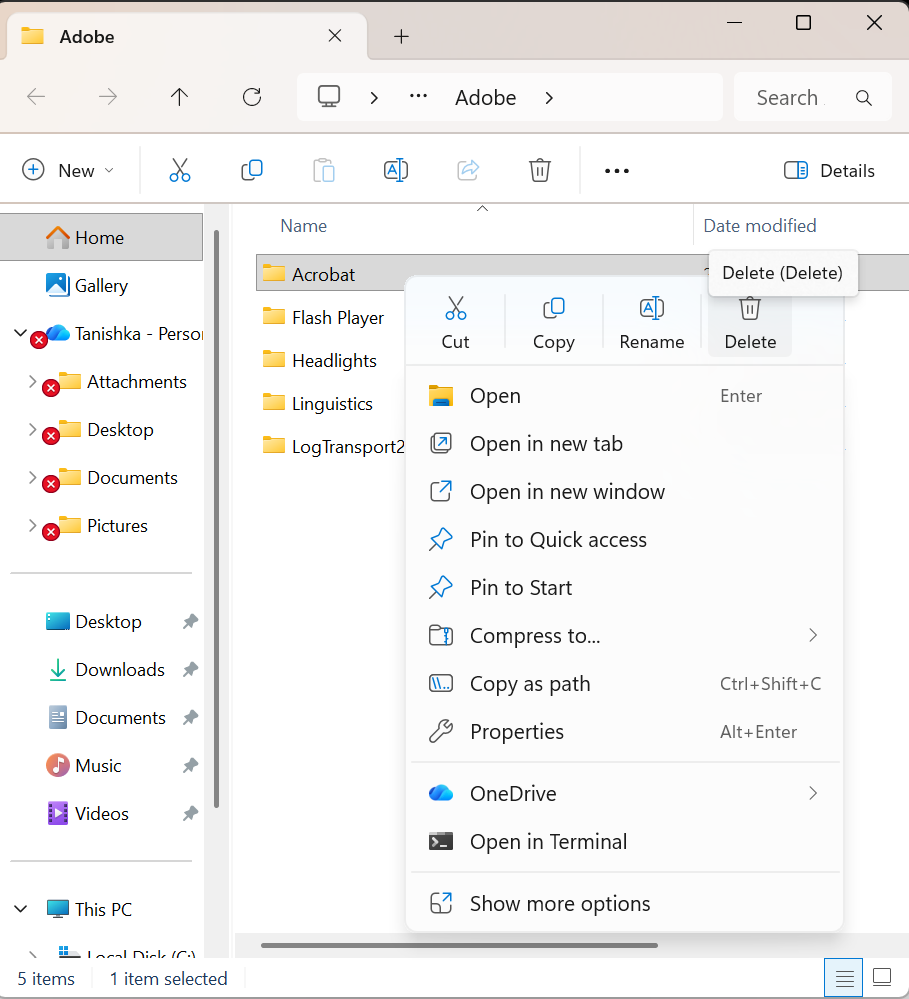
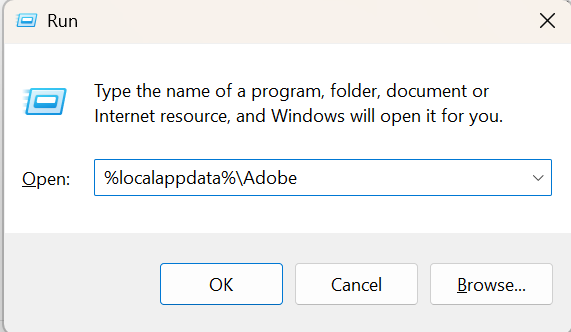
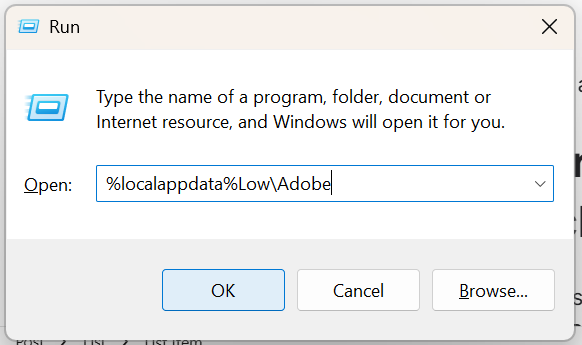
4. Repeat step 1 and type and do the same for:
- %localappdata%\Adobe
- %localappdata%Low\Adobe
5. Restart your PC.
6. Launch Adobe Reader again.
Fix 5 – Repair Adobe Reader
- Open Settings > Apps > Installed apps.
- Find Adobe Acrobat Reader.
- Click the three-dot menu and choose Modify.
- Select Repair and finish the process.
- Restart your computer.
That’s all! The issue with Adobe Reader being stuck in the background is now fixed.

Leave a Reply