

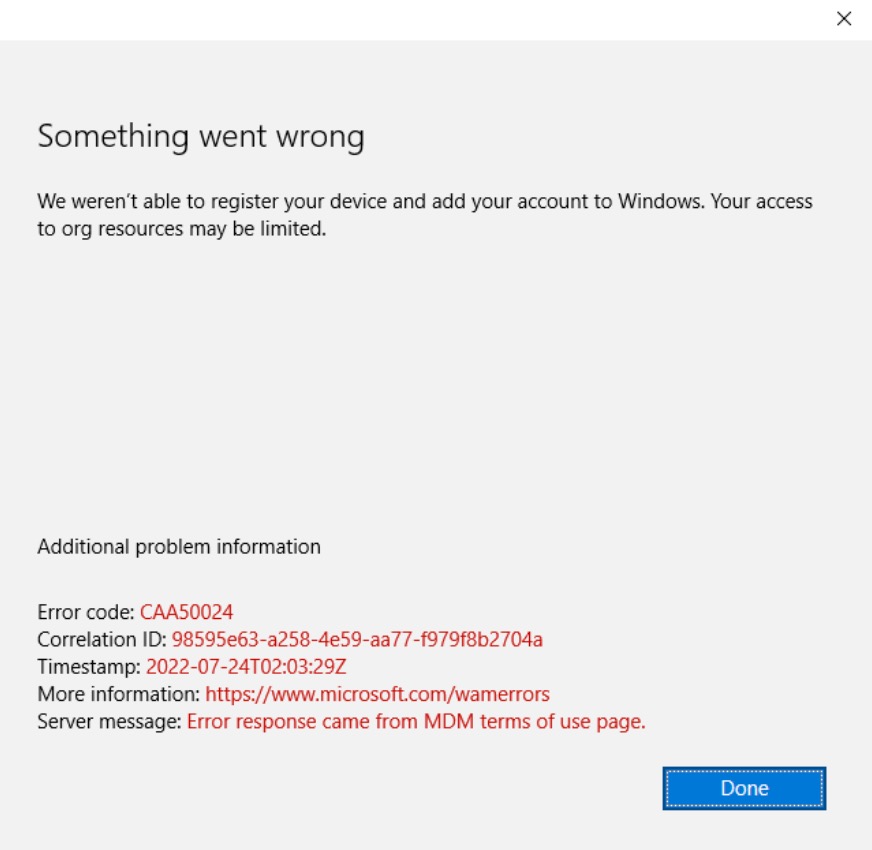
While using a computer that’s part of a company domain, things can break if the domain settings change. If you’ve recieved Something went wrong. We weren’t able to register your device and add your account to Windows, your access to organization resources may be limited. This error may occur when try to connect Windows with Microsoft 365 account.
The problem started after the PC was removed from the domain and then added back. That caused the user profile to break, so a migration tool was used to bring back the settings. While the desktop and files looked normal again, Office apps didn’t recognize the account anymore. Interestingly, when a brand-new local account was created, Office worked fine. The main question now is: how to repair the existing domain-based profile so it can log in to Office 365 properly.
Fix We weren’t able to register your device error
Solution 1: Using Command Prompt
You can easily fix this error using a few commands.
- First of all open the command prompt window as an administrator, then execute this command:
cscript.exe "%ProgramFiles(x86)%\Microsoft Office\Office16\ospp.vbs" /dstatus
- Once the command has been executed successfully , take note of the last 5 digits of the product key. Then run this command next:
cscript.exe "%ProgramFiles(x86)%\Microsoft Office\Office16\ospp.vbs" /unpkey:XXXX
(replace the XXXX with the last 5 chars of the prod key):
This is only recommended for users who have Office Apps with Microsoft 365 license.
Solution 2: Using registry
- Open Registry Editor by running REGEDIT command.
- In the Registry Editor window, go to the following registry location:
HKCU\SOFTWARE\Microsoft\Office\16.0\Common\Identity- Set the registry DWORD named EnableADAL to Value data 0.
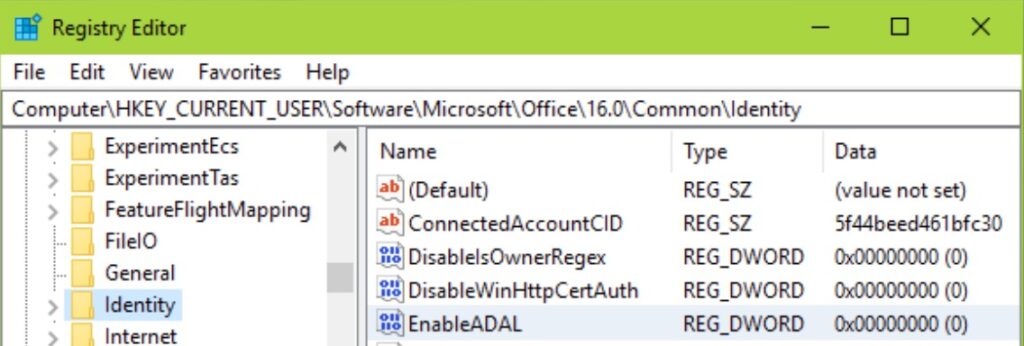
This disables modern authentication for Office applications.
Solution 3: Manually Connect to Azure AD
- Open the Settings app.
- Go to Accounts then select Access work or school account.
- In the next screen, click on the Connect button.
- In the next window, click on Join Azure active directory.
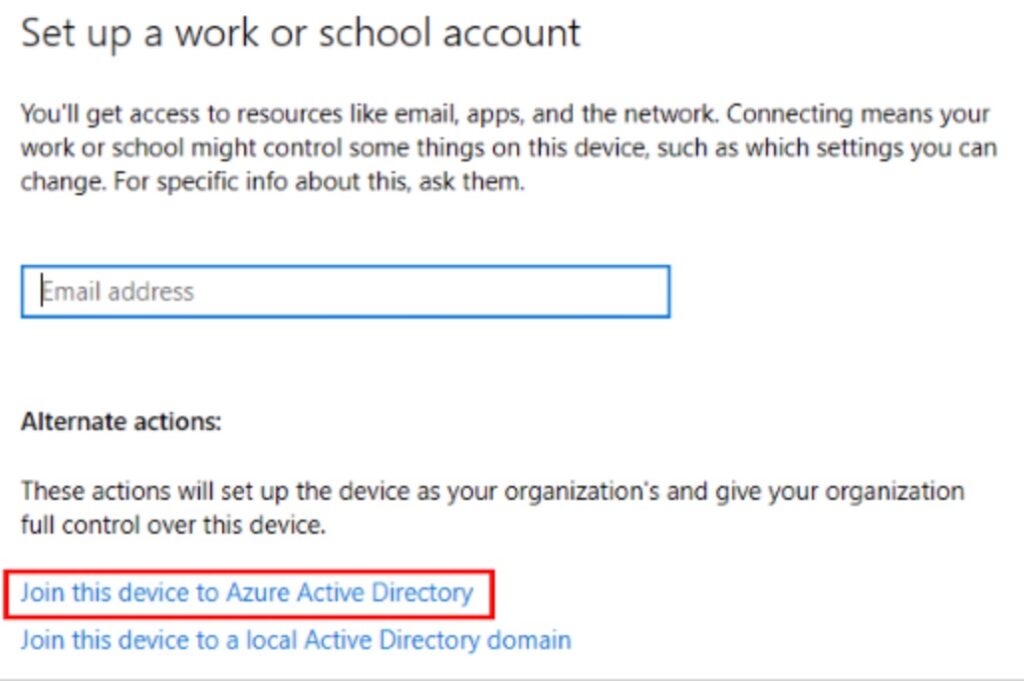
- Provide the Azure active directory account and connect it.
After manually connecting the device with the help of manual signing of Azure active directory, it should be now available in admin center.
