

Windows 11 Enterprise is designed for flexible work, offering features and enhancements focused on productivity, collaboration, and security.
Specifically it includes:
- Hardware-based protection from the chip to the cloud
- A streamlined, intuitive, and powerful user experience
- Inclusive and productive experiences for everyone
Steps to upgrade From Windows 11 Pro to Windows 11 Enterprise
Upgrade Overview
To move from Windows 11 Pro to Windows 11 Enterprise in a business environment, use one of these supported approaches depending on how the Enterprise license is provided.
Enterprise is not something you can simply “apply” on top of Pro, it requires either a direct edition upgrade path or enrollment through your company’s licensing infrastructure.
Enterprise licenses are distributed only through Volume Licensing (KMS/MAK) or Microsoft 365/Azure AD subscription-based activation. If your business uses Microsoft 365 E3/E5 or Windows Enterprise E3/E5, the device must be joined to Azure AD or your corporate domain, and the Enterprise edition will activate automatically once the subscription entitlement is detected.
If your company uses traditional Volume Licensing, you need to change the product key to the Enterprise edition key provided by your IT department.
The correct procedure is to go to Settings > System > Activation > Change product key and enter either the generic Enterprise key to switch editions, or the MAK/KMS key your company provided.
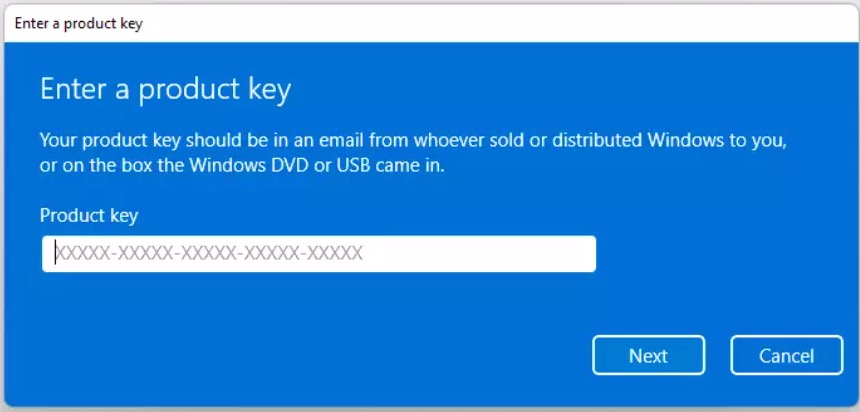
The generic Enterprise key is only for edition switching; it will not activate Windows. After the edition switch, activation must be completed using your organization’s licensing method.
Steps you can follow:
- Join the device to Microsoft Entra ID:
- Go to Settings > Accounts > Access work or school.
- Select Connect, then sign in with the work account that has the Enterprise license.
- Sign in to Windows with that licensed work account.
- After sign-in and network connectivity, Windows will automatically “step up” from Pro to Enterprise via subscription activation.
- Verify the upgrade:
- Go to Settings > System > Activation.
- Under Activation state, confirm Windows is activated.
- Under Subscription, confirm it shows
Windows 11 Enterprise subscription is active.
Additional information
If you try to activate Enterprise with your Pro license, it will fail because the license types are incompatible. In short, you cannot activate Enterprise with a Pro license. You need either a valid Enterprise subscription tied to your Azure AD account or a Volume License key from your IT department. If you don’t have either, the system will remain on Pro and cannot legally be converted to Enterprise.
