

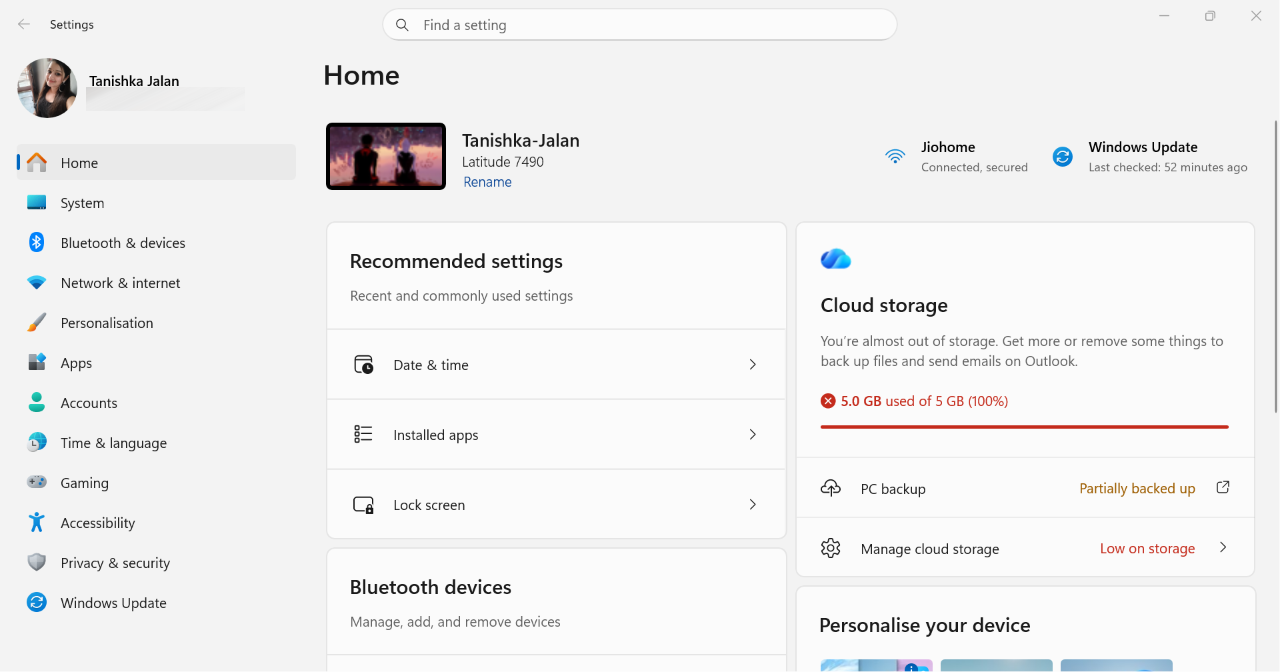
Your Android phone felt fast when it was new. Now apps take longer to open. Photos load slowly. Storage warnings keep appearing even after deleting files. In many cases, the problem is not your photos or videos. It is cached data. Apps and browsers store temporary files to work faster. Over time, these files accumulate and consume valuable storage space. The good news is you can clear the cache in a few minutes and free up storage without deleting important files.
What Is Cache On Android?
Cache is temporary data saved by apps and websites.
It helps apps load faster and improves browsing speed. However, when too much cache accumulates, it can consume storage and affect performance.
How To Clear Cache On Android And Free Up Storage
Here is how you can clear the cache or free up the storage space:
Method 1: Clear Browser Cache
Web browsers store many temporary files over time.
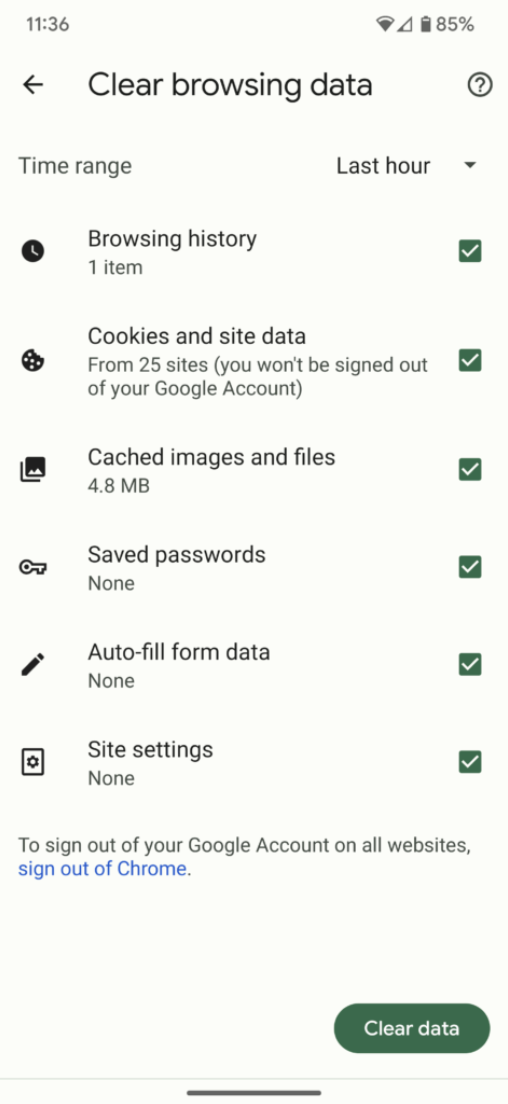
- Open Chrome or another browser.
- Go to Settings.
- Tap History > Delete Browsing Data.
- Select a time range.
- Check Cached Images and Files.
- Tap Delete Data.
Method 2: Use Your Phone’s Built-In Cleaner
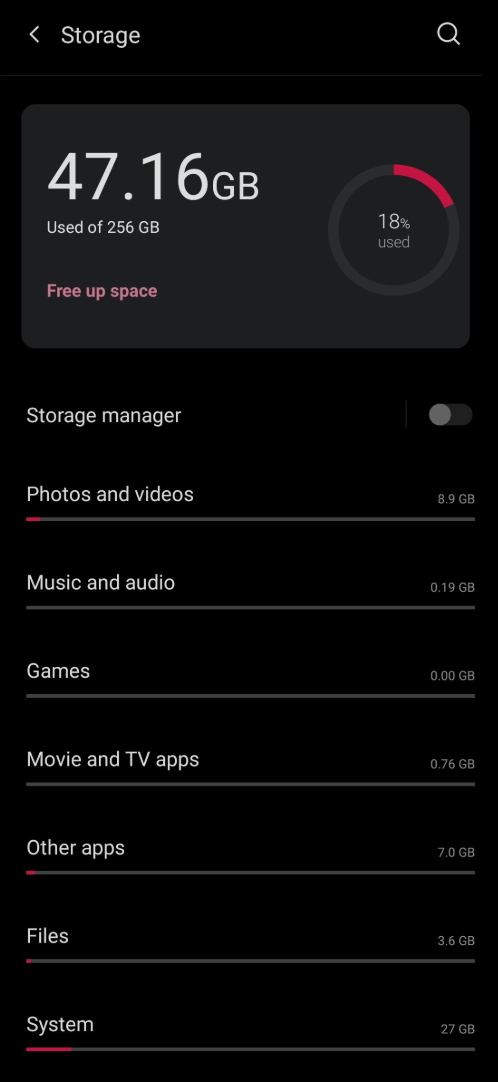
- Most Android brands include storage cleaning tools. Examples:
- Samsung – Device Care
- Xiaomi – Cleaner
- Vivo/Oppo – iManager
- OnePlus – Storage Manager
Let’s begin with the steps:
- Open the Cleaner app.
- Run a storage scan.
- Review junk and temporary files.
- Tap Clean Up or Cleanup All.
Method 3: Clear Cache For A Single App
If only one app is slow or crashing, clear its cache.
- Open Settings.
- Tap Apps.
- Select the app from App Management.
- Open Storage or Storage & Cache.
- Tap Clear Cache.
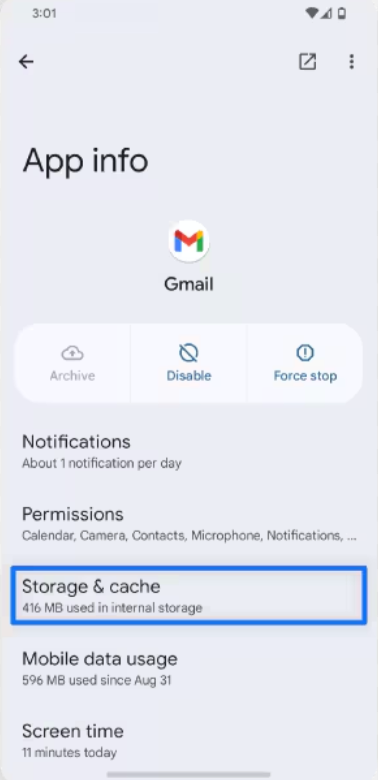
Note: Avoid tapping Clear Data unless you want to reset the app.
Method 4: Clear Cache for All Apps (Older Android Versions)
Some Android 10 and Android 11 devices offer a system-wide cache cleaning option.
- Open Settings.
- Go to Storage.
- Tap Clear Cached Data or Clean Storage.
- Confirm the action.
This feature is unavailable on most newer Android devices.
Method 5: Remove Unused Apps
Apps you no longer use continue creating cache files.
- Open Settings > Apps.
- Find apps you rarely use.
- Tap Uninstall.
This frees both app storage and cached data.
Method 6: Delete Unnecessary Media Files
WhatsApp images, downloaded files, and duplicate photos can fill storage quickly.
- Open your file manager.
- Review Downloads, Screenshots, and Messaging folders.
- Delete unwanted files.
Method 7: Restart Your Phone After Cleaning
A restart helps Android refresh system resources after cache removal.
- Press and hold the power button.
- Tap Restart.
- Wait for the device to reboot.
Method 8: Back Up Photos And Videos To Cloud Storage
Moving media files to cloud storage reduces pressure on internal storage.
Options like:
- Google Photos

- OneDrive

- Dropbox
After backup, remove local copies you no longer need.
Method 9: Update Apps Regularly
Outdated apps can create excessive temporary files and performance issues.
- Open the Google Play Store.
- Tap your profile icon.
- Select Manage Apps & Device.
- Install available updates.
Method 10: Check Storage Every Month
Regular maintenance prevents the cache from piling up again.
What to Review:
- Cached app data
- Browser files
- Downloads folder
- Duplicate photos
- Unused apps
A quick monthly cleanup helps keep your Android phone fast and prevents low-storage warnings.
That’s it. Hopefully these methods will help!

Leave a Reply