


Sometimes, you try to open or use Active Directory services, but Windows shows the message: “Windows could not start Active Directory Web Services.” This problem can stop important directory management tasks and make administration difficult. The error usually appears because a required service is stopped, system files are damaged, or service settings are incorrect.
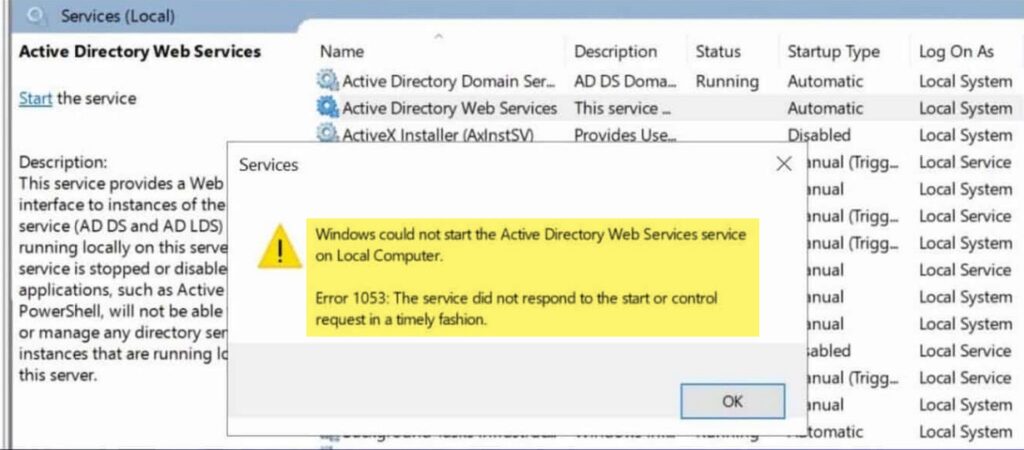
Luckily, you can fix it with a few simple steps.
What Causes Active Directory Web Services To Fail?
The issue can occur when:
- The ADWS service is not running.
- Required dependencies are stopped.
- System files are corrupted.
- Domain Services are experiencing issues.
Fix: Windows Could Not Start Active Directory Web Service
Below are some fixes that will resolve this issue:
Fix 1: Start The Active Directory Web Services Service
The first thing to check is whether the service is running.
- Press Windows + R.
- Type services.msc and press Enter.
- Find Active Directory Web Services.
- Double-click it.
- Set Startup Type to Automatic.
- Click Start if the service is stopped.
- Select Apply and then OK.
Restart your computer and check if the error is gone.
Fix 2: Check Service Dependencies
ADWS depends on other services to work correctly.
- Open Services again.
- Open Active Directory Web Services properties.
- Go to the Dependencies tab.
- Make sure all listed services are running.
- Start any stopped dependency service.
Fix 3: Repair Corrupted System Files
Damaged system files can prevent services from starting.
- Open Command Prompt as Administrator.
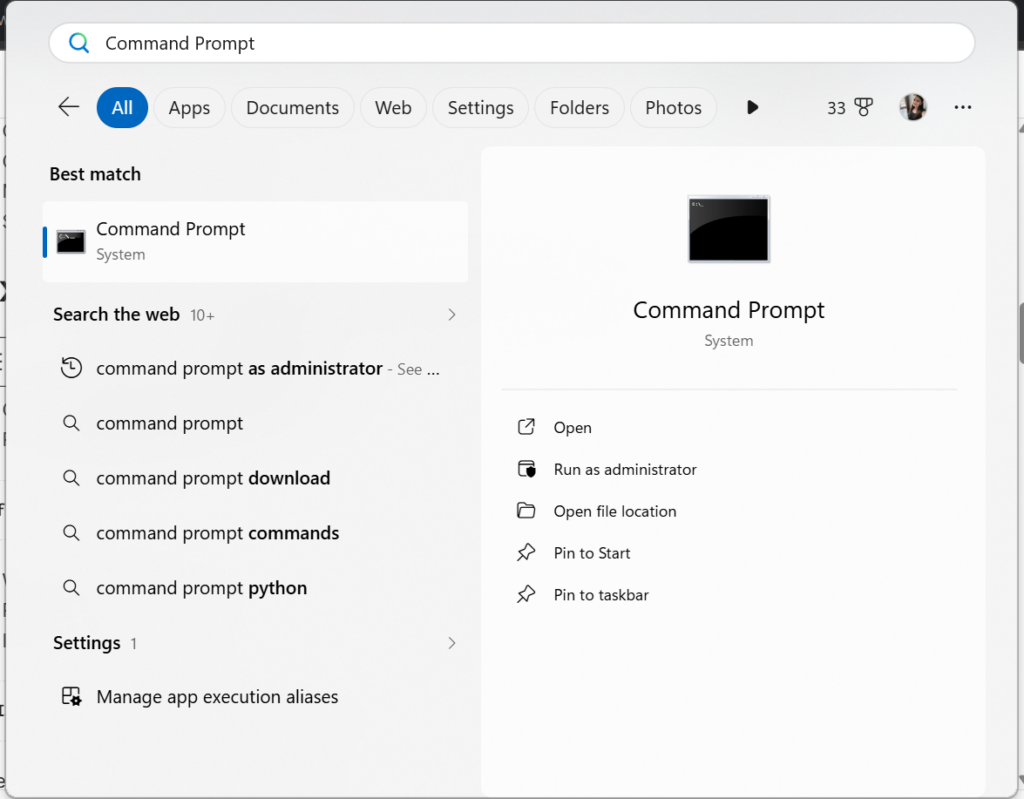
- Run the following command:
sfc /scannow
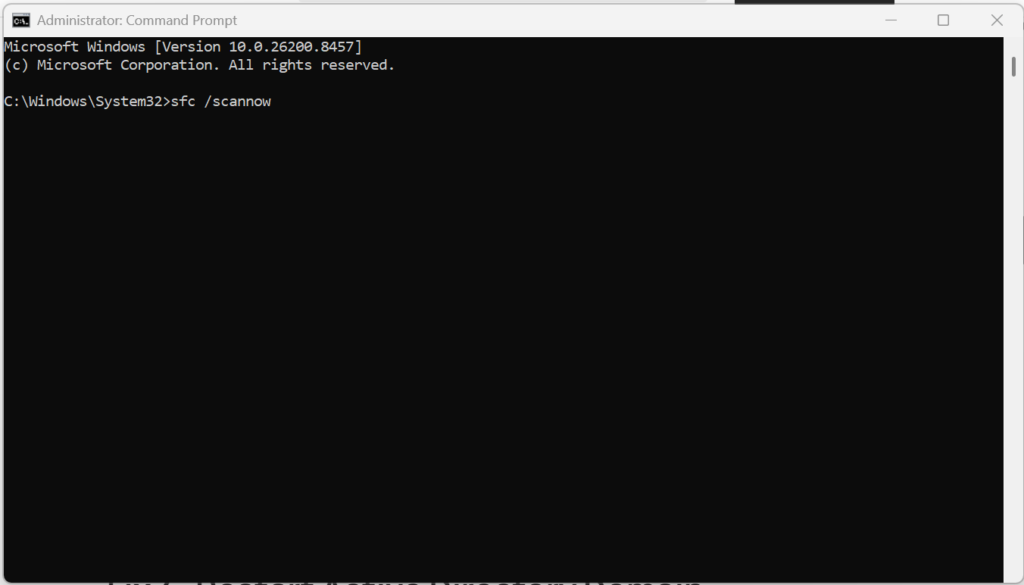
- Wait for the scan to complete.
- Restart the computer.
- If the problem remains, run:
DISM /Online /Cleanup-Image /RestoreHealth
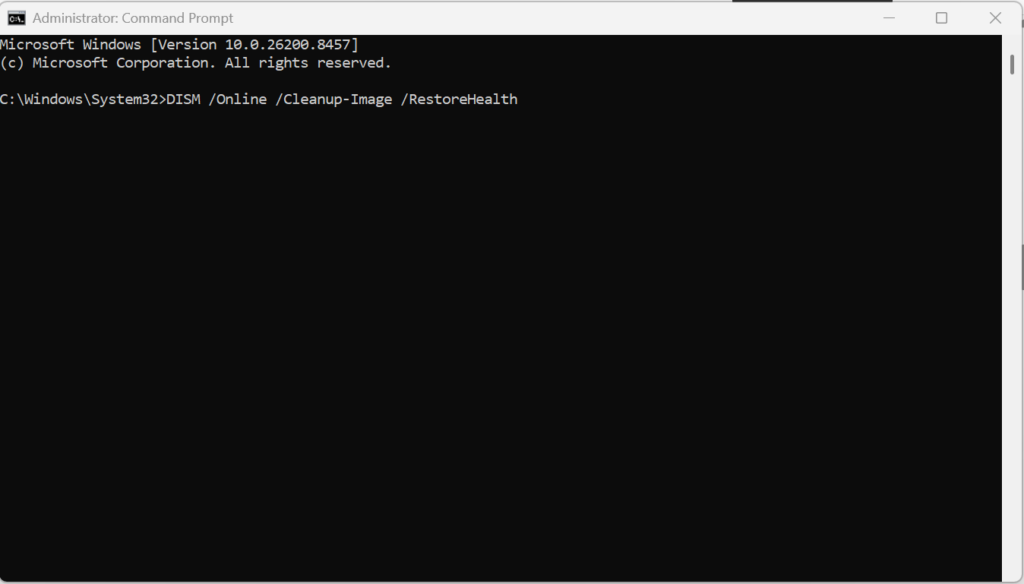
After the process finishes, reboot your PC.
Fix 4: Restart Active Directory Domain Services
If your server uses Active Directory Domain Services, restarting it may help.
- Open Services.
- Locate the related Active Directory services.
- Restart them one by one.
- Restart the server.
In short, the “Windows could not start Active Directory Web Services” error is usually caused by stopped services, missing dependencies, or corrupted system files.
That’s it!

Leave a Reply