


If you’re trying to access ChatGPT but only seeing a blank screen? This can occur when the website doesn’t display correctly, despite being in the correct internet browser. Sometimes the page will load, but the history of the chat, sidebar or login screen will be blank.
You can find a number of issues that can lead to this issue. If you’re ChatGPT showing blank screen after logging in and that you can’t find anything, here are some fixes you can try.
Ways to Fix ChatGPT Showing a Blank Screen
The problem of ChatGPT showing a blank screen may have to do with browser data, extensions, network settings, or temporary server issues. First, check OpenAI’s server status, and refresh the webpage to hard refresh. If these are unsuccessful, proceed with the rest of the solutions, one at a time.
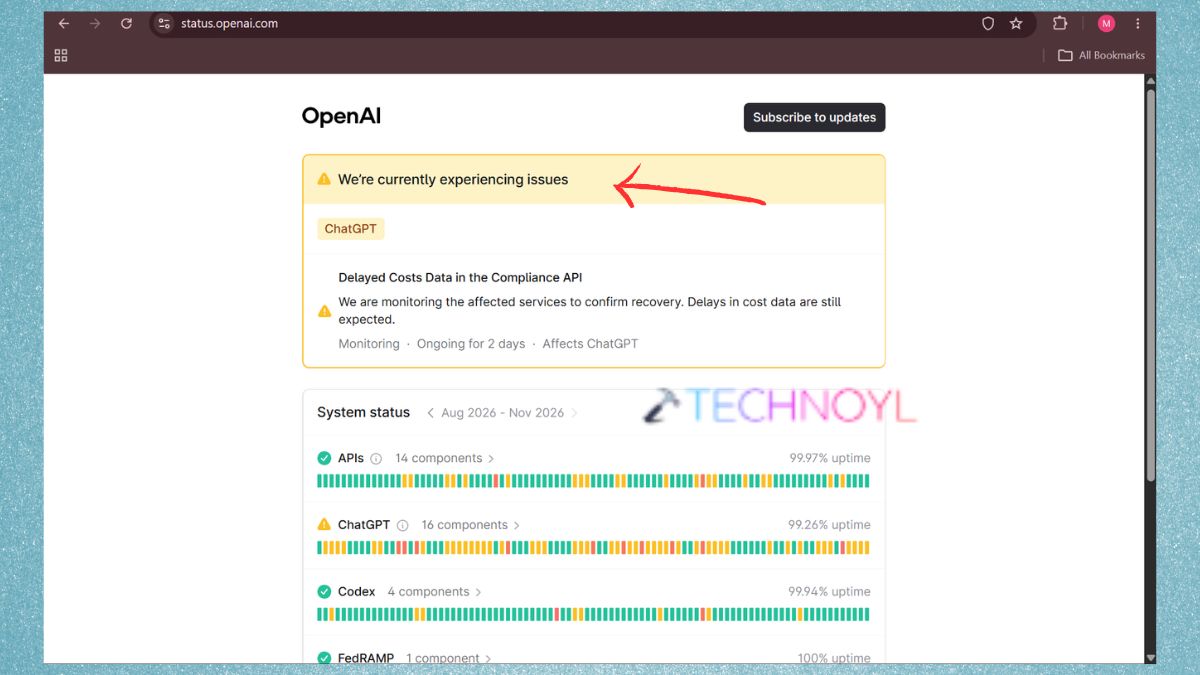
Way 1: Check the ChatGPT Server Status
If you’re considering changing your browser’s settings, check if ChatGPT is experiencing a service outage. The website may not load or show a blank page if there are issues with OpenAI’s servers.
1. Visit the OpenAI Status page in your browser – “https://status.openai.com/“.
2. Monitor the availability of ChatGPT and services based on it. Do not refresh if an incident is reported; wait for OpenAI to resolve it. After the service is back to normal, refresh ChatGPT.
Way 2: Hard Refresh the ChatGPT Website
This could be due to the fact that the browser’s cache is outdated, causing ChatGPT to fail to load new files from its website. Refreshing the page is a hard refresh, meaning that the browser will do a fresh download from the server.
1. Hit the keys Ctrl + Shift + R on the keyboard to open ChatGPT directly. In Windows browsers, hold down the Ctrl key and press F5.
2. If the blank screen error persists while using ChatGPT, move on to the next solution.
Way 3: Sign Out and Sign In Again
Sometimes, a login session or authentication issue may impact the correct loading of your ChatGPT account.
1. Start ChatGPT and click on your profile picture. Select Log out.
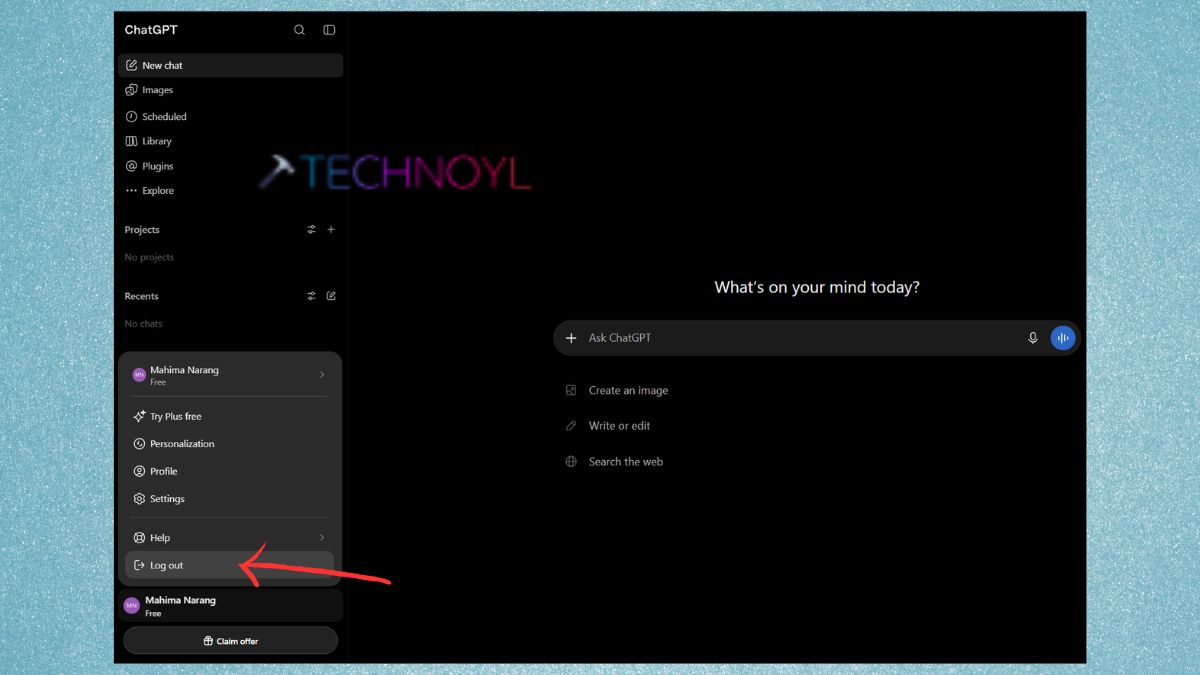
2. Close the web page.
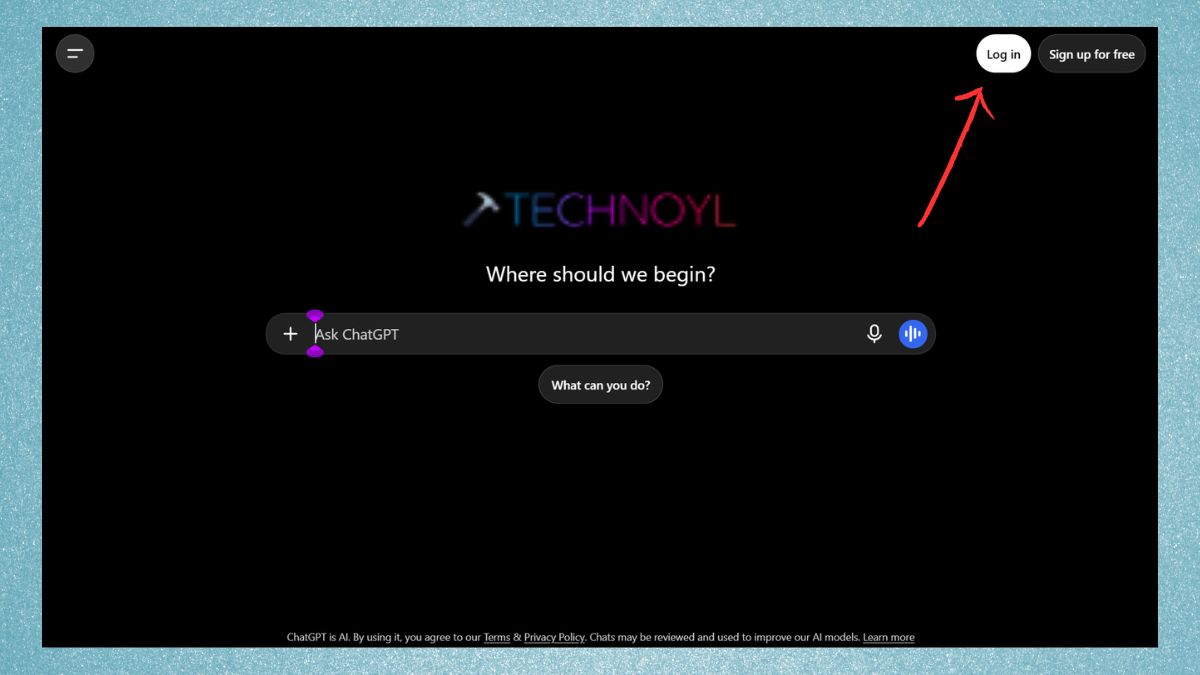
3. Visit ChatGPT again. Log in with your regular account. This can refresh the session of your account and solve issues after logging into your account.
Way 4: Start a New Chat
If ChatGPT can open but displays a blank conversation, it might be an issue with that particular conversation.
Click on New chat in the sidebar, and see if the new conversation opens. If it does work, then it could be a problem in the previous conversation.
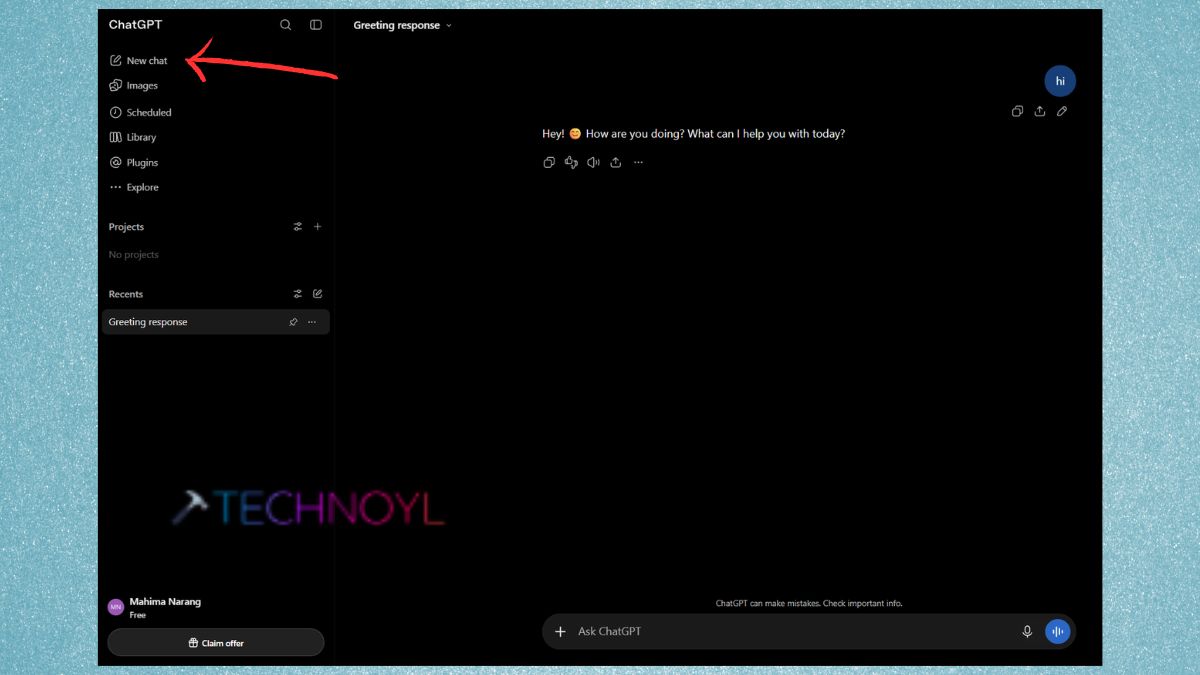
This is also suggested for very long conversations where there are many messages/attachments.
Way 5: Open ChatGPT in Incognito Mode
Sometimes ChatGPT can be affected by browser extensions, cookies and custom settings. Incognito mode can help to find out if it is a problem with your standard browser profile.
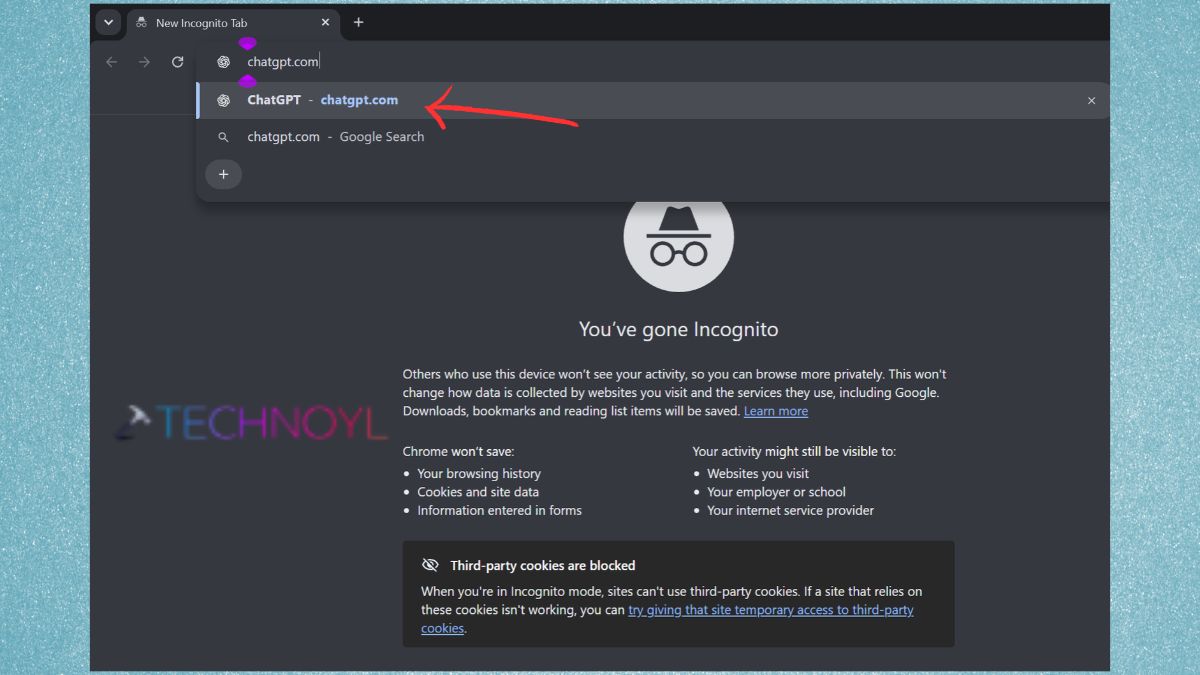
1. Open an Incognito or InPrivate window in your browser.
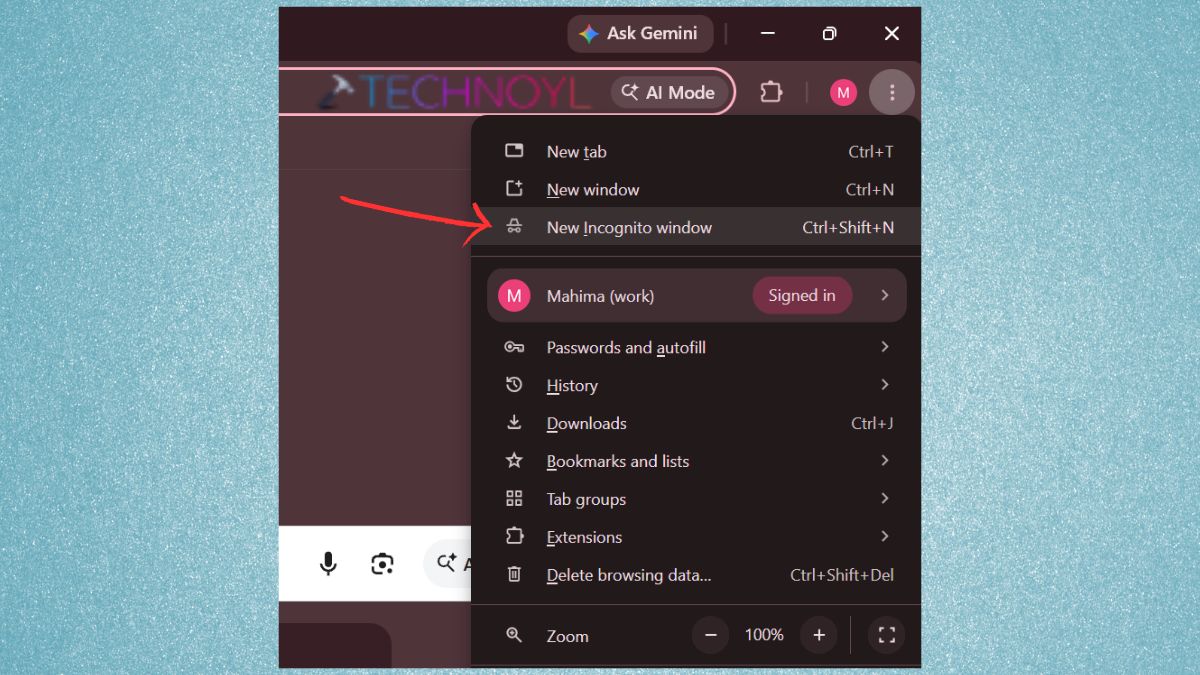
2. Go to ChatGPT and Log in. If it does work, then it’s likely that it’s an extension or browser setting problem.
Way 6: Check Your Internet Connection
An unstable internet connection may cause ChatGPT to not launch the interface and chat log.
Try these steps to check:-
- Turn off and restart your Wi-Fi router.
- Unplug and plug the internet cable back in. Turn off and on the internet.
- Open other web pages to see if they load.
- Switch to another network, or connect via the phone’s mobile hotspot.
Way 7: Clear ChatGPT Site Data and Cookies
If this doesn’t work, delete the cached information on ChatGPT. The cookies and data on websites can be corrupted, causing problems with loading or logging into the website.
1. In Chrome or Edge, open ChatGPT. Click on the ‘View Site Information’ icon next to the address bar, and open it.
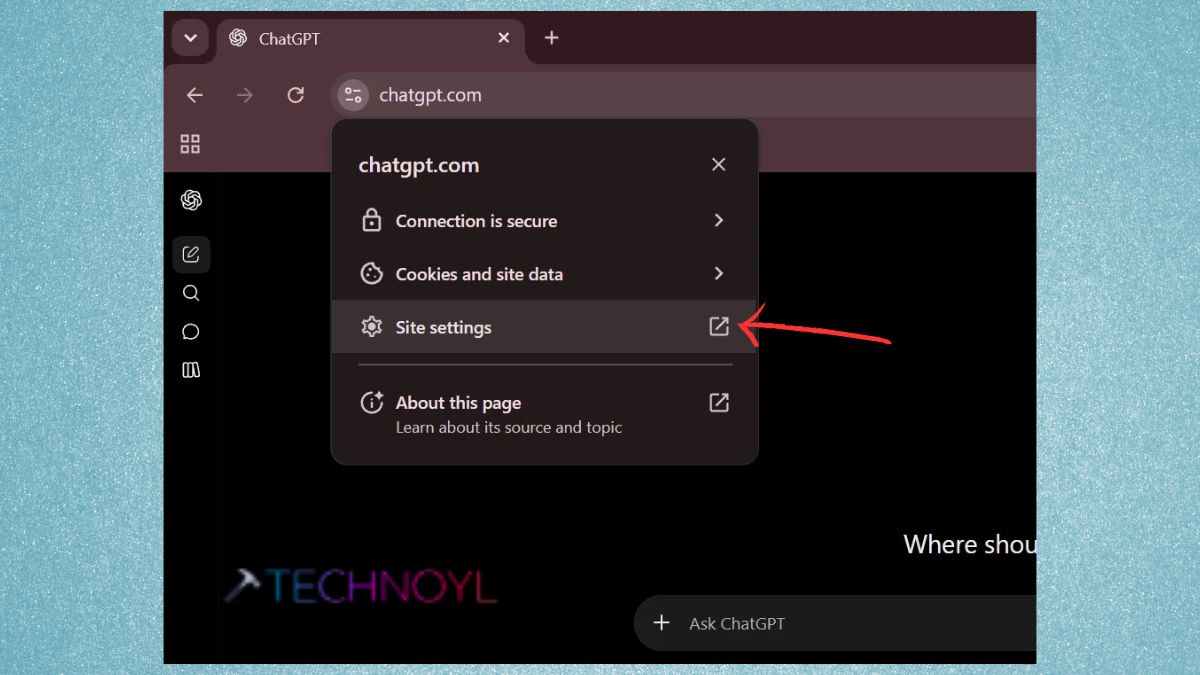
2. Choose Delete data or the option that is provided to remove site data.
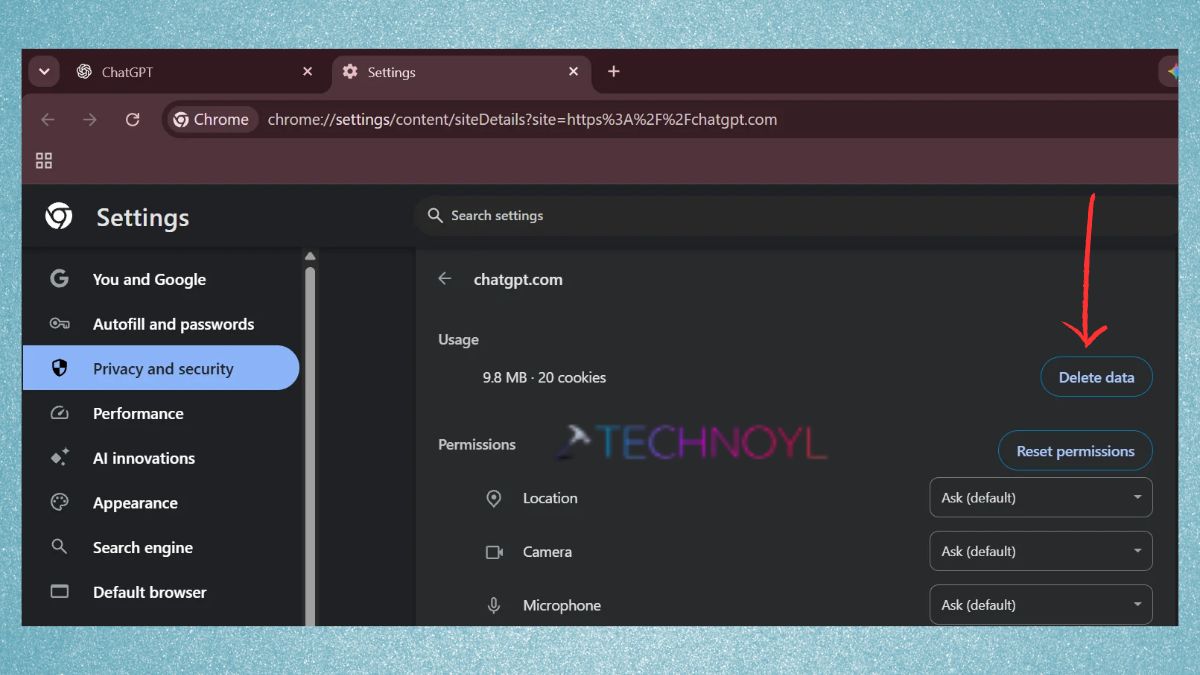
This will sign you out; you’ll need to know your login information before proceeding.
3. Log back in to ChatGPT and check.
Way 8: Temporarily Disable VPN and Proxy
VPNs and “proxy connections” can interfere with the connection between your browser and OpenAI’s servers.
If you’re using a VPN, temporarily disable the VPN and reopen ChatGPT. Under Windows Settings > Network & internet > Proxy, also make sure that the proxy is not enabled.
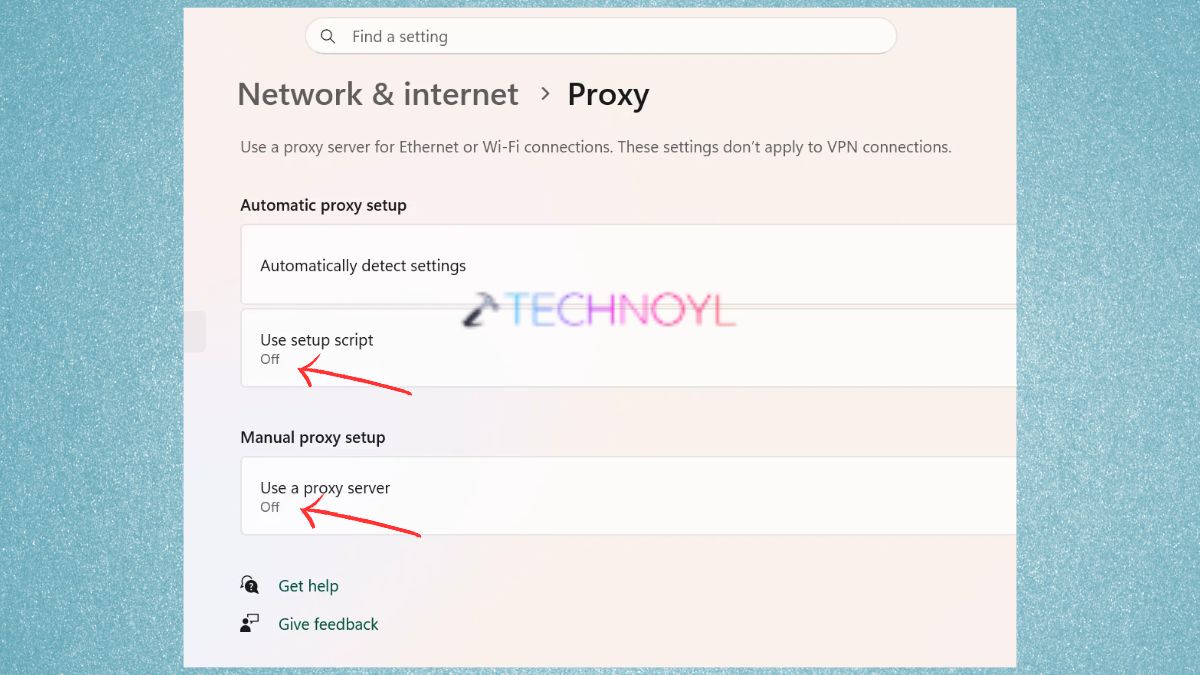
The problem could be due to the server or network configuration set up on ChatGPT when it is disconnected from the VPN.
Way 9: Disable Browser Extensions
Certain elements of ChatGPT may not load because of add-ons to your browser, such as ad blockers, privacy extensions, script blockers, or security add-ons. When disabled, you’ll have to restart ChatGPT. If the site is working, disable each extension and test one at a time to find out which extension is interfering with the site.
Way 10: Update the ChatGPT App or Switch Networks on Mobile
If you are facing the blank screen problem in the ChatGPT app on Android or iPhone, then it is better to check for App updates.
- On Android, to clear the cache, navigate to Settings > Apps > ChatGPT > Storage & cache and clear the cache. The names of the menus vary from device to device. When choosing Clear storage, please be aware that this will reset the app.
- If you have an iPhone, you can update the app from the App Store. If the issue still occurs, reinstall the ChatGPT app.
- You can additionally rotate in between Wi-fi and mobile data to see if the present network is causing the issue.
Frequently Asked Questions (FAQs)
Why is ChatGPT showing a blank screen after login?
This may occur due to various reasons such as having expired logins, corrupted browser information, conflicting extensions or temporary server issues. Sign out, delete site data and sign in again.
Is ChatGPT down if I see a blank screen?
Not necessarily. To determine if ChatGPT is down, please visit OpenAI Status. If all services are up and running, it can be a problem with the browser or the network.
Why is ChatGPT not loading in Chrome?
The old cache, cookies, browser extensions and VPN connections may cause ChatGPT to malfunction. Use an Incognito window, turn off extensions or delete ChatGPT site data.
That’s it!

Leave a Reply