

You open a video or music. Nothing plays. No sound, no notification, just silence. This may be annonying, right? Mac sound issues are common, but are most of times fixable. So, in this blog post we’ll cover every working solution for this problem. Let’s get started.
Fix Sound Not Working On Mac (2026 Guide)
You can try these solutions to fix sound not working problem on your Mac.
Fix 1: Restart Your Mac Fix Sound Not Working On Mac
A quick restart can solve temporary sound glitches. Let’s look at the steps to restart:
- Click the Apple menu in the top-left corner.
- Select Restart.
- Confirm and let your Mac reboot.
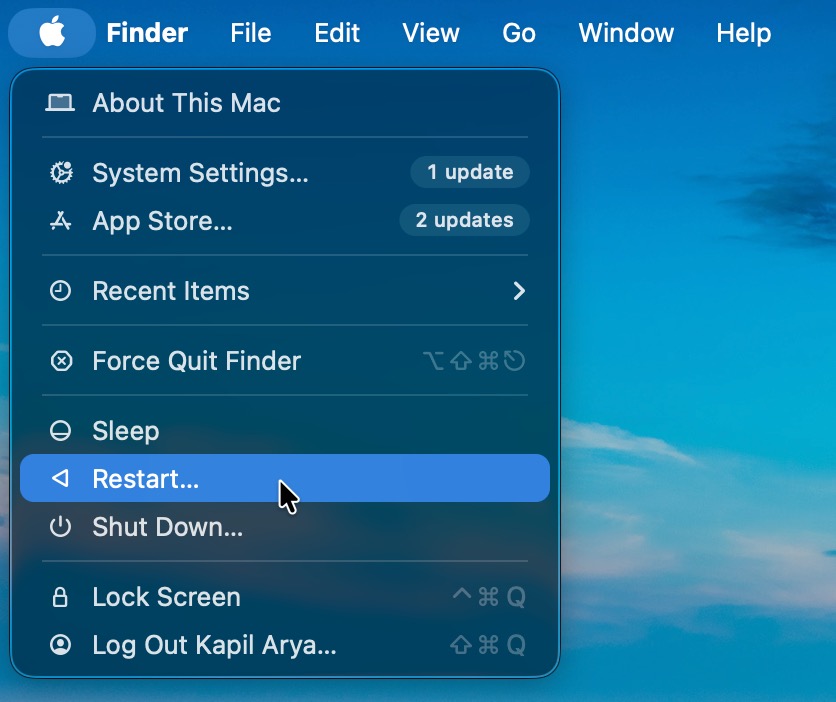
After restarting, test the sound again.
Fix 2: Check Volume And Mute Settings
Sometimes the issue is simply caused by muted audio or low volume. Here is what you need to do:
- Press the Volume Up key on your keyboard.
- Make sure your Mac is not muted.
- Open a video or song to test audio playback.
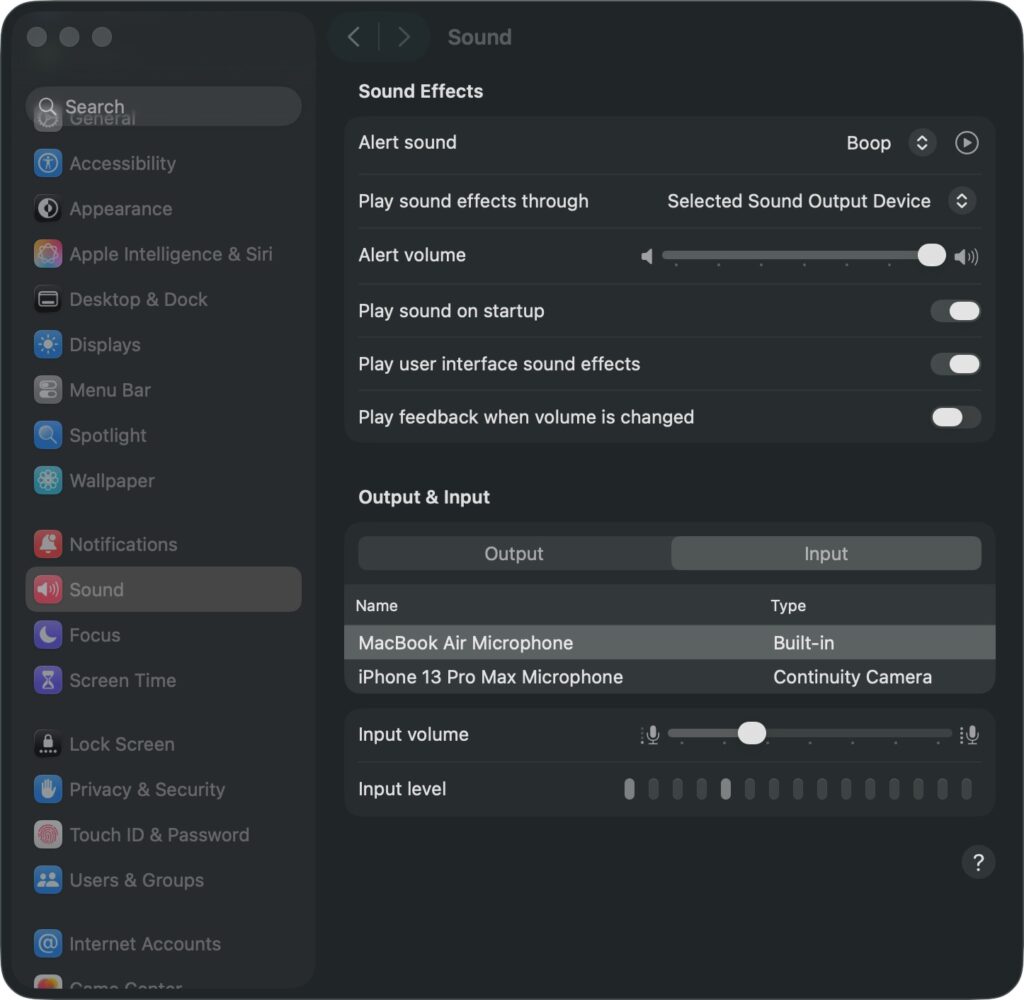
Fix 3: Verify The Correct Output Device
Your Mac may send audio to the wrong device, especially after connecting headphones or speakers. Here are steps to follow:
- Open System Settings or System Preferences.
- Go to Sound.
- Under Output, choose the correct speaker or headphones.
- Increase the output volume if needed.
Fix 4: Check Bluetooth Audio Devices
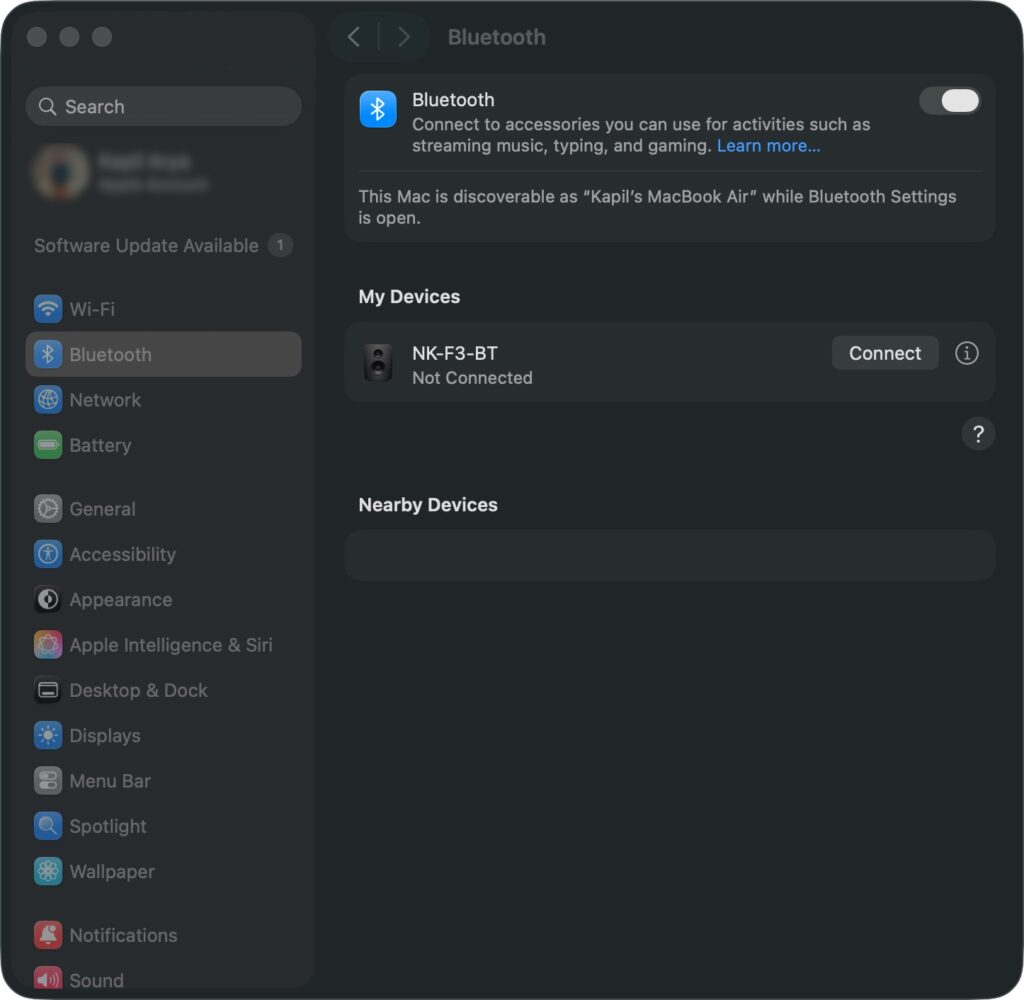
Bluetooth speakers or earbuds may fail to connect properly. Fix it by:
- Open Bluetooth Settings.
- Make sure Bluetooth is turned on.
- Reconnect your wireless audio device manually.
Fix 5: Inspect External Speakers And Cables
Loose or damaged cables can also stop sound from working. You need to check these things listed below:
- Replug headphones or speakers.
- Test different ports if available.
- Disconnect extra audio devices one at a time.
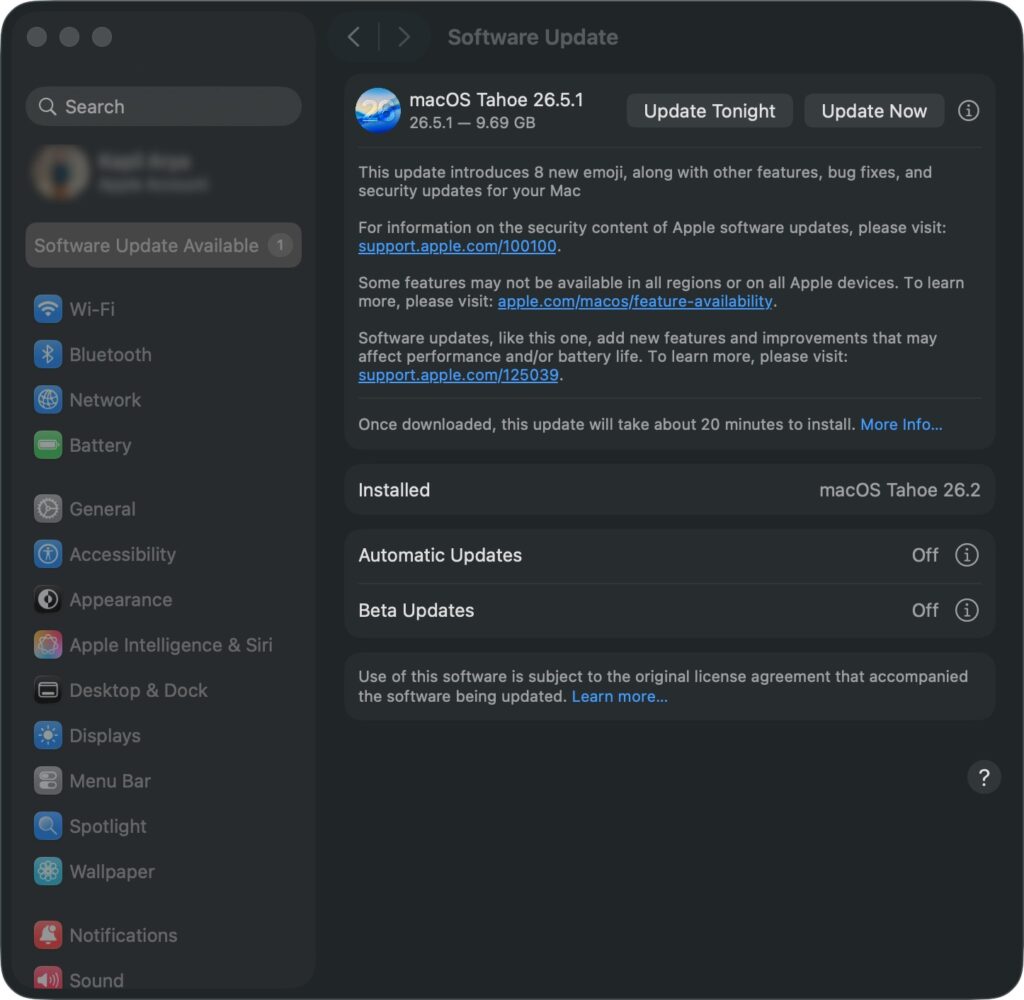
Fix 6: Update macOS
Outdated macOS versions can cause audio bugs. To update try these steps:
- Open System Settings.
- Go to Software Update.
- Install any available updates.
Fix 7: Reset Core Audio
Resetting Core Audio can fix deeper sound issues.
Steps:
- Open Terminal from Launchpad.
- Type:
sudo killall coreaudiod
- Press Enter.
- Enter your Mac password if asked.
Your audio service will restart automatically.
Still no sound? Hardware damage may need professional attention. And for this, you can contact Apple Support directly.
You can also comment below; we’ll help you!

Leave a Reply