


You open WordPress. Thinking everything is working normally. But you see a scary error message, 502 Bad Gateway! It happens during high traffic. And sometimes it appears after installing a plugin or changing server settings. It can be fixed! The WordPress 502 Bad Gateway error is temporary. You dont need advanced technical skills to solve it.
So, below are the easiest ways to fix this problem.
What Causes WordPress 502 Bad Gateway Error?
The WordPress 502 Bad Gateway error happens because of:
- Faulty plugins or themes
- Server overload
- CDN or firewall problems
- Browser cache issues
- PHP timeouts
- Hosting server problems
Fixing WordPress 502 Bad Gateway Error!
Fix 1: Refresh The Page
Sometimes, the 502 Bad Gateway error can be temporary. So press:
- Ctrl + F5 on Windows
- Cmd + Shift + R on Mac
These commands force a hard refresh and reload the page completely.
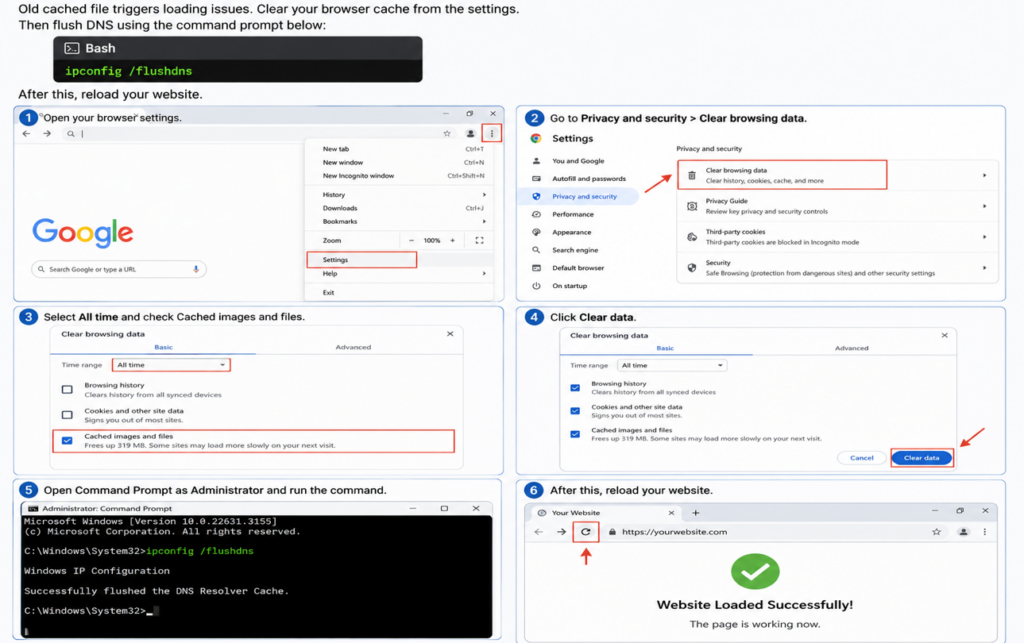
Fix 2: Clear Browser Cache & DNS
Old cached file triggers loading issues. Clear your browser cache from the settings. Then flush DNS using following command in the Command Prompt:
ipconfig /flushdnsAfter this, reload your website.
Fix 3: Disable Plugins
A broken plugin can be a common reason behind the WordPress error.
Log in to your WordPress and deactivate all the recently installed plugins. If you cannot access the WP-Admin. Rename the plugin folder using FTP or File Manager.
Plus, if the site starts working again, reactivate plugins one by one to find the faulty one.
Fix 4: Switch To A Default Theme
Themes create server conflicts, too. So, temporarily switch to a default WordPress theme, like Twenty Twenty-Five, and test your site again.
Fix 5: Disable CDN Or Firewall To Fix WordPress 502 Bad Gateway Error
If you use services like Cloudflare, temporarily pause them. Now check whether the error disappears. A CDN or firewall may block communication between servers.
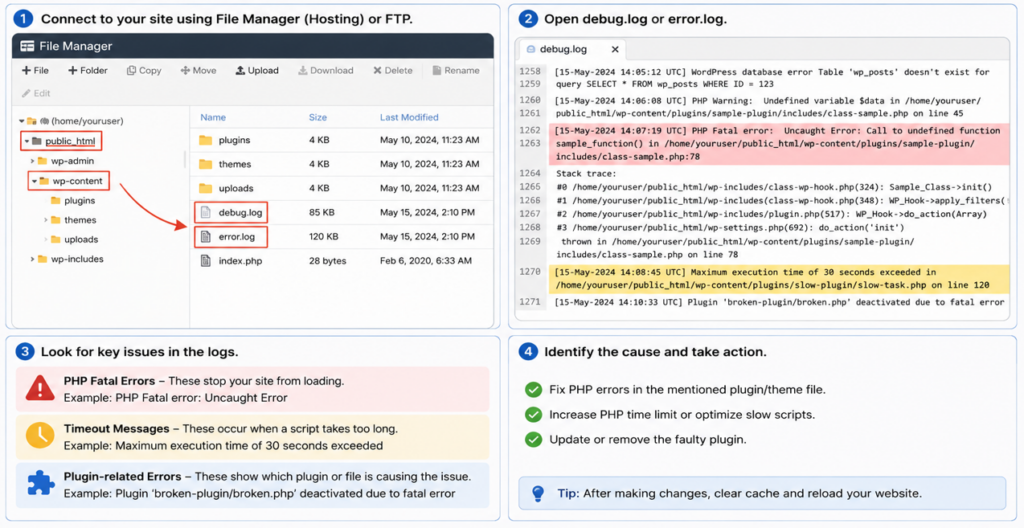
Fix 6: Check Error Logs
Open WordPress debug.log or server error.log files. Look for:
- PHP Fatal errors
- Timeout messages
- Plugin-related errors
These logs usually reveal the exact cause.
Fix 7: Contact Your Hosting Provider
If nothing works, contact your hosting support team. The issue may be server-related, especially during traffic spikes or maintenance.
That’s all!

Leave a Reply