


Do you know that you can free disk space using Claude? Yes, that is true. When you’re running low on storage space on your Windows 11 computer, Claude may be the solution you need. With Claude AI, you can search for large files and unnecessary data, and also discover folders that are consuming more space than anticipated. The largest storage issues can be found in the application caches, temporary folders, and even in old files that you no longer use.
Claude will review these files and provide you with some suggestions of what you can safely delete. This isn’t a specific disk cleaning program, though. Before deleting anything, you have to check through its suggestions. Let’s walk through how you can use Claude to find unused files and free up disk space on Windows 11 in this guide.
Ways to Free up disk space on Windows 11 using Claude
With Claude AI, you can navigate through unnecessary files and cut through the clutter to better understand how your storage is being used. Before you delete anything from large folders, application cache or old downloads, use Claude Code to look through them first.
If you wish to free up disk space on Windows 11 with Claude, follow the methods below.
Set Up Claude Code on Windows 11
Local files can only be viewed with Claude Code and not the standard Claude chatbot. Claude Code is Anthropic’s AI coding tool that reads files, runs terminal commands and assists in investigating your computer. To install Claude Code on Windows 11, follow these steps:
1. Click on the Claude Code setup page – ‘https://claude.com/product/claude-code‘.
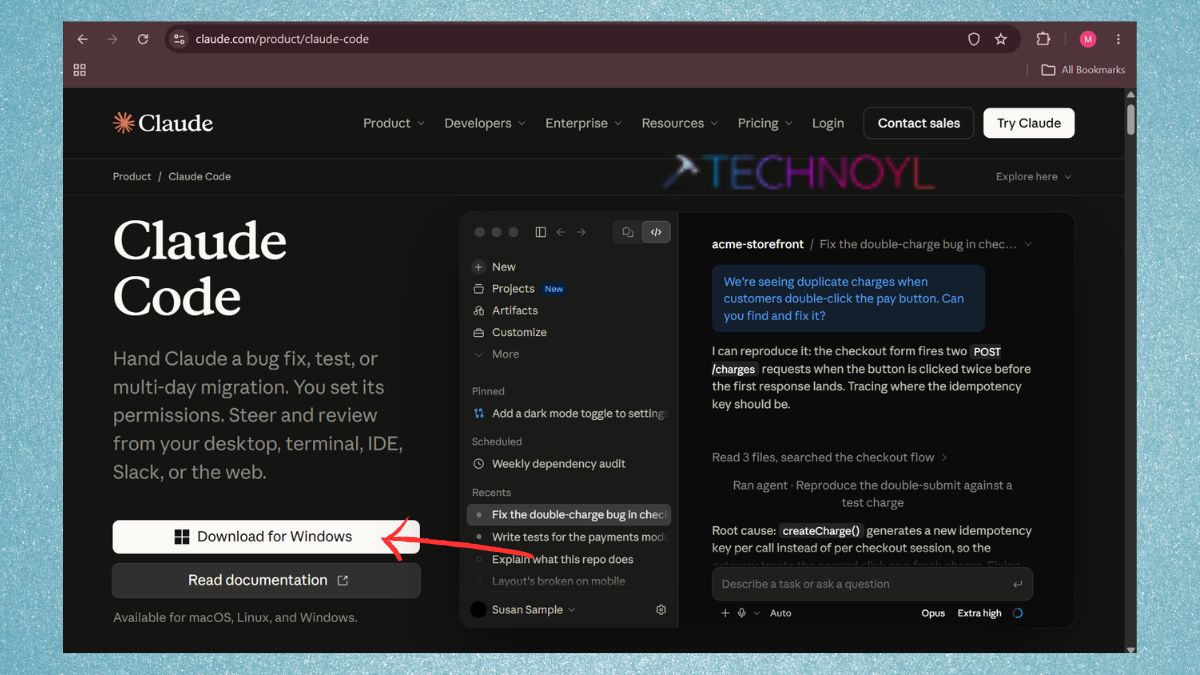
2. Download and Install as per the instructions. You can use either Windows Subsystem for Linux (WSL) or Git Bash. Finish up the installation, and log in with your supported Claude account.
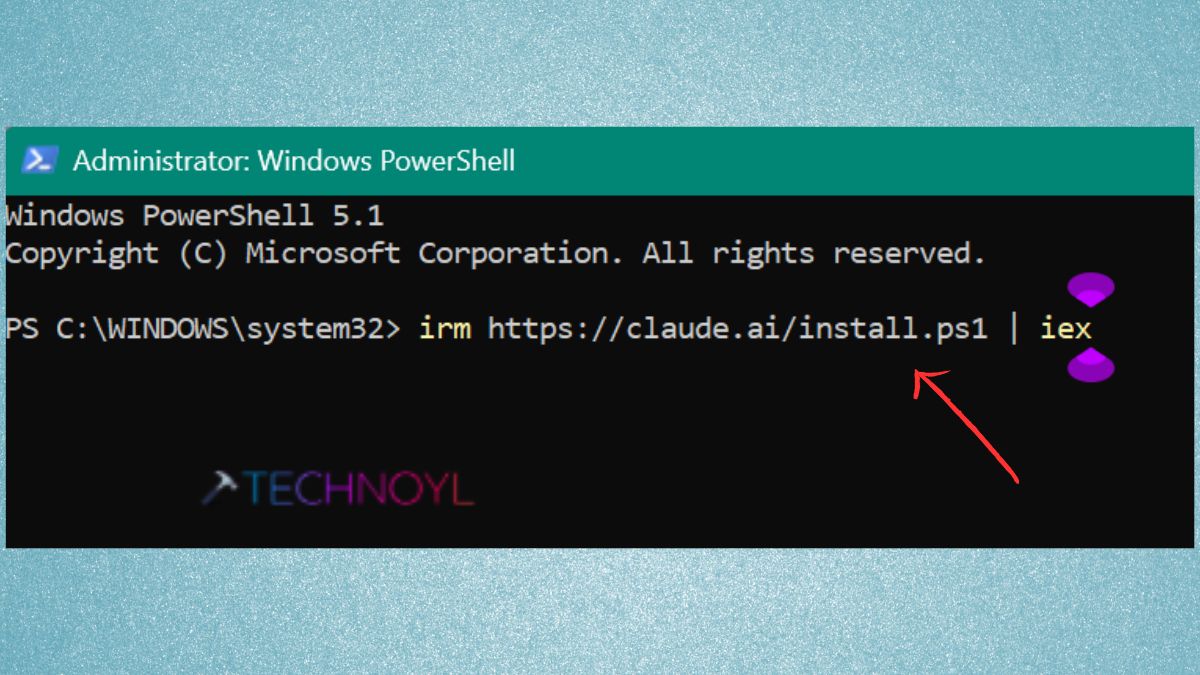
3. You may choose to go to the Powershell to start Claude Code. You may require a subscription or API access to use Claude Code. Please refer to Claude pricing for availability.
irm https://claude.ai/install.ps1 | iex
Ask Claude to Find Large Files on Your PC
In fact, once Claude Code is running, you begin a session and request it to examine your C: drive.
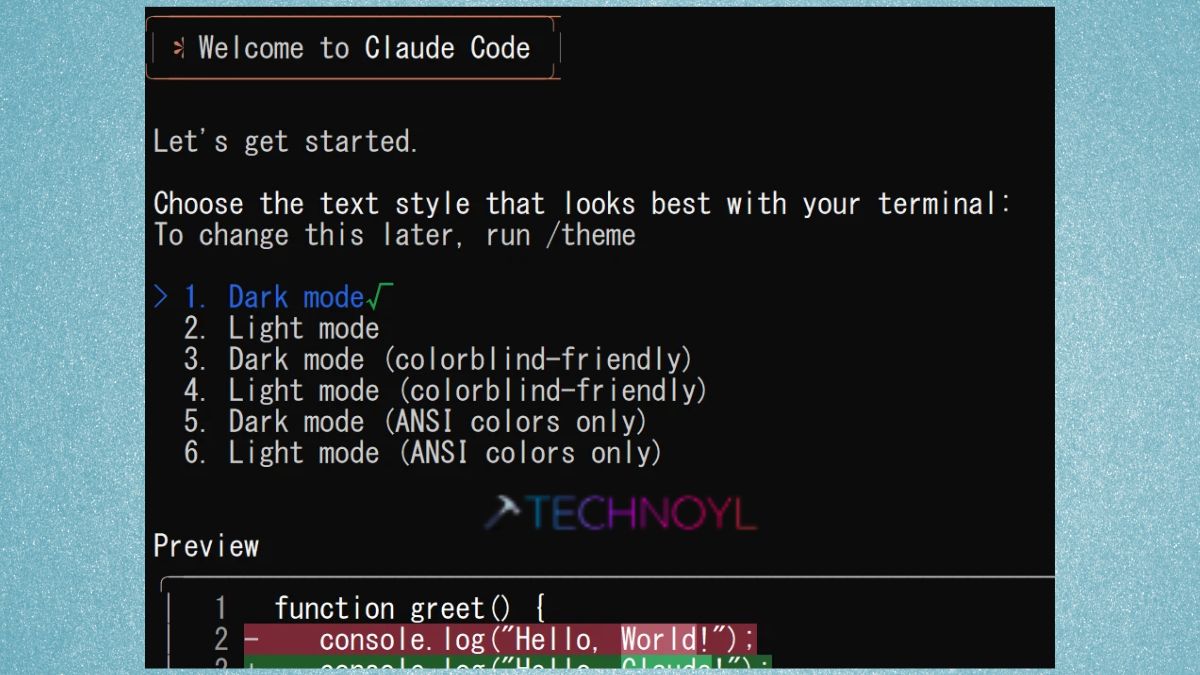
1. You can use this prompt one Welcome screen appears.
Scan my C: drive and identify the largest files and folders. Show their locations, sizes, and last modified dates. Look for old downloads, temporary files, application leftovers, and unnecessary data. Do not delete anything.
Claude can use PowerShell to get information about the size of files and folders. It can also help determine sites that need further investigation.
Useful for this because huge files aren’t always located in obvious areas such as Downloads or Videos.
Locate hidden Application Caches and Remaining Files
Application caches can be built up over a period of time. Temporary data can be used by browsers, games, development tools and other programs to consume several gigabytes.
1. Ask Claude to look at these:
- %TEMP%
- %LOCALAPPDATA%
- %APPDATA%
- Folders of old applications for shrimp.Folders that contain old applications (shrimp folders)
2. Use this prompt.
Find large cache folders and leftover application files under my AppData directory. Show their sizes and explain which files can be safely removed.
Don’t request Claude to remove whole folders from AppData. These can contain vital settings, logon information and application data.
Find Duplicate Files and Old Downloads
Old documents, duplicate files, old installers, zip files and downloaded videos can consume a lot of space.
Have Claude check for duplicate files and also list the large downloads that you haven’t opened for a long time. For example:-
Display any duplicates that are over 100MB and downloads that are so old that I may not need them anymore in their full file path.
Look at and verify the results by hand. However, not all files with the same name are duplicate files, and some copies could still be backups that you need.
Check Claude’s Suggestions Before Deleting Files
Once you have scanned your PC, request a report of what Claude is going to clean up from your PC.
Make a list of the unnecessary files, where they are located and how much space they would free up, and keep them apart from files that require manual inspection, and don't delete anything.
Make sure you read the list thoroughly. If you have certain files that you want to have removed, you can request Claude to assist you with that. Review all deletion commands prior to running. Never remove Windows system files, recovery files or unrecognized folder files.
Check the Recovered Disk Space
Once clean-up, review the amount of storage recovered.
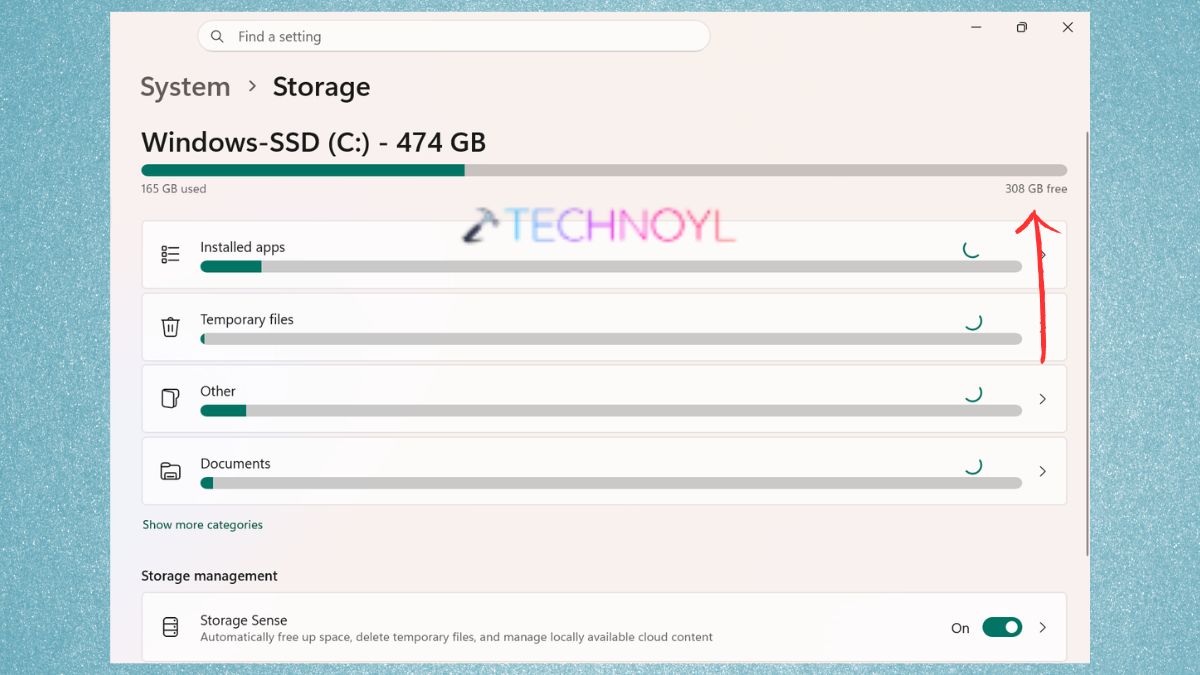
1. Open Windows Settings. Click System > Storage.
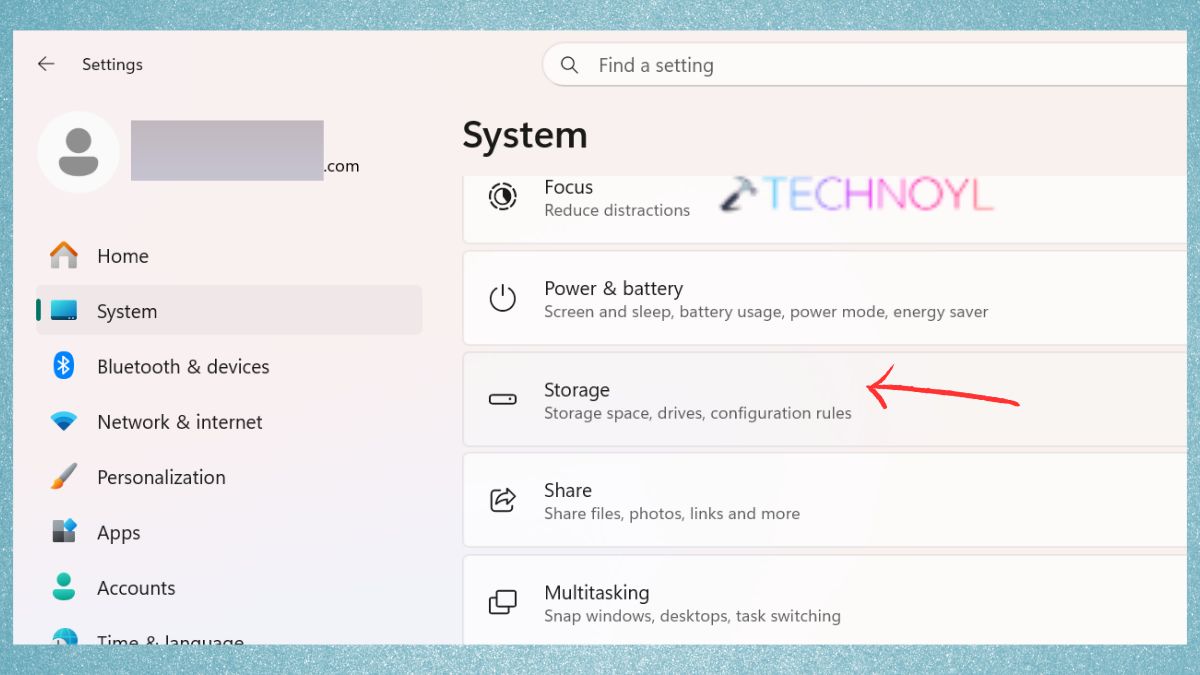
2. Check the disk space of the C drive. Compare with the space available prior to clean-up.
Frequently Asked Questions (FAQs)
Can Claude automatically clean my Windows 11 PC?
Claude Code can detect the files that are not necessary and execute cleanup commands. It is advisable to go through its recommendations and accept them individually, however. Claude is not just a PC cleaning tool, it’s an AI assistant.
Is Claude AI free to use?
Claude is a general AI conversation service that is free to use by Claude. But a paid Claude subscription or API access is required for Claude Code. Check out Claude’s pricing options.
Will Claude clean my PC?
Yes, Claude Code is able to scan and view folders that are accessible, locate large files and assist in clearing out unwanted files. It will require the correct file access and your permission, though, before conducting cleaning operations.
Can I use Claude on my computer?
Permission Controls are used by Claude Code to limit modification of files and execution of commands. Errors may occur, though. Do not give unnecessary permissions, check the commands before approving them and do not turn off safety checks when cleaning up.
That’s it!

Leave a Reply